


Modify a replication plan in NetApp Disaster Recovery

 Suggest changes

 PDFs
PDFs
In NetApp Disaster Recovery, you can modify a replication plan's compliance time impact and to ensure failover tests complete successfully.
You can modify the compliance time and test failover impact. To edit plan recurrence, failover mappings, or VMs, delete the replication plan and create a new one.
Modifiable fields
-
Compliance time impact: When a replication plan is created, the service creates a compliance schedule by default. The default compliance time is 30 minutes. To change this time, you can use edit the schedule in the replication plan.
-
Test failover impact: You can test a failover process on demand or by a schedule. This lets you test the failover of VM to a destination that is specified in a replication plan.
A test failover creates a FlexClone volume, mounts the datastore, and moves the workload on that datastore. A test failover operation does not impact production workloads, the SnapMirror relationship used on the test site, and protected workloads that must continue to operate normally.
Based on the schedule, the failover test runs and ensures that workloads are moving to the destination specified by the replication plan.
Modify a replication plan
-
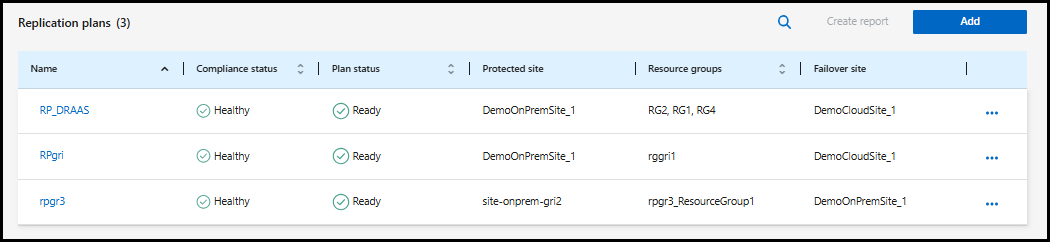
From the NetApp Disaster Recovery menu, select Replication plans.
-
Select the Actions
 icon and select Edit schedules.
 -
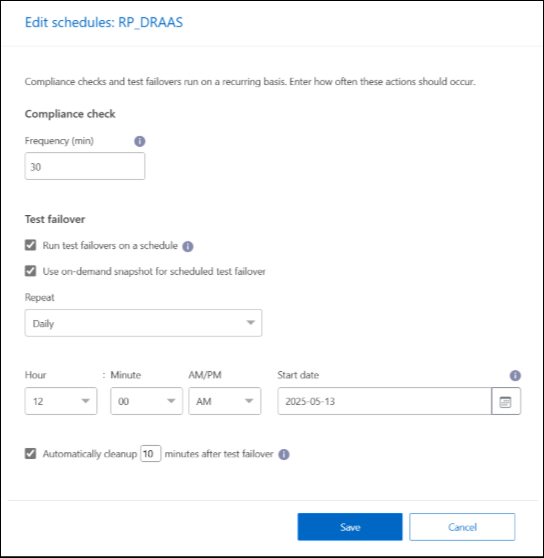
Enter how frequently in minutes that you want NetApp Disaster Recovery to check test compliance.
-
To check that your failover tests are healthy, check Run failovers on a monthly schedule.
-
Select the day of the month and time you want these tests to run.
-
Enter the date in yyyy-mm-dd format when you want the test to start.
-
-
Use on-demand snapshot for scheduled test failover: To take a new snapshot before initiating the automated test failover, check this box.
-
To clean up the test environment after the failover test finishes, check Automatically clean up after test failover and enter the number of minutes you want to wait before the cleanup starts.

This process unregisters the temporary VMs from the test location, deletes the FlexClone volume that was created, and unmounts the temporary datastores. -
Select Save.