


Manage protection groups in NetApp Ransomware Resilience

 Suggest changes

 PDFs
PDFs
Use protection groups in NetApp Ransomware Resilience to manage related workloads together and apply one protection strategy across the workloads in the group.
Required Console role
To perform this task, you need the Super admin or Ransomware Resilience admin role. Learn about Ransomware Resilience roles for NetApp Console.
Create a protection group
You can create groups regardless of the protection status of the workloads you add to it. When you add a protection policy to a protection group, the new policy replaces any existing policy, including policies managed by NetApp Backup and Recovery.
Workloads in a protection group must be of the same workload type; meaning you can't mix block and file system workloads. Workloads must also belong to the same system type. For example, a protection group can include all on-premises ONTAP file system workloads; you can't add Amazon FSx for NetApp ONTAP workloads to the same protection group.
-
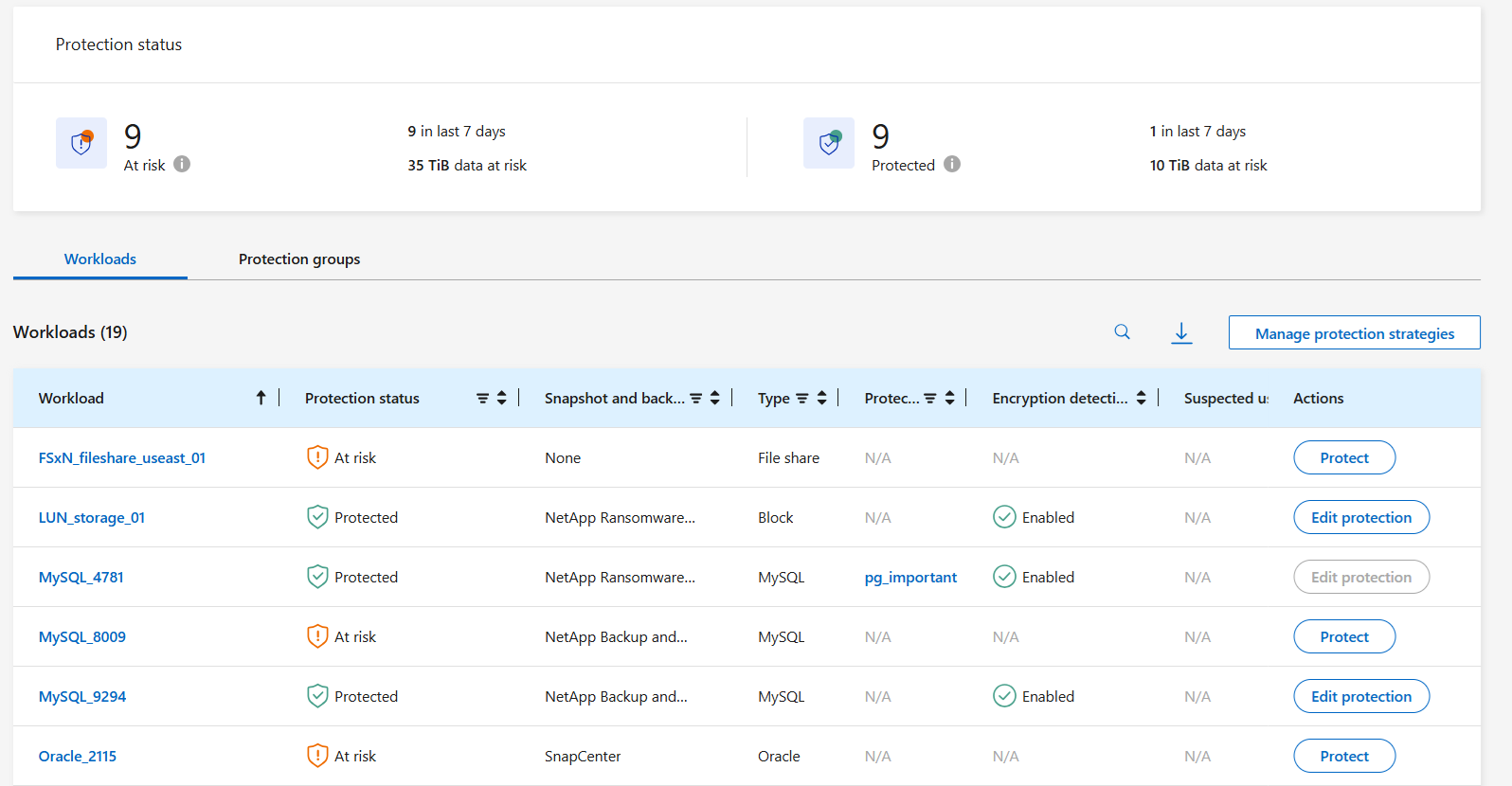
From the Ransomware Resilience menu, select Protection.
-
From the Protection dashboard, select the Protection groups tab.

-
Select Add.
-
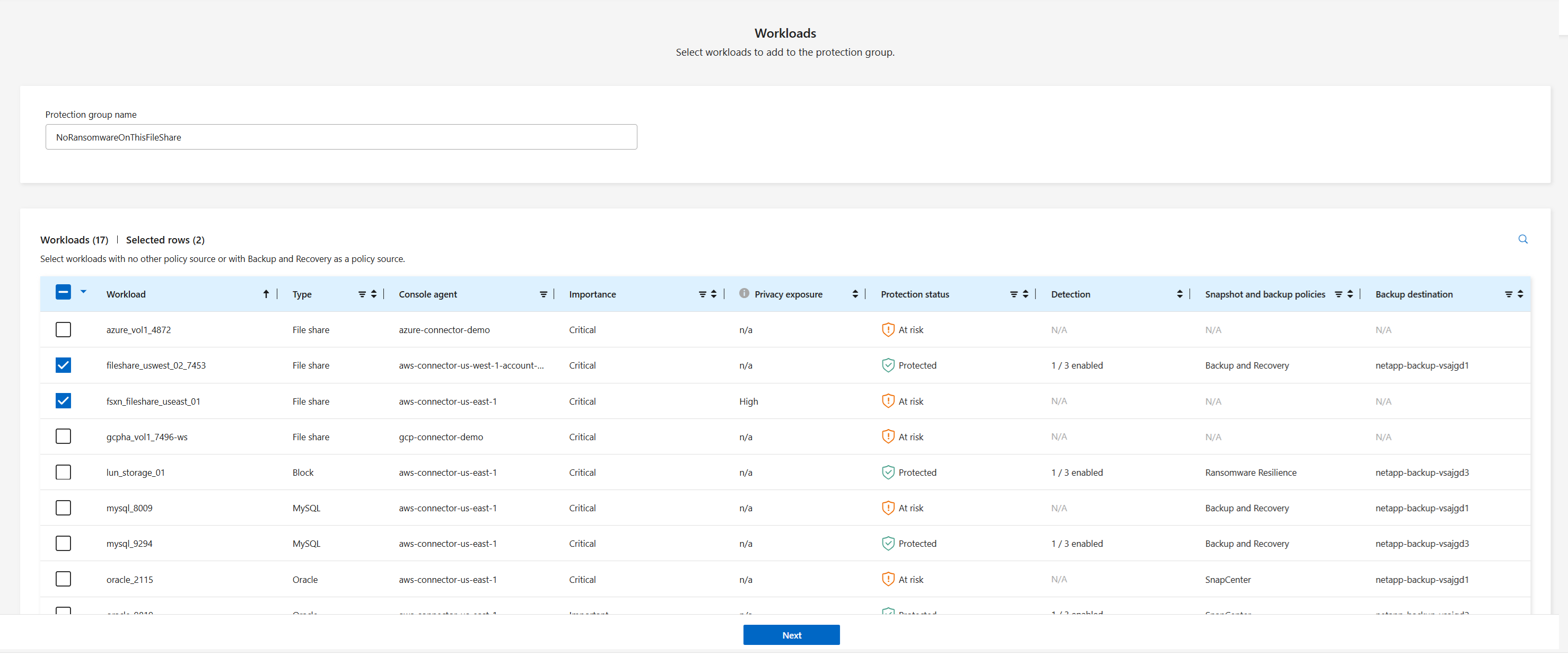
Enter a name for the protection group.
-
Select the Workload type (block or file system) and the System type.
-
Select the workloads to add to the group.

To see more details on the workloads, scroll to the right. -
Select Next.
-
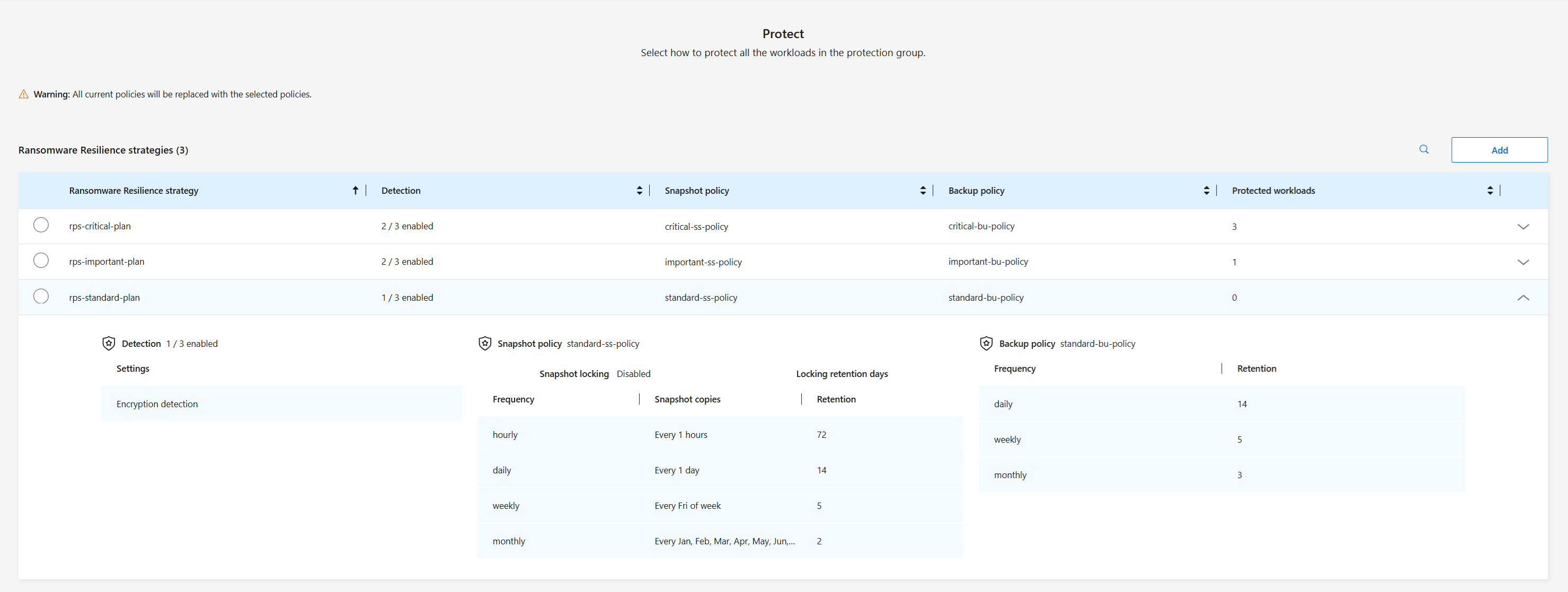
Select a protection strategy for the group.
-
If the protection strategy includes replication, review the replication settings.
-
To replicate all snapshots to the same destination, check Use same destination for each workload. Choose a Destination system and Destination storage VM for the workloads under the Console agent section. + To use different destinations, uncheck that box. Review each workloads under each Console agent and assign a Destination system and Destination storage VM for each workload. Select Next.
-
-
To configure a backup policy, choose one then select Next.
-
If your detection policy includes user behavior detection, select the data collector you want to use then Next.
-
Review the selections for the protection group.
-
To finalize the protection group, select Add.
|
|
When reviewing the protection dashboard in Ransomware Resilience, you can sort workloads by protection group. |
Edit group protection
You can change the detection policy on an existing group or add and remove workloads.

|
If a protection group was created before August 2026 and includes workloads of either different workload types (for example, it mixes block and file system workloads) or different system types, you can't add any new workloads to the protection group. You can remove workloads to ensure there is only one type of workloads and system present, then you can add workloads. This change is designed to ensure ransomware protection strategies are enforced evenly across workload and system types. |
-
From the Ransomware Resilience menu, select Protection.
-
From the Protection page, select the Protection groups tab then select the group whose policy you want to modify.
-
From protection group's overview page, select Edit protection.
-
Select an existing protection policy to apply or select Add to create a new protection policy. For more information about adding a protection policy, see Create a protection policy. Then select Save.
-
In the backup destination overview, select an existing backup destination or Add a new backup destination.
-
Select Next to review your changes.
Remove workloads from a protection group
You might later need to remove workloads from an existing protection group.
-
From the Ransomware Resilience menu, select Protection.
-
From the Protection page, select the Protection groups tab.
-
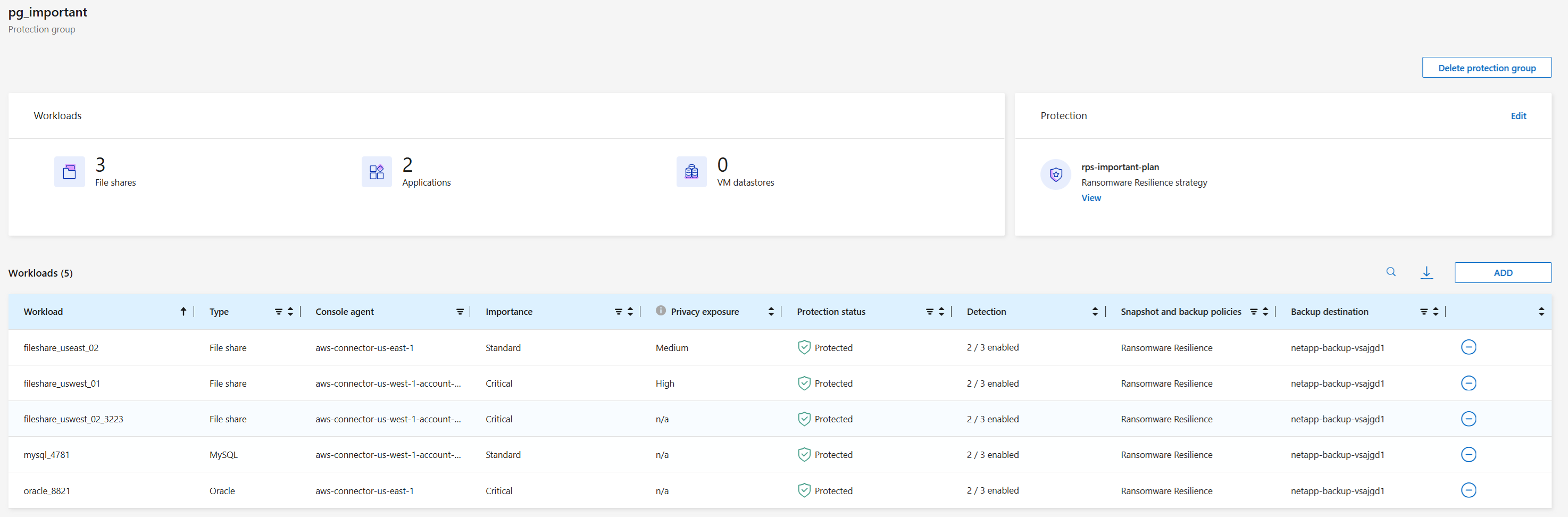
Select the group from which you want to remove one or more workloads.
-
From the protection group page, select the workload you want to remove from the group and select the Actions
 option.
 -
From the Actions menu, select Remove workload.
-
Confirm that you want to remove the workload and select Remove.
Delete a protection group
When you delete a protection group, Ransomware Resilience removes the group and the protection strategy on the workloads. It doesn't delete the individual workloads.
-
From the Ransomware Resilience menu, select Protection.
-
From the Protection page, select the Protection groups tab.
-
Select the group from which you want to remove one or more workloads.
-
From the selected protection group page, at the top right, select Delete protection group.
-
Confirm that you want to delete the group and select Delete.