


Complete storage system setup for EF50 and EF80 storage systems

 Suggest changes

 PDFs
PDFs
After you power on your EF50 or EF80 storage system, you complete system setup by cabling and configuring the management port on each controller for out-of-band storage system management, configuring your storage system, and then verifying the host I/O module protocol is correct.
Step 1: Cable and configure the management ports
Cable the management port on each controller and then configure the ports using a DHCP server or a static IP address.
Cable and then configure the management ports using a DHCP server.
-
Obtain the assigned IP addresses to connect to the storage system from your network administrator.
-
Make note of the MAC address on the side of each controller. You use the MAC address to identify which IP address is assigned to each controller.
-
Configure your DHCP server to associate an IP address, subnet mask, and gateway address as a permanent lease for each controller.
-
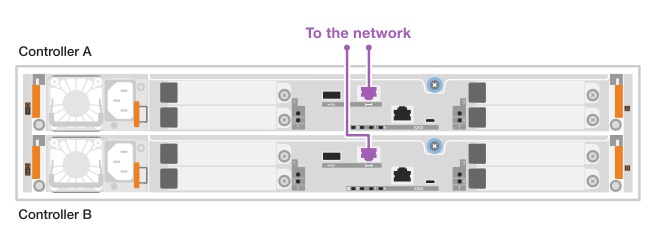
Using Ethernet cables, connect each controller's management port to your network.
1000BASE-T RJ-45 cables

-
Open a browser and connect to the storage system using one of the controller IP addresses provided to you by your network administrator.
Cable and then configure the management ports manually by entering the IP address and the subnet mask.
-
Obtain the controllers' IP address, subnet mask, gateway address, and DNS and NTP server information from your network administrator.
-
Make sure the laptop you are using is not receiving network configuration from a DHCP server.
-
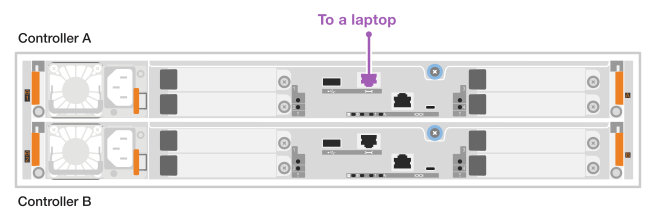
Using an Ethernet cable, connect controller A's management port to the Ethernet port on a laptop.
1000BASE-T RJ-45 cables
-
Open a browser and use the default IP address (169.254.128.101) to establish a connection to the controller.
The controller sends back a self-signed certificate. The browser informs you that the connection is not secure.
-
Follow the browser's instructions to proceed and launch SANtricity System Manager.
If you are unable to establish a connection, verify that you are not receiving network configuration from a DHCP server.
-
Set the storage system's password to login.
-
Use the network settings provided by your network administrator in the Configure Network Settings wizard to configure controller A's network settings, and then select Finish.

Because you reset the IP address, System Manager loses connection to the controller. -
Disconnect the Ethernet cable from your laptop (leaving it connected to controller A), and connect it to your network.
-
Open a browser on a computer connected to your network, and enter controller A's newly configured IP address.
If you lose the connection to controller A, you can connect an Ethernet cable to controller B to reestablish connection to controller A through controller B (169.254.128.102). -
Log in using the password you set previously. The Configure Network Settings wizard appears.
-
Use the network settings provided by your network administrator in the Configure Network Settings wizard to configure controller B's network settings, and then select Finish.
-
Connect controller B to your network.
Both controller management ports are now connected to the network:
-
Validate controller B's network settings by entering controller B's newly configured IP address in a browser.
If you lose the connection to controller B, you can use your previously validated connection to controller A to reestablish connection to controller B through controller A.
Step 2: Configure your storage system
Use SANtricity System Manager to configure and manage your storage system.
-
You must have cabled and configured your management ports to the network.
-
Verify and record your password and configured IP addresses.
-
Access SANtricity System Manager using the configured IP addresses.
-
Use SANtricity System Manager to manage your storage system.
You can refer to the online help included with SANtricity System Manager.
Step 3: Verify the host I/O module protocol is correct
Your storage system ships with a default protocol on the host I/O modules. If the default protocol is not the protocol you want, you can change it.
-
Verify the default protocol used on the host I/O modules in your storage system, using SANtricity System Manager.
-
Select Settings > System.
-
In the Additional Settings section, click Change host I/O protocol to open that page.
-
See the default host I/O protocol used on the host I/O modules in your storage system displayed in the Host I/O Protocol field.
-
-
The next step depends on whether the default protocol is the protocol you want or not:
If… Then… The default protocol is the protocol you want
No action is needed.
The default protocol is not the protocol you want
You need to change it using the Change the host protocol procedure.
Changing the host port protocol involves preparing for the protocol change, stopping the host I/O operations, changing the protocol, and then configuring the host to use the new protocol.