


Replace a drive in EF50 and EF80 storage systems

 Suggest changes

 PDFs
PDFs
Replace a failed drive while your EF50 or EF80 storage system is receiving I/O to ensure continued data access and system performance.
-
Replace a drive by preparing, replacing the drive, completing the replacement, and then returning the failed part to NetApp.
-
The Recovery Guru in SANtricity System Manager monitors the drives in the storage system and can notify you of an impending drive failure or an actual drive failure. When a drive has failed, its Attention (amber) LED illuminates.
Step 1: Prepare to replace the drive
Prepare for the drive replacement by making sure the drive has failed, confirming you have a supported replacement drive, making sure you have access to SANtricity System Manager, taking electrostatic discharge precautions, and physically locating the failed drive.
-
If the Recovery Guru in SANtricity System Manager has notified you of an impending drive failure, but the drive has not yet failed, follow the instructions in the Recovery Guru to fail the drive.
-
Make sure you have a replacement drive that is suitable for your storage system configuration.
If needed, you can use SANtricity System Manager to confirm:
-
Select Hardware > Drives.
-
Select the failed drive on the graphic to display its context menu, and then select View settings.
-
Confirm that the replacement drive has a capacity equal to or greater than the drive you are replacing and that it has the features you expect.
For example, if you are replacing a secure-capable drive, make sure the replacement drive is also secure-capable.
-
-
Make sure you have a management station with a browser that can access SANtricity System Manager for either of the controllers.
To open the System Manager interface, point the browser to one of the controller's domain name or IP address.
-
Prevent electrostatic discharge (ESD) during handling and installation of a drive:
-
Make sure you have an electrostatic discharge (ESD) wristband.
Always wear an ESD wrist strap grounded to an unpainted surface on your storage system chassis. If a wrist strap is unavailable, touch an unpainted surface on your storage system chassis before handling the drive.
-
Keep the drive in the ESD bag until you are ready to install it.
-
Open the ESD bag by hand or cut the top off with a pair of scissors. Do not insert a metal tool or knife into the ESD bag.
-
Make sure you have a flat static-free work surface.
-
Keep the ESD bag and any packing materials to return the failed drive or use approved packaging when shipping a drive.
-
Avoid magnetic fields. Keep drives away from magnetic devices.
Magnetic fields can destroy all data on the drive and cause irreparable damage to the drive circuitry.
-
-
Avoid physical damage during handling and installation of a drive:

Drives are fragile; improper drive handling is a leading cause of drive failure. -
Always use two hands when removing, installing, or carrying a drive.
-
Never force a drive into a drive bay. Always use gentle, firm pressure to completely engage the drive latch.
-
Place drives on cushioned surfaces, and never stack drives on top of each other.
-
Do not bump drives against other surfaces.
-
-
You can turn on the storage system location (blue) LEDs (on the front of the storage system and both controllers) to aid in physically locating the affected storage system. Using SANtricity System Manager, select Hardware > Controllers and components, select the Controller shelf tab, and from the context menu select Turn on locator light.
-
If needed, you can physically locate the failed drive within your storage system by making its Attention (amber) LED blink. Using SANtricity System Manager, select Hardware > Drives, select the failed drive on the graphic to display its context menu, and then select Turn on locator light.

You must remove the bezel from the front of the storage system to see the drive LEDs.
Step 2: Replace the drive
Replace the failed drive with a new one.
|
|
You should install the replacement drive as soon as possible after removing the failed drive. |
-
If not already removed, remove the bezel from the front of the storage system.
-
Remove the failed drive:
If you accidentally remove an active drive, wait at least 60 seconds, and then reinstall it. For the recovery procedure, refer to the storage management software. 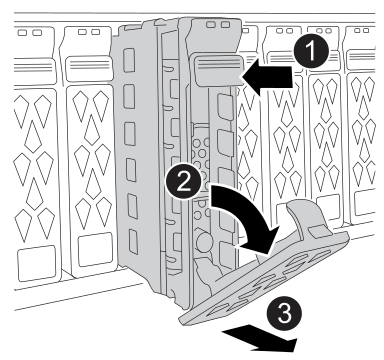

Press the black release button on the drive face to open the cam handle.

Rotate the cam handle downward to disengage the drive from the midplane.

-
Partially slide the drive out of the drive bay using the cam handle.
-
Wait 60 seconds for the drive to spin down.
-
Using two hands, fully remove the drive from the drive bay.
-
-
Place the drive on an antistatic cushioned surface away from magnetic fields.
-
Wait 60 seconds for the system software to recognize that the drive was removed.
-
Unpack the replacement drive and set it on a flat static-free surface near the storage system.
Save the packing materials to use when returning the faulty drive.
-
Insert the replacement drive:
-
Open the cam handle.
-
Using two hands, insert the replacement drive into the open drive bay, firmly pushing until the drive stops.
-
Close the cam handle so that the drive is fully seated into the midplane and the cam handle clicks into place.
Be sure to close the cam handle slowly so that it aligns correctly with the face of the drive.
The green LED on the drive illuminates when the drive is inserted correctly.
-
Step 3: Complete the drive replacement
Confirm that the replacement drive is working correctly and make sure that drive reconstruction started.
-
Confirm the replacement drive is working correctly by checking the LED behavior, and if it is not, take the appropriate corrective action.
When you first insert a drive, its Attention LED might be on. However, the LED should go off within a minute if the replacement drive is working correctly. If the replacement drive LED behavior shows… Then… Power LED is on or blinking, and the Attention LED is off
The replacement drive is working correctly.
Go to the next step.
Power LED is off
The drive might not be installed correctly.
-
Remove the drive, wait 60 seconds, and then reinstall it.
-
If the Recovery Guru in SANtricity System Manager still shows an issue, select Recheck to ensure the problem has been resolved.
Attention LED is on
The new drive might be defective.
-
Replace the new drive with another new drive.
-
If the Recovery Guru in SANtricity System Manager still shows an issue, select Recheck to ensure the problem has been resolved.
-
-
If the Recovery Guru in SANtricity System Manager indicates that drive reconstruction did not start automatically, start reconstruction manually, when instructed to do so by NetApp Support or the Recovery Guru and use the following steps:
Depending on your configuration, the controller might automatically reconstruct data to the new drive. If the storage system uses hot spare drives, the controller might need to perform a complete reconstruction on the hot spare before it can copy the data to the replacement drive. This reconstruction process increases the time that is required to complete this procedure. -
Select Hardware > Drive.
-
Select the replacement drive on the graphic to display its context menu, and then select Reconstruct.
-
Confirm that you want to perform this operation.
When the drive reconstruction completes, the volume group is in an Optimal state.
-
-
Reinstall the bezel.
Step 4: Return the failed part to NetApp
Return the failed part to NetApp, as described in the RMA instructions shipped with the kit. See the Part Return and Replacements page for further information.