


Upgrade I/O modules in an EF50 or EF80 storage system

 Suggest changes

 PDFs
PDFs
You can upgrade I/O modules in your EF50 or EF80 storage system to increase the number of host ports for enhanced network connectivity, expand your system’s ability to handle data traffic, and connect SAS expansion shelves.
-
The term I/O module is used instead of host interface cards (HICs) in this procedure.
-
You can upgrade I/O modules by replacing existing I/O modules or adding I/O modules to unused I/O slots.
Unused I/O slots should have blanking modules installed to prevent possible thermal issues and for EMC compliance.
-
Upgrade I/O modules by preparing, powering off both controllers, upgrading I/O modules in both controllers, powering on both controllers, verifying that the upgrade was successful, and if needed, verifying and changing the host I/O module protocol.
Controllers do not need to be removed from the chassis because the I/O modules are accessible with the controllers in place.
-
You must power off both controllers before unplugging any I/O module cables.
-
You can turn on the storage system location (blue) LEDs (on the front of the storage system and both controllers) to aid in physically locating the affected storage system. Using SANtricity System Manager, select Hardware > Controllers and components, select the Controller shelf tab, and from the context menu select Turn on locator light.
Step 1: Prepare to upgrade I/O modules
Prepare to upgrade I/O modules by scheduling a downtime maintenance window, updating the firmware, gathering the necessary tools and equipment, and backing up the storage system's configuration database.
-
Schedule a downtime maintenance window for this procedure. You cannot access data on the storage system until you have successfully completed this procedure. Because both controllers must have the same I/O module configuration when they are powered on, the power must be off when you upgrade I/O modules.
-
Update the firmware to the latest version. To update the firmware, follow the instructions in Upgrading SANtricity OS
-
Make sure you have the following:
-
The new I/O modules that you are upgrading to.
Make sure that the I/O modules you are upgrading to are supported by your storage system and version of SANtricity, that you have the same type and number of I/O modules for each controller, and that you understand the slot priority (the new I/O module must be installed in the same slot on each controller).
You can confirm supported I/O modules and slot priority for your storage system at NetApp Hardware Universe.

Possible loss of data access — The presence of incompatible or mismatched I/O modules causes the controllers to lock down when you apply power. -
Cables to connect the new I/O modules to your network or SAS expansion shelves.
-
An ESD wristband or you have taken other antistatic precautions.
-
A flat static-free work surface.
-
A management station with a browser that can access SANtricity System Manager for the controllers.
To open the System Manager interface, point the browser to the target controller's domain name or IP address.
-
-
Back up the storage system's configuration database using SANtricity System Manager:
If a problem occurs when you remove a controller, you can use the saved file to restore your configuration. The system saves the current state of the RAID configuration database, which includes all data for volume groups and disk pools on the impaired controller.
-
Select Support > Support Center > Diagnostics.
-
Select Collect Configuration Data.
-
Select Collect.
The file is saved in the Downloads folder for your browser with the name, configurationData-<arrayName>-<dateTime>.7z.
-
Step 2: Power off both controllers
Power off both controllers in the storage system so you can safely upgrade the I/O modules in both controllers.
-
From the home page of SANtricity System Manager, ensure that the storage system has Optimal status.

If the status is not Optimal, use the Recovery Guru or contact NetApp Support to resolve the problem. -
Ensure that no I/O operations are occurring between the storage system and all connected hosts.
For example, you can perform these steps:
-
Stop all processes that involve the LUNs mapped from the storage system to the hosts.
-
Ensure that no applications are writing data to any LUNs mapped from the storage system to the hosts.
-
Unmount all file systems associated with volumes on the storage system.
The exact steps to stop host I/O operations depend on the host operating system and the configuration, which are beyond the scope of these instructions. If you are not sure how to stop host I/O operations in your environment, consider shutting down the host or contact NetApp Support.
Possible data loss — If you continue this procedure while I/O operations are occurring, the host application might lose access to the data because the storage is not accessible.
-
-
On each controller, make sure the NV Caching Active (green) LED is off.
When the NV Caching Active (green) LED is off, any data in cache memory has been written to the drives and it is safe to remove the impaired controller.
If the NV Caching Active (green) LED is on, cached data is being written to the drives. You must wait for the process to complete and the NV Caching Active (green) LED to turn off. However, if the LED remains on for longer than five minutes, contact NetApp Support before continuing with this procedure. The NV Caching Active (green) LED is located next to the NV icon on the controller.


NV icon and NV Caching Active LED on the controller
-
Confirm operations on the controllers have completed in SANtricity System Manager:
-
Select Storage > Operations in progress to see the Overview screen.
-
Wait for all operations to complete and the Overview screen displays No operations currently in progress, before continuing to the next step.
-
-
Power off both controllers:
-
Label and then unplug the power cable from both controllers.
-
Wait for all LEDs on both controllers to turn off.
-
Step 3: Upgrade the I/O modules
Unplug cabling from the I/O modules you want to upgrade (unless you have I/O blanking modules), replace the I/O modules or the I/O blanking modules with the new I/O modules, and then cable the new I/O modules.
-
You begin with one controller, and then repeat steps for the other controller.
-
The illustration shows the removal of an I/O module from slot 2. Depending on the type of I/O module you are upgrading to, the slot can be different.
-
If you are not already grounded, properly ground yourself.
-
On one of the controllers, unplug cabling from the I/O module you are removing, unless it's an I/O blanking module.
You can label the cables so that you know where they came from. However, depending on the type of I/O module you are upgrading to, you might not be recabling to the same ports or you might not be able to reuse the same cables.
-
Remove the I/O module or I/O blanking module from the target slot.
The following illustration shows an I/O blanking module being removed.
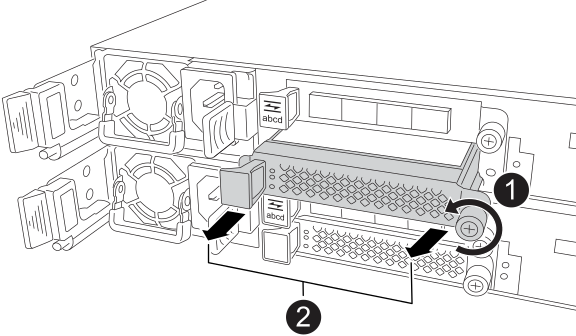
On the I/O module or I/O blanking module, turn the thumbscrew counterclockwise to loosen.

Pull the I/O module or I/O blanking module out of the controller using the tab on the left and the thumbscrew.
-
Unpack the new I/O module and set it on a flat static-free surface near the storage system.
-
Install the new I/O module:
-
Align the I/O module with the edges of the controller slot opening.
-
Gently push the I/O module all the way into the slot, making sure to properly seat the module into the connector.
You can use the tab on the left and the thumbscrew to push in the I/O module.
-
Turn the thumbscrew clockwise to tighten.
-
-
Cable the I/O module to the host network or the SAS expansion shelf.
-
For host network cabling, you can use the Cable the hardware section of the system installation and setup content for host network cabling.
-
For SAS expansion shelf cabling, you can use the Hot-add a drive shelf in an E-Series storage system procedure.
-
-
Repeat these steps to upgrade an I/O module in the other controller.
Step 4: Power on both controllers
Power on both controllers, check that communication between the controllers is reestablished, and then confirm the controllers are functioning properly.
-
Plug in the power cable on both controllers.
The controllers begin to boot.
-
Check the LEDs on the controllers to make sure communication between the controllers is reestablished:
-
The Attention LED remains on.
-
The Host Link LEDs might be on, blinking, or off, depending on the host interface.
-
-
When the controllers are back online:
-
Confirm their status is Optimal.
-
Confirm that the Attention LED on each controller is off.
If the status is not Optimal or if any of the Attention LEDs are on, confirm that all cables are correctly seated.
If you cannot resolve the problem, contact NetApp Support. If needed, collect support data for your storage system using SANtricity System Manager.
-
Step 5: Complete the I/O module upgrade
Using SANtricity System Manager, make sure the latest version of SANtricity OS is installed, verify that all volumes are returned to their owning controllers, collect support data so that you can resume operations, and if needed, verify and change the host I/O module protocol.
-
Make sure the latest version of SANtricity OS is installed:
-
Select Support > Upgrade Center.
-
As needed, install the latest version.
-
-
Verify that all volumes are returned to their owning controllers:
-
Select Storage > Volumes.
-
From the All Volumes page, verify that volumes are distributed to their owning controllers.
-
Select More > Change volume ownership to view volume owners.
-
-
The next step depends on whether the volumes are returned to their owning controllers or not:
If… Then… Volumes are all owned by their owning controllers
Go to the next step.
None of the volumes are returned to their owning controllers
Select Storage > Volumes > More and from the drop-down menu select Redistribute volumes to return the volumes to their owning controllers.
Only some of the volumes are returned to their owning controllers after auto-distribution or manual distribution
Check the Recovery Guru for host connectivity issues.
If there is no Recovery Guru present or if after following the recovery guru steps the volumes are still not returned to their owning controllers, contact NetApp Support before continuing with this procedure.
-
Collect support data for your storage system:
-
Select Support > Support Center > Diagnostics.
-
Select Collect Support Data.
-
Select Collect.
The file is saved in the Downloads folder for your browser with the name, support-data.7z.
-
-
If you need to verify and change the host I/O module protocol, use the procedure Change the host I/O module protocol for an EF50 or EF80.
The process of upgrading I/O modules to your storage system is complete. You can resume normal operations.