


Restore procedure for guest files and folders protected by SnapCenter Plug-in for VMware

 Suggest changes

 PDFs
PDFs
The following section shows how to restore guest files and folders from VMDKs.

|
SnapCenter supports file and folder restoration from VMDKs only when the guest operating system is Windows. |
Considerations for guest file and folder restoration with SCV:
-
VMware tools must be running on the VM.
-
The attached VMDK is accessible for 24 hours by default.
-
Only one restore or attach operation can be performed on a virtual machine at a time.
-
System, hidden, and encrypted files can be restored; however, their original attributes will not be preserved.
-
Avoid restoring encrypted files to encrypted folders or overwriting system files.
Steps for the guest file and folder restoration:
-
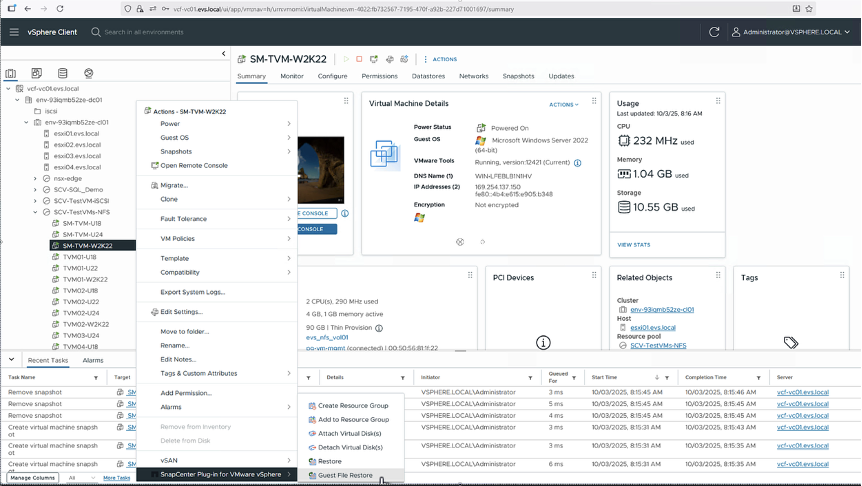
Right-click the target VM and select "NetApp SnapCenter > Guest File Restore".
-
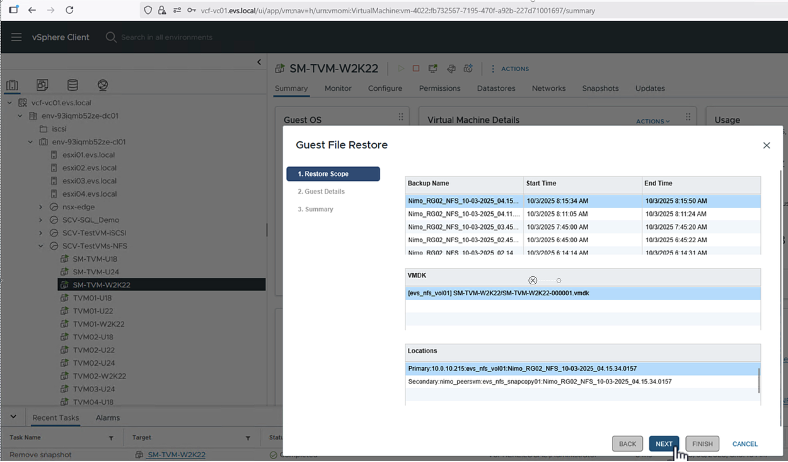
Choose the backup containing the required VMDK. Specify the VMDK and its location (primary or secondary).
-
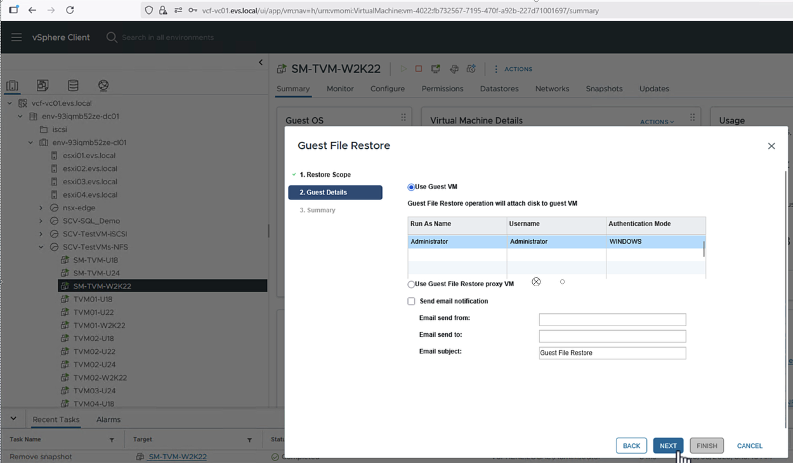
Choose "Disk Attachment Method".
-
Guest VM Option: Attach the disk to the original VM (requires pre-configured credentials). This is the option used in this demonstration.
-
Proxy VM Option: Attach the disk to a designated proxy VM (must be configured in advance).
-
-
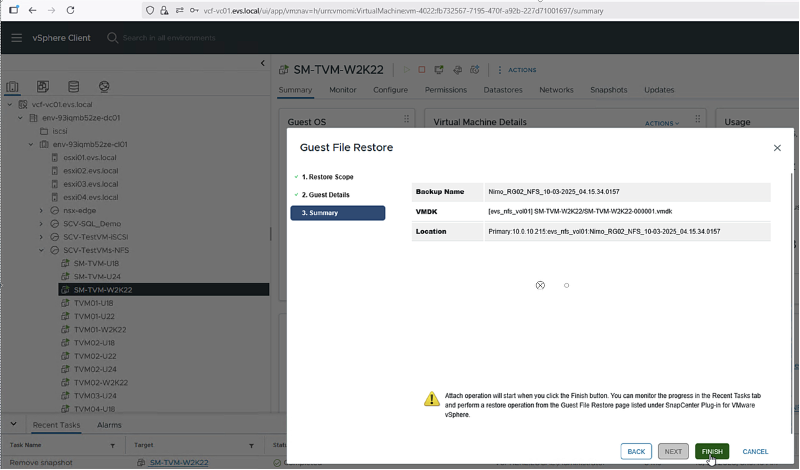
Wait for the attach operation to finish before browsing and restoring files. Once the operation completes, SnapCenter automatically creates a guest file restore session.
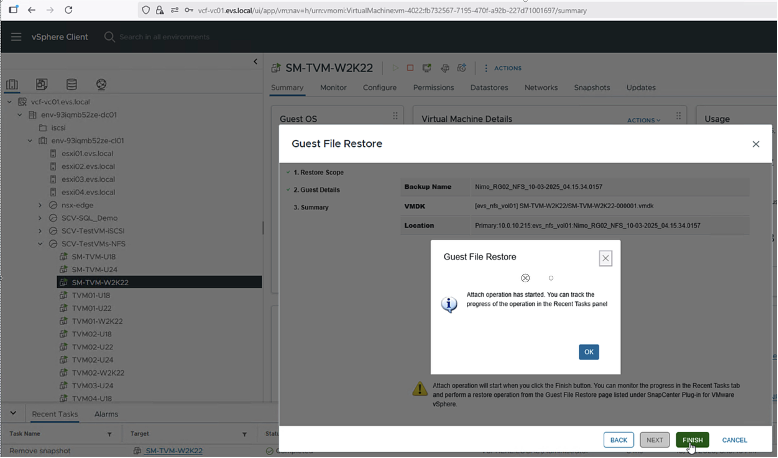
-
Browse to the VMDK in the Guest File Restore session, select the required files or folders, and restore them to the specified location.