


Deploy a container application with NetApp persistent storage

 Suggest changes

 PDFs
PDFs
Deploy a containerized application in your vSphere Kubernetes Service cluster using NetApp ONTAP persistent storage. The following examples demonstrate deploying a PostgreSQL database using either NAS (ontap-nas) or SAN iSCSI (ontap-san) storage.
The following YAML configuration sets POSTGRES_USER / POSTGRES_PASSWORD directly in the manifest. In production, it is recommended to use Kubernetes Secrets to manage sensitive information like database credentials.
You can deploy a PostgreSQL container application backed by an NFS persistent volume provisioned by the ontap-nas driver. The following example demonstrates how to create a PersistentVolumeClaim (PVC) and a Deployment for PostgreSQL.
apiVersion: v1
kind: PersistentVolumeClaim
metadata:
  name: postgres-pvc
spec:
  storageClassName: sc-nas # Specify the StorageClass for dynamic provisioning
  accessModes:
    - ReadWriteOnce
  resources:
    requests:
      storage: 10Gi
---
apiVersion: apps/v1
kind: Deployment
metadata:
  name: postgres
spec:
  replicas: 1
  selector:
    matchLabels:
      app: postgres
  template:
    metadata:
      labels:
        app: postgres
    spec:
      securityContext:
        fsGroup: 999  # Ensures proper permissions for the mounted volume (PostgreSQL default user is 999)
      containers:
        - name: postgres
          image: postgres:15
          securityContext:
            allowPrivilegeEscalation: false
            runAsNonRoot: true
            runAsUser: 999  # PostgreSQL default user ID
            capabilities:
              drop:
                - ALL
            seccompProfile:
              type: RuntimeDefault
          env:
            - name: POSTGRES_DB
              value: "postgres"
            - name: POSTGRES_USER
              value: "<username>"
            - name: POSTGRES_PASSWORD
              value: "<password>"
            - name: PGDATA
              value: "/var/lib/postgresql/data/pgdata"
          ports:
            - containerPort: 5432
          volumeMounts:
            - mountPath: /var/lib/postgresql/data
              name: postgres-storage
              subPath: postgres-data  # Ensures data is stored in a subdirectory to avoid permission issues
          resources:
            requests:
              memory: "512Mi"
              cpu: "250m"
            limits:
              memory: "1Gi"
              cpu: "500m"
      volumes:
        - name: postgres-storage
          persistentVolumeClaim:
            claimName: postgres-pvc
---
apiVersion: v1
kind: Service
metadata:
  name: postgres-service
spec:
  type: ClusterIP
  ports:
    - port: 5432
      targetPort: 5432
  selector:
app: postgresUse the following YAML to deploy a PostgreSQL container application backed by an iSCSI persistent volume provisioned by the ontap-san driver. The Recreate deployment strategy ensures the pod is fully terminated before a new one starts, which is required for ReadWriteOnce iSCSI volumes and prevents data corruption across pod restarts. This configuration supports data persistence across pod deletions and recreations, and is compatible with Trident volume snapshots and backup and restore operations.
apiVersion: v1
kind: PersistentVolumeClaim
metadata:
  name: postgres-block-pvc
spec:
  accessModes:
    - ReadWriteOnce
  resources:
    requests:
      storage: 20Gi
  storageClassName: sc-iscsi # Must map to an ontap-san driver
---
apiVersion: apps/v1
kind: Deployment
metadata:
  name: postgres-block-app
spec:
  replicas: 1
  strategy:
    type: Recreate
  selector:
    matchLabels:
      app: postgres
  template:
    metadata:
      labels:
        app: postgres
    spec:
      # 1. POD LEVEL SECURITY CONTEXT
      securityContext:
        runAsNonRoot: true
        runAsUser: 999       # Official Postgres image default user ID
        runAsGroup: 999      # Official Postgres image default group ID
        fsGroup: 999
        seccompProfile:
          type: RuntimeDefault
      containers:
        - name: postgres
          image: postgres:15
          # 2. CONTAINER LEVEL SECURITY CONTEXT
          securityContext:
            allowPrivilegeEscalation: false
            capabilities:
              drop:
                - ALL
          env:
            - name: POSTGRES_DB
              value: "postgres"
            - name: POSTGRES_USER
              value: "<username>"
            - name: POSTGRES_PASSWORD
              value: "<password>"
            - name: PGDATA
              value: /var/lib/postgresql/data/pgdata
          ports:
            - containerPort: 5432
              name: postgres
          volumeMounts:
            - mountPath: /var/lib/postgresql/data
              name: postgres-block-storage
              subPath: postgres-data
          resources:
            requests:
              memory: "512Mi"
              cpu: "250m"
            limits:
              memory: "1Gi"
              cpu: "500m"
      volumes:
        - name: postgres-block-storage
          persistentVolumeClaim:
            claimName: postgres-block-pvc
---
apiVersion: v1
kind: Service
metadata:
  name: postgres-service
spec:
  type: ClusterIP
  ports:
    - port: 5432
      targetPort: 5432
  selector:
    app: postgres
Validate the database deployment
After deploying the application, verify that the pods are in the running state and that the database is operational. Use the following commands to check the status of the pods, PVCs, and services. Ensure that the pods are running and the PVCs are bound to the appropriate volumes.
kubectl get all -n <namespace>
kubectl get pvc -n <namespace>
Show example
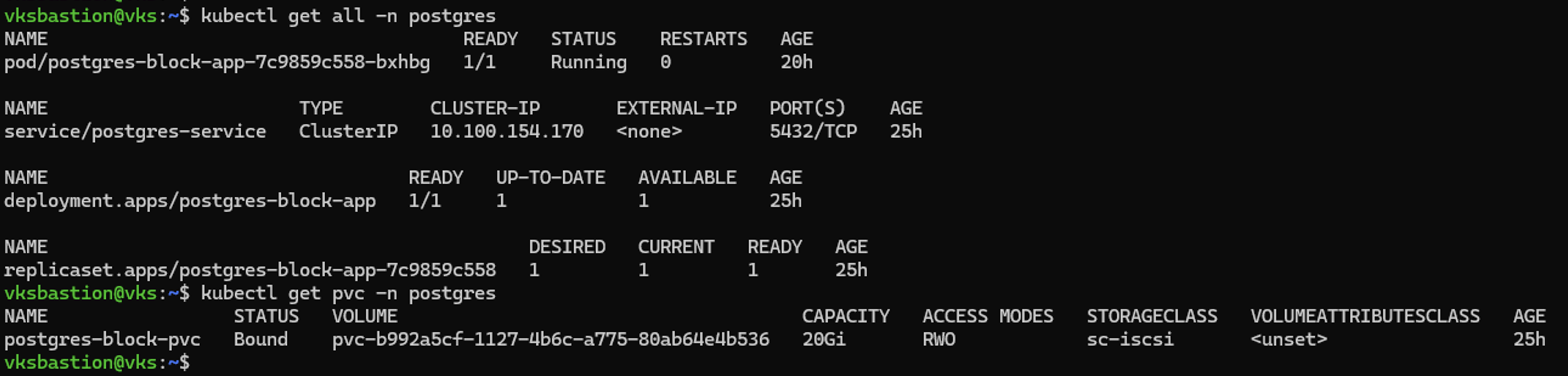
Depending on the protocol used, the backend storage is a volume, qtree, or LUN. You can verify the storage provisioned in the ONTAP system by describing the PersistentVolume (PV) to retrieve the internal volume name and then using it in ONTAP CLI commands to get the storage details. Use the following command to describe the PV and retrieve the internal volume name:
kubectl describe pv/<pv-name>Show example
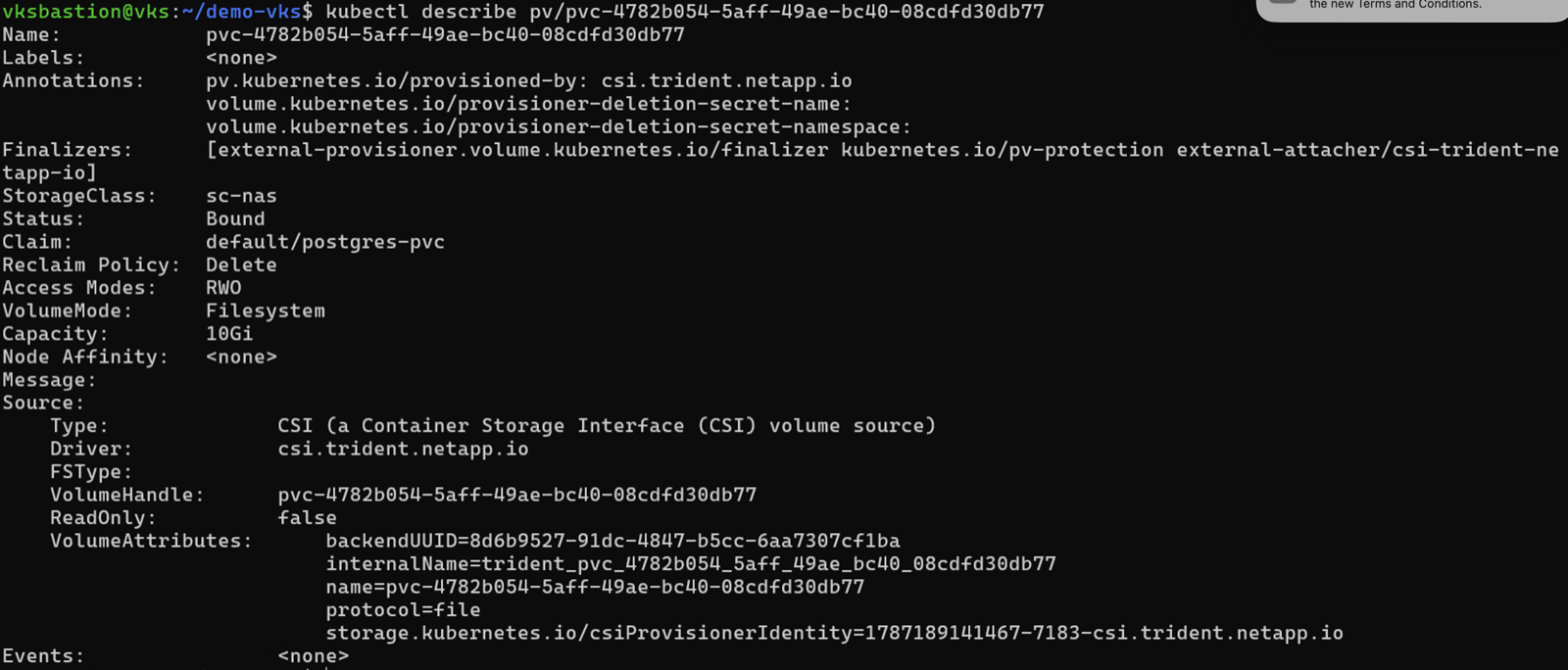
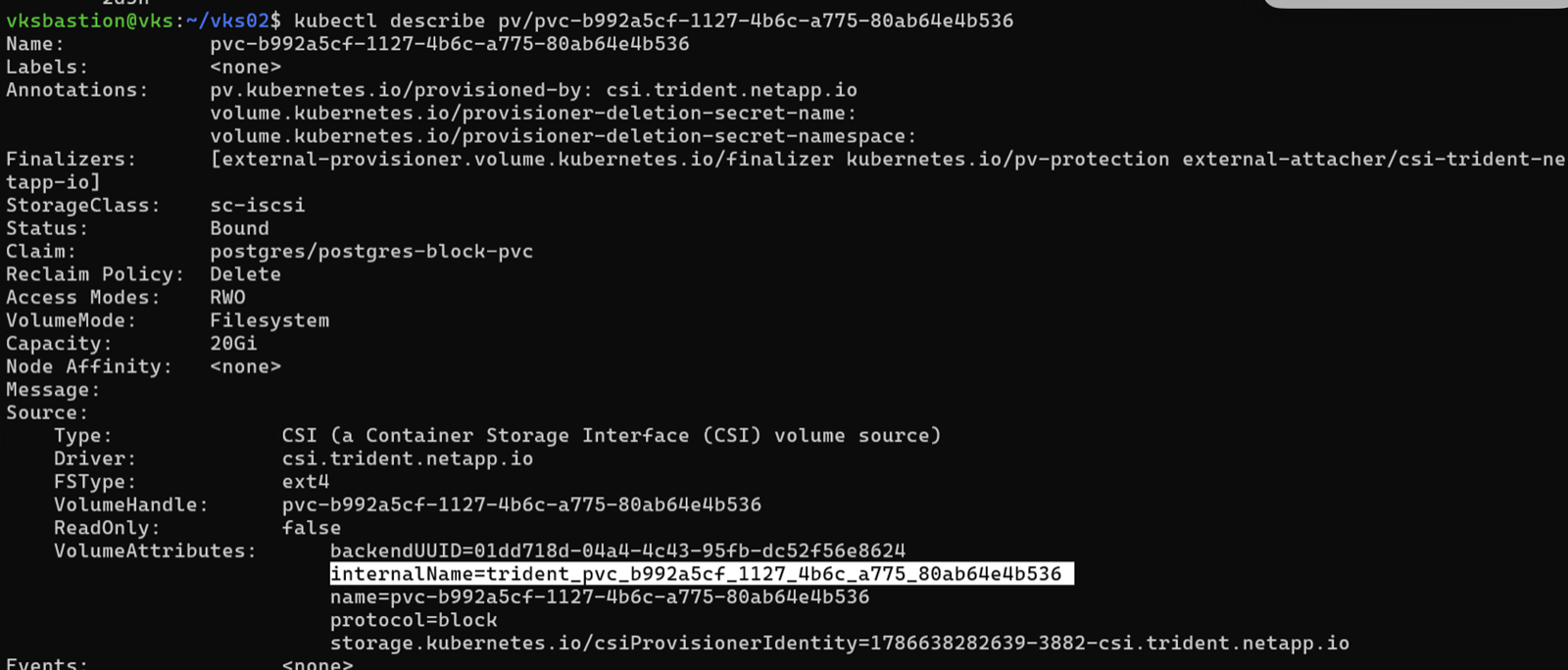
Copy the internal volume name from the output and run the following command to get the storage details from the ONTAP CLI.
For NAS volumes:
volume show -vserver <vserver> -volume <internal-volume-name>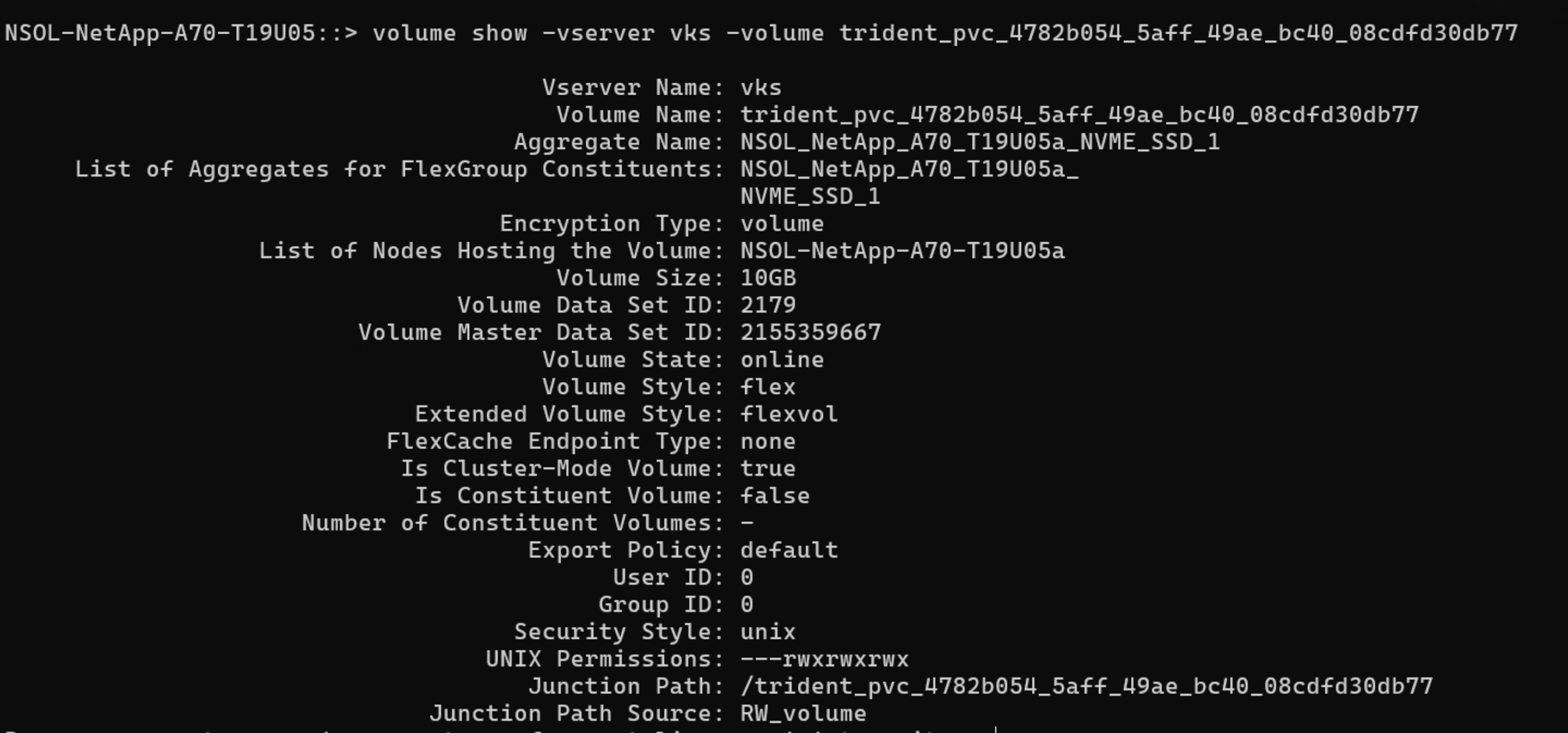
For SAN LUNs, run the following command to get the LUN details from the ONTAP CLI:
lun show -vserver <vserver> -volume <internal-volume-name>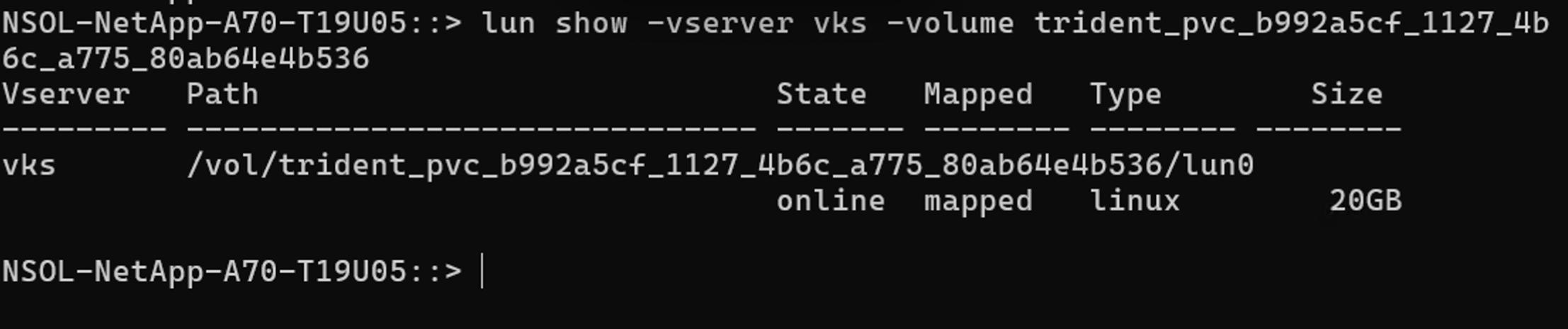
If you used nconnect mount options in the NAS or NAS Economy storage class, you can verify the number of active TCP connections from the worker node to the storage server.
First, list the Trident backend configurations to find the backend name, then describe it to retrieve the vserver name and data LIF:
Show example
kubectl get tbc -n trident
kubectl describe tbc <backend-name> -n trident
Then log into the ONTAP cluster and run the following command, substituting the data LIF from the output above:
network connections active show -local-address <data-lif> -local-port 2049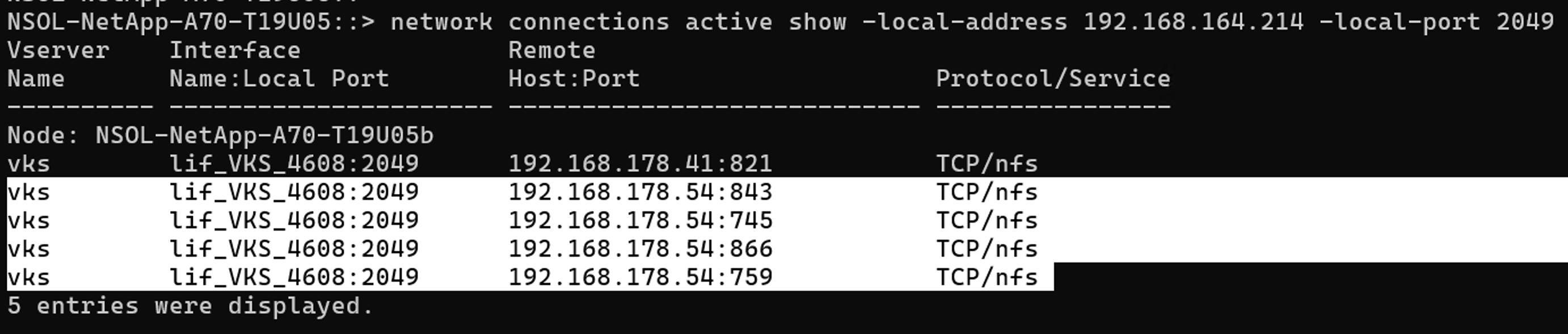
After the pods are in the running state, connect to the database and verify data operations.
Show example
-
Forward the PostgreSQL service port to your local machine:
kubectl port-forward svc/postgres-service 5432:5432 -n <namespace> -
From a different terminal, connect to the database using psql:
psql "postgresql://<username>:<password>@127.0.0.1:5432/postgres" -
Create a database and a table, then populate the table with data:
CREATE DATABASE employee;Switch to the new database (psql meta-command):
\c employeeCreate the table, insert a row, and query the results:
CREATE TABLE employees (
    id SERIAL PRIMARY KEY,
    first_name VARCHAR(50) NOT NULL,
    last_name VARCHAR(50) NOT NULL,
    email VARCHAR(100) UNIQUE NOT NULL,
    department VARCHAR(50),
    hire_date DATE DEFAULT CURRENT_DATE,
    salary NUMERIC(10, 2)
);

INSERT INTO employees (first_name, last_name, email, department, salary)
VALUES ('John', 'Doe', 'john.doe@example.com', 'Engineering', 85000.00);

SELECT * FROM employees;
Video demonstration
The following video demonstrates installing Trident on a vSphere Kubernetes cluster and deploying a PostgreSQL database with persistent storage using Trident.