Suggest changes

 PDFs
PDFs
Configuring ONTAP ASA R2 systems
This chapter shows how to create the necessary LUNs for an SAP HANA system, how to setup the replication using SMas in active/active mode, and how to install and configure ONTAP Mediator.
Creating LUNs
This chapter describes how to create the LUNs for an SAP HANA using the ONTAP System Manager of a NetApp ASA R2 storage system.
-
Log into ONTAP System Manager of the ASA R2 Storage Cluster

-
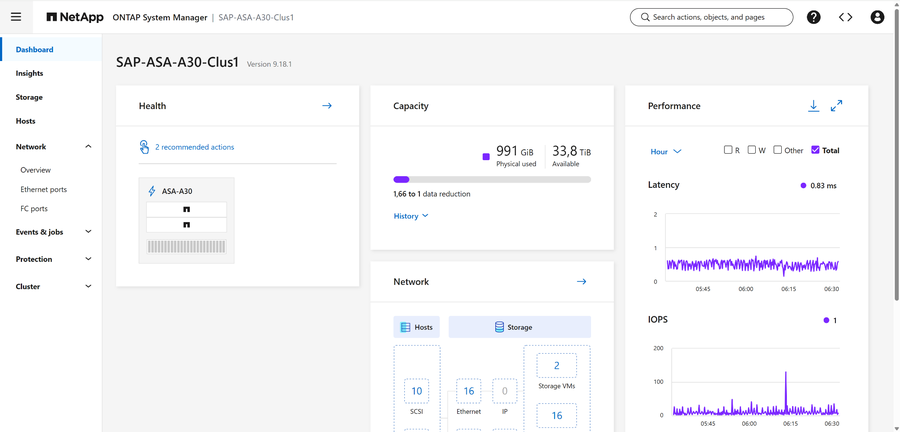
The dashboard will be shown
-
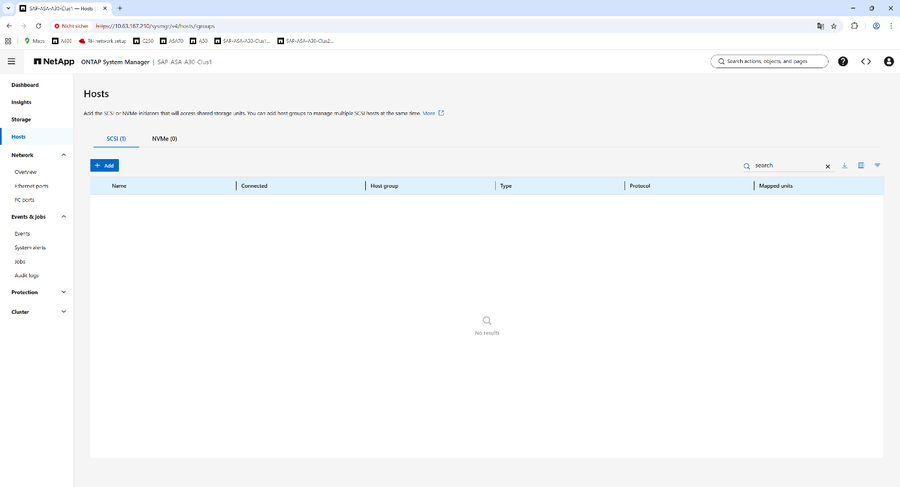
Choose “Hosts” at the left menu and click on “+ Add”
-
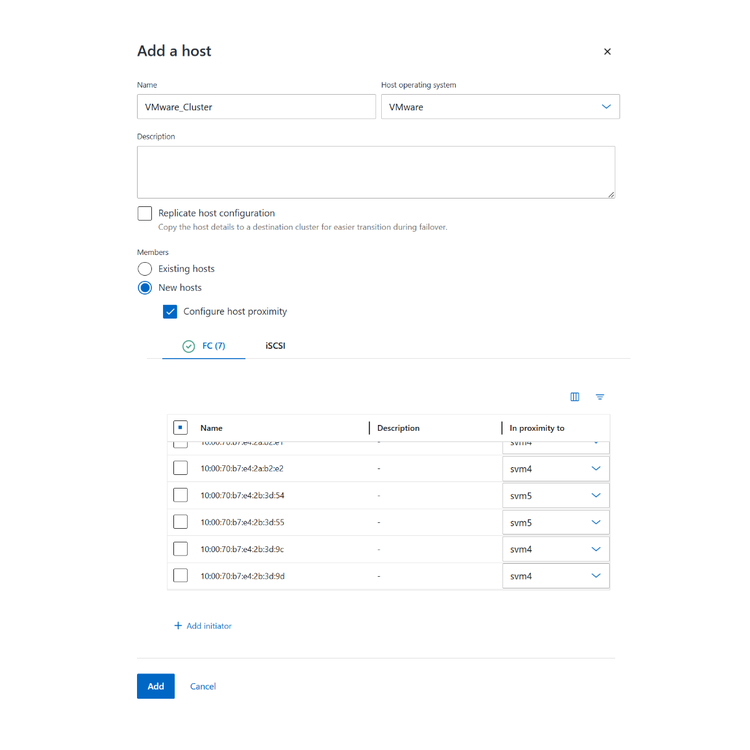
Provide a name for your VMware ESXi, check the “New hosts” option and optionally “Configure host proximity”. Choose or provide the world wide port names ( WWPNs) of the HBAs of your ESXi hosts belonging to your cluster and configure proximity if desired.
Click on “Add”.
-
The hosts have been defined successfully.
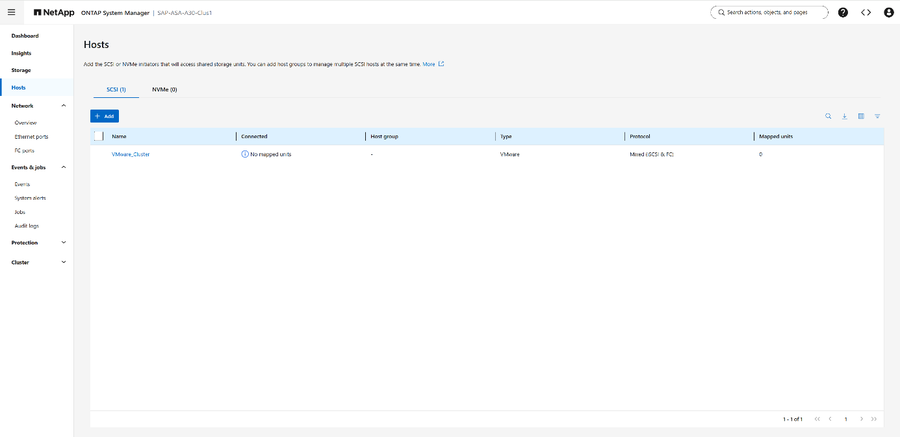
-
Choose “Storage” from the left menu and click on “+Add”
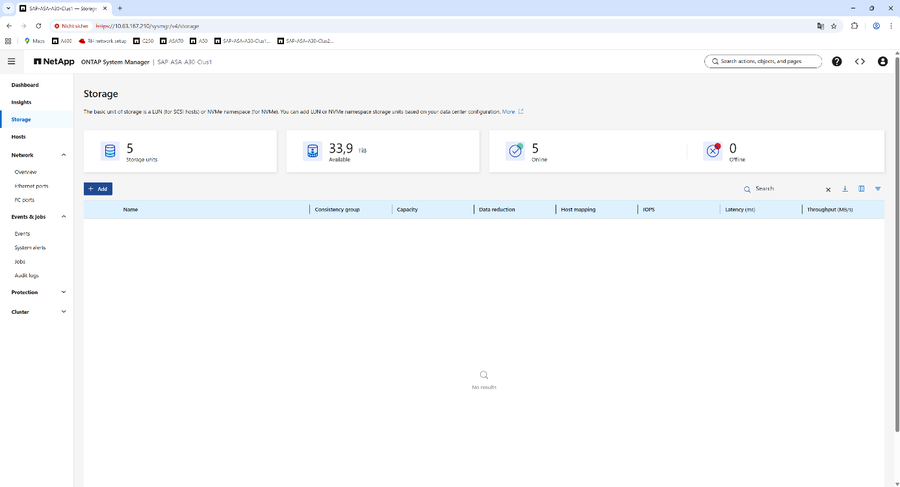
-
Create the datastore LUN for the SAP HANA data volume
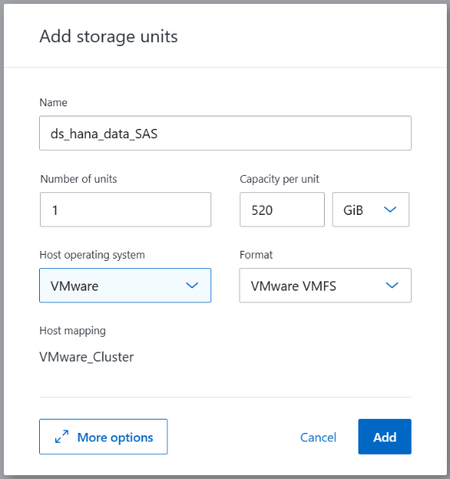
-
Create the datastore LUN for the SAP HANA log volume
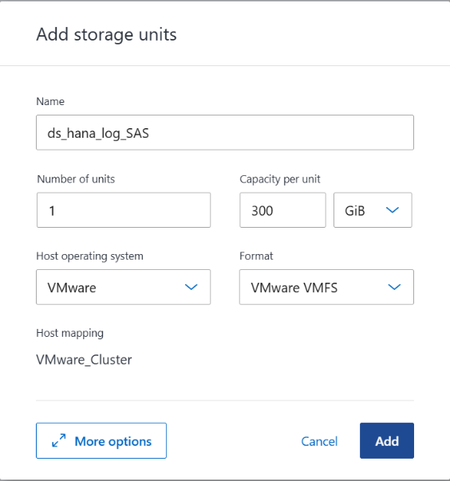
-
Create the datastore LUN for the SAP HANA shared volume
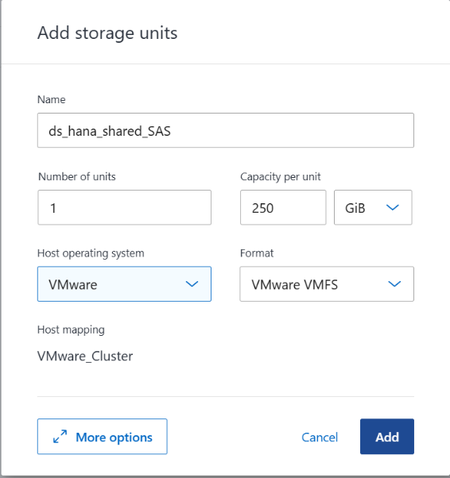
-
Create the datastore LUN for the SAP HANA OS
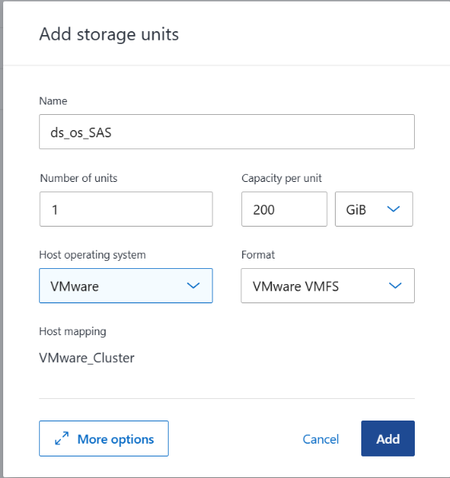
-
All required LUNs for the different datastores have been created
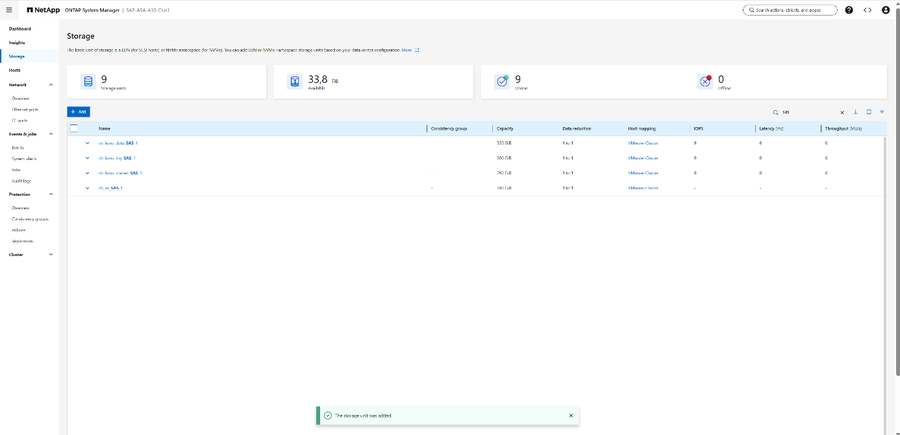
Setting up the replication
Once the LUNs have been created, the replication using SMas in symmetric active/active mode and an asynchronously SnapVault/SnapMirror replication as backup destination will be configured. The asynchronously replication is optional but allows the store additional backups at a third storage system for longer time.
-
Choose “Consistency groups” within “Protection” from the left menu of ONTAP System Manager and “+ add” a new consistency group “Using existing storage units”
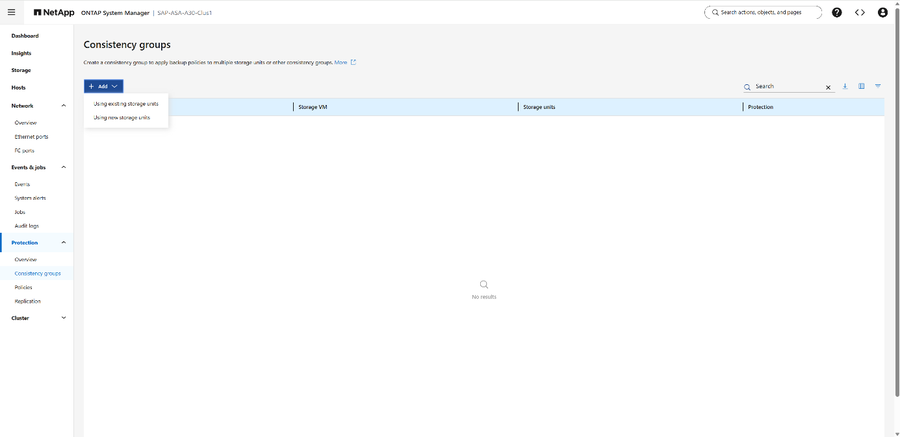
-
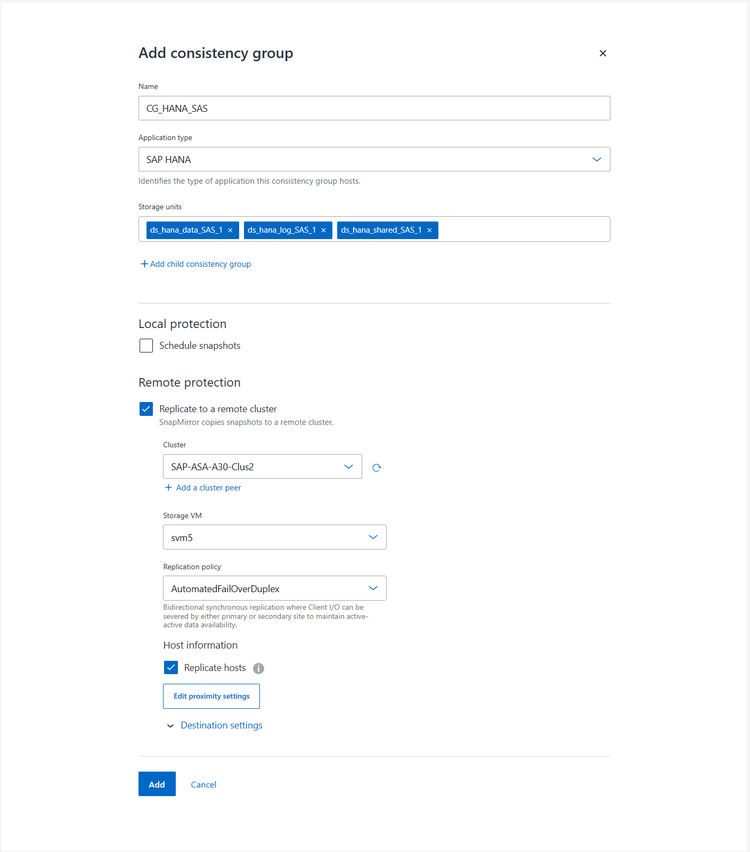
Provide a name for the consistency group used for the SAP HANA storage units, choose “SAP HANA” as replication type, and choose the storage units for data, log, and shared.
Check “Replicate to a remote cluster”, choose the desired remote cluster and SVM. Choose “AutomatedFailOverDuplex” to configure SMAS active/active. Check replicate hosts. Optionally, define the proximity settings.
-
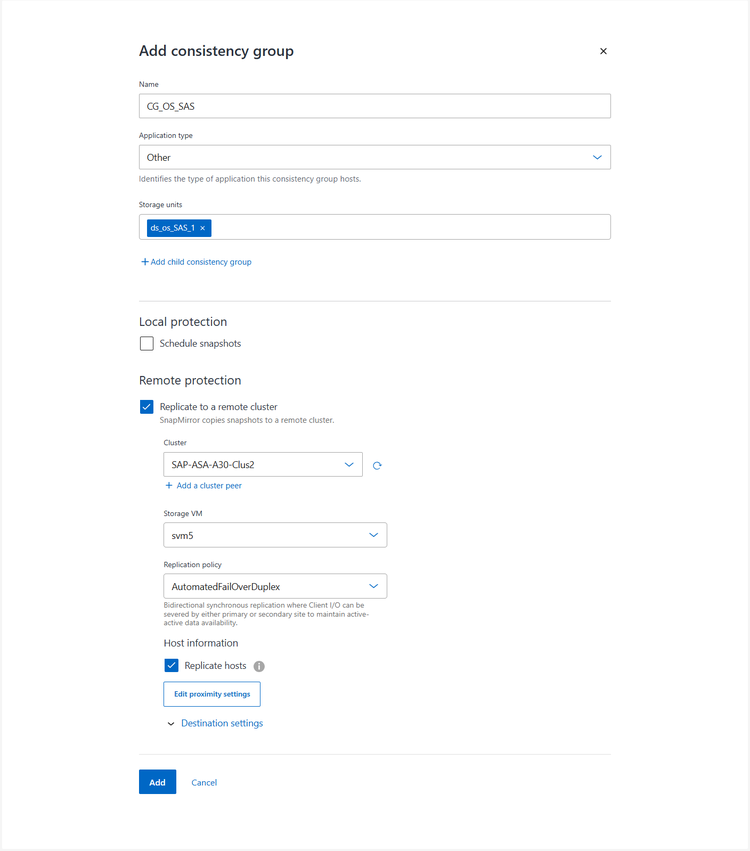
Repeat the previous step for the storage unit used for the datastore for the VM files.
-
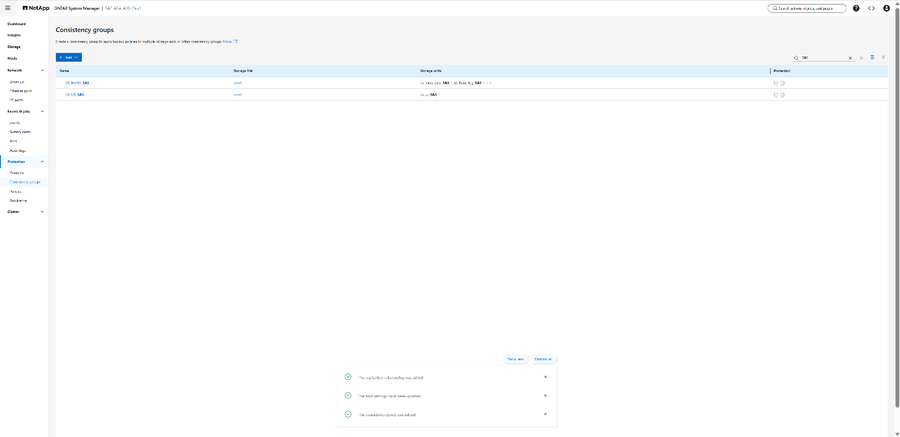
The consistency groups with SMAS protection have been successfully created
-
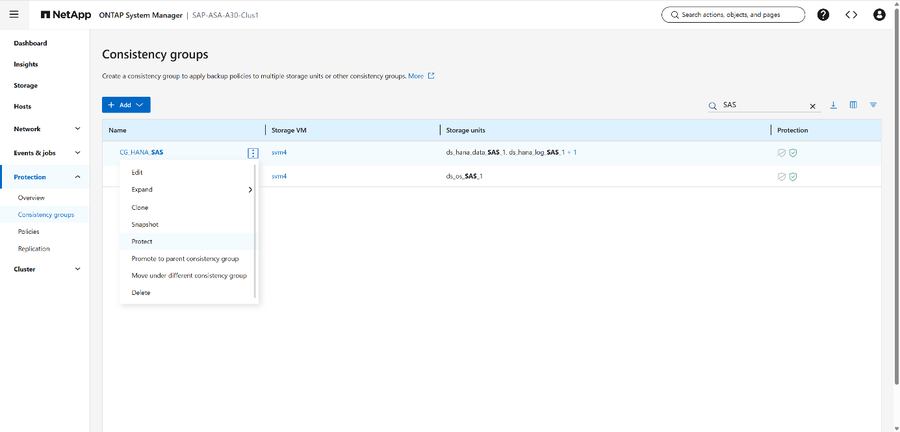
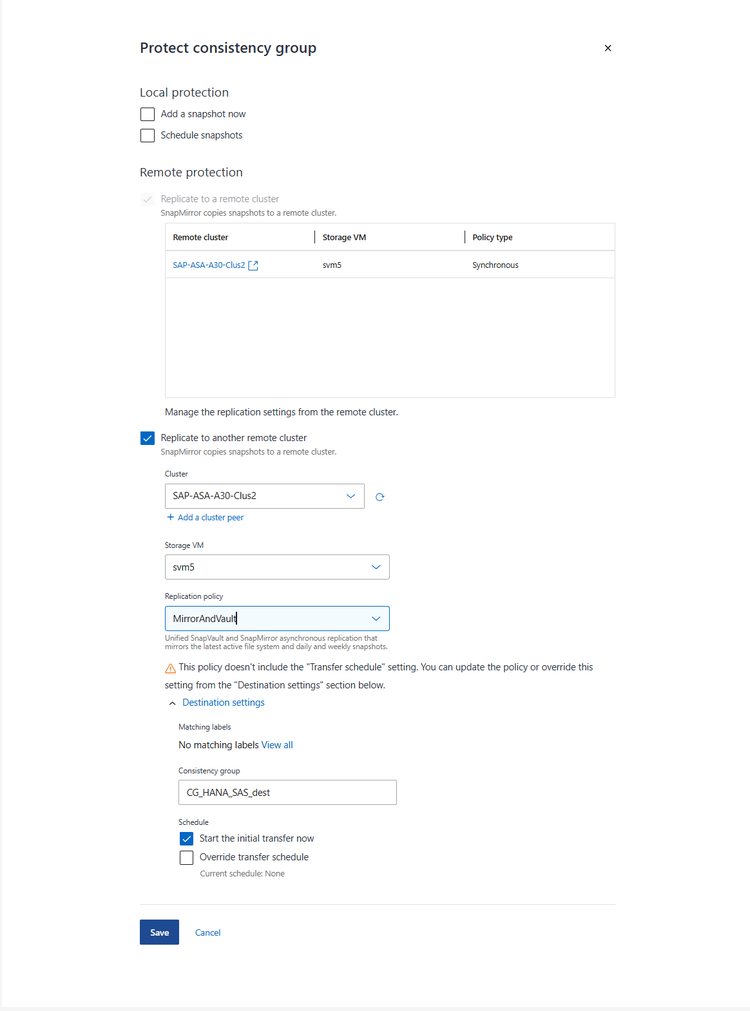
Create an asynchronous replication in addition for backup purposes. Choose “Protect” within the context menu of the Consistency group for the SAP HANA database.
-
Check the box “Replicate to another cluster”, choose the desired remote cluster and SVM and choose the Replication policy “MirrorAndVault”.
-
The asynchronous replication has been configured for the SAP HANA database. Repeat the steps for the OS datastore LUN for the VM if desired.
ONTAP Mediator
Install ONTAP Mediator according the Install or upgrade ONTAP Mediator guide.
The HTTPs only option is sufficient for SMas.
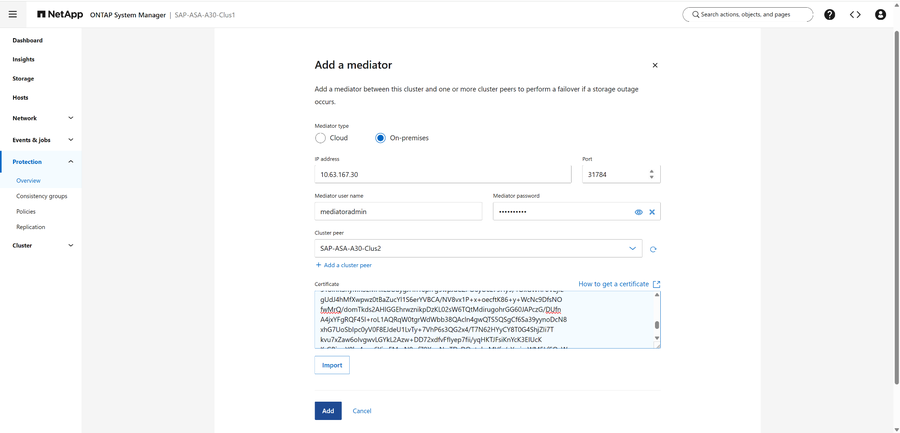
Once the installation has been finished copy the content of certificate file /opt/netapp/lib/ontap_mediator/ontap_mediator/server_config/intermediate.crt
Configure the Mediator at the ONTAP cluster:
-
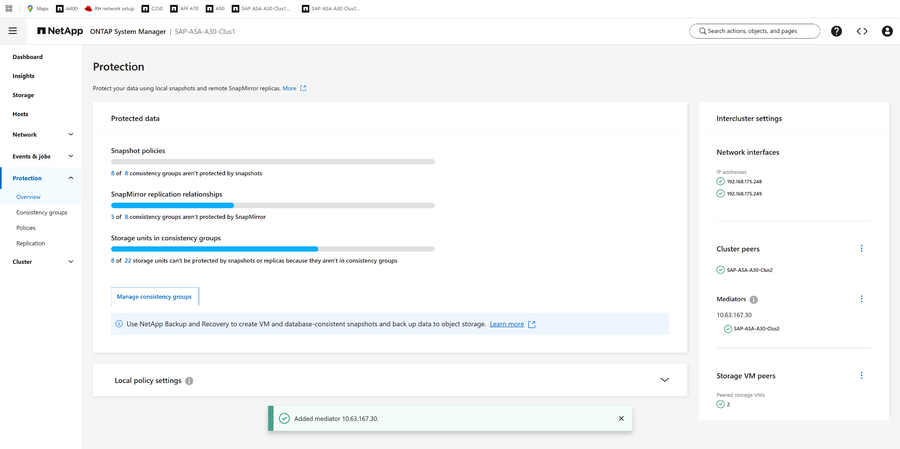
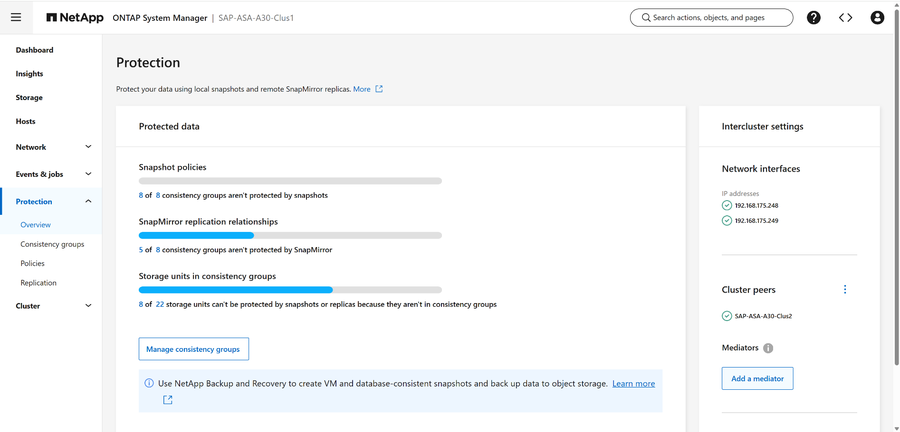
Logon to the ONTAP System Manager, navigate to “Protection” -> “Overview” and choose “Add a mediator”
-
Provide the information for the mediator previously installed. Paste the content of the certificate file into the certificate section. Press add.
-
The ONTAP Mediator has been successfully added.