


Configure LVM Thin with ONTAP iSCSI for OpenNebula

 Suggest changes

 PDFs
PDFs
Configure Logical Volume Manager (LVM) datastore for shared storage across OpenNebula hosts using iSCSI protocol with NetApp ONTAP. This configuration enables block-level storage access over standard Ethernet networks with multipath support.
Initial virtualization administrator tasks
Complete these initial tasks to prepare OpenNebula hosts for iSCSI connectivity and collect the necessary information for the storage administrator.
-
Verify two Linux VLAN interfaces are available.
-
Ensure multipath-tools and iSCSI initiator utilities are installed on all OpenNebula hosts and starts on boot.
Debian/Ubuntuapt list | grep multipath-tools # If need to install, execute the following line. apt-get install multipath-tools open-iscsi # If /etc/multipath.conf is not present, first make sure the multipathd service is started. systemctl enable --now multipathd systemctl enable --now open-iscsiRHEL/AlmaLinuxdnf list installed | grep device-mapper-multipath # If need to install, execute the following line. dnf install device-mapper-multipath iscsi-initiator-utils # If /etc/multipath.conf is not present, first make sure the multipathd service is started. systemctl enable --now multipathd systemctl enable --now iscsid -
Collect the iSCSI host IQN for all OpenNebula hosts and provide it to the storage administrator.
cat /etc/iscsi/initiator.name
If you are new to ONTAP, use System Manager for a better experience.
-
Ensure the SVM is available with iSCSI protocol enabled. Follow ONTAP 9 documentation.
-
Create two LIFs per controller dedicated for iSCSI. Two LIFs per controller are recommended for redundancy and multipath performance. Ensure the LIFs are created on the VLAN interfaces configured on OpenNebula hosts. Jumbo frames (MTU 9000) are recommended for better performance.
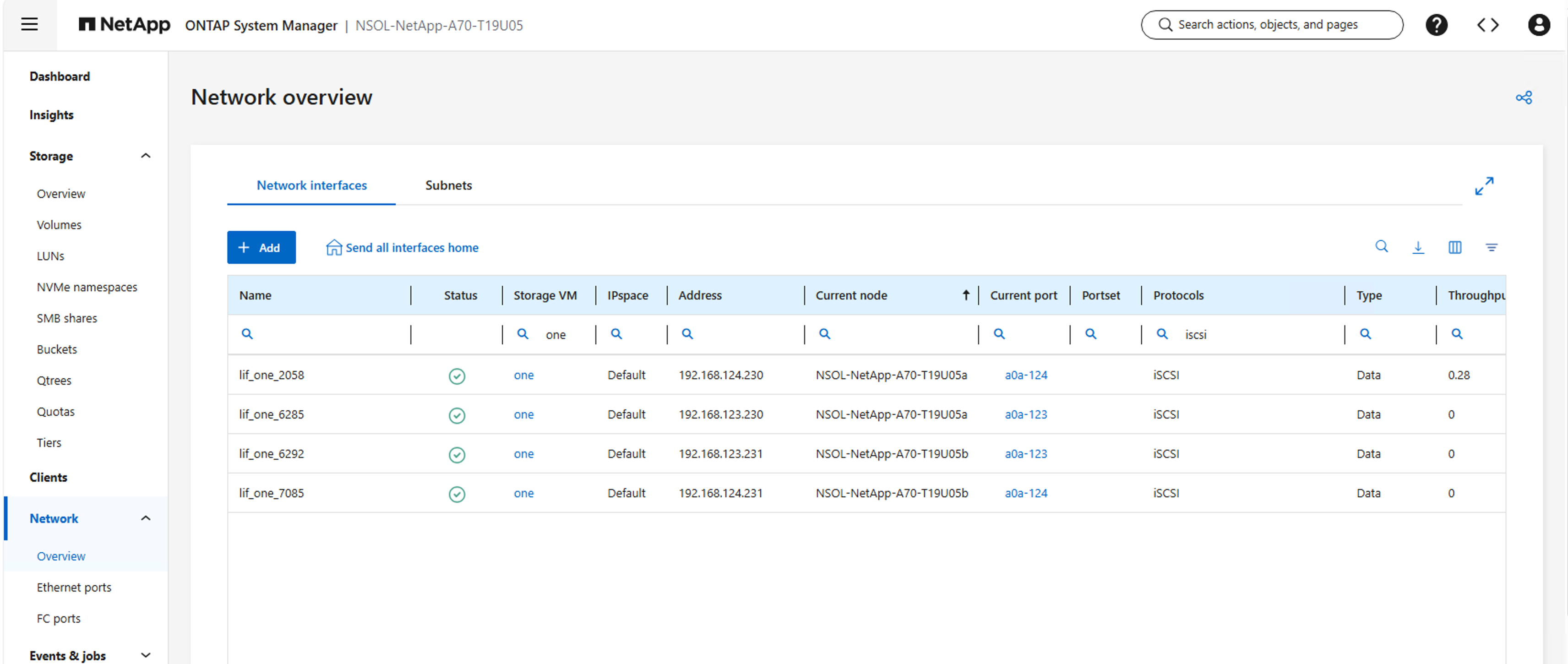
-
Create LUNs and present to the host iSCSI initiators. Typically one igroup is created for one OpenNebula cluster. Include frontend servers and hypervisor hosts in the same igroup to support both Image and System datastores.
-
Notify the virtualization administrator that the LUN is created.
Final virtualization administrator tasks
Complete these tasks to configure the iSCSI LUN as shared LVM Datastore in OpenNebula.
-
SSH to one of the frontend server and discover all iSCSI Lif portals by providing one of the iSCSI data lif addresses.
iscsiadm -m discovery -t sendtargets -p <iscsi data lif address> iscsiadm -m node iscsiadm -m node -l iscsiadm -m session -
Execute
rescan-scsi-bus.shorecho "- - -" > /sys/class/scsi_host/host*/scanto rescan the SCSI bus and detect new LUNs. -
Verify the LUN is visible on all OpenNebula hosts using
lsblk -Sor fdisk -l command. -
Execute
iscsiadm -m session -P 3to retrieve LUN to device name mapping. -
Add the device to multipath configuration by executing
multipath -a /dev/<device_name>. Then, executemultipath -rto reload the multipath configuration. Verify the multipath configuration by executingmultipath -llcommand. -
Create a configuration file based on desired Datastore type. For complete attribute list, refer OpenNebula LVM documentation. Sample files are shown below:
Backup-
For Restic,
$cat iscsi-restic.conf
NAME = "Backup-Restic-iSCSI01"
TYPE = "BACKUP_DS"

DS_MAD = "restic"
TM_MAD = "-"

RESTIC_PASSWORD = "<restic_password>"
RESTIC_SFTP_SERVER = "<backup server>"
-
For Rsync,
$cat iscsi-rsync.conf
NAME = "Backup-Rsync-iSCSI02"
TYPE = "BACKUP_DS"

DS_MAD = "rsync"
TM_MAD = "-"

RSYNC_USER = "<rsync_user>"
RSYNC_HOST = "<backup server>"
File$cat iscsi-kernel.conf NAME = "File-Kernel-iSCSI03" TYPE = "FILE_DS" DS_MAD = "fs" TM_MAD = "local" SAFE_DIRS = "/var/tmp/files"Image$cat iscsi-image.conf NAME = "Image-iSCSI04" TYPE = "IMAGE_DS" DS_MAD = "fs" TM_MAD = "fs_lvm_ssh" DISK_TYPE = "block" LVM_THIN_ENABLE = "yes"System$cat iscsi-system.conf NAME = "System-iSCSI05" TYPE = "SYSTEM_DS" TM_MAD = "fs_lvm_ssh" DISK_TYPE = "block" BRIDGE_LIST = "<space-separated list of OpenNebula hosts>" # If LUN not presented to frontend hosts LVM_THIN_ENABLE = "yes" -
-
Execute
onedatastore create <configuration file>. Note the datastore ID returned after creation.onedatastore create iscsi-system.conf
ID: 106 -
Create volume group on the iSCSI LUN using
vgcreate <vg_name> <multipath_device>command. For Image datastores, the volume group name can be named anything desired. For System datastores, the volume group name must be of formatvg-one-<datastore id>. This is required for OpenNebula to identify the correct volume group for system datastores. Proceed with following steps if you are creating Backup/File/Image datastore. For system datastores, stop here. -
Create logical volume thin pool using
lvcreate -l 100%FREE -n <logical volume name> <volume group name>command. For System datastores, OpenNebula automatically creates the LVM thin pool when required. -
Create filesystem on the logical volume using
mkfs.ext4 /dev/<volume group>/<logical volume>command. System datastores do not require filesystem creation. -
Update /etc/fstab or automount configuration to mount the datastore with desired mount options. Assuming the default datastore location as /var/lib/one/datastores. Can be validated with
onedatastore show <datastore_id>. If not check the DATASTORE_LOCATION parameter in /etc/one/oned.conf. Ensure the <datastore_id> folder exists under the datastores location. Sample entries are shown below:Using /etc/fstab/dev/<vg name>/<logical volume> /var/lib/one/datastores/<datastore_id> ext4 _netdev,noauto,x-systemd.automount,nofail 0 2Using automount/var/lib/one/datastores/<datastore_id> -fstype=ext4,_netdev,noauto,x-systemd.automount,nofail,rw :/dev/<vg name>/<logical volume> -
Mount the datastore using
mount -aorsystemctl reload autofscommand. -
Verify the datastore is mounted with mount command and verify the datastore capacity with
onedatastore show <datastore_id>command. -
Ensure oneadmin user and group own the datastore folder. Adjust permissions using
chown -R oneadmin:oneadmin /var/lib/one/datastores/<datastore_id>command.