


Configure NFS storage for OpenNebula using ONTAP

 Suggest changes

 PDFs
PDFs
Configure NFS storage for OpenNebula using NetApp ONTAP. Use nConnect or session trunking with pNFS (v4.1 or later )while using FlexGroup volumes for efficient resource management, fault tolerance, and performance enhancements. A single NFS export can be used for both Image and System datastores for a OpenNebula cluster. When planning to use FlexCache, dedicate the nfs export for Image datastores only.
Consider MetroCluster configuration for high availability and disaster recovery scenarios.
If you are new to ONTAP, use System Manager Interface to complete these tasks.
Storage administrator tasks
Complete these tasks to provision NFS storage on ONTAP for use with OpenNebula.
-
Enable the SVM for NFS. Refer to ONTAP 9 documentation.
-
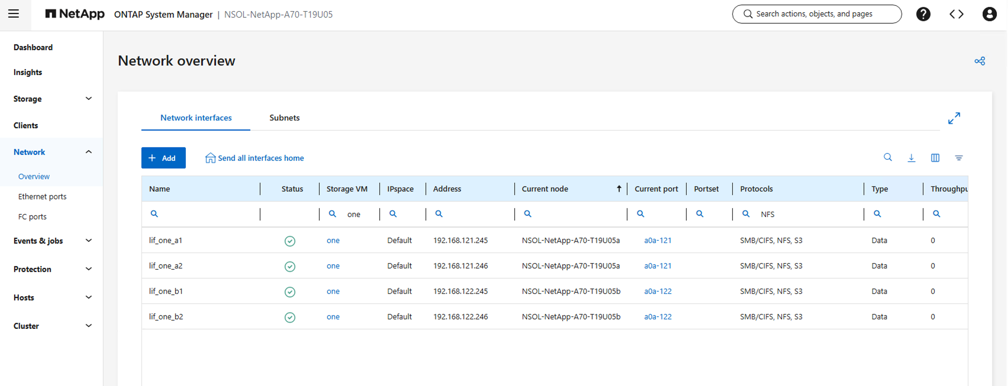
Create at least two LIFs per controller. Follow the steps from the documentation. For reference, here is a screenshot of LIFs used in the lab.
Show example
-
Create or update an NFS export policy to provide access to OpenNebula host IP addresses or subnets. Refer to Export policy creation and Add rule to an export policy.
-
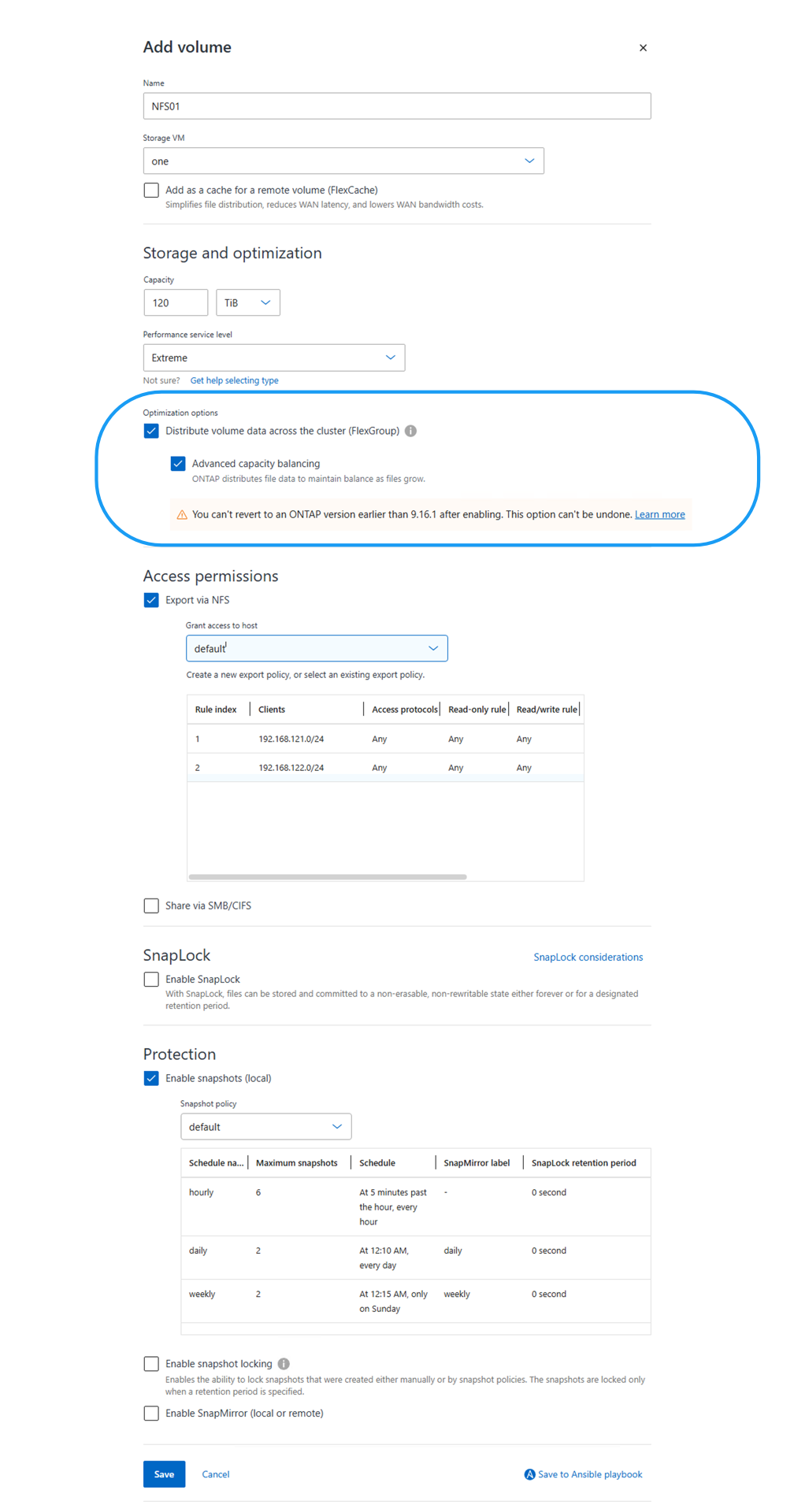
Create a volume. For large capacity needs (>100TB), check the option to distribute data across the cluster to use FlexGroup. If using FlexGroup, consider enabling pNFS on the SVM for better performance by following Enable pNFS on SVM. When using pNFS, ensure the OpenNebula hosts has data access to all controllers (data LIFs). Ensure Anti-Ransomware protection is enabled on the volume.
Show example
-
Notify the virtualization administrator that the NFS volume is ready and provide NFS export path details.
Virtualization administrator tasks
Complete these tasks to add the NFS volume as Datastore in OpenNebula and configure nConnect or session trunking for improved performance.
-
Ensure at least two interfaces are configured in different VLANs for fault tolerance. Use NIC bonding.
-
SSH to one of the frontend server and create a configuration file based on desired Datastore type. Sample files are shown below:
Backup-
For Restic,
$cat nfs-restic.conf
NAME = "Backup-Restic-NFS"
TYPE = "BACKUP_DS"

DS_MAD = "restic"
TM_MAD = "-"

RESTIC_PASSWORD = "<restic_password>"
RESTIC_SFTP_SERVER = "<backup server>"
-
For Rsync,
$cat nfs-rsync.conf
NAME = "Backup-Rsync-NFS"
TYPE = "BACKUP_DS"

DS_MAD = "rsync"
TM_MAD = "-"

RSYNC_USER = "<rsync_user>"
RSYNC_HOST = "<backup server>"
File$cat nfs-kernel.conf NAME = "File-Kernel-NFS" TYPE = "FILE_DS" DS_MAD = "fs" TM_MAD = "local" SAFE_DIRS = "/var/tmp/files"Image$cat nfs-image.conf NAME = "Image-NFS" TYPE = "IMAGE_DS" DS_MAD = "fs" TM_MAD = "shared"System$cat nfs-system.conf NAME = "System-NFS" TYPE = "SYSTEM_DS" TM_MAD = "shared" -
-
Execute
onedatastore create <configuration file>. Note the datastore ID returned after creation.onedatastore create nfs-system.conf
ID: 101 -
Gather the uid and gid of oneadmin user using
id oneadmincommand. -
Update /etc/fstab or automount configuration to mount the datastore with desired mount options. Assuming the default datastore location as /var/lib/one/datastores. Can be validated with
onedatastore show <datastore_id>. If not check the DATASTORE_LOCATION parameter in /etc/one/oned.conf. Ensure the <datastore_id> folder exists under the datastores location. Sample entries are shown below:Using /etc/fstab# To use session trunking, use the option trunkdiscovery //<nfs_server>/<nfs_share> /var/lib/one/datastores/<datastore_id> nfs nconnect=8,max_channels=16,_netdev,noauto,x-systemd.automount,nofail,uid=<oneadmin uid>,gid=<oneadmin gid> 0 0Using automount# To use session trunking, use the option trunkdiscovery /var/lib/one/datastores/<datastore_id> -fstype=nfs,nconnect=8,max_channels=16,_netdev,noauto,x-systemd.automount,nofail,uid=<oneadmin uid>,gid=<oneadmin gid> <nfs_server>:/<nfs_share> -
Mount the datastore using
mount -aorsystemctl reload autofscommand. -
Verify the datastore is mounted with mount command and verify the datastore capacity with
onedatastore show <datastore_id>command. -
Ensure oneadmin user and group own the datastore folder. Adjust permissions using
chown -R oneadmin:oneadmin /var/lib/one/datastores/<datastore_id>command. -
To verify the nConnect option is set, run
ss -an | grep :2049on any OpenNebula host and check for multiple connections to the NFS server IP. To verify pNFS is enabled, runnfsstat -cand check the layout-related metrics. Based on data traffic, multiple connections to data LIFs should be visible.

|
In session trunking, the nconnect option is set on only one of the trunk interfaces. With pNFS, the nconnect option is set on metadata and data interfaces. For production environments, use either nConnect or session trunking, not both. |