


Protect Proxmox VE workloads with Proxmox Backup Server and NetApp ONTAP


 Suggest changes

 PDFs
PDFs
Protect Proxmox Virtual Environment (VE) workloads using Proxmox Backup Server (PBS) integrated with NetApp ONTAP storage. This procedure covers datastore configuration, backup operations, restore procedures, and disaster recovery setup using ONTAP SnapMirror replication.
For information about Proxmox Backup Server architecture and ONTAP integration, see Learn about Proxmox Backup Server architecture with NetApp ONTAP.
Before you begin
-
Ensure redundant network paths between PBS and ONTAP storage for high availability and performance.
-
Consider link aggregation (LACP) for increased bandwidth and redundancy.
-
Configure jumbo frames (MTU 9000) on all network devices to improve storage traffic performance.
-
For NFS, create a dedicated export for the PBS datastore with appropriate permissions.
-
For block protocols, ensure proper zoning and LUN masking to restrict access to authorized PBS hosts.
Configure datastores
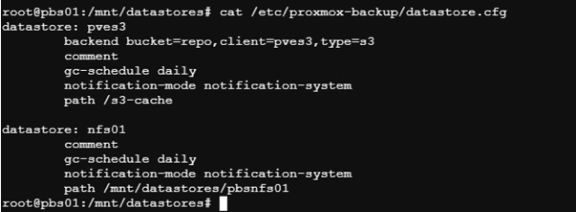
Configure Proxmox Backup Server datastores using NetApp ONTAP storage. This includes mounting ONTAP storage on the PBS host, creating a local datastore in the PBS web interface, and optionally configuring ONTAP S3 storage for offsite backup and long-term retention.
Prepare the ONTAP storage backend and mount it on the PBS host. The preparation steps vary depending on whether you use file-based (NFS) or block-based (SAN/NVMe-oF) protocols.
PBS can use any folder mounted on local storage as a datastore. PBS stores catalog, index, and chunk files in the datastore. For optimal performance and scalability, use NetApp ONTAP SAN (iSCSI/FC/NVMe-oF) or NFS storage (with nConnect or session trunking, and pNFS enabled) as the PBS datastore
-
For SAN or NVMe-oF protocols, create a LUN or namespace on ONTAP and connect it to the PBS host.
-
Format the LUN or namespace with a suitable filesystem (ext4 or xfs) and mount it on the PBS host.
-
For NFS, mount the NFS export on the PBS host.
-
Use fstab or automount to ensure the datastore mounts automatically on system reboot.
After mounting the storage, create a new datastore in the PBS web interface.
-
Navigate to Datastore > Add Datastore.
-
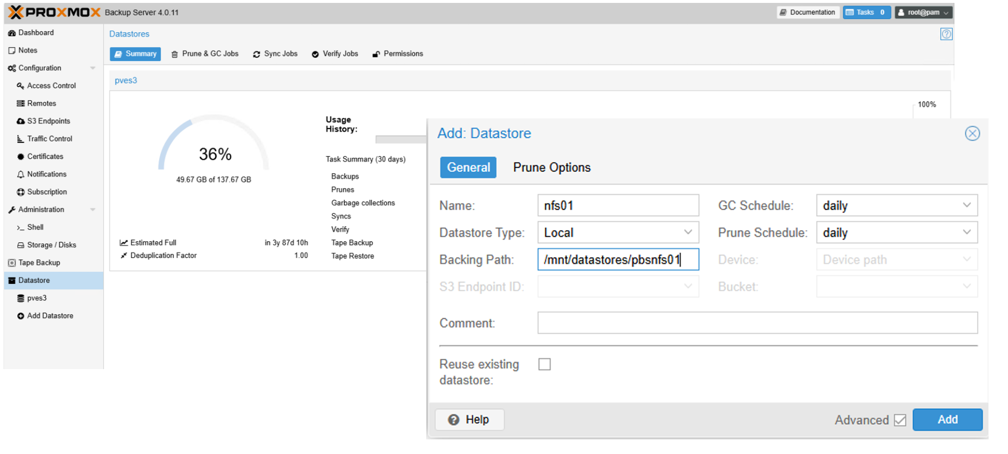
Provide a name, select the datastore type as local, and specify the mounted folder as the backing path.
Show example
S3 storage is typically used for offsite backup and long-term retention. Proxmox Backup Server supports S3 storage as a Tech Preview feature.
-
Ensure the ONTAP S3 service is enabled and properly configured.
-
Create an S3 bucket on ONTAP for the PBS datastore.
-
Obtain the access key and secret key for the S3 bucket.
-
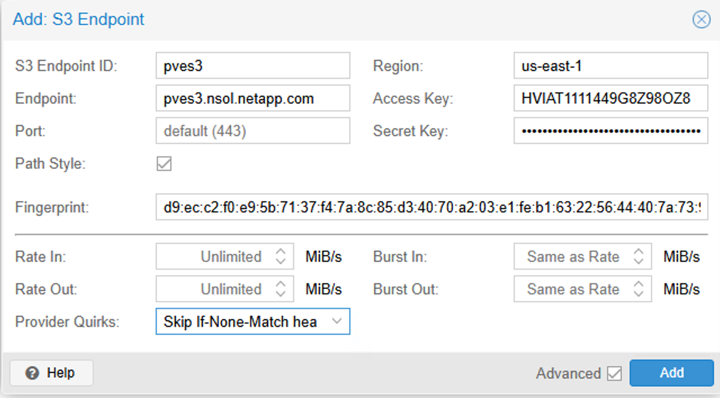
Gather the S3 endpoint URL and certificate fingerprint information.
-
In the PBS web interface, navigate to Configuration > S3 Endpoints and add a new S3 endpoint with the gathered information.
Show example
Show example

-
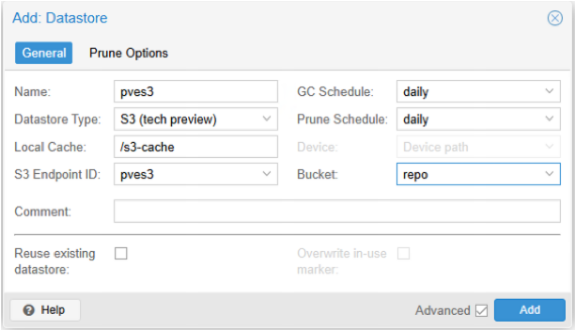
Next, navigate to Datastore → Add Datastore. Provide a name, select the datastore type as S3, and select the configured S3 endpoint. Provide the folder name on local datastore to be used as local cache and select the bucket.
.Show example
Create local sync jobs to ONTAP S3 storage.
+
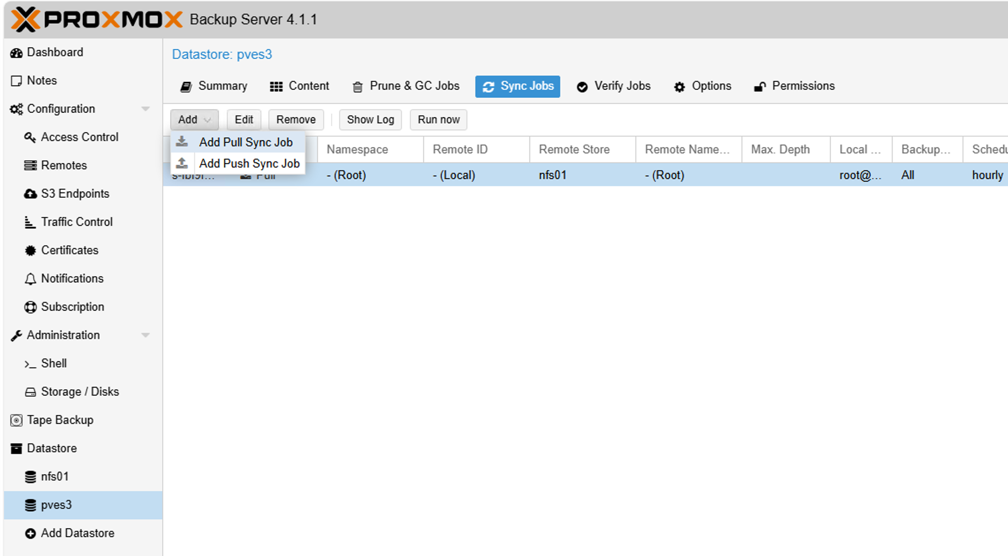
Migrate data from the local PBS datastore to ONTAP S3 storage by creating a local sync job in PBS. This job copies backup data from the local datastore to the S3 datastore for offsite storage and long-term retention.
-
In the PBS web interface, navigate to S3 Datastore > Sync Jobs and click Add.
Show example
-
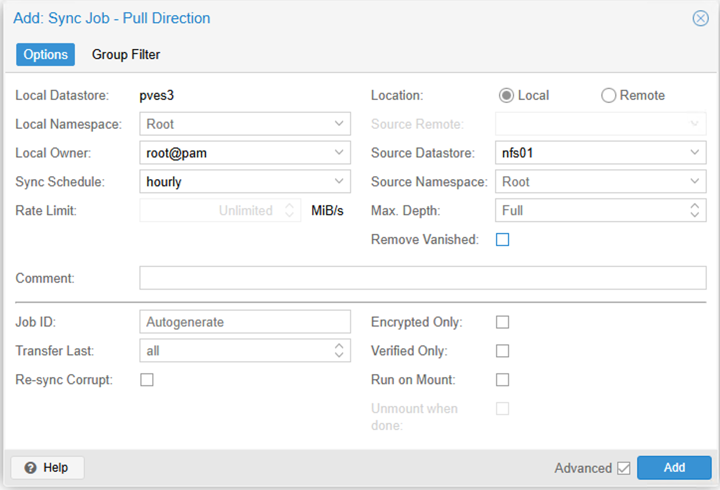
Select the location as Local, choose the source local datastore, and specify the desired namespace and depth. Configure the schedule for the sync job and any additional options.
Show example
-
Save the sync job configuration. The sync job will run according to the defined schedule and copy backup data from the local PBS datastore to the ONTAP S3 storage.

|
For offsite storage and longer retention with ONTAP storage, Netapp Console can be utilized for management and data services. |
Add Proxmox Backup Server to Proxmox VE cluster
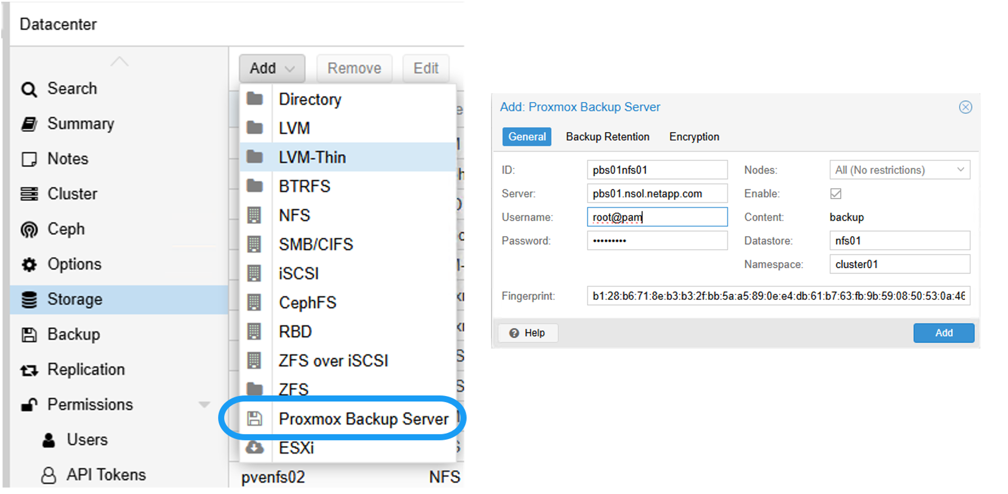
Add Proxmox Backup Server as a storage target to enable backup operations for VMs and containers.
-
In the Proxmox VE web interface, navigate to Datacenter > Storage and click Add > Proxmox Backup Server.
Show example
-
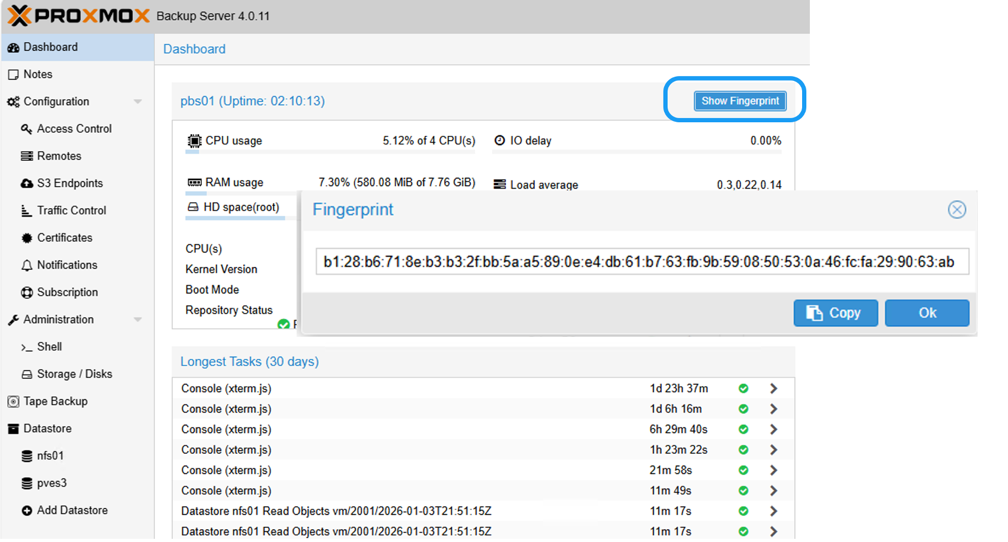
Provide the PBS server certificate fingerprint for secure communication. You can obtain the fingerprint from the PBS web interface or by running the following command on PBS:
proxmox-backup-manager cert info.Show example
Show example

-
Configure additional options such as backup retention policies and encryption.
-
Click Add to save the PBS storage configuration.
The Proxmox VE cluster can now use the PBS datastore for backup and restore operations for VMs and containers.
Perform backups
Back up Proxmox VE workloads to Proxmox Backup Server. This includes performing on-demand backups, configuring scheduled backup jobs, backing up host configuration files, and using pre and post backup scripts for custom actions.
Create an immediate backup of a VM or container using Proxmox Backup Server.
-
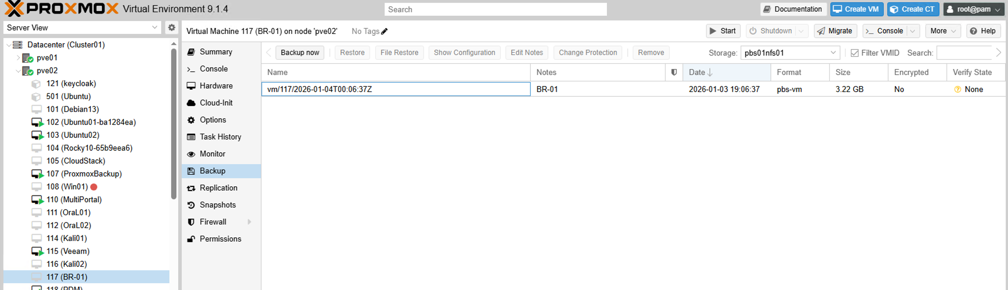
In the Proxmox VE web interface, navigate to the VM or container.
-
Click the Backup tab and then click Backup Now.
Show example
-
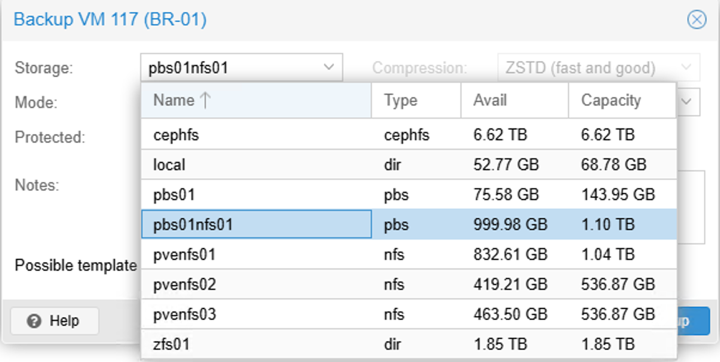
Select Proxmox Backup Server Storage as the backup target.
Show example
-
Configure additional backup options such as compression, notifications, and snapshot mode.
-
Click Backup to initiate the backup process.
Set up scheduled backups for VMs and containers using Proxmox Backup Server.
-
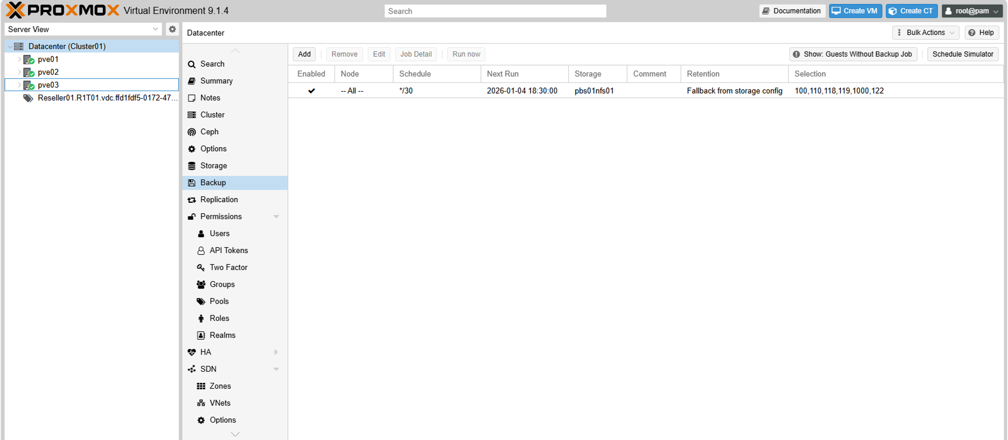
In the Proxmox VE web interface, navigate to Datacenter > Backup.
-
Click Add to create a new backup job.
Show example
-
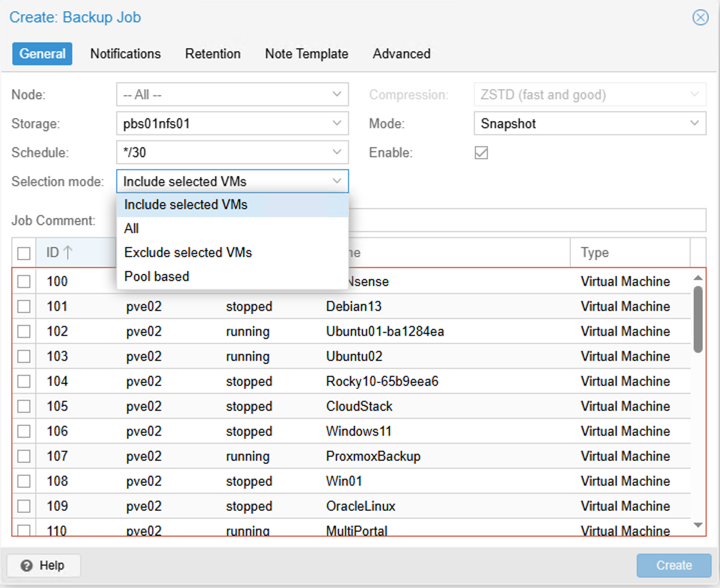
Select PBS storage as the target and choose the backup schedule (such as daily or weekly). Set the selection mode to All, Selected VMs/CTs to include/exclude, or Pool based.
Show example
-
Configure additional options such as retention policies, compression, and snapshot mode.
-
Click Create to save the scheduled backup job configuration.
ResultThe Proxmox VE cluster automatically performs backups of the specified VMs and containers according to the defined schedule using Proxmox Backup Server as the storage target.
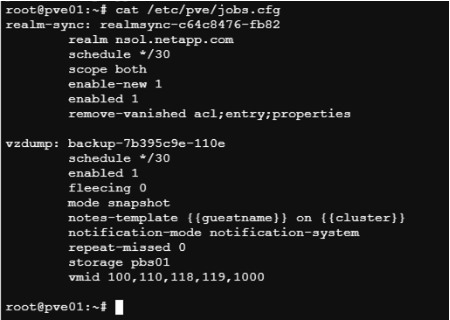
The scheduled job configuration is stored in the /etc/pve/job.cfg file on the Proxmox VE host.
Show example
Back up Proxmox VE host configuration files, system settings, and other critical data to Proxmox Backup Server.
-
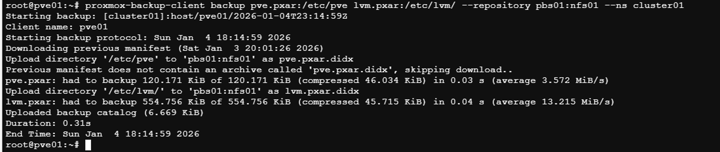
In a Proxmox VE shell or SSH session, use the
proxmox-backup-clientcommand to create a host backup:proxmox-backup-client backup <backupspec> --repository <pbs-storage>:<datastore> --ns <namespace>Replace
<backupspec>with the backup specification (such asbackupname and backuptype/<directory or files to backup>),<pbs-storage>with the FQDN of the PBS,<datastore>with the PBS datastore name, and<namespace>with the namespace. This assumes authentication and fingerprint environment variables are configured.Show example
-
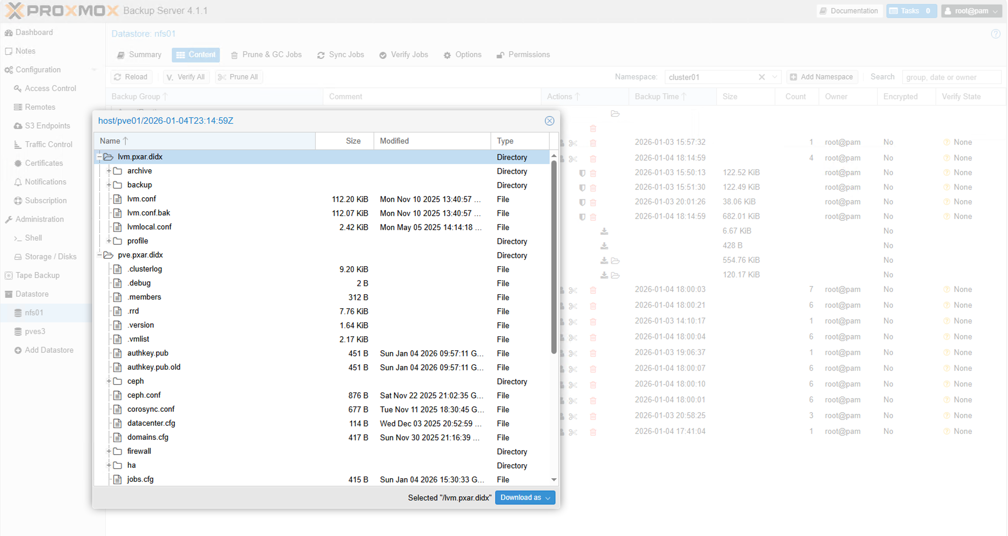
The backup process will create a backup of the Proxmox VE host and store it in the specified PBS datastore.
Show example
-
To restore the Proxmox VE host files from the backup, use the
proxmox-backup-client restorecommand with the appropriate parameters.
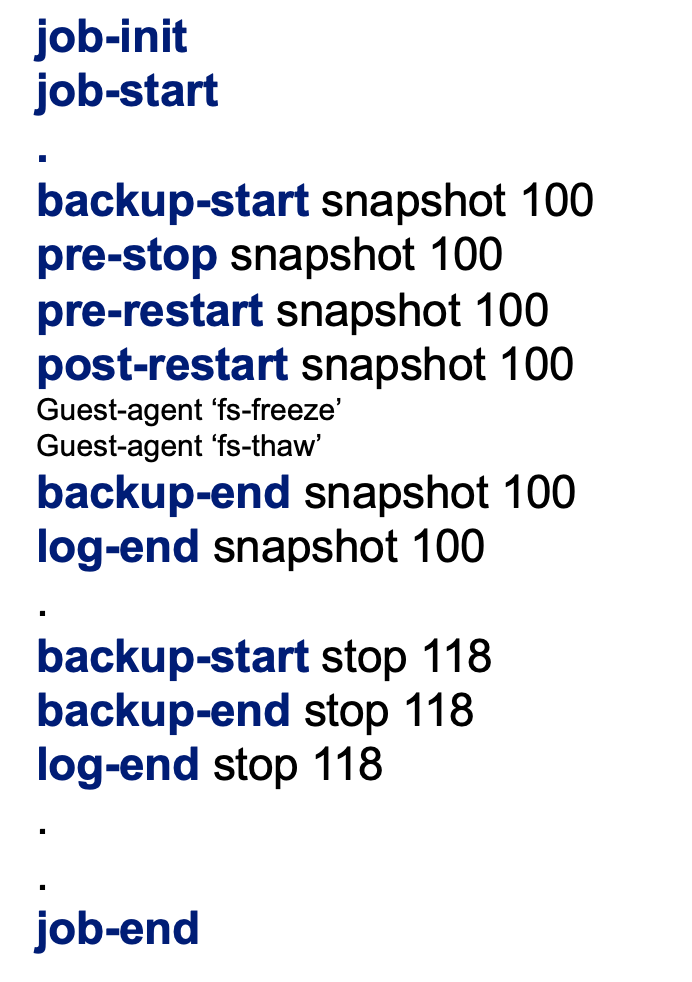
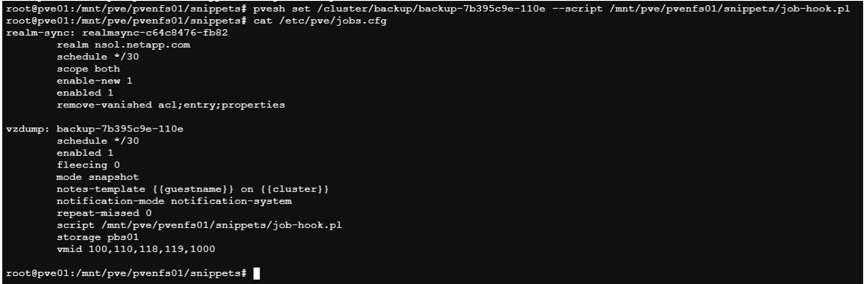
Proxmox VE supports pre and post backup scripts to perform custom actions before and after the backup process. Use these scripts to prepare VMs or containers for backup, perform additional tasks, or clean up after backup completion.
-
Create the backup script on the Proxmox VE host. Ensure the script is executable and has the necessary permissions.
Show example
-
Ensure the backup job exists.
-
In a Proxmox VE shell or SSH session, use the
pveshcommand with the--scriptoption to specify the script to execute.Show example
-
Optionally, use QEMU guest agents to quiesce the file system inside the workload before taking a snapshot for backup. Ensure the QEMU guest agent is installed and running. Place the scripts in /etc/qemu/fsfreeze-hook.d/ or /etc/qemu-ga/fsfreeze-hook.d/ inside the VM or container.
|
|
Hookscripts can also be set at the VM or container level using the qm set or pct set commands with the --hookscript option. For a sample hookscript, see /usr/share/pve-docs/examples/guest-example-hookscript.pl on the Proxmox VE host.
|
Restore VMs and containers
Restore VMs and containers directly from the Proxmox VE web interface or from PBS storage.
-
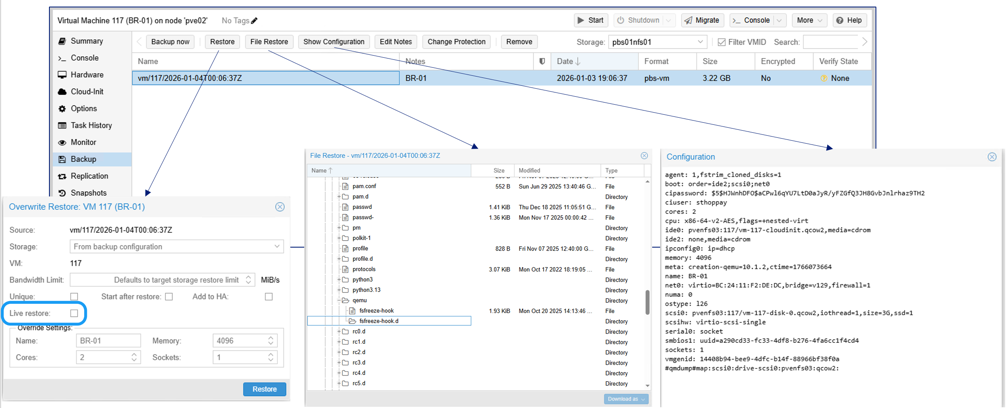
To restore an existing VM or container, navigate to it in the Proxmox VE web interface, click the Backup tab, select the backup from PBS storage, and click Restore.
Show example
For bare-metal recovery or restoring to a different Proxmox VE host, use the
proxmox-backup-clientcommand. -
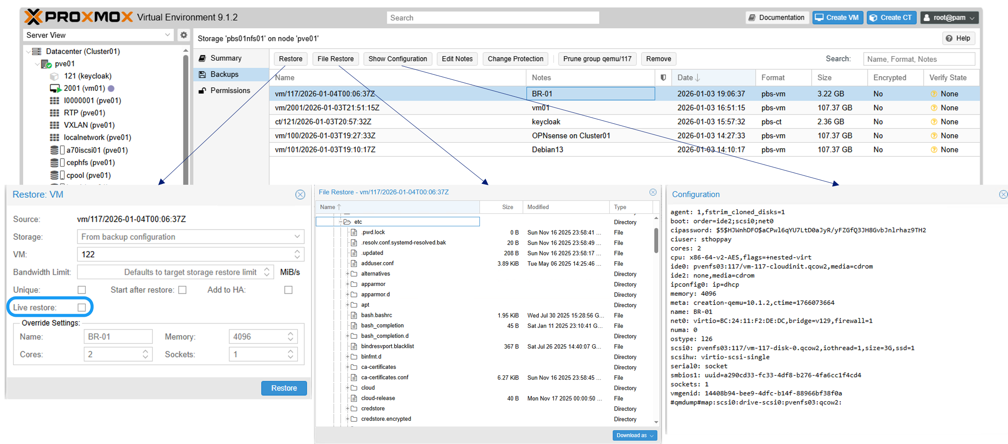
To restore a VM or container that is not currently available in Proxmox VE, navigate to the PBS storage Backups section, select the backup, and click Restore. Provide the target storage and other required information to complete the restoration.
Show example
Configure disaster recovery with SnapMirror
Replicate the PBS datastore on ONTAP storage to another ONTAP system using SnapMirror for disaster recovery. This protects backup data and enables restoration after site failures.
-
Configure SnapMirror replication for the PBS datastore volume.
-
In the event of a disaster, mount the replicated PBS datastore on a secondary PBS instance.
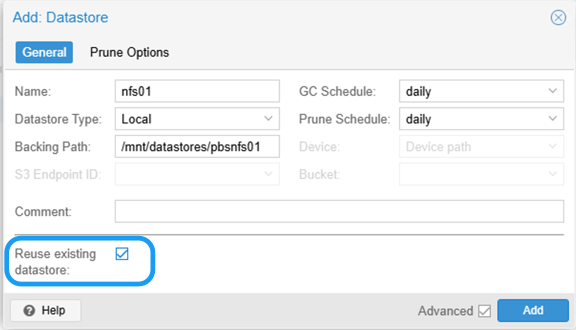
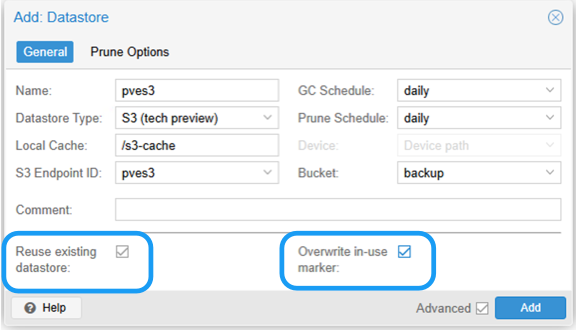
When adding the datastore in PBS, enable the "Reuse existing datastore" advanced option to avoid datastore reinitialization.
Show example
For ONTAP S3 storage, enable both the "Reuse existing datastore" and "Overwrite in-use marker" options when adding the datastore in PBS.
Show example
 Result
After adding the datastore, you can access the backup data and perform restore operations.
Monitor multiple clusters with Proxmox Datacenter Manager
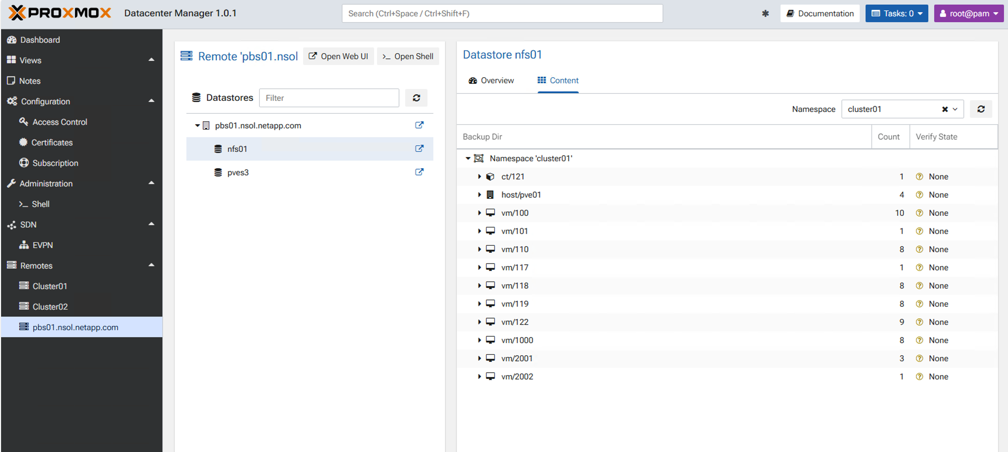
Monitor and manage multiple Proxmox VE and Proxmox Backup Server instances using Proxmox Datacenter Manager (PDM). PDM provides a centralized management interface for monitoring the health, performance, and status of multiple Proxmox VE clusters and PBS instances.
Show example
Summary
Proxmox Backup Server integrated with NetApp ONTAP storage delivers robust and efficient data protection for Proxmox VE workloads. Organizations can ensure virtualized workload availability and integrity by leveraging ONTAP's advanced data management features and PBS's backup capabilities.