


Hot-swap an I/O module in a FAS50 system


 Suggest changes

 PDFs
PDFs
You can hot swap an Ethernet I/O module in your FAS50 storage system if a module fails and your storage system meets all ONTAP version requirements.
To hot swap an I/O module, verify your storage system meets the ONTAP version requirements, prepare your storage system and I/O module, hot-swap the failed module, bring the replacement module online, restore the storage system to normal operation, and return the failed module to NetApp.
-
Hot-swapping the I/O module means that you do not have to perform a manual takeover before replacing the failed I/O module.
-
Apply commands to the correct controller and I/O slot when you are hot-swapping the I/O module:
-
The impaired controller is the controller on which you are hot-swapping the I/O module.
-
The healthy controller is the HA partner of the impaired controller.
-
-
You can turn on the storage system location (blue) LEDs to aid in physically locating the affected storage system. Log into the BMC using SSH and enter the
system location-led oncommand.A storage system has three location LEDs: one on the operator display panel and one on each controller. Location LEDs remain illuminated for 30 minutes.
You can turn them off by entering the
system location-led offcommand. If you are unsure if the LEDs are on or off, you can check their state by entering thesystem location-led showcommand.
Step 1: Verify the storage system meets the procedure requirements
To use this procedure, your storage system must be running ONTAP 9.17.1 or later, and your storage system must meet all requirements for the version of ONTAP your storage system is running.

|
If your storage system is not running ONTAP 9.17.1 or later, or does not meet all requirements for the version of ONTAP your storage system is running, you cannot use this procedure, you must use the replace an I/O module procedure. |
-
You are hot-swapping a failed cluster and HA I/O module in slot 4 with an equivalent I/O module. You cannot change the I/O module type.
-
The controller with the failed cluster and HA I/O module (the impaired controller) must have already taken over the healthy partner controller. The takeover should have occurred automatically if the I/O module has failed.
For two-node clusters, the storage system cannot discern which controller has the failed I/O module, so either controller might initiate the takeover. Hot swapping is only supported when the controller with the failed I/O module (the impaired controller) has taken over the healthy controller. Hot-swapping the I/O module is the only way to recover without an outage.
You can verify that the impaired controller successfully took over the healthy controller by entering the
storage failover showcommand.If you are not sure which controller has the failed I/O module, contact NetApp Support.
-
Your storage system configuration must have only one cluster and HA I/O module located in slot 4, not two cluster and HA I/O modules.
-
Your storage system must be a two-node (switchless or switched) cluster configuration.
-
All other components in the storage system must be functioning properly; if not, contact NetApp Support before continuing with this procedure.
-
You are hot swapping an Ethernet I/O module in any slot having any combination of ports used for cluster, HA, and client with an equivalent I/O module. You cannot change the I/O module type.
Ethernet I/O modules with ports used for storage or MetroCluster are not hot-swappable.
-
Your storage system (switchless or switched cluster configuration) can have any number of nodes supported for your storage system.
-
All nodes in the cluster must be running the same ONTAP version (ONTAP 9.18.1GA or later) or running different patch levels of the same ONTAP version.
If nodes in your cluster are running different ONTAP versions, this is considered a mixed-version cluster and hot-swapping an I/O module is not supported.
-
The controllers in your storage system can be in either of the following states:
-
Both controllers can be up and running I/O (serving data).
-
Either controller can be in a takeover state if the takeover was caused by the failed I/O module and the controllers are otherwise functioning properly.
In certain situations, ONTAP can automatically perform a takeover of either controller due to the failed I/O module. For example, if the failed I/O module contained all of the cluster ports (all of the cluster links on that controller go down) ONTAP automatically performs a takeover.
-
-
All other components in the storage system must be functioning properly; if not, contact NetApp Support before continuing with this procedure.
Step 2: Prepare the storage system and I/O module slot
Prepare the storage system and I/O module slot so that it is safe to remove the failed I/O module:
-
Properly ground yourself.
-
Unplug the cables from the failed I/O module.
Make sure to label the cables so you can reconnect them to the same ports later in this procedure.
The I/O module should be failed (ports should be in the link down state); however, if the links are still up and they contain the last functioning cluster port, unplugging the cables triggers an automatic takeover.
Wait five minutes after unplugging the cables to ensure any takeovers or LIF failovers complete before continuing with this procedure.
-
If AutoSupport is enabled, suppress automatic case creation by invoking an AutoSupport message:
system node autosupport invoke -node * -type all -message MAINT=<number of hours down>hFor example, the following AutoSupport message suppresses automatic case creation for two hours:
node2::> system node autosupport invoke -node * -type all -message MAINT=2h -
As needed for the version of ONTAP your storage system is running and the state of the controllers, disable automatic giveback:
ONTAP version If… Then… 9.17.1 or 9.18.1RC
If the impaired controller took over the healthy controller automatically
Disable automatic giveback:
-
Enter the following command from the console of the impaired controller
storage failover modify -node local -auto-giveback false -
Enter
ywhen you see the prompt Do you want to disable auto-giveback?
9.18.1GA or later
If either controller took over its partner automatically
Disable automatic giveback:
-
Enter the following command from the console of the controller that took over its partner:
storage failover modify -node local -auto-giveback false -
Enter
ywhen you see the prompt Do you want to disable auto-giveback?
9.18.1GA or later
Both controllers are up and running I/O (serving data)
Go to the next step.
-
-
Prepare the failed I/O module for removal by removing it from service and powering it off:
-
Enter the following command:
system controller slot module remove -node impaired_node_name -slot slot_number -
Enter
ywhen you see the prompt Do you want to continue?For example, the following command prepares the failed module in slot 4 on node 2 (the impaired controller) for removal, and displays a message that it is safe to remove:
node2::> system controller slot module remove -node node2 -slot 4

Warning: IO_2X_100GBE_NVDA_NIC module in slot 4 of node node2 will be powered off for removal.

Do you want to continue? {y|n}: y

The module has been successfully removed from service and powered off. It can now be safely removed.
-
-
Verify the failed I/O module is powered off:
system controller slot module showThe output should show
powered-offin thestatuscolumn for the failed module and its slot number.
Step 3: Hot swap the failed I/O module
Hot-swap the failed I/O module with an equivalent I/O module:
-
If you are not already grounded, properly ground yourself.
-
Remove the failed I/O module from the impaired controller:
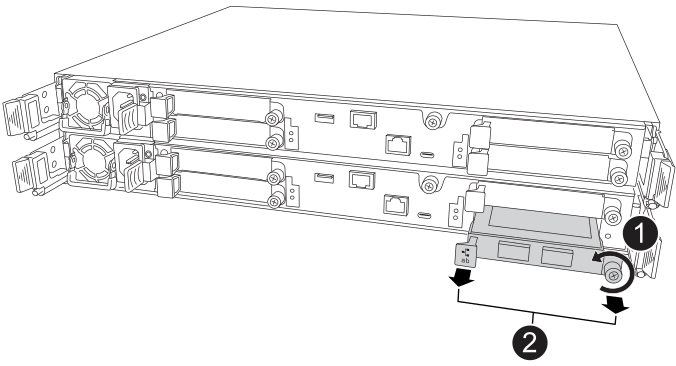

Turn the I/O module thumbscrew counterclockwise to loosen.

Pull the I/O module out of the controller using the port label tab on the left and the thumbscrew on the right.
-
Install the replacement I/O module:
-
Align the I/O module with the edges of the slot.
-
Gently push the I/O module all the way into the slot, making sure to properly seat the I/O module into the connector.
You can use the tab on the left and the thumbscrew on the right to push in the I/O module.
-
Turn the thumbscrew clockwise to tighten.
-
-
Cable the replacement I/O module.
Step 4: Bring the replacement I/O module online
Bring the replacement I/O module online, verify the I/O module ports initialized successfully, verify the slot is powered on, and then verify the I/O module is online and recognized.
After the I/O module is replaced and the ports are returned to a healthy state, LIFs are reverted to the replaced I/O module.
-
Bring the replacement I/O module online:
-
Enter the following command:
system controller slot module insert -node impaired_node_name -slot slot_number -
Enter
ywhen you see the prompt, Do you want to continue?The output should confirm the I/O module was successfully brought online (powered on, initialized, and placed into service).
For example, the following command brings slot 4 on node 2 (the impaired controller) online, and displays a message that the process was successful:
node2::> system controller slot module insert -node node2 -slot 4

Warning: IO_2X_100GBE_NVDA_NIC module in slot 4 of node node2 will be powered on and initialized.

Do you want to continue? {y|n}: `y`

The module has been successfully powered on, initialized and placed into service.
-
-
Verify that each port on the I/O module successfully initialized:
-
Enter the following command from the console of the impaired controller:
event log show -event *hotplug.init*
It might take several minutes for any required firmware updates and port initialization. The output should show one or more hotplug.init.success EMS events indicating each port on the I/O module initiated successfully.
For example, the following output shows initialization succeeded for I/O ports e4b and e4a:
node2::> event log show -event *hotplug.init*

Time                Node             Severity      Event

------------------- ---------------- ------------- ---------------------------

7/11/2025 16:04:06  node2      NOTICE        hotplug.init.success: Initialization of ports "e4b" in slot 4 succeeded

7/11/2025 16:04:06  node2      NOTICE        hotplug.init.success: Initialization of ports "e4a" in slot 4 succeeded

2 entries were displayed.
-
If the port initialization fails, review the EMS log for the next steps to take.
-
-
Verify the I/O module slot is powered on and ready for operation:
system controller slot module showThe output should show the slot status as
powered-onand therefore ready for operation of the I/O module. -
Verify that the I/O module is online and recognized.
Enter the command from the console of the impaired controller:
system controller config show -node local -slot slot_numberIf the I/O module was successfully brought online and is recognized, the output shows I/O module information, including port information for the slot.
For example, you should see output similar to the following for a I/O module in slot 4:
node2::> system controller config show -node local -slot 4

Node: node2
Sub- Device/
Slot slot Information
---- ---- -----------------------------
   4    - Dual 40G/100G Ethernet Controller CX6-DX
                  e4a MAC Address: d0:39:ea:59:69:74 (auto-100g_cr4-fd-up)
                          QSFP Vendor:        CISCO-BIZLINK
                          QSFP Part Number:   L45593-D218-D10
                          QSFP Serial Number: LCC2807GJFM-B
                  e4b MAC Address: d0:39:ea:59:69:75 (auto-100g_cr4-fd-up)
                          QSFP Vendor:        CISCO-BIZLINK
                          QSFP Part Number:   L45593-D218-D10
                          QSFP Serial Number: LCC2809G26F-A
                  Device Type:        CX6-DX PSID(NAP0000000027)
                  Firmware Version:   22.44.1700
                  Part Number:        111-05341
                  Hardware Revision:  20
                  Serial Number:      032403001370
Step 5: Restore the storage system to normal operation
Restore your storage system to normal operation by giving back storage to the controller that was taken over (as needed), restoring automatic giveback (as needed), verifying LIFs are on their home ports, and reenabling AutoSupport automatic case creation.
-
As needed for the version of ONTAP your storage system is running and the state of the controllers, give back storage and restore automatic giveback on the controller that was taken over:
ONTAP version If… Then… 9.17.1 or 9.18.1RC
If the impaired controller took over the healthy controller automatically
-
Return the healthy controller to normal operation by giving back its storage:
storage failover giveback -ofnode healthy_node_name -
Restore automatic giveback from the console of the impaired controller:
storage failover modify -node local -auto-giveback true
9.18.1GA or later
If either controller took over its partner automatically
-
Return the controller that was taken over to normal operation by giving back its storage:
storage failover giveback -ofnode controller that was taken over_name -
Restore automatic giveback from the console of the controller that was taken over:
storage failover modify -node local -auto-giveback true
9.18.1GA or later
Both controllers are up and running I/O (serving data)
Go to the next step.
-
-
Verify that the logical interfaces are reporting to their home server and ports:
network interface show -is-home falseIf any LIFs are listed as false, revert them to their home ports:
network interface revert -vserver * -lif * -
If AutoSupport is enabled, restore automatic case creation:
system node autosupport invoke -node * -type all -message MAINT=end
Step 6: Return the failed part to NetApp
Return the failed part to NetApp, as described in the RMA instructions shipped with the kit. See the Part Return and Replacements page for further information.