本繁體中文版使用機器翻譯,譯文僅供參考,若與英文版本牴觸,應以英文版本為準。
Microsoft Teams 的工作負載安全性 Webhook 範例
貢獻者

 建議變更
建議變更

 PDF
PDF
Webhook 允許使用者使用自訂的 webhook 通道向各種應用程式發送警報通知。本頁提供了為 Teams 設定 webhook 的範例。

|
本頁引用第三方說明,可能會有變更。請參閱"團隊文件"以獲取最新資訊。 |
團隊設定:
-
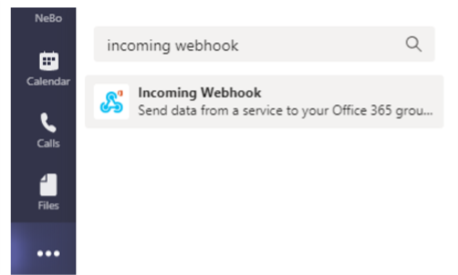
在 Teams 中,選擇 kebab,然後搜尋 Incoming Webhook。
-
選擇*新增至團隊>選擇團隊>設定連接器*。
-
複製 Webhook URL。您需要將其貼上到 Workload Security webhook 設定中。
建立工作負載安全團隊 Webhook:
-
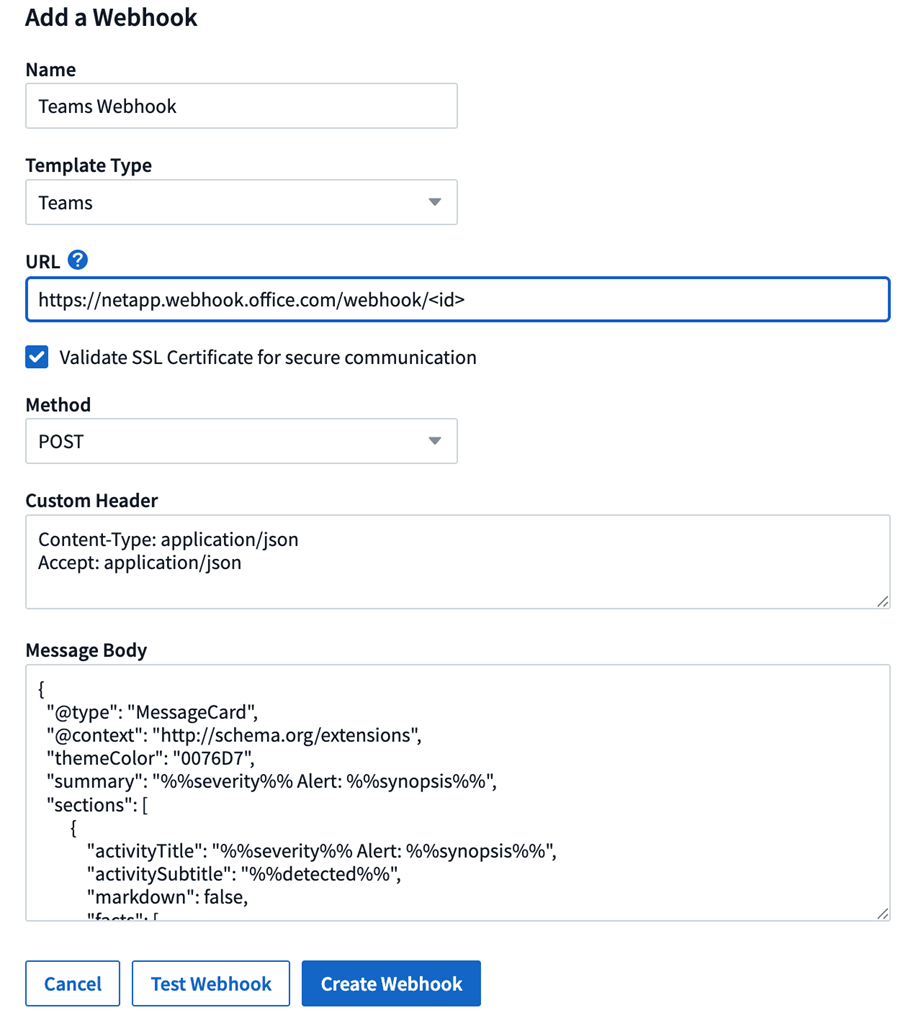
導覽至“管理”>“通知”,然後選擇“工作負載安全性 Webhooks”標籤。選擇 + Webhook 來建立一個新的 webhook。
-
為 webhook 賦予一個有意義的名稱。
-
在“模板類型”下拉式選單中,選擇“團隊”。
-
將上面的 URL 貼到 URL 欄位中。
使用 Adaptive Card 範本建立 Teams 通知的步驟
-
請將郵件內文替換為以下範本:
{ "type": "message", "attachments": [ { "contentType": "application/vnd.microsoft.card.adaptive", "content": { "$schema": "http://adaptivecards.io/schemas/adaptive-card.json", "type": "AdaptiveCard", "version": "1.2", "body": [ { "type": "TextBlock", "text": "%%severity%% Alert: %%synopsis%%", "wrap": true, "weight": "Bolder", "size": "Large" }, { "type": "TextBlock", "text": "%%detected%%", "wrap": true, "isSubtle": true, "spacing": "Small" }, { "type": "FactSet", "facts": [ { "title": "User", "value": "%%userName%%" }, { "title": "Attack/Abnormal Behavior", "value": "%%type%%" }, { "title": "Action taken", "value": "%%actionTaken%%" }, { "title": "Files encrypted", "value": "%%filesEncrypted%%" }, { "title": "Encrypted files suffix", "value": "%%encryptedFilesSuffix%%" }, { "title": "Files deleted", "value": "%%filesDeleted%%" }, { "title": "Activity Change Rate", "value": "%%changePercentage%%" }, { "title": "Severity", "value": "%%severity%%" }, { "title": "Status", "value": "%%status%%" }, { "title": "Notes", "value": "%%note%%" } ] } ], "actions": [ { "type": "Action.OpenUrl", "title": "View Details", "url": "https://%%cloudInsightsHostname%%/%%alertDetailsPageUrl%%" } ] } } ] } -
如果您使用的是 Power Automate Flows,URL 中的查詢參數採用編碼格式。您必須先解碼 URL 才能輸入。
-
點擊「測試 Webhook」以確保沒有錯誤。
-
儲存 webhook。
透過 Webhook 發送通知
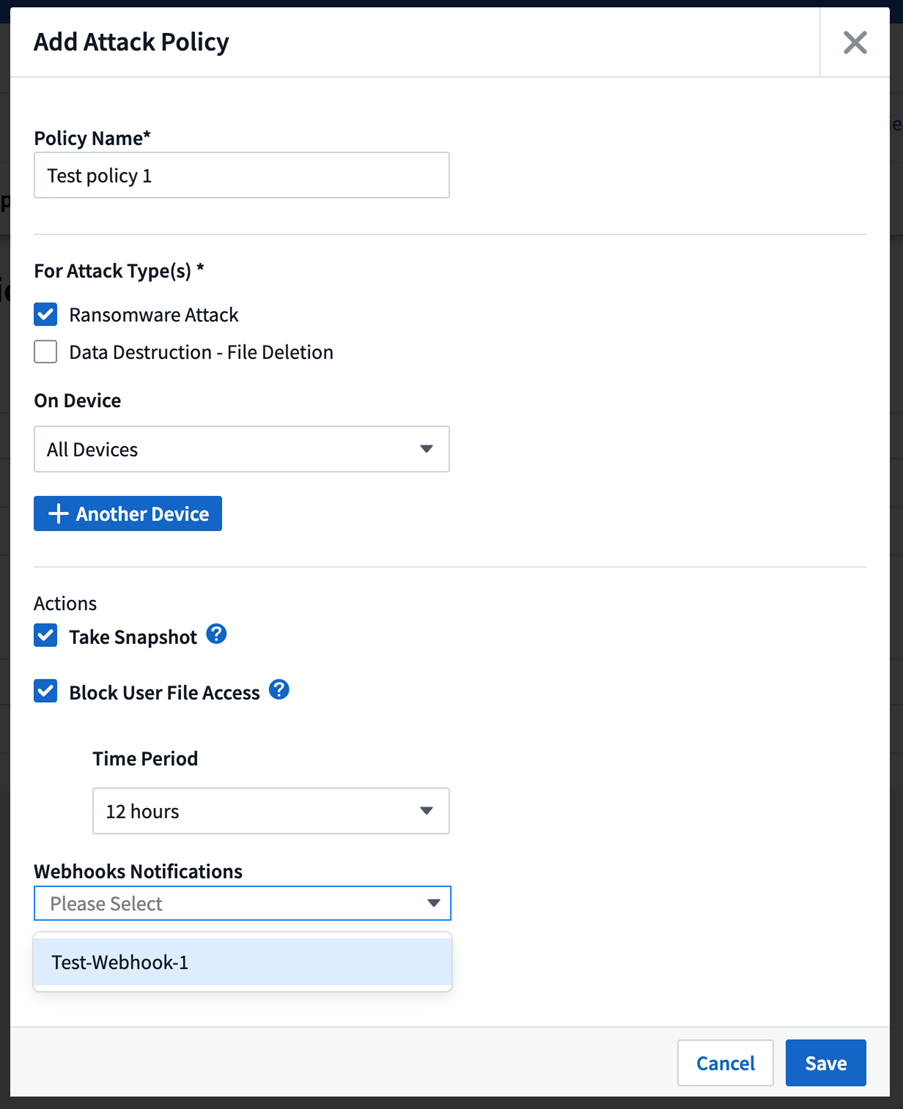
若要透過 webhook 通知事件,請導覽至_工作負載安全性 > 策略_。選擇“+攻擊策略”或“+警告策略”。
-
輸入一個有意義的策略名稱。
-
選擇所需的攻擊類型、應附加策略的設備以及所需的操作。
-
在「Webhooks Notifications」下拉式功能表下,選擇所需的 Teams webhook。保存策略。
注意:也可以透過編輯將 Webhook 附加到現有策略。