


Manage resources in folders and fleets in NetApp Console local deployment


 Suggest changes

 PDFs
PDFs
Manage resource access in NetApp Console local deployment by associating resources with the correct folder or fleet, which controls which teams can access and manage them.
Super admin, Organization admin, or Folder or fleet admin. Learn about access roles.
Place resources where the right teams can manage them, move them when ownership changes, and remove associations when they are no longer needed.
A resource is an entity that Console local deployment recognizes, such as a storage resource or a Backup and Recovery workload.
Console resource types
Console local deployment supports both storage resources and Backup and Recovery workloads. Associate either resource type with a fleet to control access and management.
- Storage resources
-
Storage resources are the most common type of resource in your organization. When you add a storage system to Console local deployment, associate it with a fleet so the appropriate teams can access and manage it. For example, after adding an ONTAP cluster, associate it with the
Production-US-Eastfleet. - Backup and Recovery workloads
-
Backup and Recovery workloads are also considered resources. You can assign member permissions to access Backup and Recovery workloads by associating the workloads with fleets. For example, assign a member access to a Backup and Recovery workload by associating it with a fleet the member can access and granting the appropriate Backup and Recovery role.
View the resources in your organization
View the resources in your organization to find a specific resource and see which fleets or folders it is associated with. If you haven't created any folders or fleets, all resources are associated with the default fleet directly under the organization.
-
Select Administration > Identity and access.
-
Select Resources.
-
Select Advanced Search & Filtering.
-
Use the available options to find a resource:
-
Search by resource name: Enter a text string and select Add.
-
Platform: Select one or more platforms, such as Amazon Web Services.
-
Resources: Select one or more resources, such as Cloud Volumes ONTAP.
-
Organization, folder, or fleet: Select the entire organization, a specific folder, or a specific fleet.
-
-
Select Search.
Associate a resource with a folder or fleet
Associate a resource with a fleet or folder so the appropriate teams can manage it. For example, after adding an ONTAP cluster, associate it with the Production-US-East fleet so the regional Storage admins for that fleet can manage it.

|
Users with the Organization admin role can add resources to a folder to delegate fleet association tasks to the Folder or fleet admin for that folder. Associate a resource with a folder. |
-
From the Resources page, navigate to a resource in the table, select
 and then select Associate to a folder or fleet.
 -
Select a folder or fleet and then select Accept.
-
To associate an additional folder or fleet, select Add folder or fleet and then select the folder or fleet.
Note that you can only select from the folders and fleets for which you have admin permissions.
-
Select Associate resources.
-
If you associated the resource with fleets, members who have permissions for those fleets now have the ability to access the resource from the Console.
-
If you associated the resource with a folder, a Folder or fleet admin can now access the resource and associate it with a fleet within the folder. Associate a resource with a folder.
-
View the folders and fleets associated with a resource
Verify which fleets or folders a resource is associated with.
|
|
To see which members have access to the resource, review the members assigned to the associated folder or fleet. Manage fleet access assignments. |
-
From the Resources page, navigate to a resource in the table, select
and then select View details.
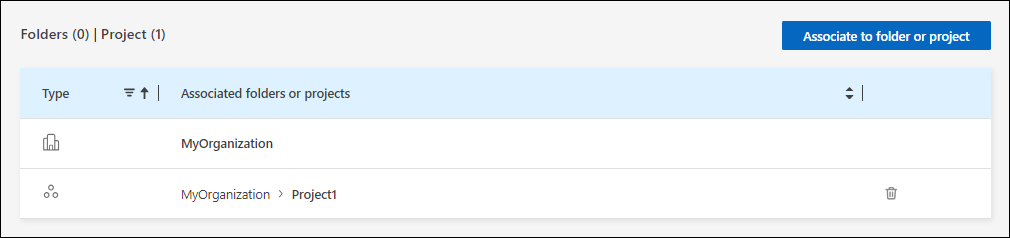
The following example shows a resource that is associated with one fleet.
|
|
To see which members have access to the resource, review the associated folder or fleet. |
Remove a resource from a folder or fleet
Remove a resource's association with a folder or fleet to prevent members from managing it there.
|
|
To remove a storage system from the entire organization, go to the Systems page and remove the system. |
-
From the Resources page, navigate to a resource in the table, select
and then select View details. -
To remove a resource from a folder or fleet, select
 next to the folder or fleet.
 -
Select Delete to remove the association.
Move a resource between fleets
Move a resource from one fleet to another by removing its association with the current fleet and then associating it with the target fleet.
|
|
Access to the resource changes as soon as the association changes. If possible, complete both steps in one maintenance window. |
-
From the Resources page, navigate to a resource in the table, select
and then select View details. -
Select
next to the current fleet and select Delete. -
Select Add folder or fleet.
-
Select the target fleet and select Accept.
-
Select Associate resources.