


Create a replication plan for Kubernetes workloads in NetApp Disaster Recovery

 Suggest changes

 PDFs
PDFs
After you add Kubernetes resources and sites, create a replication plan to protect your Kubernetes workloads with NetApp Disaster Recovery. The plan defines the source and destination clusters, resource groups, namespace and storage class mappings, snapshot schedule, and optional resource transformations and scripts for your applications.
Required NetApp Console role
The Super admin, Disaster recovery admin, Disaster recovery failover admin, or Disaster recovery application admin role is required to perform this task. Learn about user roles and permissions in NetApp Disaster Recovery. Learn about NetApp Console access roles for all services.

|
To create a replication plan for VMware workloads, see Create a VMware replication plan. |
Before you begin
-
Before creating a SnapMirror relationship, set up the cluster and storage VM (SVM) peering outside of Disaster Recovery.
-
Before you add namespaces to a resource group, run a manual discovery. This ensures that the namespaces are discovered and listed in the resource group.
-
Create an AppVault where Trident Protect saves protection data. You can create an AppVault while you create the replication plan or in advance. For more information, see Manage AppVaults.

|
Organize your Kubernetes clusters and namespaces before deploying NetApp Disaster Recovery to minimize sprawl. To organize resource groups before creating the replication plan, see Create a resource group. |
Create the replication plan
When you create the plan, follow these guidelines:
-
Use the same credentials for all Kubernetes clusters in the plan.
-
Use the same script for all Kubernetes clusters in the plan.
-
You can only enable protection if the replication plan is in one of the following states: Ready, Failback committed, or Test failover committed.
Select Kubernetes clusters
First, select the source and the destination clusters for the replication plan.
-
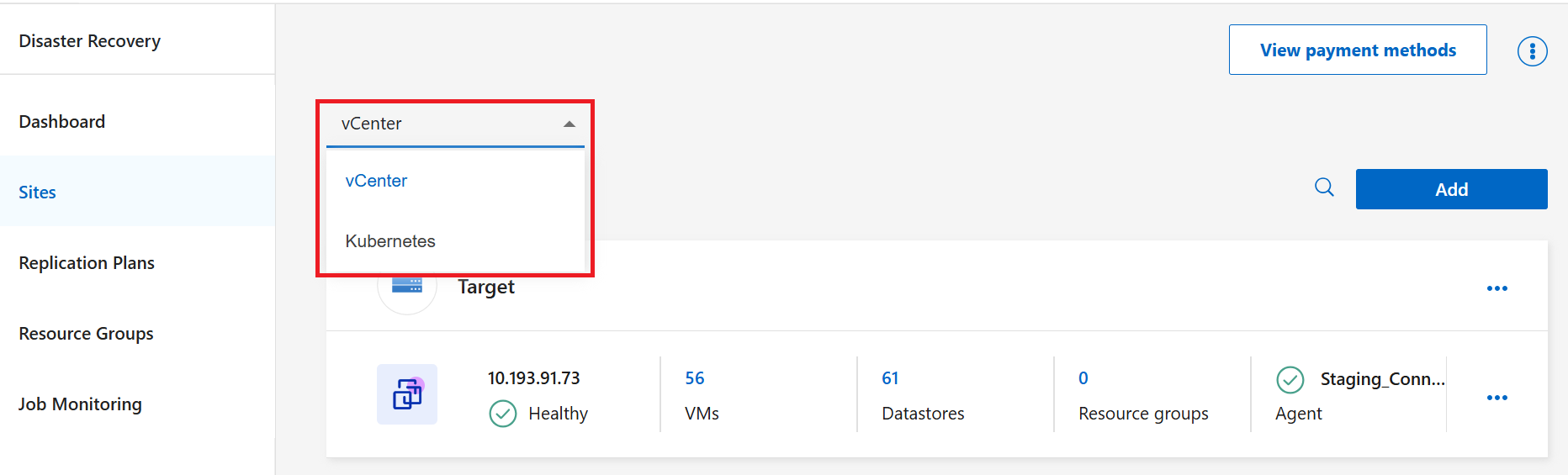
From the NetApp Disaster Recovery menu, select Replication plans.
-
In the dropdown menu, choose Kubernetes.
-
Select Add.
-
Enter a name for the replication plan.
-
For Source, select the Kubernetes cluster to designate as the source.
-
For Target, select the Kubernetes cluster to use as the disaster recovery destination.
-
Select Next.
Select resource groups
Next, select the resource groups that contain the Kubernetes namespaces you want to protect. Resource groups enable you to protect a set of namespaces with a common snapshot.
When you select resource groups, consider the following:
-
Before you add namespaces to resource groups, perform a manual discovery. This ensures that resources are discovered and listed in the resource group.
-
Kubernetes namespaces in a resource group must belong to the same ONTAP cluster.
-
When naming a resource group, the only supported characters are lowercase letters and numbers.
-
If you have existing resource groups, choose the groups from the list.
If you don't have existing resource groups or need to add resources to one, select + Create new resource group. Follow the instructions to add namespaces to a resource group.
-
In the alternate column, review the selected resource groups.
-
Select Next.
Map source resources to the target
In the Resource mapping step, specify how the resources from the source cluster map to the target cluster. Also, set the snapshot schedule and the AppVault where data will be stored.
If you want to create a SnapMirror relationship, set up peering relationship in ONTAP.
-
Choose the namespace mappings for each namespace in each resource group. By default, Disaster Recovery selects the target to be the same as source. You can choose a different namespace in the destination cluster.
-
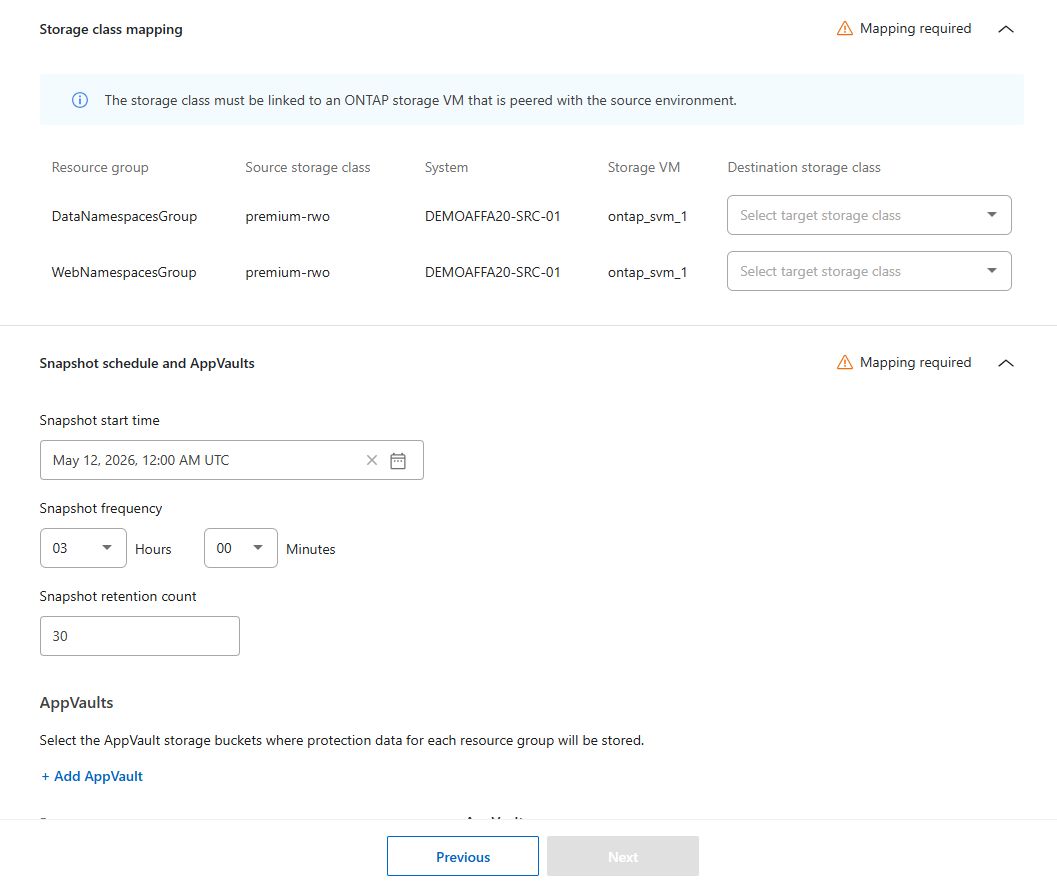
Designate the storage class mapping for each resource group. The storage class must be linked to an ONTAP storage VM peered with the source environment. The default storage class on the cluster is used if you don't designate one.
To view the storage class, run the CLI command kubectl get pvc -n <namespace>on the namespace. -
Set the snapshot schedule. Choose the Snapshots and retention start time (calendar date and time), the Snapshot and retention frequency (how often snapshots are initiated), and the Snapshot retention count (how many snapshots are saved).
When setting snapshot frequency, you must choose a frequency of at least every five minutes.
-
Select Add AppVault to create the AppVault where protection data will be saved. You can also manage AppVaults from the Settings page.
-
Enter a Name and select the Console agent the AppVault should be connected to.
-
Select the cloud Provider to host the AppVault.
-
Based on the provider selection, Disaster Recovery populates existing configured cloud subscriptions.
For Azure, choose the Subscription, Resource group, and Storage account for the cloud provider.
For AWS, ONTAP S3, and StorageGRID, choose the Account, Credentials, and Bucket.
-
If you selected ONTAP S3 or StorageGRID, you can optionally add credentials. Select Add credentials to expand the options, then add the Credential name, Gateway node FQDN, the Port number, Access key, and Secret key.
-
Select Add.
-
-
Select Next.
Add resource transformations, script executions, and boot order
For Kubernetes replication plans, you can apply resource transformations and script executions, and set a boot order. These steps are optional.
Adding a resource transformation enables you to modify any aspect of a workload during failover. Resource transformations provide flexibility to adapt workloads to different environments and configurations during a disaster recovery event. Learn how to create resource transformations.
Resource transformations are applied in the order you list them.
-
From the dropdown, select the resource transformation that you want to add.
-
Choose which resources you want to apply the transformation to, then add the required values.
-
Review the order of the transformations to ensure the operations will execute in the appropriate order.
Disaster Recovery can execute a script before or after taking a snapshot to manage an application's quiescence and resumption. Performing this action ensures that applications are properly prepared before a snapshot is replicated and restored and can resume operations seamlessly after failover.
-
Select + Add script.
-
Select Upload to choose the script file.
-
Choose the Execution stage: Pre-snapshot to execute before creating the snapshot or Post-snapshot to execute after.
-
Select Save.
For replication plans that include multiple resource groups, you can optionally set a boot order. The boot order ensures that resources that need to come online together do so, and that any resource groups that rely on others don't come online until the groups they depend on do.
-
Select the Boot order and delay section.
-
Designate a boot Order value for each resource in the replication plan, beginning with one. Assign the same number to any resources that should boot at the same time.
-
Set the Delay time in minutes. If any resources should be delayed, set how long the delay should be.
Review and create the replication plan
Finally, review and confirm your settings for the replication plan.
|
|
You can later disable or delete the replication plan. |
-
Review the failover mappings.
-
Select Add to create the replication plan.
After selecting Add, you can monitor the different jobs in Job monitoring.