


Manage resource transformations in NetApp Disaster Recovery

 Suggest changes

 PDFs
PDFs
For Kubernetes workloads in NetApp Disaster Recovery, you can create resource transformations. A resource transformation enables you to modify any aspect of a workload during failover. Resource transformations provide flexibility to adapt workloads to different environments and configurations during a disaster recovery event.
Resource transformations are added when you create a replication plan for Kubernetes.
Required NetApp Console role
The Super admin, Disaster recovery admin, or Disaster recovery application admin role is required to perform this task. Learn about user roles and permissions in NetApp Disaster Recovery. Learn about NetApp Console access roles for all services.
Create a resource transformation template
-
In Disaster Recovery, select Settings from the sidebar.
-
In the Resource Transformation card, select + Add template.
-
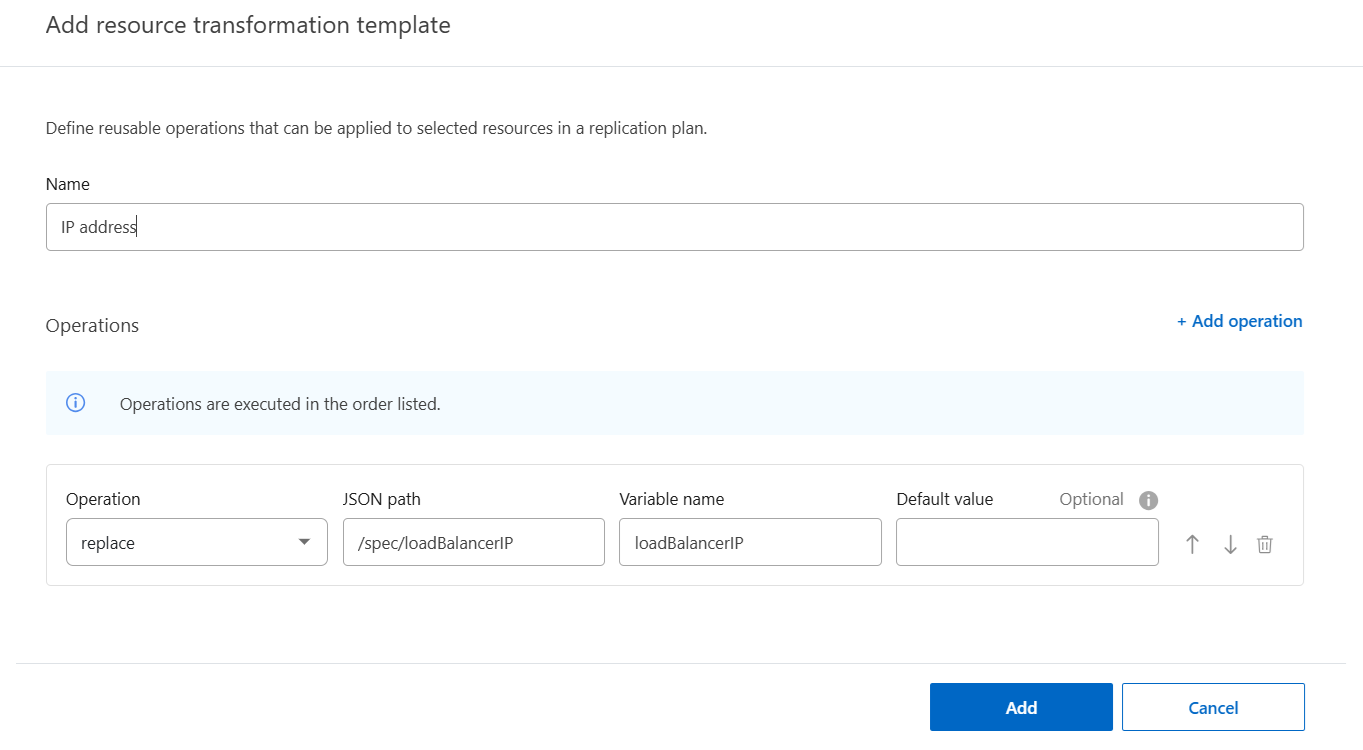
Enter a Name for the resource transformation.
-
Select the Operation: add, copy, move, remove, replace, or test.
-
Enter the JSON path and Variable name. Optionally, add the Default value.
-
To add more operations to the template, select + Add operation. Repeat the previous two steps, then sort the operations by the order in which they should be executed.
-
Select Add to create the template.
Edit a resource transformation
-
In Disaster Recovery, select Settings from the sidebar.
-
In the Resource transformations card, select Manage resource transformations.
-
Find the resource transformation you want to edit. From the action menu at the end of the row, select Edit.
-
You can edit any of the fields for the template. Edit the Name, the Operation (add, copy, move, remove, replace, or test), and its attendant values: the JSON path and Variable name, or the Default value. You can also add operations or edit the order operations execute.
-
Select Save.
Clone a resource transformation
You can clone a resource transformation to use as the basis for a new resource transformation template. Cloned templates use the name of the source template and are appended with "-v1". For example, if you cloned the template "scale up deployment", the clone is named "scale up deployment-v1".
-
In Disaster Recovery, select Settings from the sidebar.
-
In the Resource transformations card, select Manage resource transformations.
-
Find the resource transformation you want to clone. From the action menu at the end of that row, select Clone.
-
When the operation is successful, Disaster Recovery presents a confirmation dialog in the UI.
You can view the cloned template in the resource transformations list.
Delete a resource transformation
If you no longer need a resource transformation, you can delete it.
-
In Disaster Recovery, select Settings from the sidebar.
-
In the Resource transformations card, select Manage resource transformations.
-
Find the resource transformation you want to delete. From the action menu at the end of the row, select Delete.
-
In the dialog, select Delete to confirm the operation.