


Configure a Splunk SIEM in NetApp Ransomware Resilience

 Suggest changes

 PDFs
PDFs
NetApp Ransomware Resilience provides native support for security information and event management (SIEM) with Splunk Cloud and Splunk Enterprise. By connecting Ransomware Resilience to a Splunk SIEM, you can automatically send event data for threat analysis and detection to streamline ransomware protection and event management.
Configure Splunk Cloud and Splunk Enterprise for threat detection
You must perform configurations in Splunk Cloud or Splunk Enterprise before authenticating the SIEM system in Ransomware Resilience.
Ransomware Resilience supports threat detection with Splunk Cloud and Splunk Enterprise. Before enabling the Splunk connection in Ransomware Resilience, you need to:
-
Enable an HTTP Event Collector in Splunk Cloud or Enterprise to receive event data via HTTP or HTTPS from the Console.
-
Create an Event Collector token in Splunk Cloud or Enterprise.
-
For Splunk Enterprise, if you choose Deliver via NetApp Console, allow inbound public internet traffic so Ransomware Resilience can push events to the HTTP Event Collector. If you choose Deliver via Console agent, the Console agent must be able to reach the HTTP Event Collector.
-
In Splunk Cloud or Enterprise, select Settings > Data Inputs.
-
Select HTTP Event Collector > Global Settings.
-
On the All Tokens toggle, select Enabled.
-
To have the Event Collector listen and communicate over HTTPS rather than HTTP, select Enable SSL.
-
Enter a port in HTTP Port Number for the HTTP Event Collector. Save the port number for the authentication process.
-
In Splunk Cloud or Enterprise, select Settings > Add Data.
-
Select Monitor > HTTP Event Collector.
-
Enter a Name for the token then select Next.
-
Select a Default Index where events will be pushed, then select Review.
-
Confirm that all settings for the endpoint are correct. Select the back button to make changes, otherwise select Submit.
-
Copy the token and paste it in another document to have it ready for the Authentication step.
Authenticate Splunk with Ransomware Resilience
-
In Ransomware Resilience, select Settings in the sidebar.
-
In the Settings page, select Connect in the SIEM connection tile.
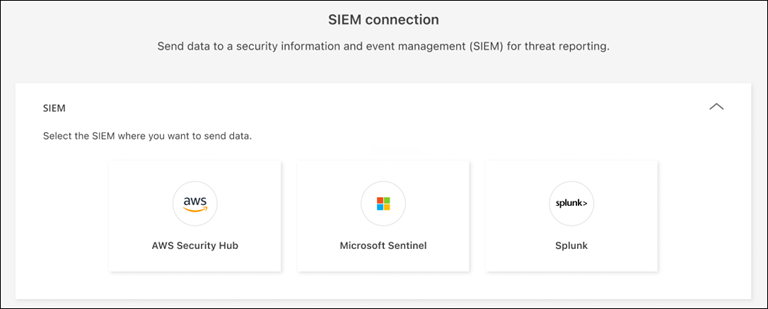
-
Choose Splunk as the SIEM provider.
-
Review the Event collector and Token sections to confirm you have the correct information.
-
Expand the Authentication section.
-
Select the Protocol for the HTTP Event Collector. It's recommended that you use HTTPS, but if SSL isn't enabled for the HTTP Event Collector, select HTTP.
-
Enter the Host and Port for the Splunk instance that runs the HTTP Event Collector. The port should match what you entered in the HTTP event collector process.
-
Enter the event collector token you created in Splunk.
-
-
Choose the event delivery route. To deliver SIEM events to your SIEM endpoint, select Deliver via NetApp Console. To route events through the Console agent already on your network, select Deliver via Console agent.
If you chose Deliver via Console agent, select the Console agent to use from the dropdown menu.
-
Select Connect to begin sending SIEM data.