


Change the host I/O module protocol

 Suggest changes

 PDFs
PDFs
You can change the protocol on the host I/O modules for your controllers when you need a different protocol on your existing I/O modules, as part of an I/O module upgrade, or when the default protocol on new controllers part of a new storage system installation or controller upgrade is not the protocol you want.
-
Change the protocol on the host I/O modules by preparing, stopping the host I/O operations, changing the protocol, and then configuring the host to use the new protocol.
-
The protocol is changed on all host I/O modules in your storage system.
-
When you change the protocol on the host I/O modules, you temporarily disrupt host access to all volumes and make the storage system unavailable during the reboot, which takes a few minutes.
Step 1: Prepare for the protocol change
Prepare to change the protocol on the host I/O modules by verifying the current protocol being used, determining if you need to change the protocol, and if yes, scheduling a downtime maintenance window.
-
If you do not know the current protocol on the host I/O modules in your storage system, verify it using SANtricity System Manager.
-
Select System.
-
In the Additional Settings section, click Change host I/O protocol to open that page.
-
See the default protocol displayed in the Host I/O Protocol field.

If you want to see the list of available protocols for your host I/O modules, select the drop-down menu in the Host I/O Protocol field. The protocol list is based on the host I/O modules currently installed.
-
-
The next step depends on whether the default protocol is the protocol you want or not:
If… Then… The default protocol is the protocol you want
No action is needed. You can exit this procedure.
The default protocol is not the protocol you want
Continue with this procedure to change the protocol.
-
Schedule a downtime maintenance window for this procedure.
Step 2: Stop host I/O operations
You must stop all I/O operations from the host and then delete all defined hosts from the storage system before changing the protocol.
|
|
You cannot access data on the storage system until you successfully complete the protocol change. |
-
Make sure no I/O operations are happening between the storage system and all connected hosts. For example, you can perform these steps:
-
Stop all processes that involve the LUNs mapped from the storage to the hosts.
-
Ensure that no applications are writing data to any LUNs mapped from the storage to the hosts.
-
Unmount all file systems associated with volumes on the storage system.
The exact steps to stop host I/O operations depend on the host operating system and the configuration, which are beyond the scope of these instructions. If you are not sure how to stop host I/O operations in your environment, consider shutting down the host or contact NetApp Support. 
Possible data loss — If you continue this procedure while I/O operations are occurring, you might lose data.
-
-
On each controller, make sure the NV Caching Active (green) LED is off.
When the NV Caching Active (green) LED is off, any data in cache memory has been written to the drives and it is safe to continue with this procedure.
If the NV Caching Active (green) LED is on, cached data is being written to the drives. You must wait for the process to complete and the NV Caching Active (green) LED to turn off. However, if the LED remains on for longer than five minutes, contact NetApp Support before continuing with this procedure. The NV Caching Active (green) LED is located next to the NV icon on the controller.
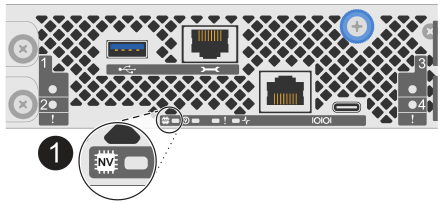

NV icon and NV Caching Active LED on the controller
-
Confirm operations on the controllers have completed in SANtricity System Manager:
-
Select Monitoring > Operations in progress to see the Overview screen.
-
Wait for all operations to complete and the Overview screen displays No operations currently in progress, before continuing to the next step.
-
-
Delete all defined hosts from the storage system.
For more information about deleting hosts, see the Delete a host or host cluster.
Step 3: Change the protocol
Using SANtricity System Manager, change the protocol on the host I/O modules, wait for the controllers to complete their reboot cycle, confirm their status is Optimal, and then recreate the host definitions.
-
Select System.
-
In the Additional Settings section, click Change host I/O protocol to open that page.
-
In the Host I/O Protocol field, click the drop-down menu and choose the protocol you want to use.
The protocol list is based on the host I/O modules currently installed.
-
Type CHANGE in the open field to confirm your change.
-
Select the Change button.
-
Wait for the controllers to complete their reboot cycle.
This can take about five minutes.
-
When the controllers are back online, confirm their status is Optimal using SANtricity System Manager.
-
Recreate the host definitions.
For more information about creating hosts, see the Create a host or host cluster procedure.
Step 4: Configure the host to use the new protocol
After changing the protocol of the host ports, you must configure the host to use the new protocol.
-
For step-by-step instructions, see the guide appropriate for your storage system:
-
Specific settings might vary. Check the NetApp Interoperability Matrix for specific instructions and additional recommended settings for your solution.