


Prepare to install an EF50 or EF80 storage system

 Suggest changes

 PDFs
PDFs
Prepare to install your EF50 or EF80 storage system by getting the site ready, understanding the lifting precautions for your storage system, unpacking the boxes and comparing the contents to the packing slip, and registering the storage system to access support benefits.
Step 1: Prepare the site
Ensure that the site and the cabinet or rack that you plan to use meet specifications for your storage system.
-
Use NetApp Hardware Universe to confirm that your site meets the environmental and electrical requirements for your storage system.
-
Make sure you have adequate cabinet or rack space for your storage system and any switches.
If needed, see NetApp Hardware Universe for the exact dimensions of your storage system.
-
2U for a storage system
-
1U for most switches
-
-
Install any required network switches.
-
Make sure you have a supported browser for the management software:
-
Google Chrome (version 89 and later)
-
Microsoft Edge (version 90 and later)
-
Mozilla Firefox (version 80 and later)
-
Safari (version 14 and later)
-
-
Obtain the following equipment and tools needed for installation:
-
Electrostatic discharge (ESD) strap
-
Philips #2 screwdriver
-
Flashlight
-
Step 2: Understand the lifting precautions
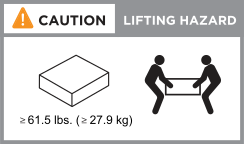
Before you unpack the boxes, and later when you install your storage system, you should understand the weight of your storage system so that you can take the necessary precautions when lifting and moving it.
An EF50 or EF80 storage system can weigh up to 61.5 lbs (27.9 kg). To lift the storage system, use two people or a hydraulic lift.
Step 3: Unpack the boxes
After you've ensured that the site and the cabinet or rack that you plan to use meet the specifications for your storage system, and you understand the lifting precautions, unpack all boxes and compare the contents to the items on the packing slip.
-
Carefully open all the boxes and lay out the contents in an organized manner.
-
Compare the contents you’ve unpacked with the packing slip.
You can get your packing slip by scanning the QR code on the side of the shipping box.

If there are any discrepancies, note them down for further action. The following items are some of the contents you might see in the boxes.
If needed, see NetApp Hardware Universe for other supported cables and identify their use.
Hardware
Cables
-
Storage system with drives
-
Switches
-
Rack-mount hardware with instructions
-
Bezel
-
inter-controller mirroring Ethernet cables
-
Management Ethernet cables (RJ-45 cables)
-
Network cables
-
Power cables
-
Step 4: Register your storage system
After you've ensured that your site meets the specifications for your storage system, and you've verified that you have all the parts you ordered, you should register your storage system.
|
|
You can register your storage system now or later. Later, at system startup, you are prompted to register your system. |
-
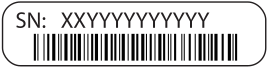
Make note of the Serial Number (SN) for each controller.
You can find the serial number in the following locations:
-
On each controller
-
On the packing slip
-
In your confirmation email
-
-
Create an account at NetApp Support if you don't already have one.
-
Register your system by following the instructions in the NetApp Knowledge Base Article How to register a new system.
After preparing to install your storage system, install the hardware.