


Learn about backup operations for SAP HANA Snapshot in SnapCenter

 Suggest changes

 PDFs
PDFs
Perform SAP HANA Snapshot backups using SnapCenter. Learn about database Snapshot backups, block integrity checks, non-data volume backups, and backup replication using SnapVault or Azure NetApp Files backup.
In SnapCenter, database backups are typically executed using the schedules defined within the resource protection configuration of each HANA database.
On-demand database backup can be performed by using either the SnapCenter GUI, a PowerShell command line, or REST APIs.
SnapCenter supports the following backup operations.
-
HANA database Snapshot backup operations
-
Block integrity check operations
-
Snapshot backups of non-data volumes
-
Backup replication using SnapVault or ANF backup for HANA database or non-data volume backups
The following sections describe the different operations for single-host HANA systems which have been auto discovered by SnapCenter (HANA plug-in deployed at the HANA database host)
SAP HANA Snapshot backups in SnapCenter
The SnapCenter resource topology shows the list of backups created by SnapCenter. The following figure shows the backups available on the primary storage and highlights the most recent backup.
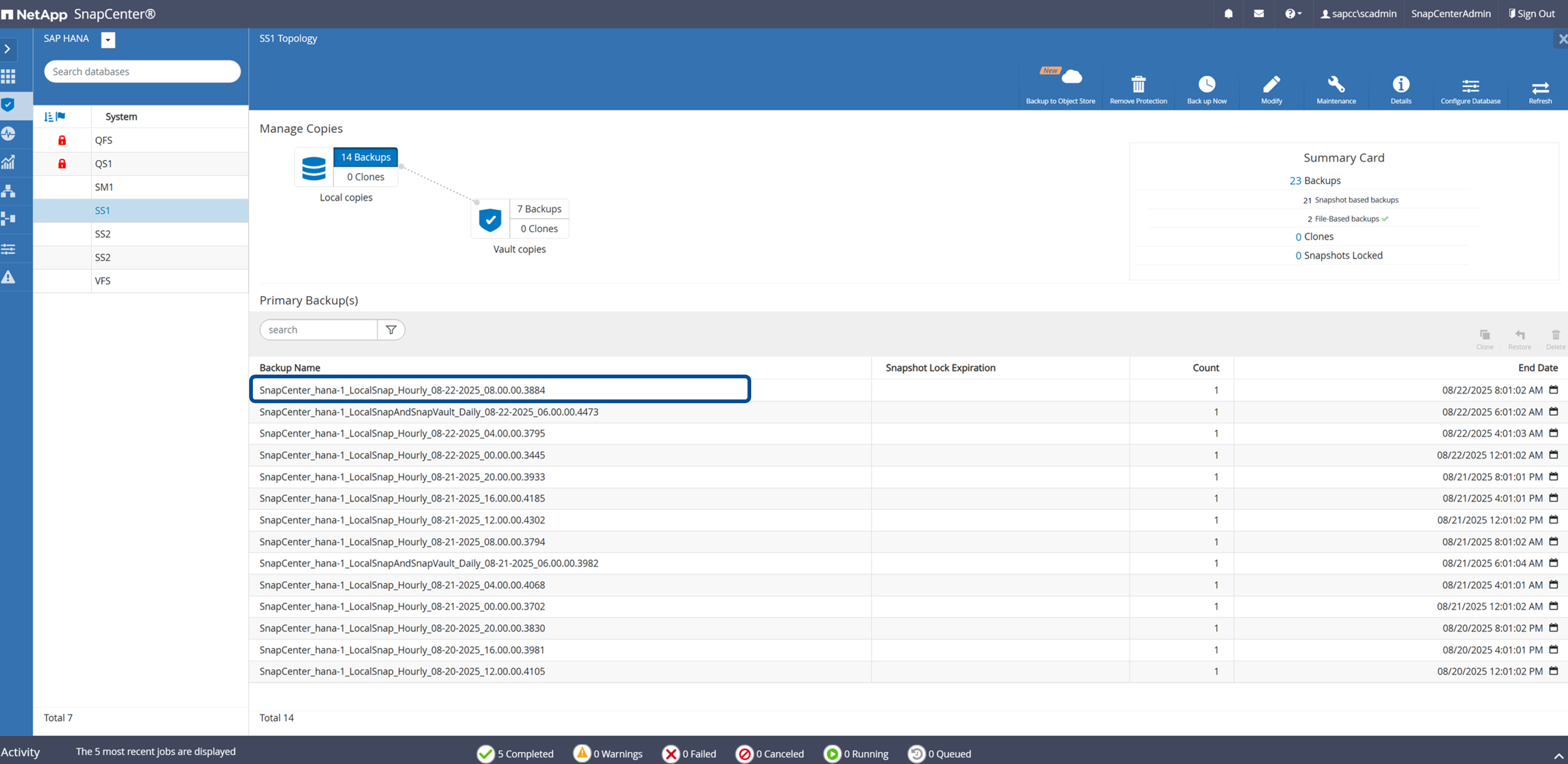
Backups at the secondary storage can be listed by clicking on the Vault copies icon.

The following screenshot shows the list of backups for the system SM1, where tamperproof Snapshots have been configured.

SAP HANA Snapshot backups in SAP HANA Studio
When performing a backup using storage Snapshots for an SAP HANA MDC system, a Snapshot copy of the data volume is created. This data volume contains the data of the system database as well as the data of all tenant databases. To reflect this physical architecture, SAP HANA internally performs a combined internal database snapshot of the system database as well as all tenant databases whenever SnapCenter triggers a Snapshot backup. This results in multiple separate backup entries in the SAP HANA backup catalog: one for the system database and one for each tenant database.
In the SAP HANA backup catalog, the SnapCenter backup name is stored as a Comment field as well as External Backup ID (EBID). This is shown in the following screenshot for the system database and in the screenshot after that for the tenant database SS1. Both figures highlight the SnapCenter backup name stored in the comment field and EBID.

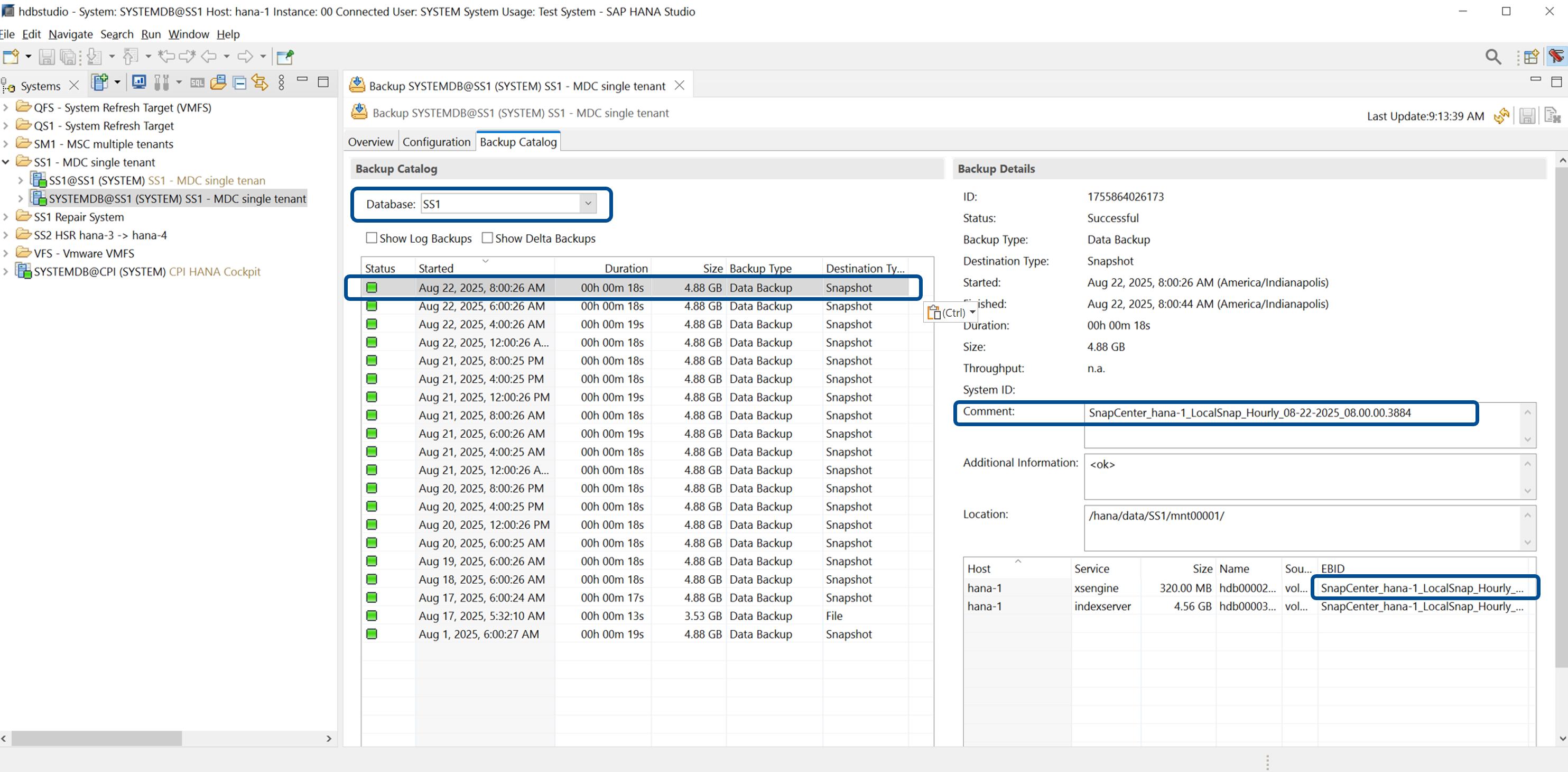

|
SnapCenter is only aware of its own backups. Additional backups created, for example, with SAP HANA Studio, are visible in the SAP HANA catalog but not in SnapCenter. Also Snapshots created directly on the storage system will not be visible in SnapCenter, |
SAP HANA Snapshot backups on storage layer
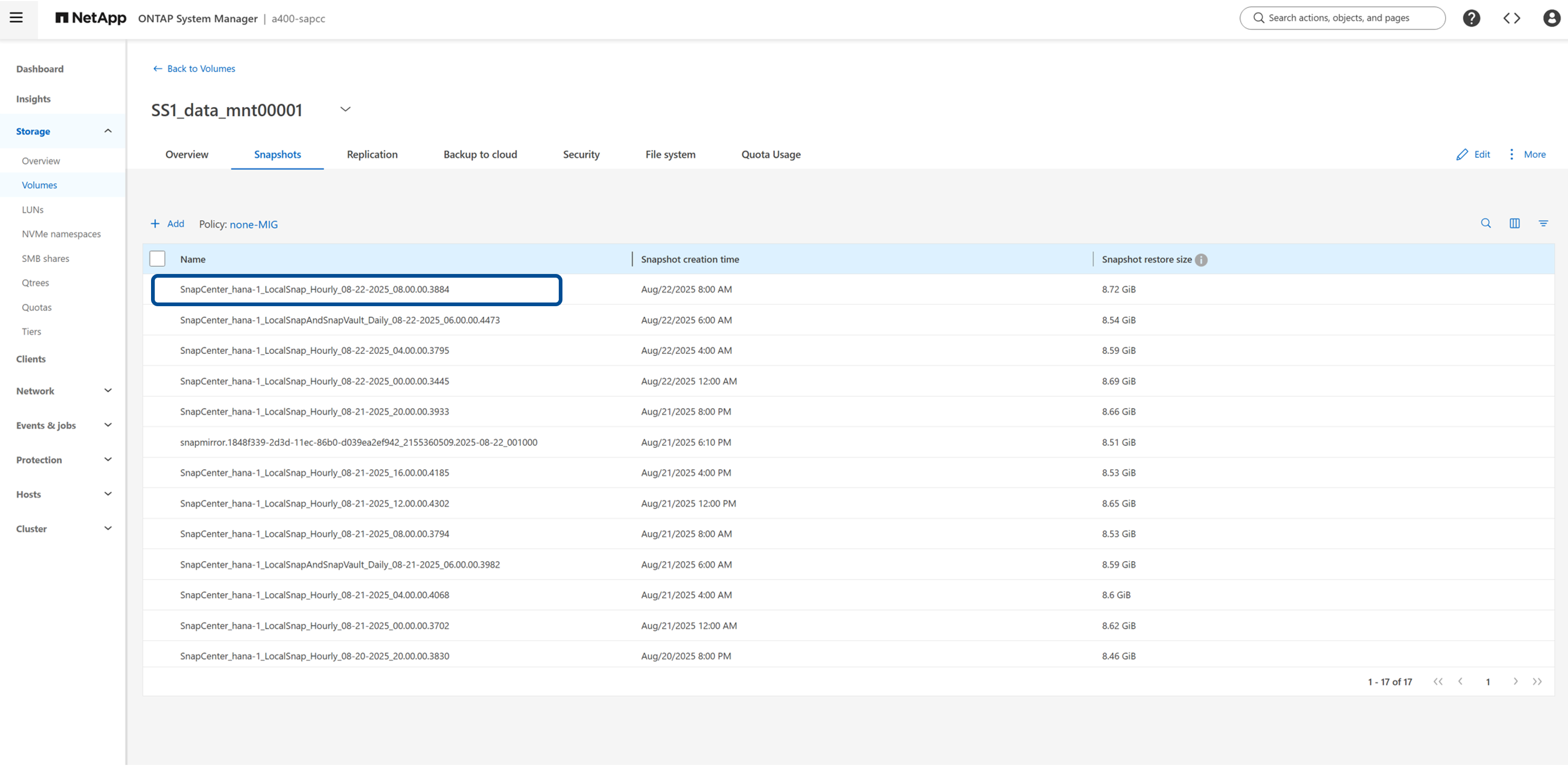
To view the backups on the storage layer, you can use NetApp System Manager and select the database volume. The following screenshot shows the available backups for the database volume SS1_data_mnt00001 at the primary storage. The highlighted backup is the backup shown in SnapCenter and SAP HANA Studio in the previous images and has the same naming convention.
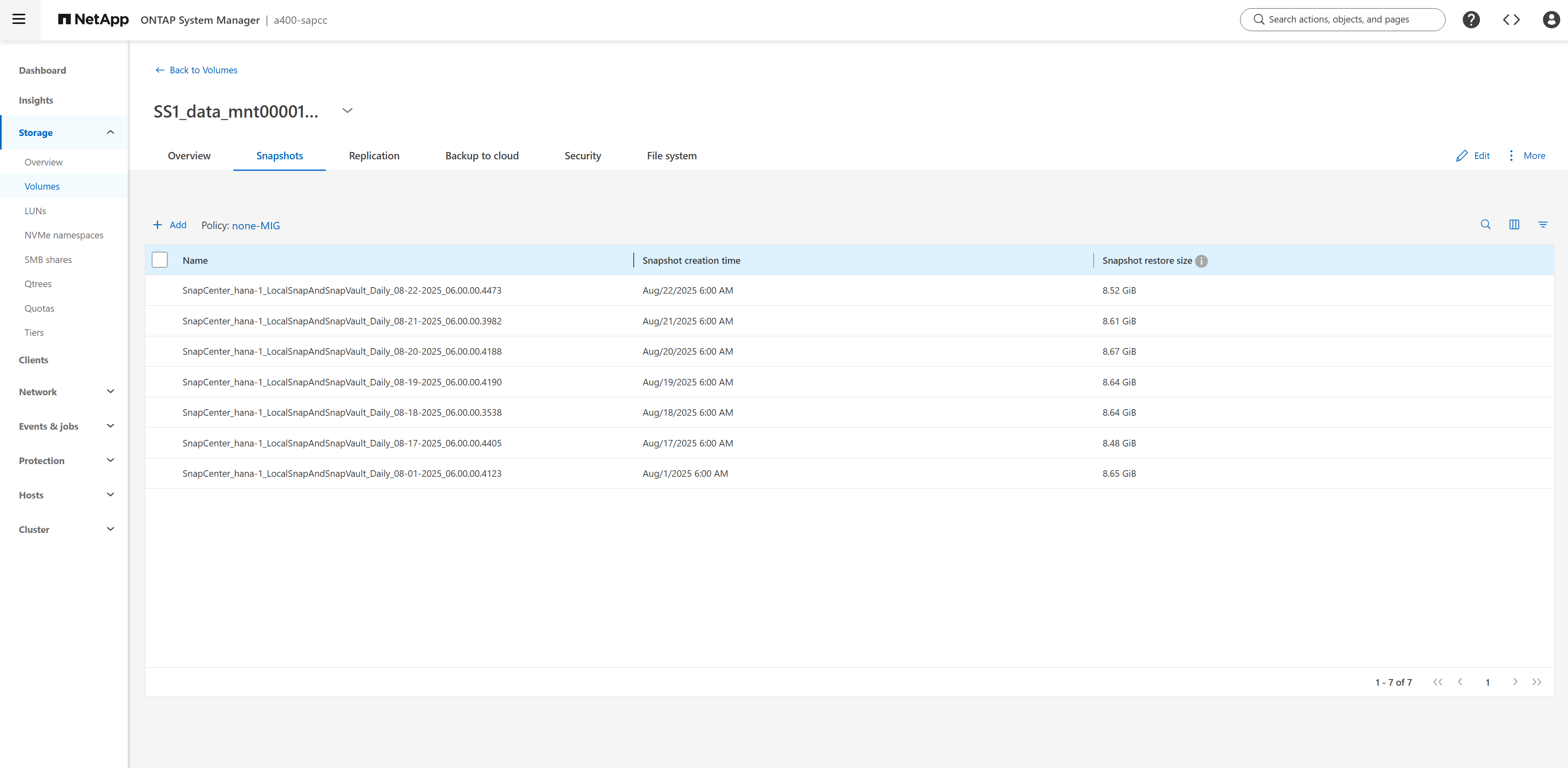
The following screenshot shows the available backups for the replication target volume hana_SS1_data_mnt00001_dest at the secondary storage system.
SAP HANA Snapshot backups with ANF
The following screenshot shows the topology view of a HANA system using Azure NetApp Files. For this HANA system local Snapshot backups as well as backup replication using ANF backup has been configured.

Snapshot backups on the ANF volume can be listed using the Azure portal.
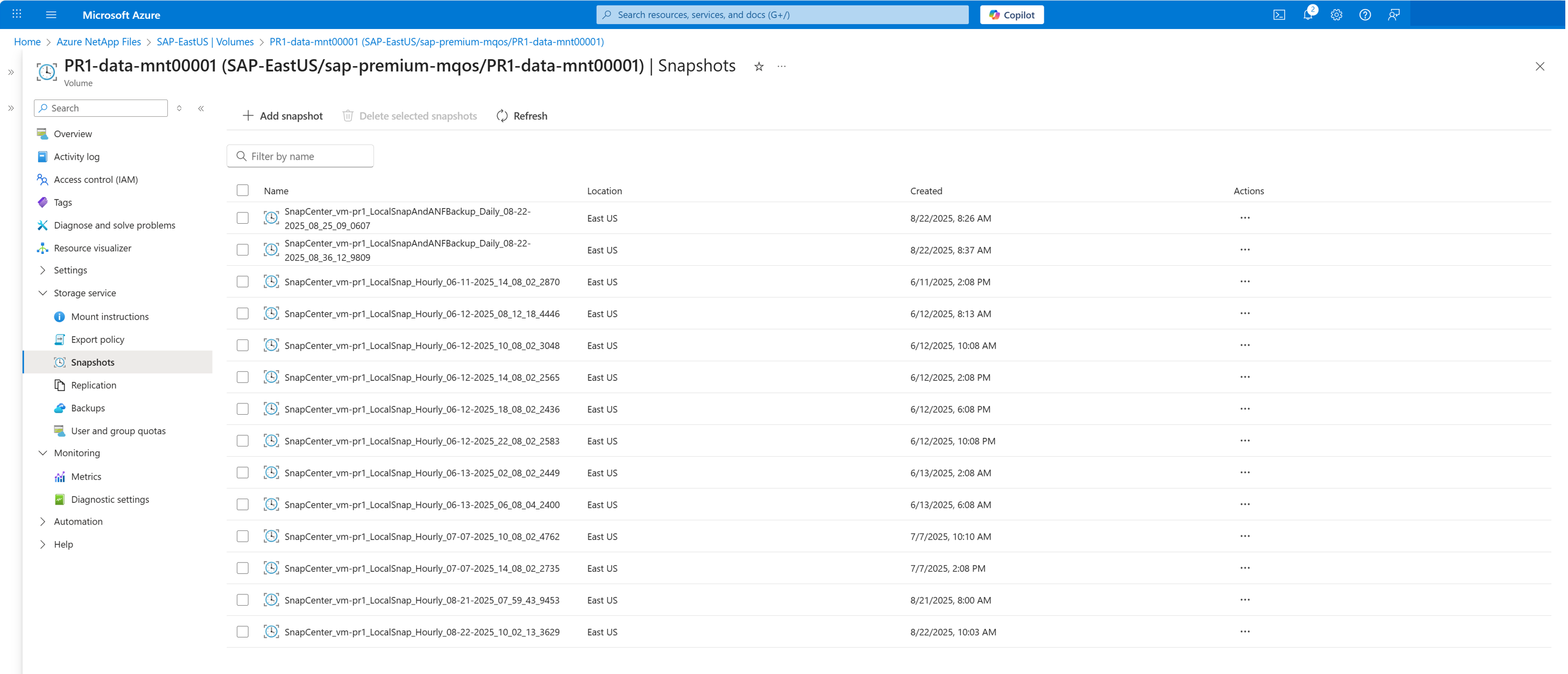
By clicking on the backup icon, you can list the backups which have been replicated with ANF backup.

ANF backups can also be listed in the Azure portal.

Snapshot backups of non-data volumes
The SnapCenter resource topology shows the list of backups for non-data volumes. In the following figure the backups of the HANA shared volume are listed.

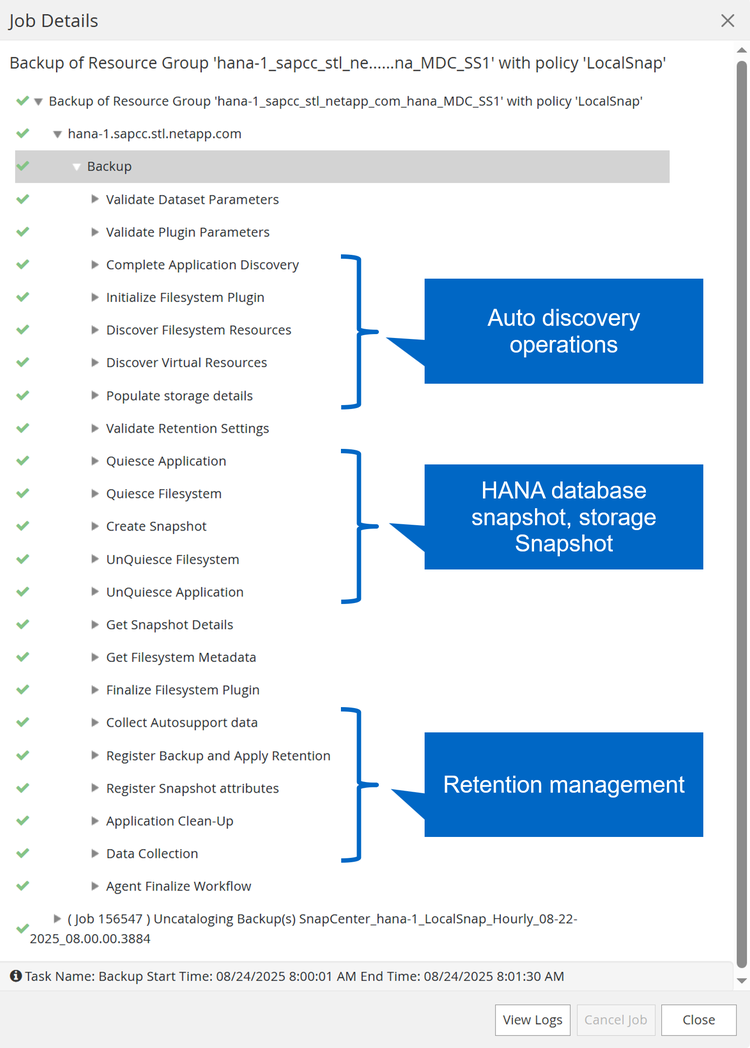
Backup workflow for HANA database backups
The backup workflow for a HANA database Snapshot backup consists of three main sections.
-
Auto discovery
-
Application discovery, e.g.
-
SnapCenter detects any tenant configuration changes
-
SnapCenter detects HANA system replication primary node
-
-
File system and storage discovery, e.g.
-
SnapCenter detects any changes in volume configuration
-
SnapCenter detects HANA multiple partition configuration
-
-
-
HANA and Snapshot backup operations
-
Trigger HANA database snapshot
-
Create storage Snapshot
-
Confirm HANA database snapshot and register backup in HANA backup catalog
-
-
Retention management
-
Delete Snapshot backup(s) based on defined retention in
-
SnapCenter repository
-
Storage
-
HANA backup catalog
-
-
Log backup retention management
-
Delete log backups on file system and HANA backup catalog
-
-
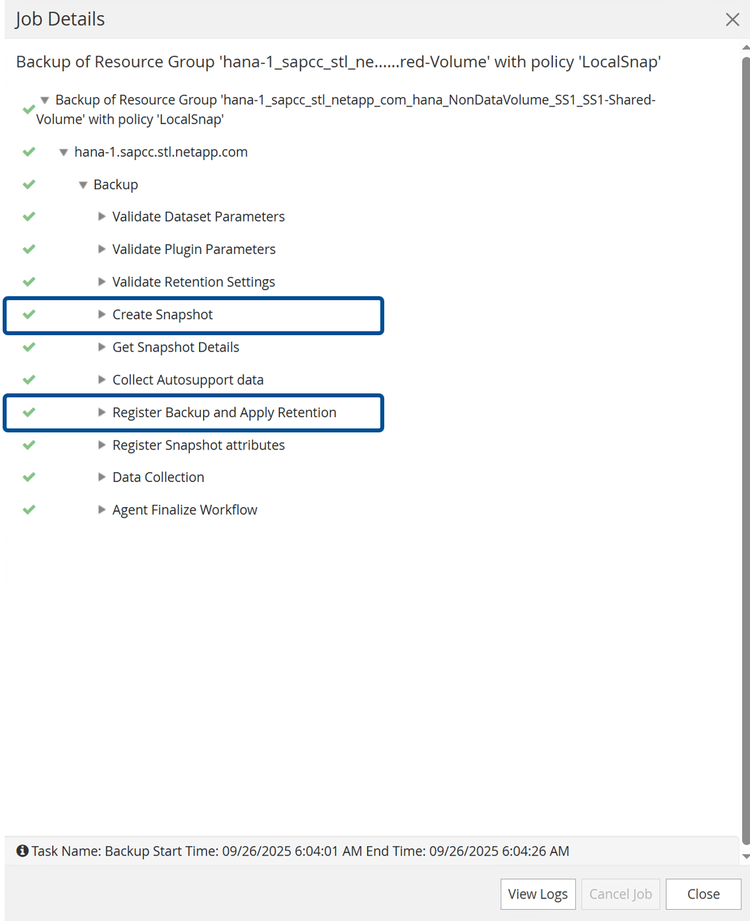
Backup workflow for non-data volumes
For a non-data volume, the backup workflow consists of the Snapshot operation and the retention management operation.
Cleanup of secondary backups
As described in "Retention management for secondary backups", retention management of data backups to an secondary backup storage is handled by ONTAP. SnapCenter periodically checks if ONTAP has deleted backups at the secondary backup storage by running a cleanup job with a weekly default schedule.
The SnapCenter cleanup job deletes backups in the SnapCenter repository as well as in the SAP HANA backup catalog if any deleted backups at the secondary backup storage have been identified.

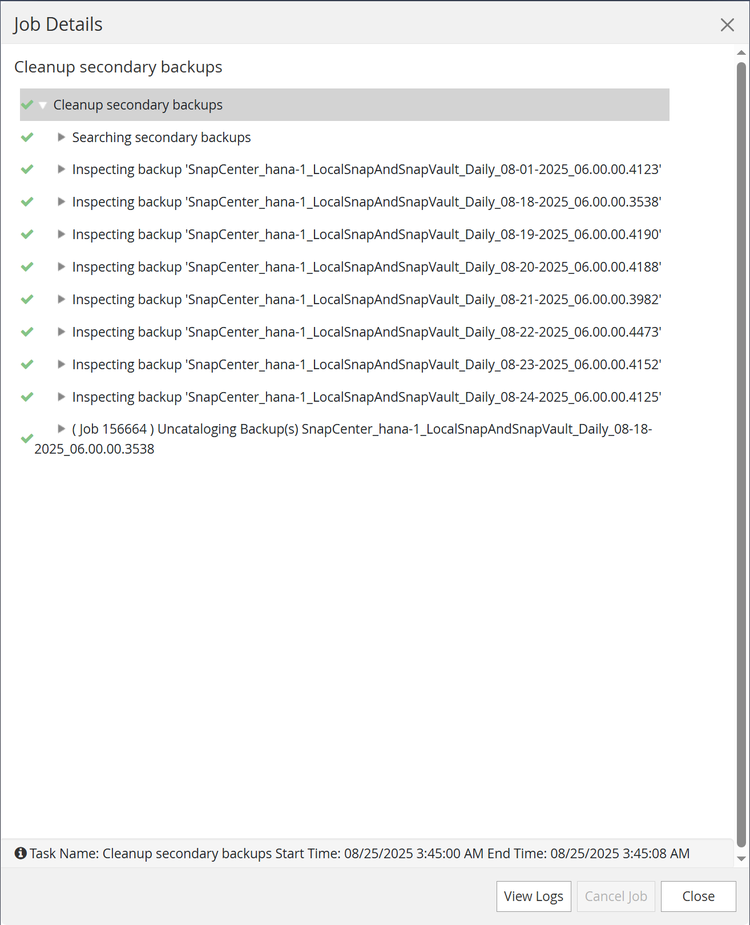
Until this scheduled cleanup has finished, SAP HANA and SnapCenter will still show backups that have already been deleted from the secondary backup storage. This will result in additional log backups that are kept, even if the corresponding storage-based Snapshot backups on the secondary backup storage have already been deleted. NetApp recommends changing the schedule from weekly to daily to avoid keeping log backups, which are not required anymore.
Change the frequency of the SnapCenter cleanup job
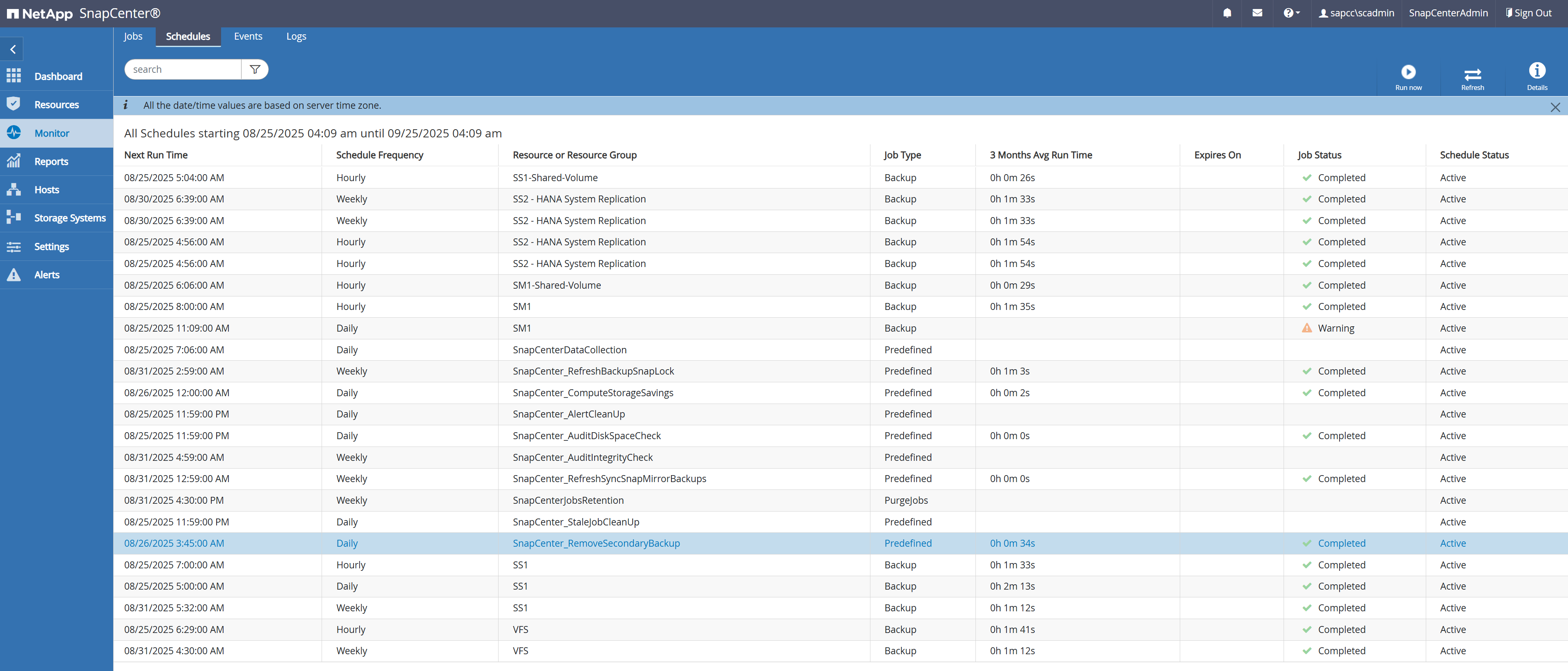
SnapCenter executes the cleanup job SnapCenter_RemoveSecondaryBackup by default for all resources on a weekly basis. This can be changed using a SnapCenter PowerShell cmdlet.
SnapCenterPS C:\> Open-SmConnection

Enter username/password
User: sapcc\scadmin
Password for user sapcc\scadmin: **********

SnapCenterPS C:\> Set-SmSchedule -ScheduleInformation @{"ScheduleType"="Daily";"StartTime"="03:45 AM";"DaysInterval"="1"} -TaskName SnapCenter_RemoveSecondaryBackup

TaskName : SnapCenter_RemoveSecondaryBackup
Hosts : {}
StartTime : 8/25/2025 3:45:00 AM
DaysoftheMonth :
MonthsofTheYear :
DaysInterval : 1
DaysOfTheWeek :
AllowDefaults : False
ReplaceJobIfExist : False
UserName :
Password :
SchedulerType : Daily
RepeatTask_Every_Hour : 1
IntervalDuration :
EndTime :
LocalScheduler : False
AppType : False
AuthMode :
SchedulerSQLInstance : SMCoreContracts.SmObject
MonthlyFrequency :
Hour : 0
Minute : 0
NodeName :
ScheduleID : 0
RepeatTask_Every_Mins :
CronExpression :
CronOffsetInMinutes :
StrStartTime :
StrEndTime :
ScheduleCategory :
PolicyId : 0
PolicyName :
ProtectionGroupId : 0
ProtectionGroupName :
PluginCode : NONE
PolicyType : None
ReportTriggerName :
PolicyScheduleId : 0
HoursOfTheDay :
DayStartTime :
MinuteOffset : ZeroMinutes
SnapMirrorLabel :
BackupType :
SnapCenterPS C:\>
The configuration can also be checked in the Monitor - Schedules view in the SnapCenter UI.
Manual refresh on resource level
If required, a manual cleanup of secondary backups can also be executed in the topology view of a resource. SnapCenter displays the backups on the secondary backup storage when selecting the secondary backups, as shown in the following screenshot. SnapCenter executes a cleanup operation with the Refresh icon to synchronize the backups for this resource.
