


Restore and recover SAP HANA databases with SnapCenter

 Suggest changes

 PDFs
PDFs
Restore and recover SAP HANA systems using SnapCenter with automated or manual recovery options. This includes complete system restores, single tenant restores for HANA databases on ONTAP, Azure NetApp Files, and FSx for ONTAP.
SnapCenter supports the following restore and recovery operations.
-
SAP HANA MDC systems with a single tenant
-
End-to-end automated restore and recovery
-
End-to-end automated restore and manual recovery (selectable)
-
-
SAP HANA MDC systems with multiple tenants
-
End-to-end automated restore, recovery needs to be done manually
-
-
Restore of a single tenant
-
End-to-end automated restore, recovery needs to be done manually
-

|
Automated recovery is only supported when the HANA plug-in is deployed on the HANA database host and the HANA system got auto discovered by SnapCenter. With a central plug-in host configuration, recovery needs to be done manually after the restore operation with SnapCenter. |
|
|
With Azure NetApp Files, restore operations are supported for primary ANF volumes or ANF backups. For primary ANF volumes a volume revert, for ANF backups an in-place restore with single file restore will be executed. In both cases applicaton volume group configurations will be maintained. |
|
|
If volume encryption is enabled and SAP local secure store (LSS) is used, a recovery with SnapCenter is supported as long as the root key backup password in the LSS has not been changed since the backup has been taken. If the password got changed and a restore and recovery is done using an older Snapshot with a different password, the recovery needs to be done manually and the old password needs to be provided with the recovery statement: "RECOVER DATA USING SNAPSHOT CLEAR LOG ENCRYPTION ROOT KEYS BACKUP PASSWORD 'old-password'" |
Automated restore and recovery for SAP HANA MDC systems with a single tenant
A restore operation is initiated by selecting a Snapshot backup in the resource topology view and by clicking on Restore.
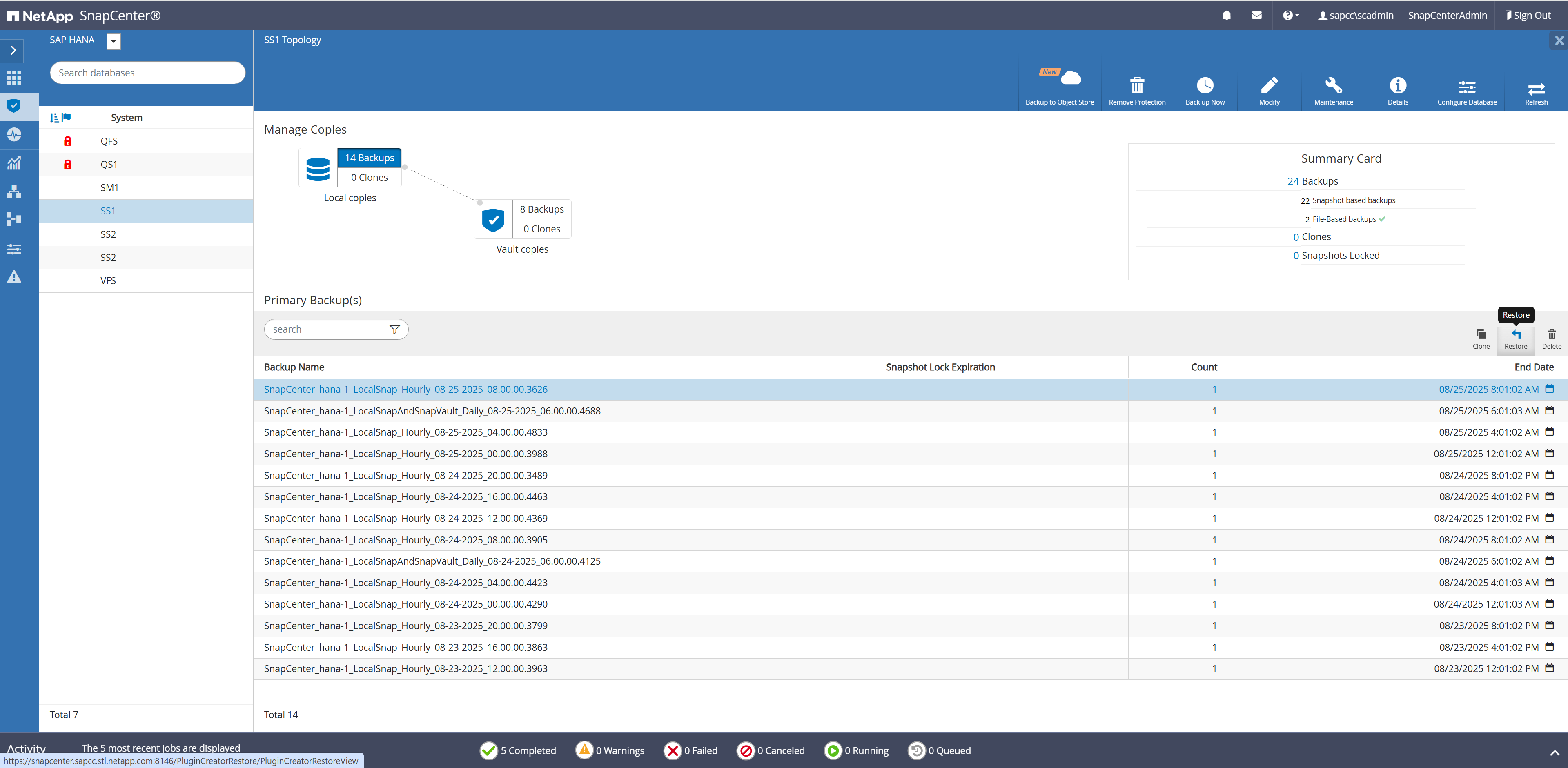
For HANA systems using NFS on ANF, FSx for ONTAP or ONTAP storage systems you can select complete restore with or without a volume revert operation for primary volume Snapshots.
-
Complete resource without volume revert uses Single File SnapRestore (SFSR) to restore all files of the database.
-
Complete resource with volume revert uses a volume based restore operation (VBSR) to revert the complete volume back to the state of the selected Snapshot.
|
|
Volume revert can't be used if you need to restore to a Snapshot which is older than the active SnapVault or SnapMirror replication Snapshot. |
|
|
A volume revert operation will delete all Snapshot backups which are newer than the selected Snapshot for the revert operation. |
|
|
A restore with SFSR is nearly as fast as a volume revert operation but blocks any Snapshot operation until the background process has finished the meta data operations. |

For HANA systems on bare metal hosts using FC SAN, a volume revert (VBSR) is not supported, instead SFSR is always used for the restore operation. For HANA systems running on VMware with VMFS a clone, mount, copy operation will be used.

For a restore from a secondary backup you need to select the archive location.

With the recovery scope you can select a 'to most recent state', 'point in time' or a save point recovery without using log backups. If you select no recovery, SnapCenter only executes the restore operation and the recovery needs to be done manually as described "Manual recovery with HANA Studio".
|
|
SnapCenter uses the paths configured in SAP HANA for log backup and catalog backup locations. If you have tiered backups to an additional location, you can add these additional paths. |

Optionally you can add pre and post restore scripts.


When clicking on Finish in the summary screen, the restore and recovery operation is started.

The restore and recovery workflow can be devided in three main sections.
-
Shutdown of the HANA system
-
Restore operation
-
Filesystem specific preparations, e.g. unmount operation
-
Snapshot restore operation
-
Filesystem specific post operations, e.g. mount operation
-
-
HANA recovery
-
System database recovery
-
Tenant database recovery
-

Manual recovery with HANA Studio
To restore and recover an SAP HANA MDC system with a single or with multiple tenants using SAP HANA Studio and SnapCenter, complete the following steps:
-
Prepare the restore and recovery process with SAP HANA Studio:
-
Select Recover System Database and confirm shutdown of the SAP HANA system.
-
Select the recovery type and provide the backup catalog location.
-
The list of data backups is shown. Select Backup to see the external backup ID.
-
-
Perform the restore process with SnapCenter:
-
In the topology view of the resource, select Local Copies to restore from primary storage or Vault Copies if you want to restore from an secondary backup storage.
-
Select the SnapCenter backup that matches the external backup ID or comment field from SAP HANA Studio.
-
Start the restore process.
-
-
Run the recovery process for the system database with SAP HANA Studio:
-
Click Refresh from the backup list and select the available backup for recovery (indicated with a green icon).
-
Start the recovery process. After the recovery process is finished, the system database is started.
-
-
Run the recovery process for the tenant database with SAP HANA Studio:
-
Select Recover Tenant Database and select the tenant to be recovered.
-
Select the recovery type and the log backup location.
-
A list of data backups displays. Because the data volume has already been restored, the tenant backup is indicated as available (in green).
-
Select this backup and start the recovery process. After the recovery process is finished, the tenant database is started automatically.
-
-
For a HANA system with multiple tenants repeat step 4 for each tenant.
|
|
A manual recovery with SAP HANA Cockpit is done with the same steps. |
The following section describes the steps of the restore and recovery operations of an SAP HANA MDC system with a single tenant.
In HANA Studio select Backup and Recovery and Recover System Database.
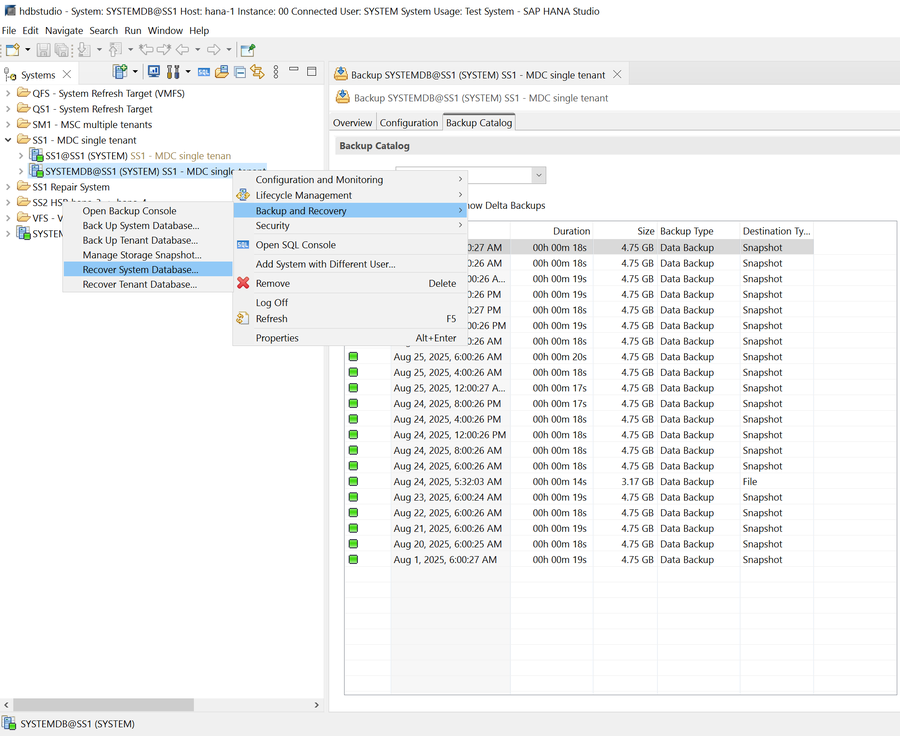
Confirm shutdown operation; only required if the HANA system is still running.

Select recovery operation. In this example we want to recover to the most recent state.

Provide backup catalog location.

HANA Studio lists the most recent backups stored in the HANA backup catalog.
A list of available backups is shown based on the content of the backup catalog. Choose the required backup and note the external backup ID: in this example, the most recent backup.

From the SnapCenter GUI, select the resource topology view and select the backup that should be restored, in this example, the most recent primary backup. Click the Restore icon to start the restore.

The SnapCenter restore wizard starts. Select the restore type Complete Resource and Volume revert to use a volume-based restore.

Select 'No recovery' to exclude the recovery operations from the SnapCenter workflow.
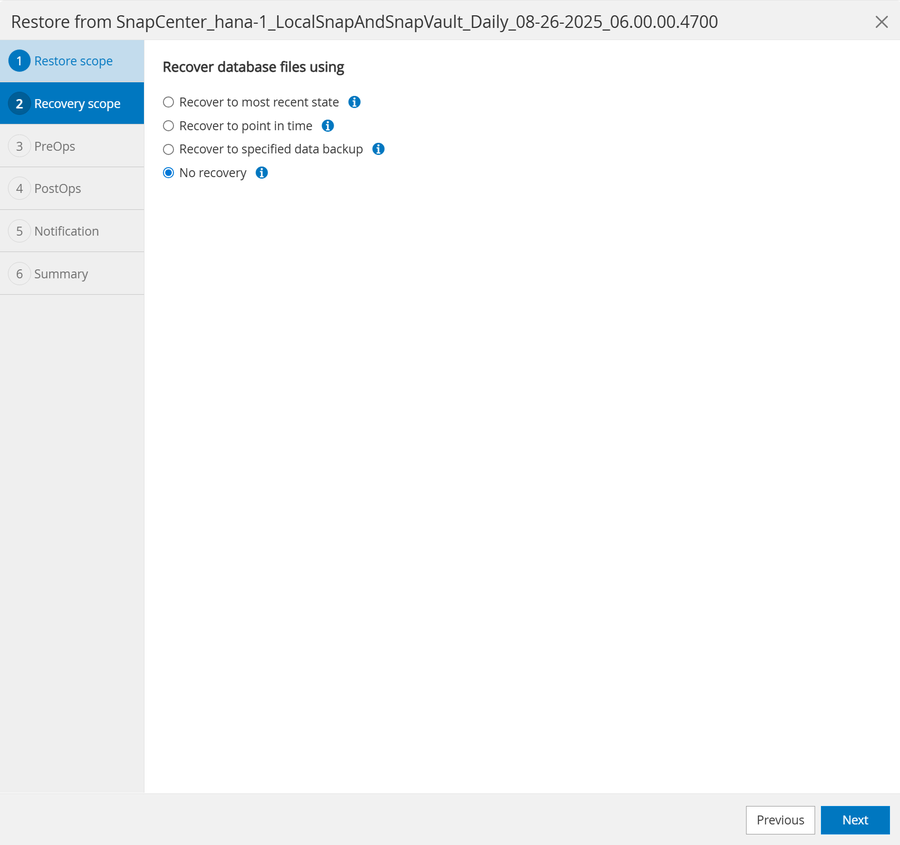
Click on Finish to start the restore operation.
SnapCenter is now executing the restore operation.
-
Filesystem specifc preparations, e.g. unmount operation
-
Snapshot restore operation
-
Filesystem specifc post operations, e.g. mount operation

When the Snapshot got restored by SnapCenter a snapshot_databackup_0_1 file is available in the system and tenant database subdirectory of the HANA data volume. This file got created by the HANA database during the HANA database Snapshot creation. HANA deletes the file when the backup operation is finished, so that the files are only visible within the Snapshot backup. These files are required for any recovery operation. After the recovery the files get deleted by the HANA database.
hana-1:~ # cd /hana/data/SS1/mnt00001/
hana-1:/hana/data/SS1/mnt00001 # ls -al *
-rw-r--r-- 1 ss1adm sapsys 16 Aug 26 06:00 nameserver.lck
hdb00001:
total 4992236
drwxr-x--- 2 ss1adm sapsys 4096 Aug 26 06:00 .
drwxr-x--- 5 ss1adm sapsys 4096 Aug 26 06:00 ..
-rw-r----- 1 ss1adm sapsys 0 Nov 3 2020 __DO_NOT_TOUCH_FILES_IN_THIS_DIRECTORY__
-rw-r----- 1 ss1adm sapsys 5100273664 Aug 26 06:00 datavolume_0000.dat
-rw-r----- 1 ss1adm sapsys 36 Aug 25 10:30 landscape.id
-rw-r----- 1 ss1adm sapsys 163840 Aug 26 06:00 snapshot_databackup_0_1
hdb00002.00003:
total 201420
drwxr-xr-- 2 ss1adm sapsys 4096 Nov 3 2020 .
drwxr-x--- 5 ss1adm sapsys 4096 Aug 26 06:00 ..
-rw-r--r-- 1 ss1adm sapsys 0 Nov 3 2020 __DO_NOT_TOUCH_FILES_IN_THIS_DIRECTORY__
-rw-r--r-- 1 ss1adm sapsys 335544320 Aug 26 06:00 datavolume_0000.dat
hdb00003.00003:
total 4803140
drwxr-xr-- 2 ss1adm sapsys 4096 Aug 26 06:00 .
drwxr-x--- 5 ss1adm sapsys 4096 Aug 26 06:00 ..
-rw-r--r-- 1 ss1adm sapsys 0 Nov 3 2020 __DO_NOT_TOUCH_FILES_IN_THIS_DIRECTORY__
-rw-r--r-- 1 ss1adm sapsys 4898947072 Aug 26 06:00 datavolume_0000.dat
-rw-r----- 1 ss1adm sapsys 159744 Aug 26 06:00 snapshot_databackup_0_1
hana-1:/hana/data/SS1/mnt00001 #
Go to SAP HANA Studio and click Refresh to update the list of available backups. The backup that was restored with SnapCenter is now shown with a green icon in the list of backups. Select the backup and click Next.

Provide the location of the log backups. Click Next.
|
|
SAP HANA Studio uses the paths configured in SAP HANA for log backup and catalog backup locations. If you have tiered backups to an additional location, you can add these additional paths. |

Select other settings as required. Make sure Use Delta Backups is not selected. Click Next.

Review the recovery settings and click Finish.
By clicking on show SQL statement, HANA Studio shows the SQL command which is executed for the recovery operation.

The recovery process starts. Wait until the recovery of the system database is completed.

In SAP HANA Studio, select the entry for the system database and start Backup Recovery - Recover Tenant Database.

Select the tenant to recover and click Next.

Specify the recovery type and click Next.

Confirm the backup catalog location and click Next.

Confirm that the shutdown of the tenant database.

Because the restore of the data volume has been done before the recovery of the system database, the tenant backup is immediately available. Select the backup highlighted in green and click Next.

Provide the location of the log backups. Click Next.
|
|
SAP HANA Studio uses the paths configured in SAP HANA for log backup and catalog backup locations. If you have tiered backups to an additional location, you can add these additional paths. |

Select other settings as required. Make sure Use Delta Backups is not selected. Click Next.

Review the recovery settings and click Finish.
By clicking on show SQL statement, HANA Studio shows the SQL command which is executed for the recovery operation.

Wait until the recovery has finished and the tenant database is started.

When the tenant recovery is finished the SAP HANA system is up and running.
|
|
For an SAP HANA MDC system with multiple tenants, you must repeat the tenant recovery for each tenant. |
Manual recovery with SQL commands
You can also use SQL statements for the recovery of the HANA system.
First you need to recover the system database.
HDBSettings.sh recoverSys.py --command="RECOVER DATABASE UNTIL TIMESTAMP '2026-08-26 10:55:49' USING CATALOG PATH ('mnt/log-backup/SYSTEMDB') USING LOG PATH ('mnt/log-backup/SYSTEMDB') USING SNAPSHOT"
As a second step you need to connect to the system database and start the recovery of the tenant database(s). In this example the tenant database is SS1.
hdbsql SYSTEMDB=> RECOVER DATABASE FOR SS1 UNTIL TIMESTAMP '2026-08-26 10:55:49' USING CATALOG PATH ('mnt/log-backup/DB_SS1') USING LOG PATH ('mnt/log-backup/DB_SS1') USING SNAPSHOT
Single tenant restore and recovery
A single tenant restore and recovery operation with SnapCenter is very similar to the workflow described in the previous topic "Manual recovery with HANA Studio".
To restore and recover an SAP HANA MDC single-tenant system using SAP HANA Studio and SnapCenter, complete the following steps:
-
Prepare the restore and recovery process with SAP HANA Studio:
-
Select Recover Tenant Database and confirm shutdown of the tenant database.
-
Select the recovery type and provide the backup catalog location.
-
The list of data backups is shown. Select Backup to see the external backup ID.
-
-
Perform the restore process with SnapCenter:
-
In the topology view of the resource, select Local Copies to restore from primary storage or Vault Copies if you want to restore from an secondary backup storage.
-
Select the SnapCenter backup that matches the external backup ID or comment field from SAP HANA Studio.
-
Start the restore process of the tenant.
-
-
Run the recovery process for the tenant database with SAP HANA Studio:
-
Click Refresh from the backup list and select the available backup for recovery (indicated with a green icon).
-
Start the recovery process. After the recovery process is finished, the tenant database is started.
-
Restore of non-data volumes
A restore operation for a non-data volume is started by selecting a Snapshot backup in the topology view of the non-data volume resource and by clicking on Restore.
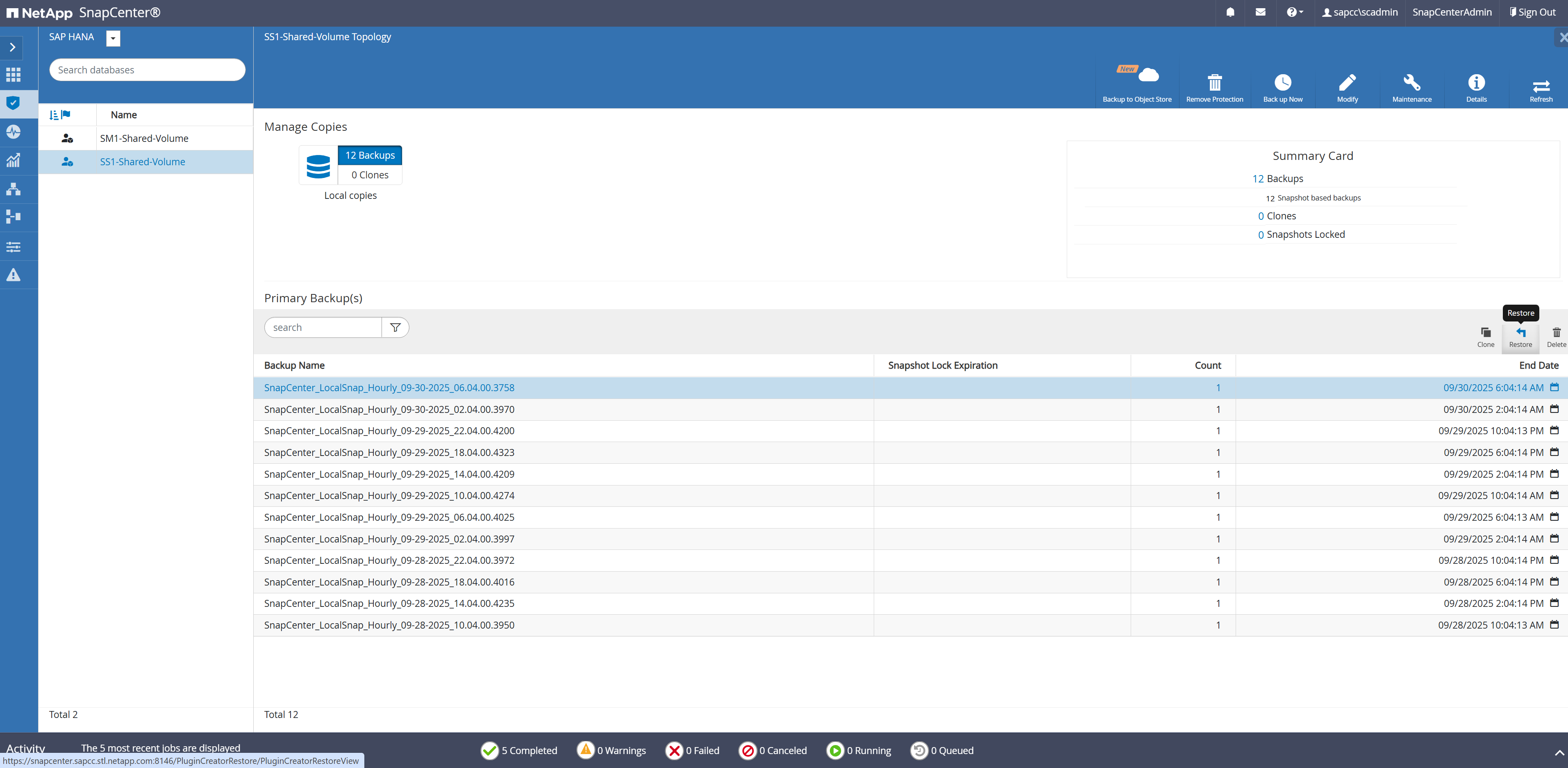
For non-data volumes with NFS a complete resource (VBSR) or a file level (SFSR) restore operation can be selected. For the file level restore either all or individual files can be defined for the restore operation.
