


Migrate VMs from VMware ESXi to Proxmox VE using the Shift Toolkit


 Suggest changes

 PDFs
PDFs
Migrate VMs from VMware ESXi to Proxmox VE using the Shift Toolkit by preparing VMs, converting disk formats, and configuring the target environment.
The Shift Toolkit enables VM migration between virtualization platforms through disk format conversion and network reconfiguration on the destination environment.
Before you begin
Verify that the following prerequisites are met before starting the migration.
-
Operational minimum 3+ node cluster with quorum with Proxmox VE 9.x and later and ONTAP NFS storage added as storage pool.
-
Administrator level privileges on the cluster
-
Proxmox releases are >= 9.x
-
Proxmox nodes are network reachable
-
NFSv3 Storage pools configured with the appropriate volume and qtree
-
Networks (bridges) should be configured with the right vLANs
-
-
Ensure the VM VMDKs are placed on NFSv3 volume (all VMDKs for a given VM should be part of the same volume).
-
VMware tools should be running on guest VMs for successful VM preparation
-
Ensure the VMs that needs to be migrated are in a RUNNING state for preparation
-
Shift toolkit performs VM preparation by injecting scripts to:
-
Add VirtIO drivers
-
Remove VMware tools
-
Backup IP address, routes and DNS information
-

|
The virtual machines should be powered OFF before triggering migration |
|
|
The VMware tools removal happens on the destination hypervisor once the VMs are powered ON |
-
Use a local administrator account when running Invoke-VMScript to prepare Windows VMs or use an Active Directory account that is part of the local Administrators group. For Linux systems, use an account that can execute commands without requiring a password (e.g via passwordless sudo).
-
For Windows VMs, ensure the VirtIO ISO is mounted; otherwise, the preparation process will fail. The VirtIO ISO driver can be downloaded from here. The script will detect the mounted drive and copy the required files automatically.
-
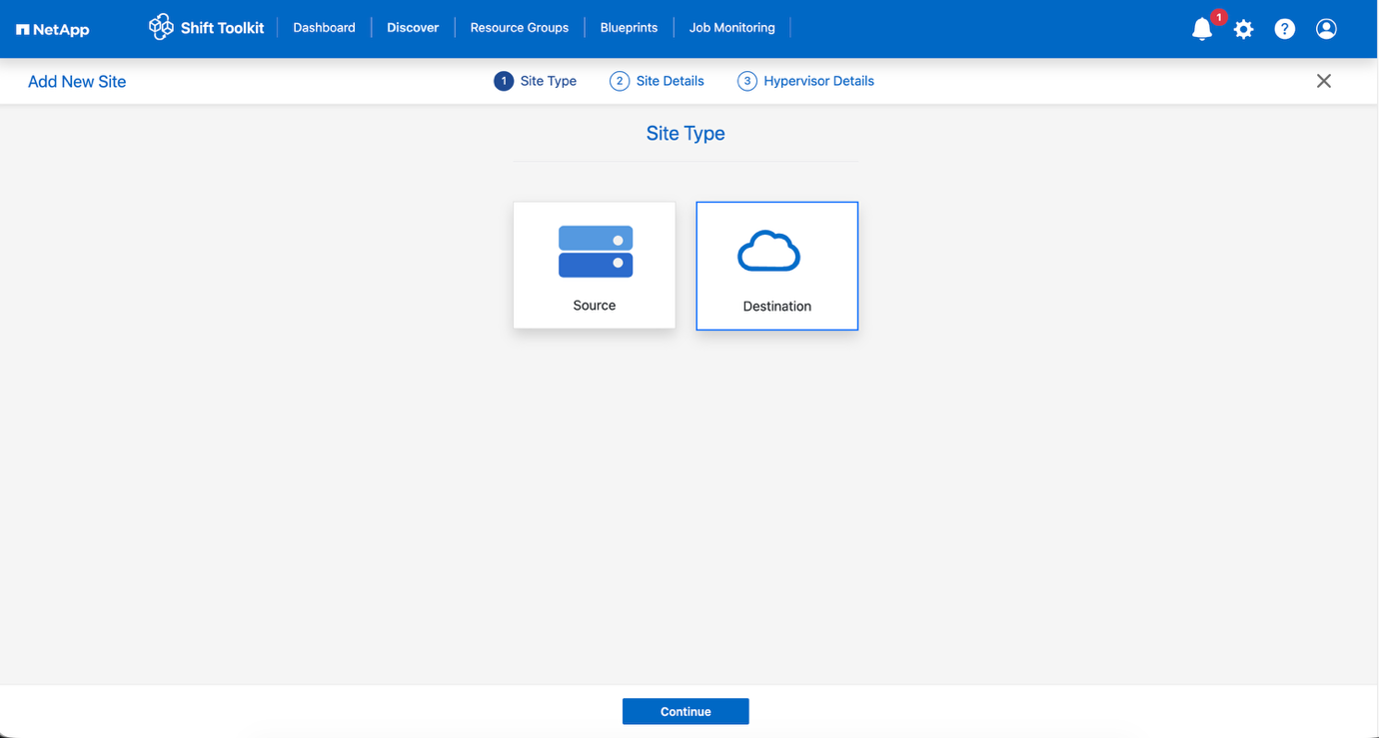
Ensure the ISO specified in the link is used as the preparation script uses the .msi package to install the drivers and qemu-guest-agents. Once the pre-requisites are in place, login to Shift toolkit UI and configure the site with Proxmox VE as the destination hypervisor. To add, click on “Add New Site” and select “Destination”.
-
Step 1: Add the destination site (Proxmox VE)
Add the destination Proxmox VE environment to the Shift Toolkit.
-
Click Add New Site and select Destination.
Show example
-
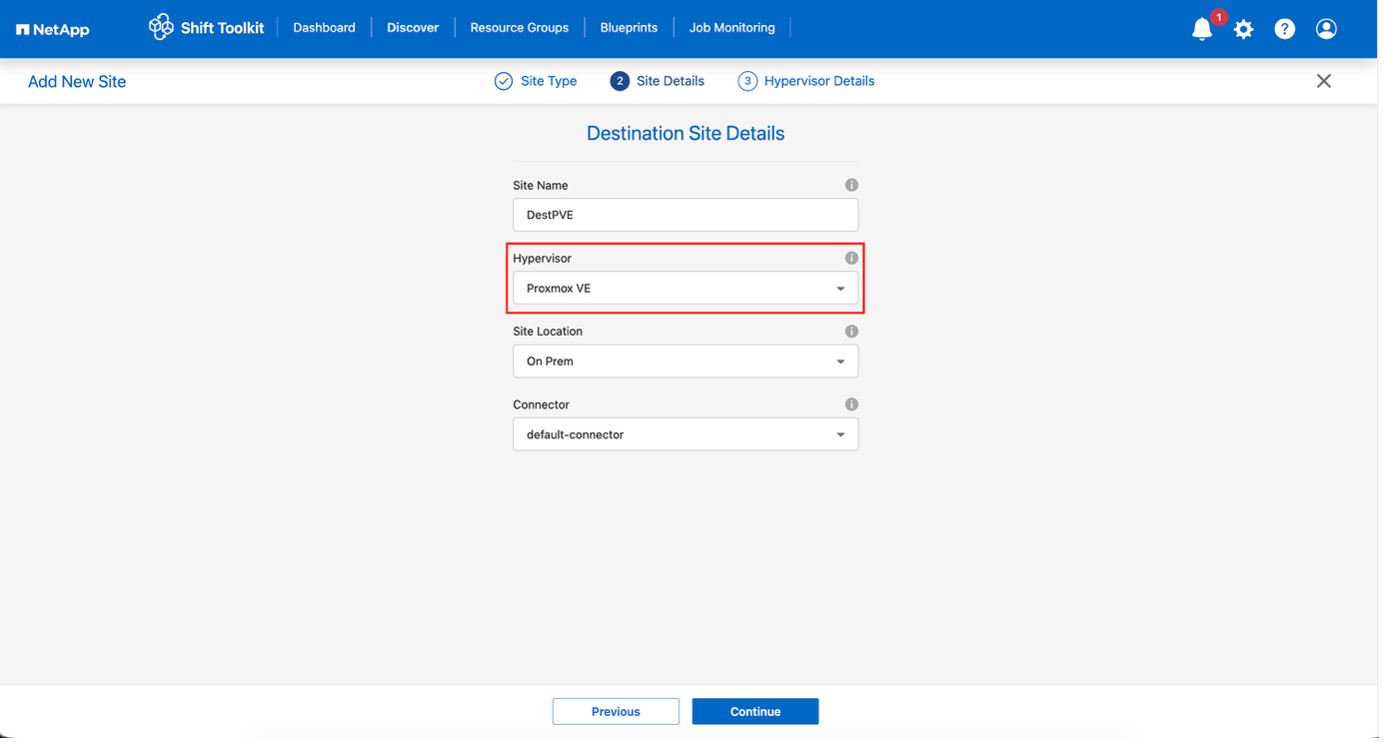
Enter the destination site details:
Site Name: Provide a name for the site
Hypervisor: Select Proxmox VE (PVE) as the target
Site Location: Select the default option
Connector: Select the default selection -
Click Continue.
Show example
-
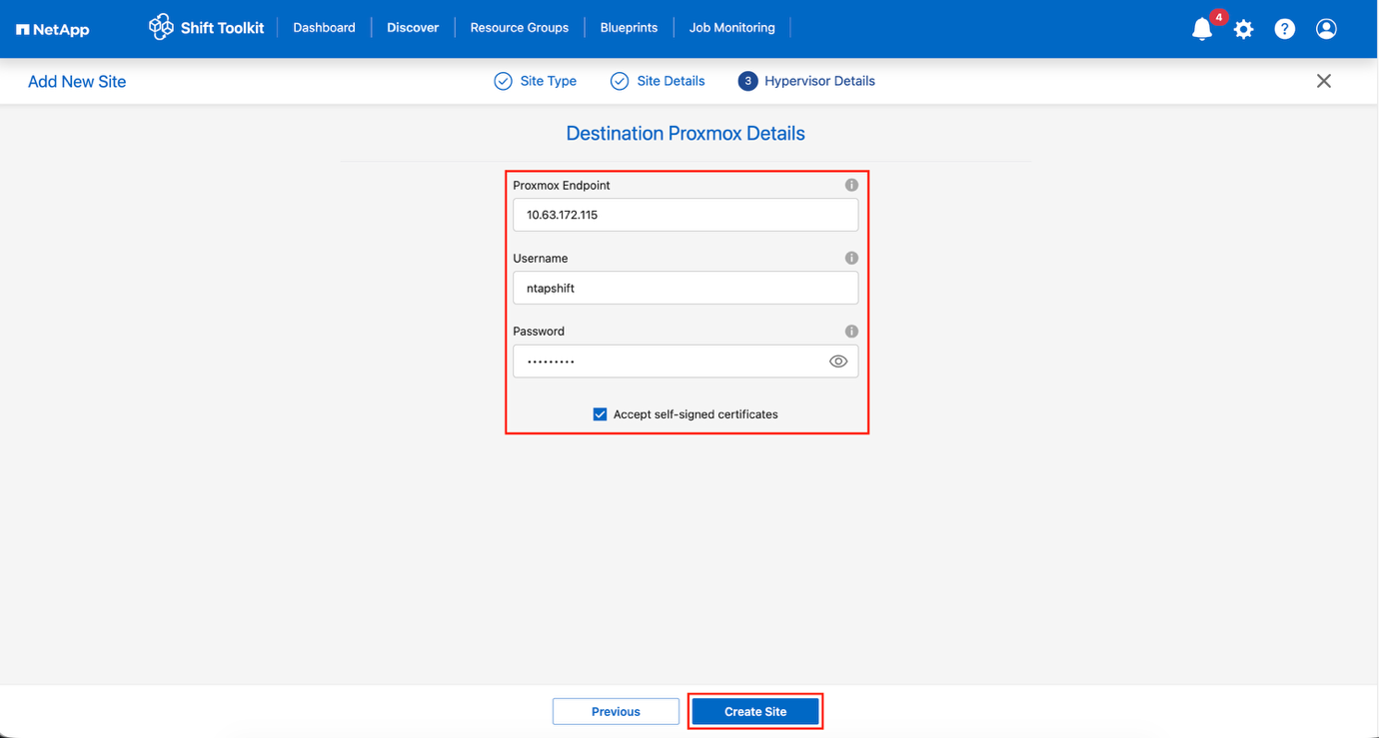
Enter the destination PVE details
Endpoint: IP address or FQDN of Proxmox node
Username: linux username to access (in format: username)
* For instance, ntapshift. There is no need to mention @pam.
Password: Password to access -
Select Accept Self signed certificate and click Continue.
Show example
-
Click Create Site.
Show example
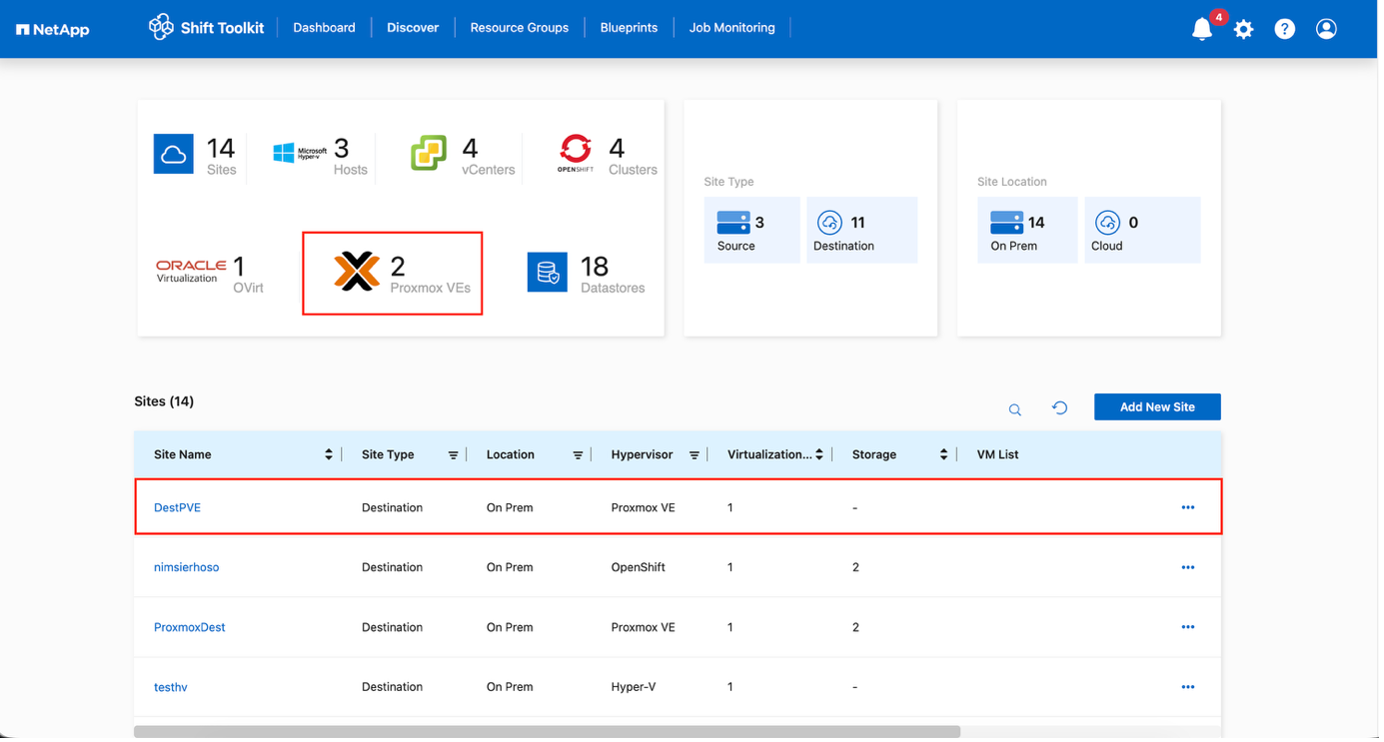
The source and destination volume will be the same as the disk format conversion happens at the volume level and within the same volume.
Step 2: Create resource groups
Organize VMs into resource groups to preserve boot order and boot delay configurations.
-
Ensure the Qtrees are provisioned (as mentioned in the pre-requisite section) before creating the resource groups.
-
Navigate to Resource Groups and click Create New Resource Group.
-
Select the Source site from the dropdown and click Create.
-
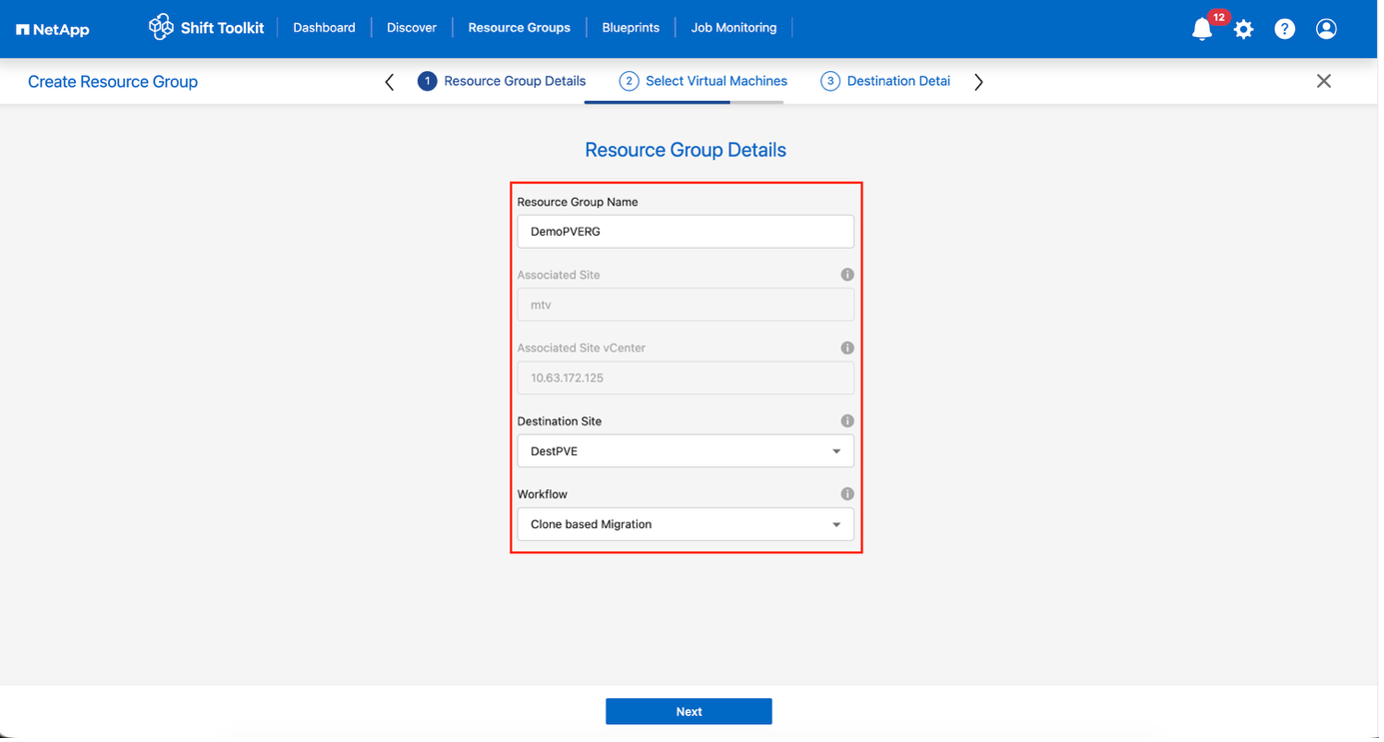
Provide resource group details and select the workflow:
-
Clone based Migration: Performs end-to-end migration from source to destination hypervisor
-
Clone based Conversion: Converts disk format to the selected hypervisor type
Show example
-
-
Click Continue.
-
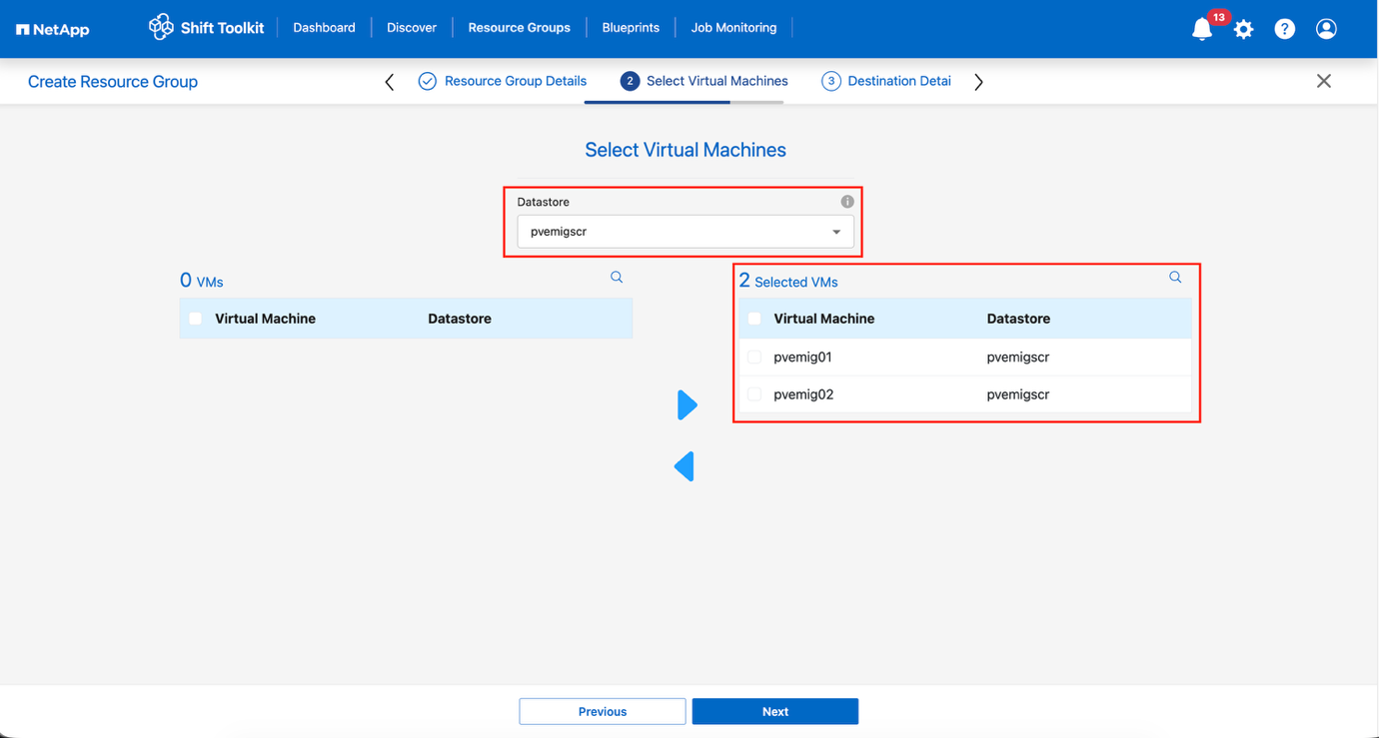
Select VMs using the search option (default filter is "Datastore").
Move the VMs to convert or migrate to a designated datastore on a newly created ONTAP SVM before conversion. This helps isolating the production NFS datastore and the designated datastore can be used for staging the virtual machines.
The datastore dropdown only shows NFSv3 datastores. NFSv4 datastores are not displayed. Show example
-
Update migration details:
-
Select Destination Site
-
Select Destination Proxmox entry
-
Configure Datastore to Qtree mapping
Show example
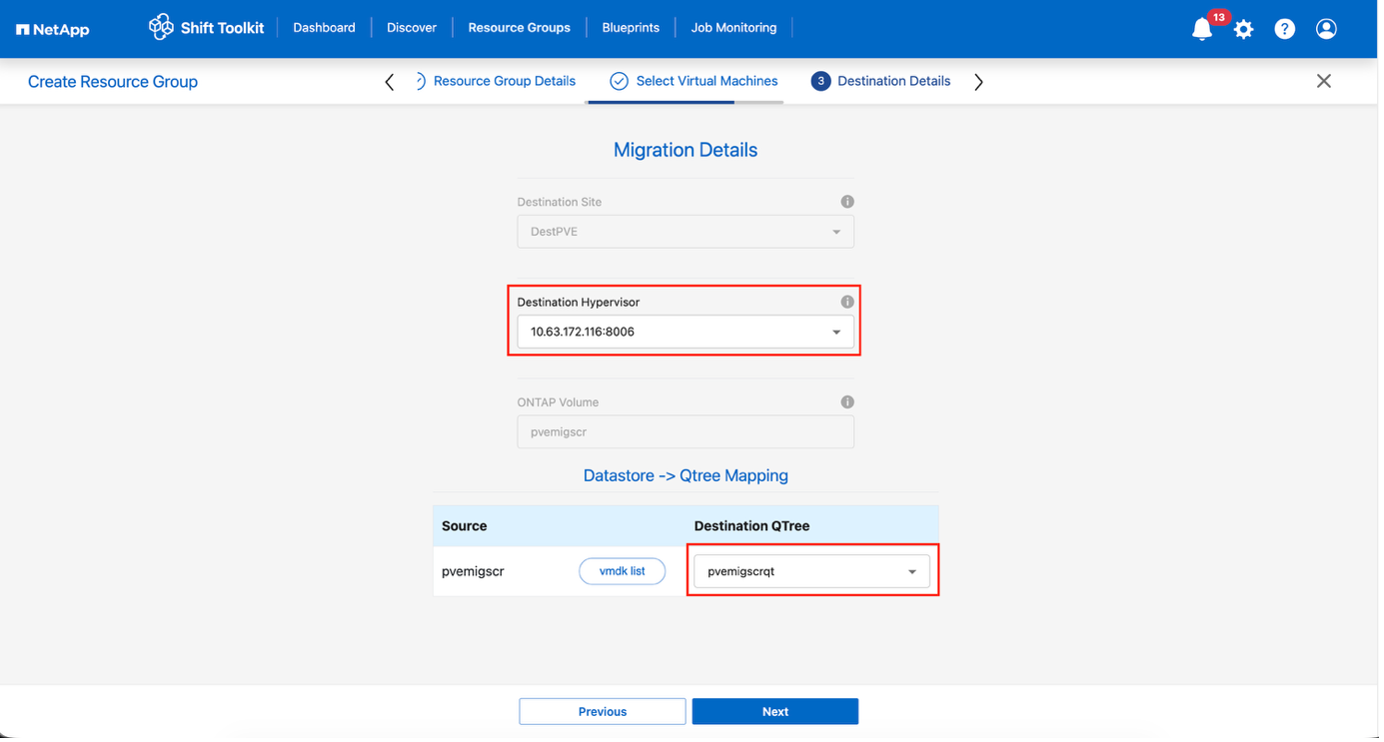
Ensure the destination path (where the converted VMs are stored) is set to a qtree when converting VMs from ESXi to Proxmox VE. Multiple qtrees can be created and used for storing converted VM disks.
Multiple qtrees can be created and used for storing the converted VM disks accordingly.
-
-
Configure boot order and boot delay for all selected VMs:
-
1: First VM to power on
-
3: Default
-
5: Last VM to power on
-
-
Click Create Resource Group.
Show example
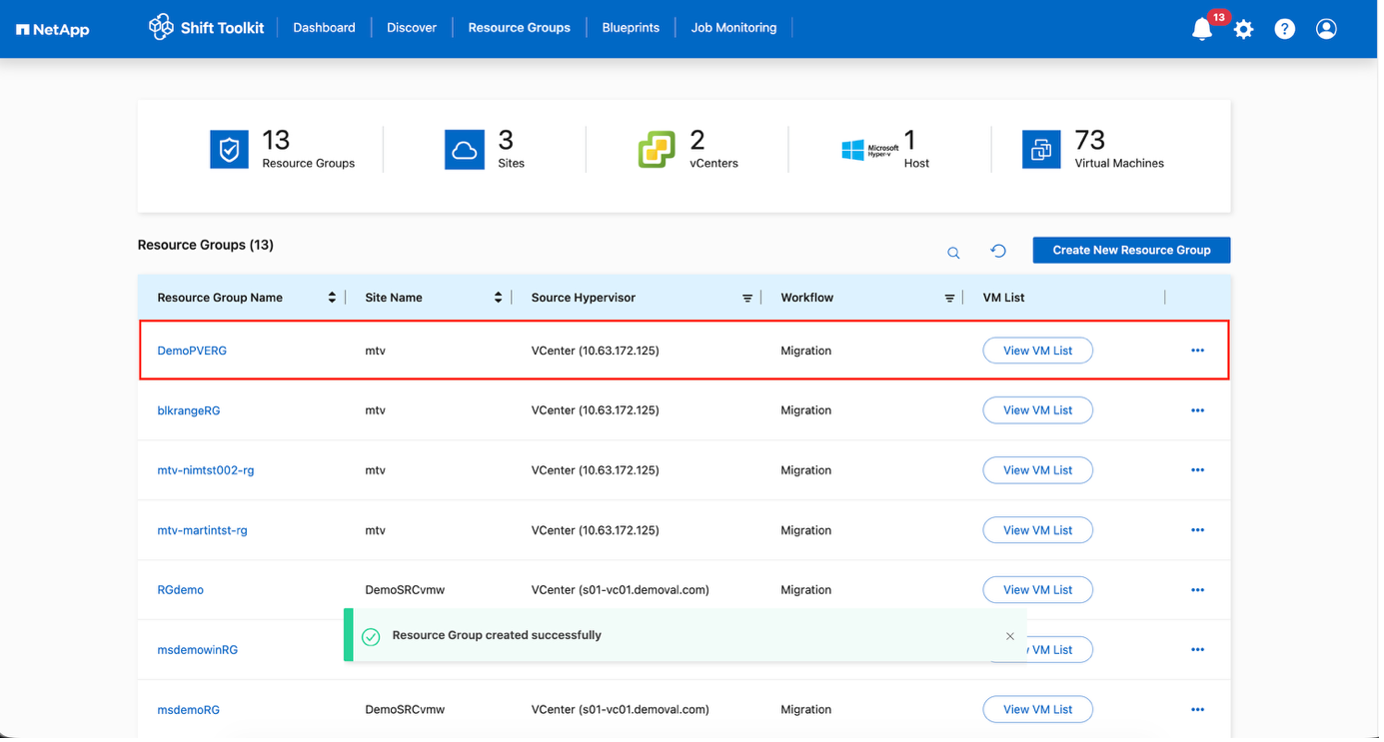
The resource group is created and ready for blueprint configuration.
Step 3: Create a migration blueprint
Create a blueprint to define the migration plan, including platform mappings, network configuration, and VM settings.
-
Navigate to Blueprints and click Create New Blueprint.
-
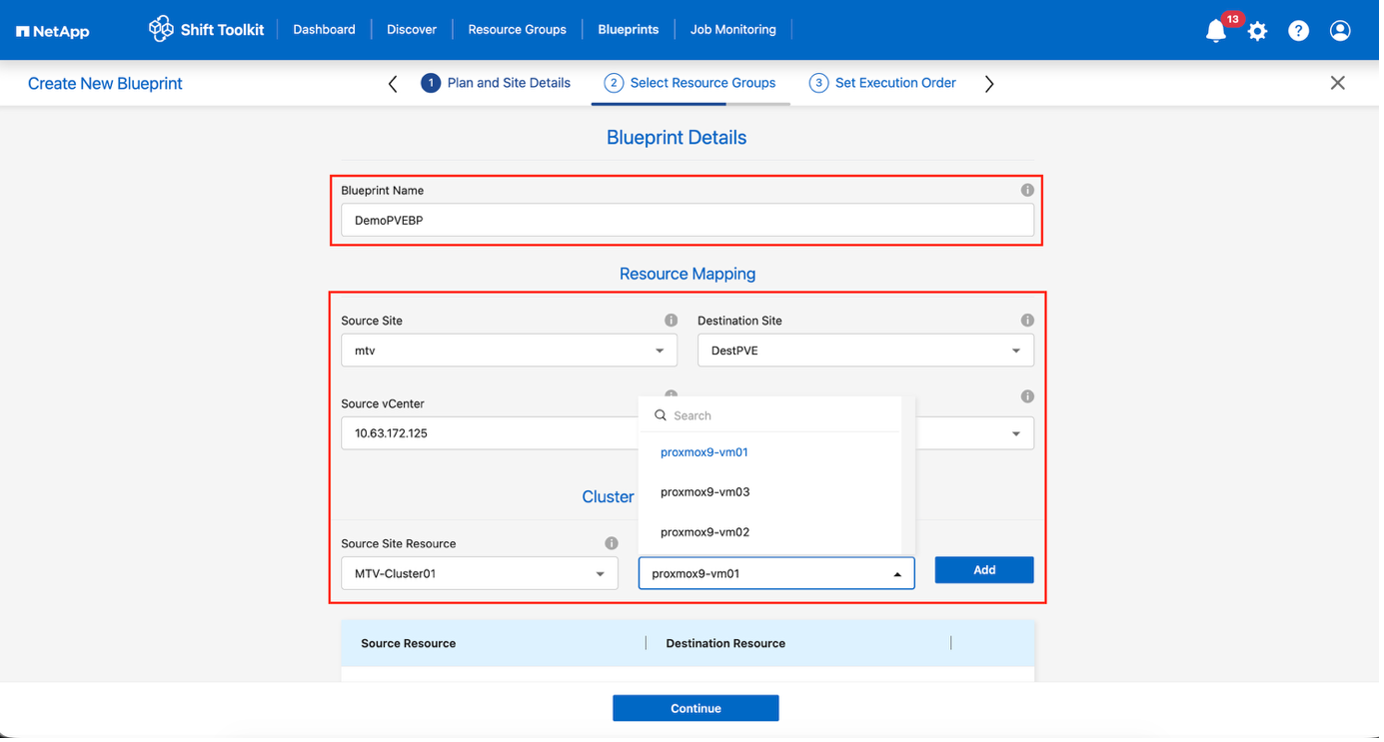
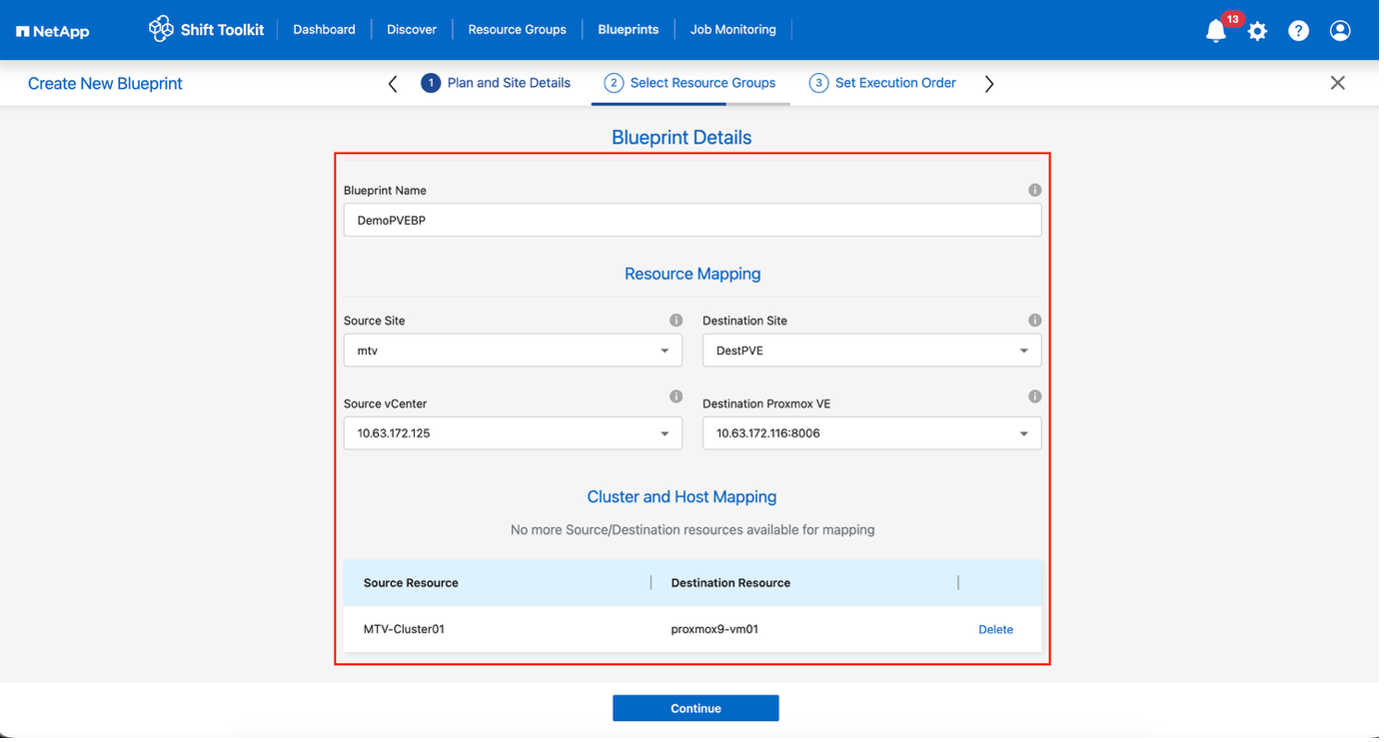
Provide a name for the blueprint and configure host mappings:
-
Select Source Site and associated vCenter
-
Select Destination Site and associated Proxmox VE target
-
Configure cluster and host mapping
Show example
Show example
-
-
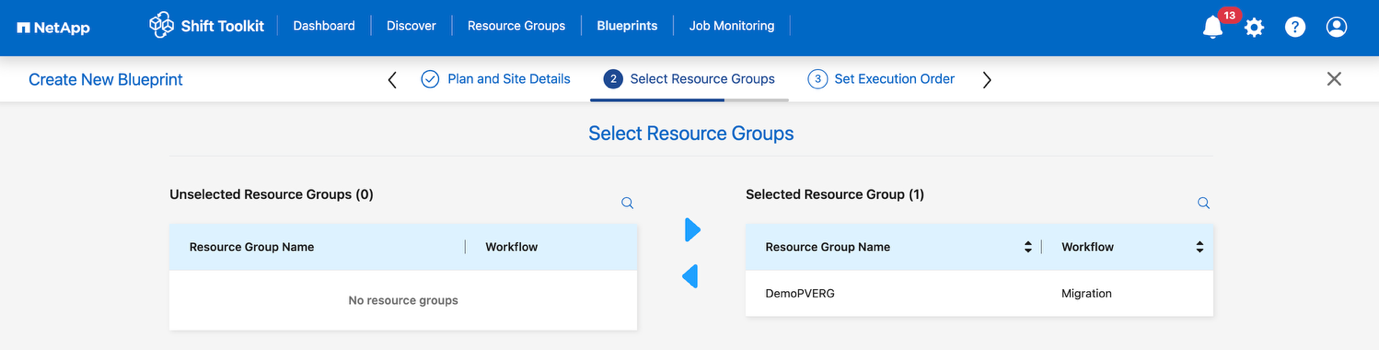
Select resource group details and click Continue.
Show example
-
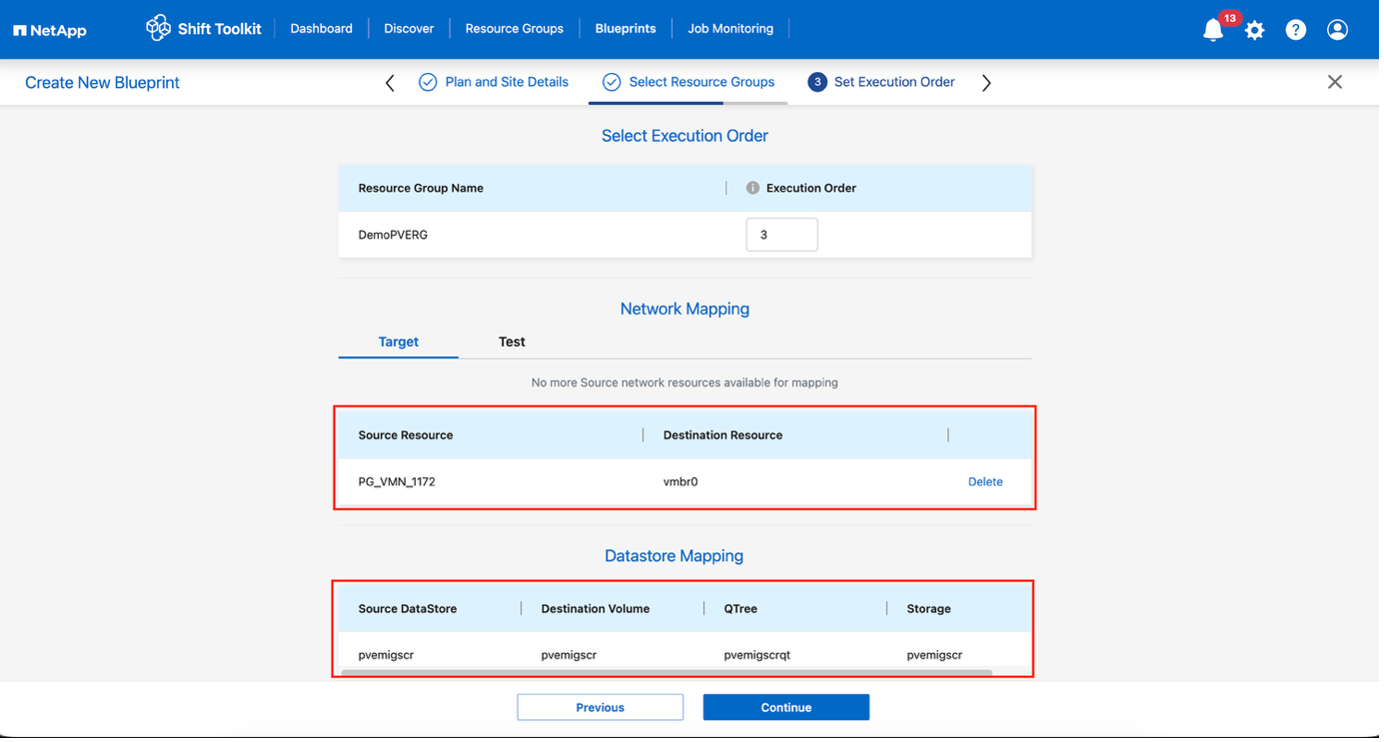
Set execution order for resource groups if multiple groups exist.
-
Configure network mapping to appropriate virtual switches.
For test migration, “Do no configure Network” is the default selection and Shift toolkit does not perform IP address assignment. Once the disk is converted and virtual machine is bought on PVE side, manually assign the bubble logical network to avoid any colliding with production network. Show example
-
Review storage mappings (automatically selected based on VM selection).
Ensure the qtree is provisioned beforehand and necessary permissions are assigned so the virtual machine can be created and powered on from SMB share. -
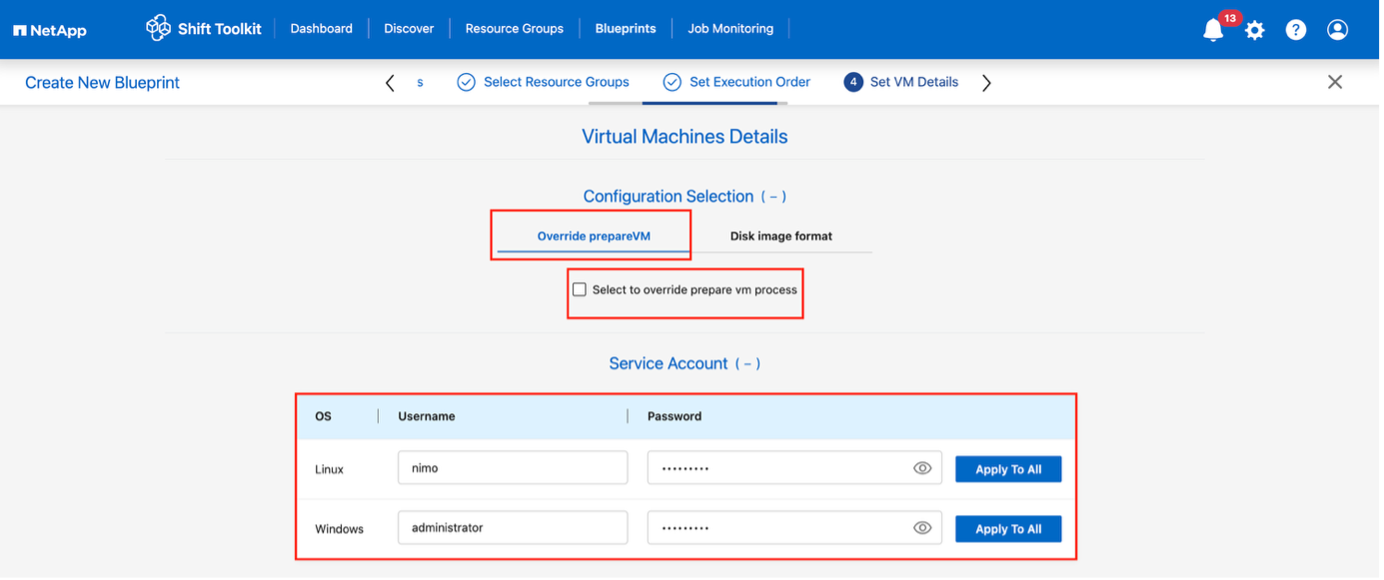
Under VM details, select configuration details and provide service account credentials for each OS type:
-
Windows: Use a user with local administrator privileges (domain credentials can also be used, however ensure a user profile exists on the VM before conversion)
-
Linux: Use a user that can execute sudo commands without password prompt (user should be part of the sudoers list or added to
/etc/sudoers.d/folder)Show example
Show example

The Configuration selection allows to select the disk image format and skip override prepareVM. In case of disk image format, the workflow defaults to QCOW2, however if RAW format is required, it can be selected. The override prepareVM allows to skip the preparation of the VM, which allows administrators to run homegrown scripts to make the VM ready for migration. If selected, Shift toolkit will not inject any scripts or add the VirtIO drivers.
-
-
Configure IP settings:
-
Do not configure: Default option
-
Retain IP: Keep same IPs from source system
-
DHCP: Assign DHCP on target VMs
Ensure VMs are powered on during prepareVM phase, VMware Tools are installed, and preparation scripts run with proper privileges.
-
-
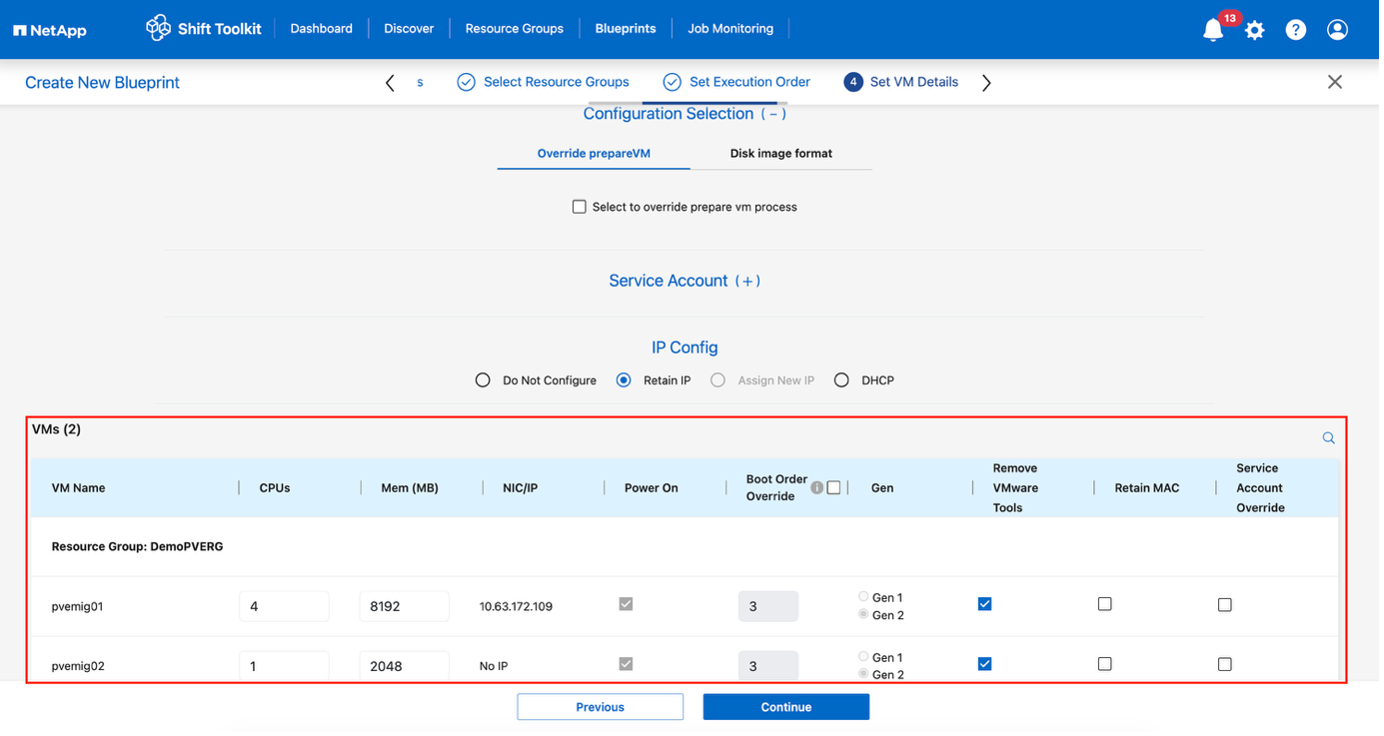
Configure VM settings:
-
Resize CPU/RAM parameters (optional)
-
Modify boot order and boot delay
-
Power ON: Select to power on VMs after migration (default: ON)
-
Remove VMware tools: Remove VMware Tools after conversion (default: selected)
-
VM Firmware: Gen1 > BIOS and Gen2 > EFI (automatic)
-
Retain MAC: Keep MAC addresses for licensing requirements
-
Service Account override: Specify separate service account if needed
-
VLAN override: Select correct tagged VLAN name when target hypervisor uses different vLAN name
Show example
-
-
Click Continue.
-
Schedule the migration by selecting a date and time.
Schedule migrations at least 30 minutes ahead to allow time for VM preparation. -
Click Create Blueprint.
The Shift Toolkit initiates a prepareVM job that runs scripts on source VMs to prepare them for migration.
Show example
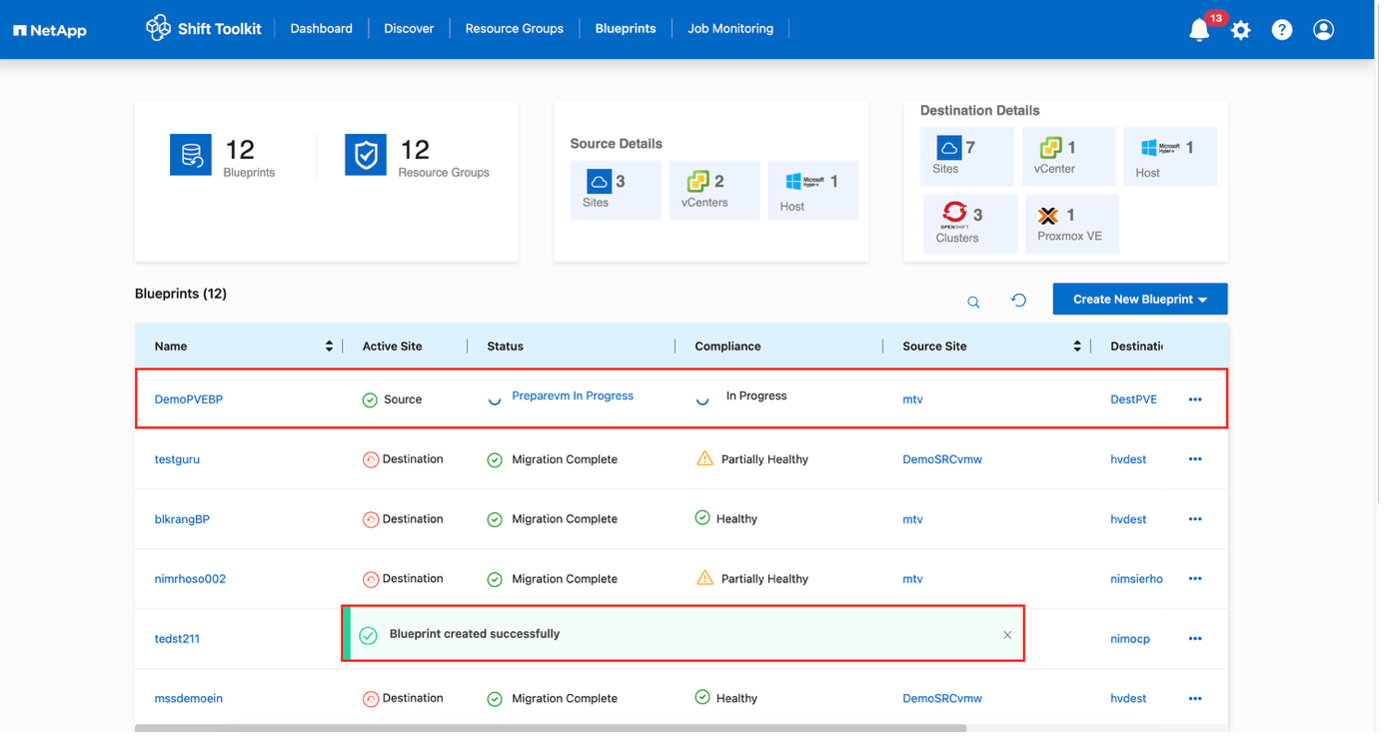
The preparation process:
-
Injects scripts to add drivers (RHEL/CentOS, Alma Linux), remove VMware tools, and backup IP/route/DNS information
-
Uses invoke-VMScript to connect to guest VMs and execute preparation tasks
-
For Windows VMs: Stores scripts in
C:\NetApp -
For Linux VMs: Stores scripts in
/NetAppand/opt
Show example
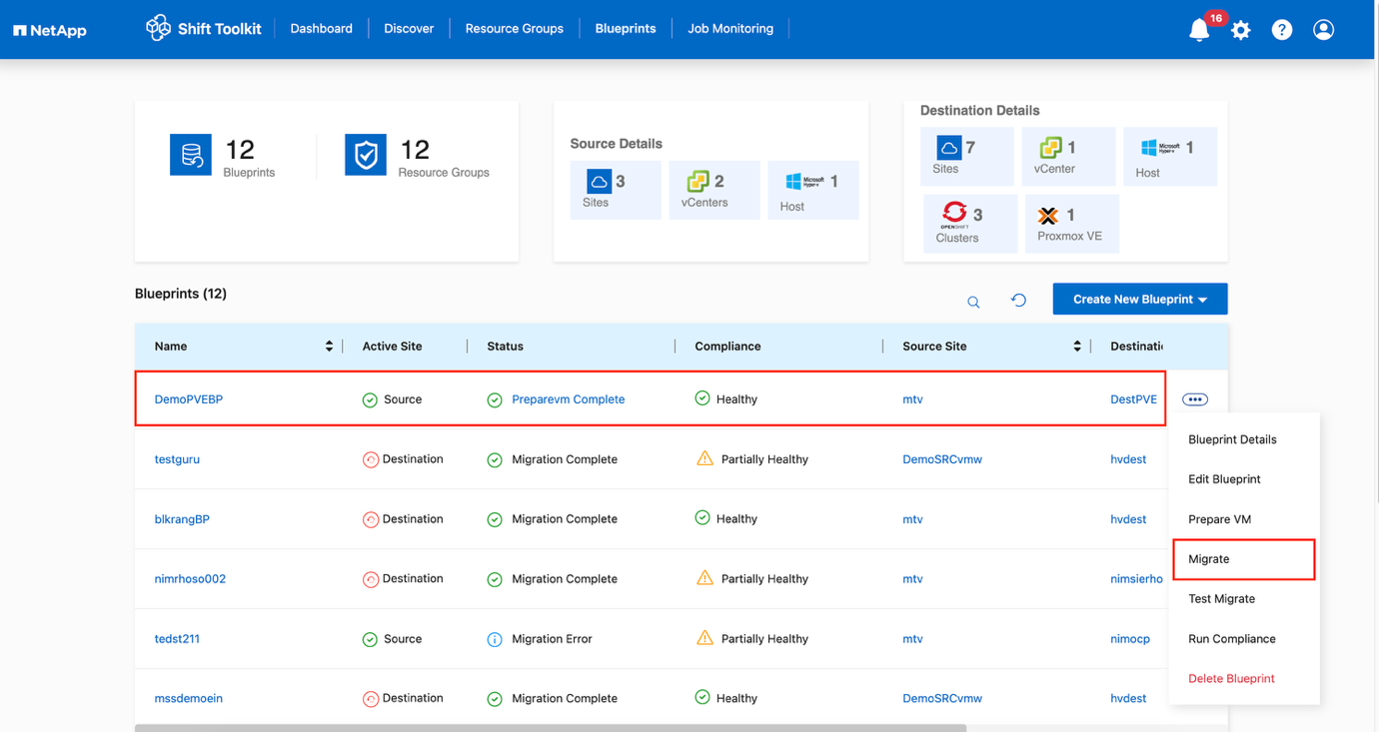
When prepareVM completes successfully, the blueprint status updates to "Active." Migration will now happen at the scheduled time or can be started manually by clicking the Migrate option.
Step 4: Execute the migration
Trigger the migration workflow to convert VMs from VMware ESXi to Proxmox VE.
-
All VMs are gracefully powered off according to the planned maintenance schedule
-
Ensure the Shift VM is part of the domain
-
Ensure CIFS share is configured with appropriate permissions
-
The qtree used for migration or conversion has the right security style
-
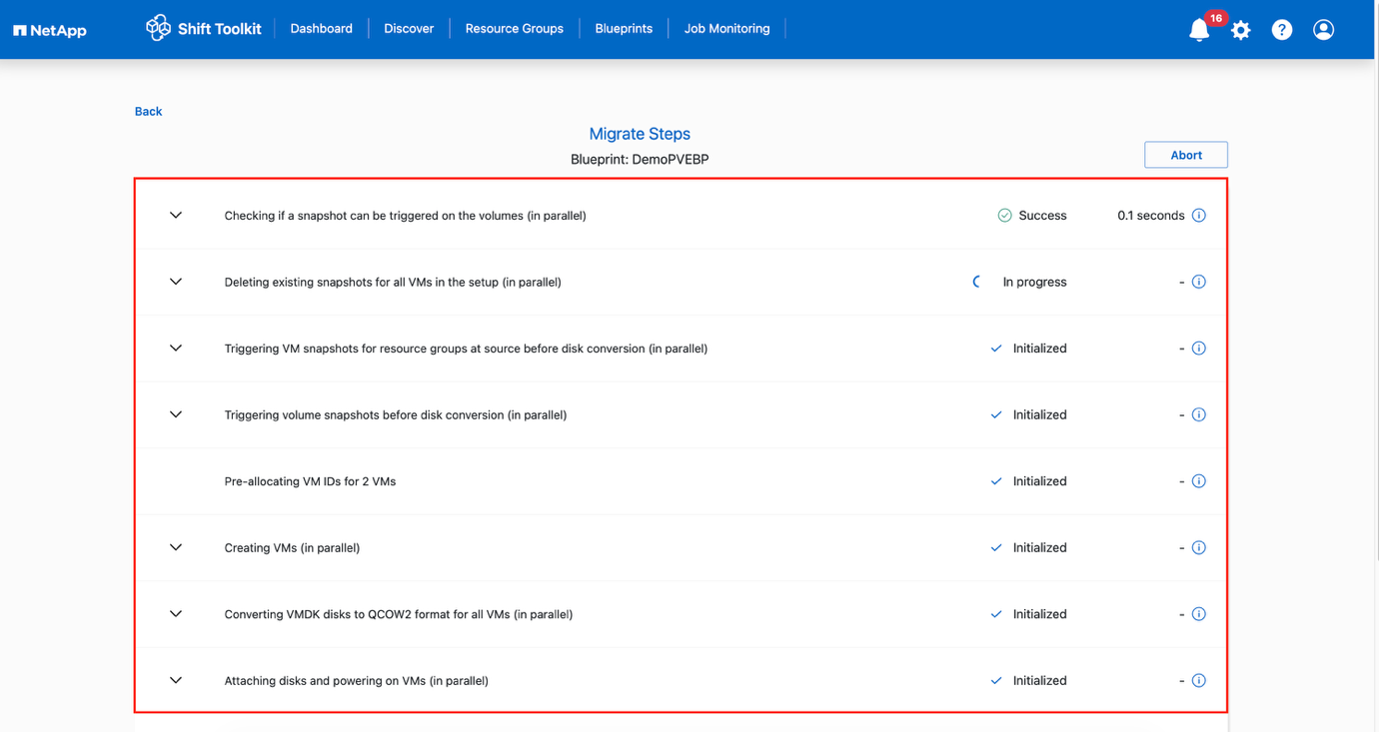
On the blueprint, click Migrate.
-
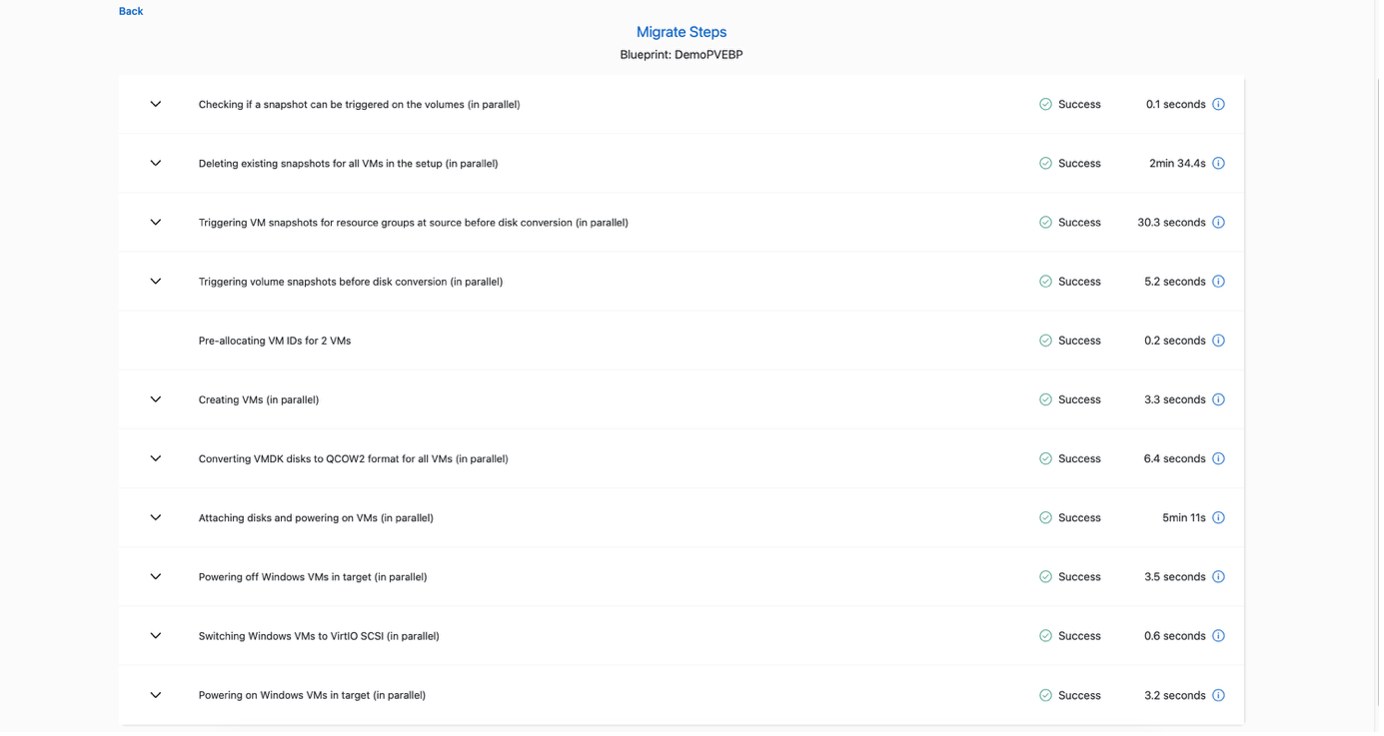
The Shift Toolkit takes the following actions:
-
Delete existing snapshots for all VMs in the blueprint
-
Trigger VM snapshots for Blueprint – at source
-
Trigger volume snapshot before disk conversion
-
Create VMs with dummy disks associated with them
-
Convert VMDK to QCOW2 or RAW format for all VMs and override the dummy disks
-
Power ON VMs in resource group – at target
-
Register the networks on each VM
-
Remove VMware tools and assign the IP addresses using trigger script or cron job depending on the OS type
-
The conversion happens in seconds, making this the fastest migration approach and reducing VM downtime.
When the job completes, the blueprint status changes to "Migration Complete."
Show example
Show example
Shift toolkit workflow
Below sections cover what steps triggered by Shift toolkit to convert the VMDK and create VMs on the Proxmox VE side.
Shift toolkit will automatically find the VMDKs associated with each VM including the primary boot disk.
|
|
If there are multiple VMDK files, each VMDK will be converted. |
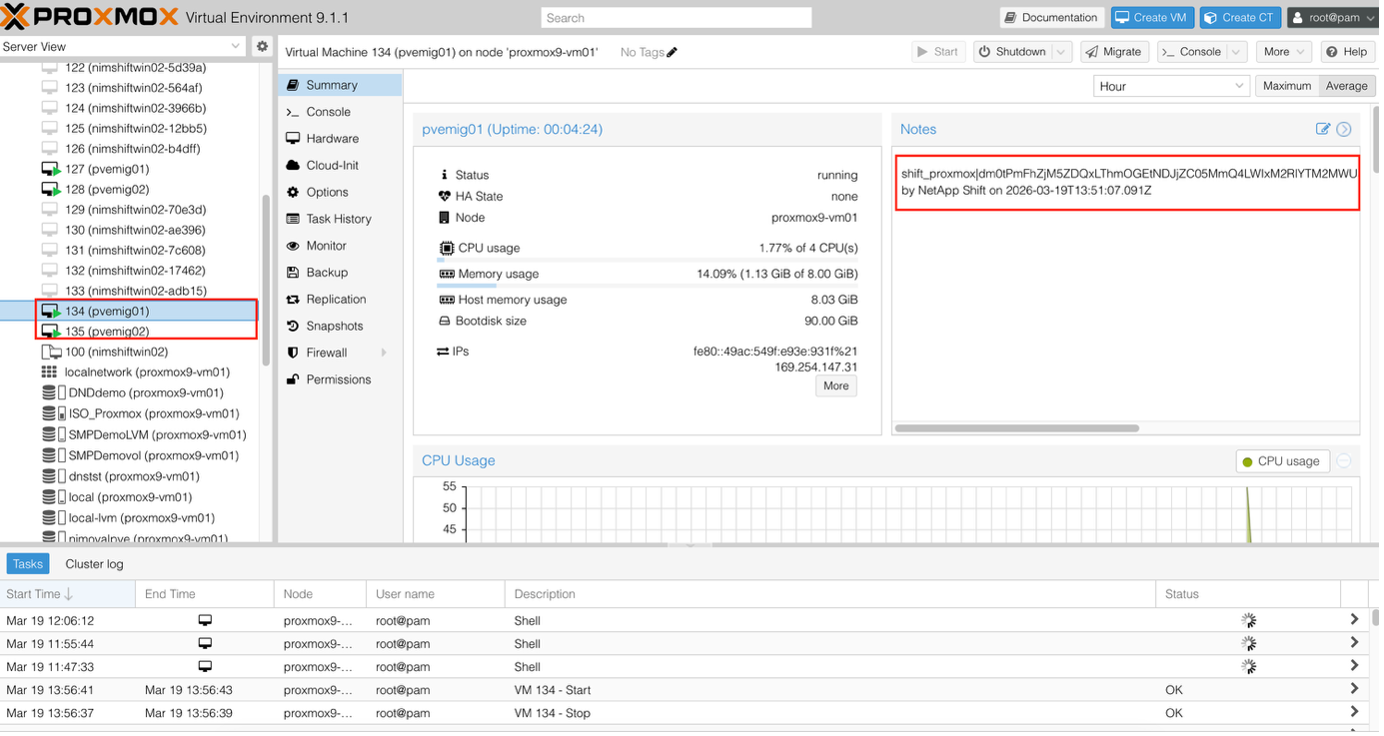
With the virtual machine disk image converted to qcow2 or RAW format, Shift toolkit places the file to appropriate storage pool and adds each disk within the respective VM ID folder.

Shift toolkit makes REST API calls to create each VM depending on the OS.
|
|
VMs are created under respective Proxmox nodes |
Depending on the Virtual Machine OS, and Shift toolkit will auto assign the VM boot option, along with the storage controller interface. In case of Linux distros, VirtIO or VirtIO scsi is used. And for Windows, the VM is powered ON with SATA interface and then the scheduled script auto installs VirtIO drivers and then change the interface to VirtIO. The networks are assigned accordingly based on the selection.
Minimum Permissions for Migrating and creating VMs in Proxmox VE
This section outlines the steps required to create a dedicated user account with the minimum privileges necessary to perform VM migrations.
-
Create a Linux user
-
useradd -m -s /bin/bash ntapshift
-
passwd ntapshift
-
-
Add the user to Proxmox
-
pveum useradd ntapshift@pam
-
-
Create a migration role
-
pveum roleadd ntapshift-migrator -privs "Datastore.AllocateSpace, Datastore.AllocateTemplate, Datastore.Audit, SDN.Audit,SDN.Use, Sys.AccessNetwork, Sys.Audit, Sys.Modify, VM.Allocate, VM.Audit, VM.Config.CDROM, VM.Config.CPU, VM.Config.Cloudinit, VM.Config.Disk, VM.Config.HWType, VM.Config.Memory, VM.Config.Network, VM.Config.Options, VM.Console, VM.Migrate, VM.PowerMgmt"
-
-
Assign the role at the cluster root
-
pveum aclmod / -user ntapshift@pam -role ntapshift-migrator
-
-
Assign the role to a specific node
-
pveum aclmod /nodes/<node-name> -user ntapshift@pam -role ntapshift-migrator
-
|
|
(Replace <node-name> with each actual Proxmox node name)
|