Configure LVM with NVMe/FC for Proxmox VE


 Suggest changes

 PDFs
PDFs
Configure Logical Volume Manager (LVM) for shared storage across Proxmox Virtual Environment (VE) hosts using NVMe over Fibre Channel protocol with NetApp ONTAP. This configuration provides high-performance block-level storage access with low latency using the modern NVMe protocol.
Initial virtualization administrator tasks
Complete these initial tasks to prepare Proxmox VE hosts for NVMe/FC connectivity and collect the necessary information for the storage administrator.
-
Verify two HBA interfaces are available.
-
On every Proxmox host in the cluster, run the following commands to collect the WWPN information and verify the nvme-cli package is installed.
apt update apt install nvme-cli cat /sys/class/fc_host/host*/port_name nvme show-hostnqn -
Provide the collected host NQN and WWPN information to the storage administrator and request an NVMe namespace of the required size.
Storage administrator tasks
If you are new to ONTAP, use System Manager for a better experience.
-
Ensure the SVM is available with NVMe protocol enabled. Refer to NVMe tasks on ONTAP 9 documentation.
-
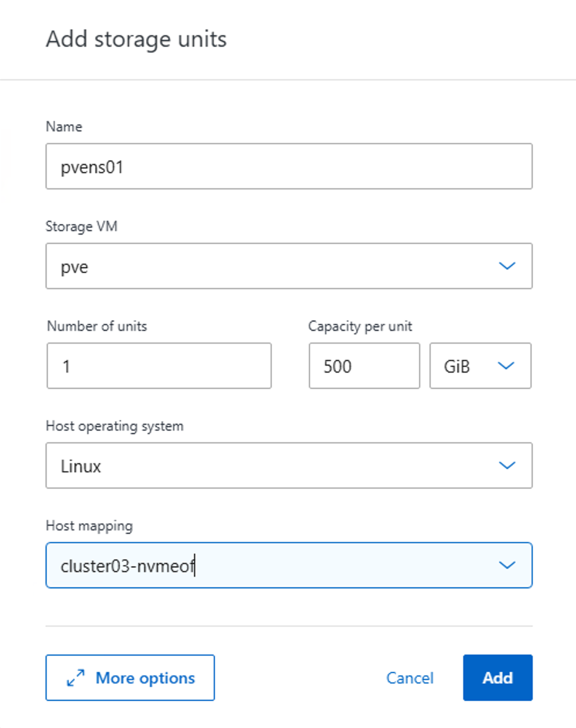
Create the NVMe namespace.
Show example
-
Create the subsystem and assign host NQNs (if using CLI). Follow the reference link above.
-
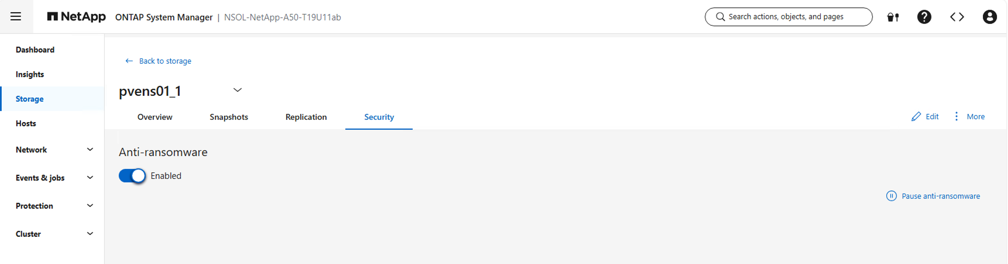
Ensure Anti-Ransomware protection is enabled on the security tab.
Show example
-
Notify the virtualization administrator that the NVMe namespace is created.
Final virtualization administrator tasks
Complete these tasks to configure the NVMe namespace as shared LVM storage in Proxmox VE.
-
Navigate to a shell on each Proxmox VE host in the cluster and verify the new namespace is visible.
-
Check namespace details.
nvme list -
Inspect and collect device details.
nvme list nvme netapp ontapdevices nvme list-subsys lsblk -N -
Create the volume group.
vgcreate <volume group name> /dev/mapper/<device id> # Where <volume group name> is the desired name for the volume group and <device id> is the nvme device id. pvs # Verify the physical volume is part of the volume group. vgs # Verify the volume group is created. -
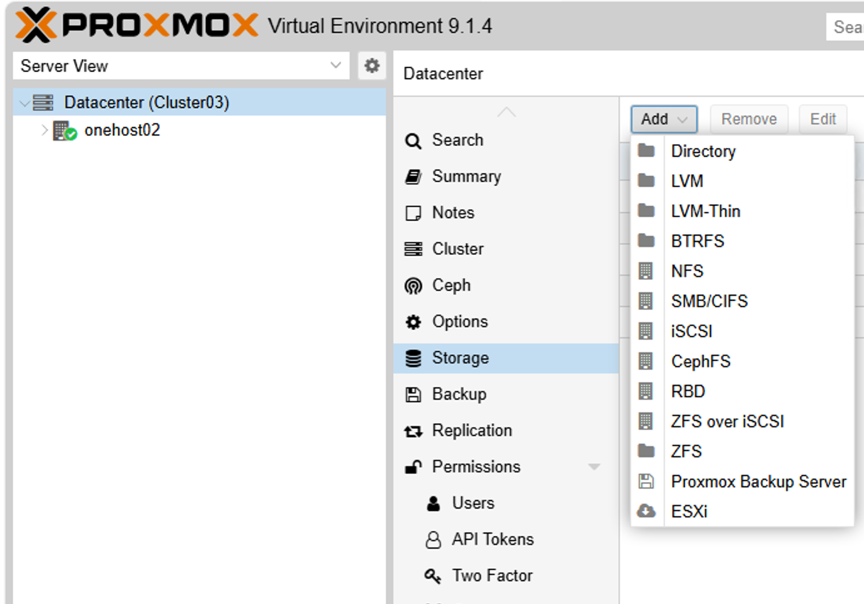
Using the Management UI at
https:<proxmox node>:8006, click Datacenter, select Storage, click Add, and select LVM.Show example
-
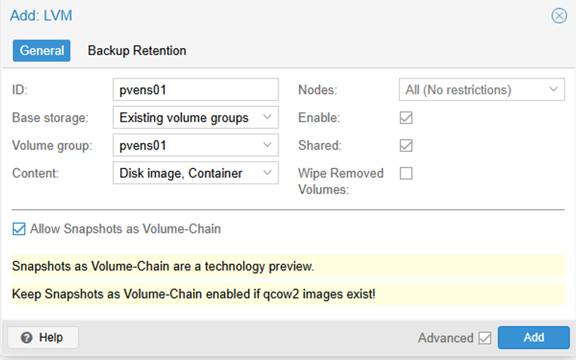
Provide the storage ID name, choose the existing volume group, and select the volume group that was just created with the CLI. Check the shared option. With Proxmox VE 9 and above, enable the
Allow Snapshots as Volume-Chainoption, which is visible when the Advanced check box is enabled.Show example
-
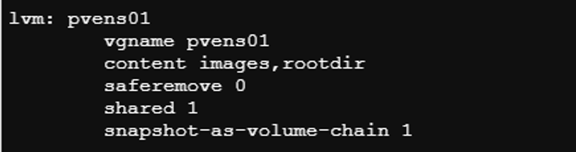
The following shows a sample storage configuration file for LVM using NVMe/FC:
Show example