


Cable the hardware for your AFX 2K storage system

 Suggest changes

 PDFs
PDFs
After you install the rack hardware for your AFX 2K storage system, install the network cables for the controllers, and connect the cables between the controllers and storage shelves.
Contact your network administrator for information about connecting the storage system to your network switches.
-
These procedures show common configurations. The specific cabling depends on the components ordered for your storage system. For comprehensive configuration details and slot priorities, see NetApp Hardware Universe.
-
The I/O slots on an AFX 2K controller are numbered 1 through 11.
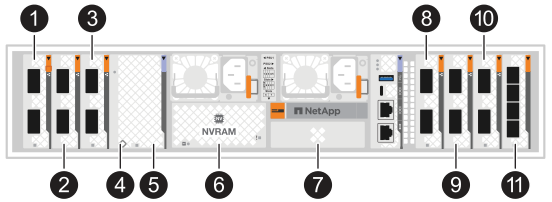
Slot Number I/O Slot Slot Number I/O Slot Slot Number I/O Slot 
HA


NVRAM12

Network

Cluster


NVRAM12-EX

Storage

Network

Storage

(Optional) Four-port 25GbE SFP28 for additional management connectivity
-
The cabling graphics show arrow icons indicating the proper orientation (up or down) of the cable connector pull-tab when inserting a connector into a port.
As you insert the connector, you should feel it click into place; if you do not feel it click, remove it, turn it over and try again.
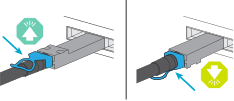

The connector components are delicate and care should be taken when clicking into place.
-
When cabling to an optical fiber connection, insert the optical transceiver into the controller port before cabling to the switch port.
-
The AFX 2K storage system uses 400GbE cables. The 400GbE connections are made between the controllers and the switches. Connections between the storage shelves and the switches use 4x100GbE breakout cables with the 100GbE connections made to the drive shelf ports.
The shelf storage connections can be made to any 100GbE breakout port on the switch. HA/Cluster connections can be made to any 400GbE port on the switch. All "a" controller ports connect to switch A, and all "b" controller ports connect to switch B.
-
The mixed usage of copper and optical breakout connections (cables) is not supported by NVIDIA C6X-DX and CX7 (100GbE) NIC adapters. You should use either copper or optical connections exclusively and avoid combining different connection types. Mixing types can lead to link saturation after extended use.
Make sure you have the correct cables for your connection type before cabling the switches.
For more information about mixing connection types, refer to the NetApp Knowledge Base article CRC link errors seen on CX6-DX NIC with mixed copper and fiber breakout cables on the ports.
Step 1: Connect the controllers to the management network
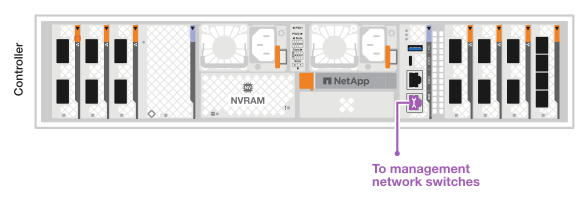
Connect the management (wrench) port on each controlller to either of the management switches or connect them directly to your management network.
Use the 1000BASE-T RJ-45 cables to connect the management (wrench) ports on each controller to the management network switches.

1000BASE-T RJ-45 cables

|
Do not plug in the power cords yet. |
-
Connect to the management network.
Step 2: Connect the controllers to the host network
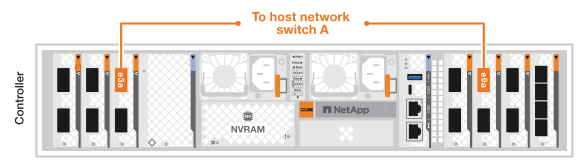
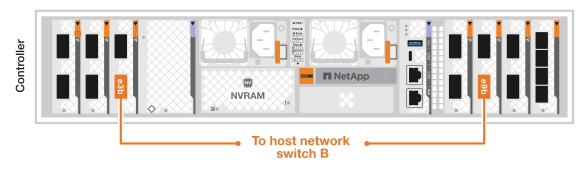
Connect the Ethernet module ports to your host network.
This procedure may differ depending on your I/O module configuration. The following are some typical host network cabling examples. See NetApp Hardware Universe for your specific system configuration.
-
Connect the following ports to your Ethernet data network switch A.
-
Controller
-
e3a
-
e9a
400GbE cables

-
-
-
Connect the following ports to your Ethernet data network switch B.
-
Controller
-
e3b
-
e9b
400GbE cables
-
-
Step 3: Cable the cluster and HA connections
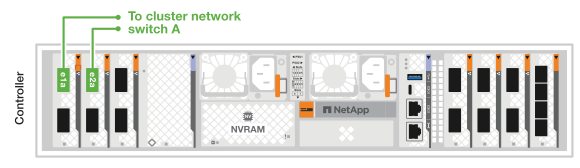
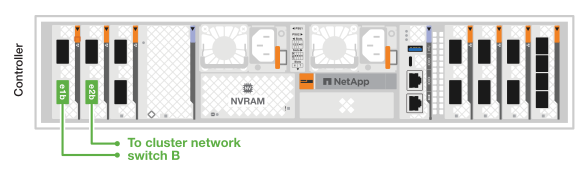
Use the Cluster and HA interconnect cable to connect ports e1a and e2a to switch A and e1b and e2b to switch B. The e1a/e1b ports are used for the HA connections, and the e2a/e2a ports are used for the cluster connections.
-
Connect the following controller ports to any non-ISL port on the cluster network switch A.
-
Controller
-
e1a (HA)
-
e2a (Cluster)
400GbE cables

-
-
-
Connect the following controller ports to any non-ISL port on the cluster network switch B.
-
Controller
-
e1b (HA)
-
e2b (Cluster)
400GbE cables
-
-
Step 4: Cable the controller-to-switch storage connections
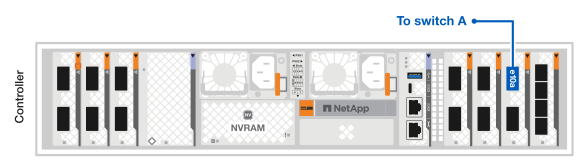
Connect the controller storage ports to the switches. Ensure you have the correct cables and connectors for your switches. See Hardware Universe for more information.
|
|
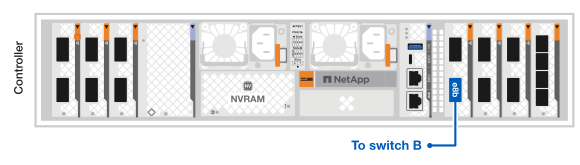
The e10b and e8a ports on the controllers are unused for storage connections in the AFX 2K storage system configuration. |
-
Connect the following storage ports to any non-ISL port on switch A.
-
Controller
-
e10a
400GbE cables
-
-
-
Connect the following storage ports to any non-ISL port on switch B.
-
Controller
-
e8b
400GbE cables
-
-
Step 5: Cable the shelf-to-switch connections
Connect the NX224 storage shelves to the 100GbE breakout ports on the switches.
For the maximum number of shelves supported for your storage system and for all of your cabling options, see NetApp Hardware Universe.
-
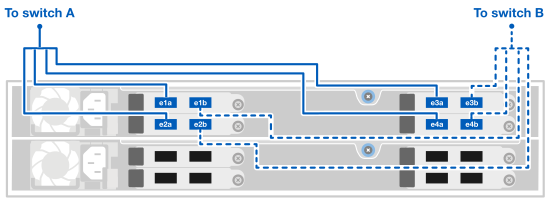
Connect the following shelf ports to any breakout port on switch A and switch B for module A.
-
Module A to switch A connections
-
e1a
-
e2a
-
e3a
-
e4a
-
-
Module A to switch B connections
-
e1b
-
e2b
-
e3b
-
e4b
100GbE cables
-
-
-
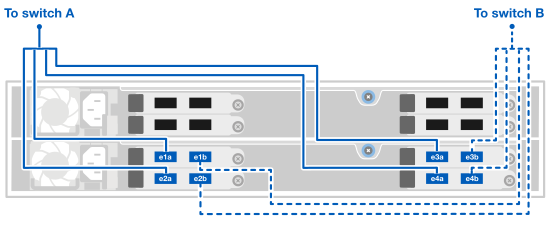
Connect the following shelf ports to any breakout port on switch A and switch B for module B.
-
Module B to switch A connections
-
e1a
-
e2a
-
e3a
-
e4a
-
-
Module B to switch B connections
-
e1b
-
e2b
-
e3b
-
e4b
100GbE cables
-
-
After cabling the hardware, power on and configure the switches.