


Replace the NVRAM12-EX in an AFX 2K system


 Suggest changes

 PDFs
PDFs
Replace the NVRAM12-EX in your AFX 2K storage system when the non-volatile memory becomes faulty or requires an upgrade. The replacement process involves shutting down the impaired controller, replacing the NVRAM12-EX module, the NVRAM DIMM, or the NVRAM battery, and returning the failed part to NetApp.
The NVRAM12-EX module consists of the NVRAM12 hardware and field-replaceable DIMMs. You can replace a failed NVRAM12-EX module, the DIMMs, or the NVRAM battery inside the NVRAM12-EX module.
-
Make sure you have the replacement part available. You must replace the failed component with a replacement component you received from NetApp.
-
Make sure all other components in the storage system are functioning properly; if not, contact NetApp support.

Before you replace the NVRAM12-EX module, make sure that you power down the impaired controller before proceeding with the replacement.
Step 1: Shut down the impaired controller
Shut down or take over the impaired controller.
Take over and halt the impaired controller so that the healthy controller continues to serve data from the impaired controller's storage. To do this, you suppress automatic case creation in AutoSupport, disable automatic giveback, and bring the impaired controller to the LOADER prompt. The LOADER prompt is the safe halted state from which you can replace the FRU.
-
If you have a cluster with more than four nodes, it must be in quorum. To view cluster information about your nodes, use the
cluster showcommand. For more information about thecluster showcommand, see View node-level details in an ONTAP cluster. -
If the cluster is not in quorum or if the health or eligibility of any controller (other than the impaired controller) shows as false, you must correct the issue before shutting down the impaired controller. See Synchronize a node with the cluster.
-
If AutoSupport is enabled, suppress automatic case creation by invoking an AutoSupport message:
system node autosupport invoke -node * -type all -message MAINT=<# of hours>hThe following AutoSupport message suppresses automatic case creation for two hours:
cluster1:> system node autosupport invoke -node * -type all -message MAINT=2h -
Disable automatic giveback from the console of the impaired controller:
storage failover modify -node impaired-node -auto-giveback-of false
When you see Do you want to disable auto-giveback?, enter y. -
Take the impaired controller to the LOADER prompt:
If the impaired controller is displaying… Then… The LOADER prompt
Go to the next step.
System prompt or password prompt
Take over or halt the impaired controller from the healthy controller:
storage failover takeover -ofnode impaired_node_name -halt trueThe -halt true parameter brings the impaired node to the LOADER prompt.
Step 2: Replace the NVRAM12-EX module, NVRAM DIMM, or NVRAM battery
Replace the NVRAM12-EX module, NVRAM DIMMs, or NVRAM battery using the following options.
You must remove the controller module from the enclosure when you replace the controller module or replace a component inside the controller module.
To replace the NVRAM12-EX module, locate it in slot 6/7 in the enclosure and follow the specific sequence of steps.
-
Check the NVRAM status LED located in slot 4/5 and the NVRAM12-EX status slot 6/7 of the system. There is also an NVRAM LED on the front panel of the controller module. Look for the NV icon:
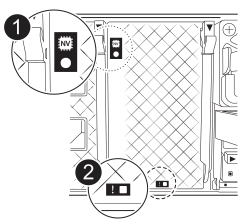
NVRAM

NVRAM status LED

NVRAM attention LED
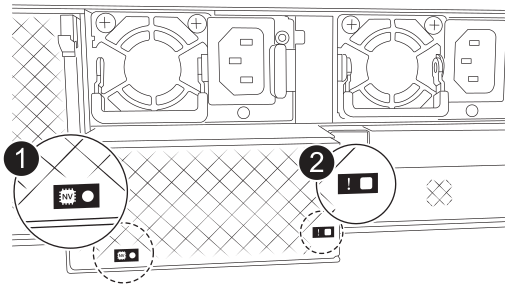
NVRAM12-EX
NVRAM12-EX status LED
NVRAM12-EX attention LED
-
If the NV LED is off, go to the next step.
-
If the NV LED is flashing, wait for the flashing to stop. If flashing continues for longer than 5 minutes, contact Technical Support for assistance.
-
-
If you are not already grounded, properly ground yourself.
-
Unplug the power supply cables from the PSUs from the controller.
-
Rotate the cable management tray down by gently pulling the pins on the ends of the tray and rotating the tray down.
-
Remove the impaired NVRAM12-EX module from the enclosure:
-
Press in the locking cam button.
-
Remove the impaired NVRAM12-EX module from the enclosure by pulling the module out of the enclosure.
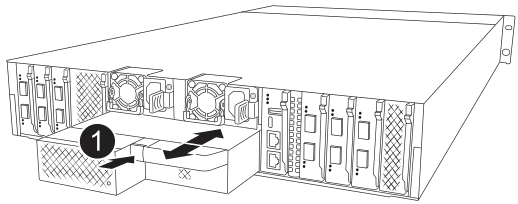
Cam locking button
-
-
Set the NVRAM12-EX module on a stable surface.
-
Open the cover of of the NVRAM12-EX module by using your fingers or a screwdriver to loosen the single thumbscrew on the cover and lifting the cover off of the module.
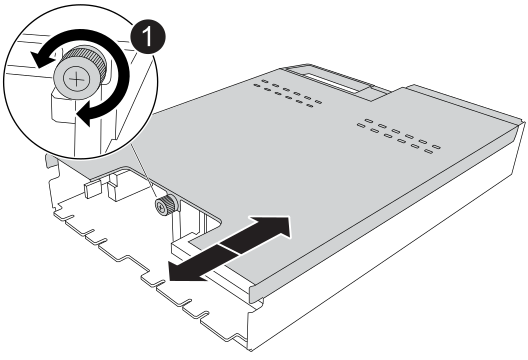
Thumbscrew for NVRAM12-EX cover
-
Remove the DIMMs, one at a time, from the impaired NVRAM12-EX module and install them in the replacement NVRAM12-EX module.
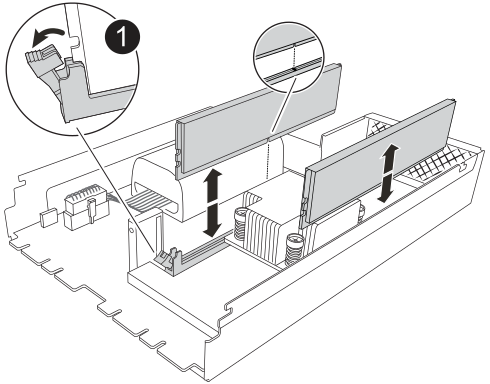
DIMM locking tabs
-
Disconnect the battery from the NVRAM12-EX module:
-
Squeeze the clip on the face of the battery plug to release the plug from the socket.
-
Unplug the battery cable from the socket.
-
-
Remove the disconnected battery by lifting up on the battery to remove it from the module.
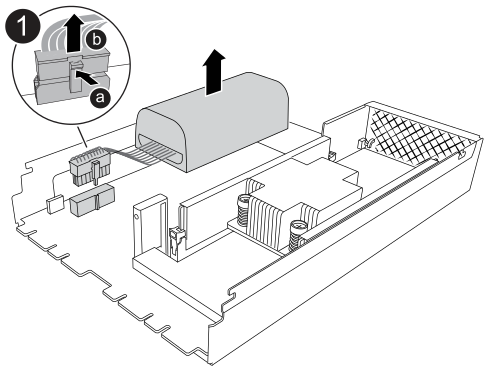
NVRAM12-EX battery connection clip
-
Install the battery into the replacement NVRAM12-EX module:
-
Plug the battery connection clip into the socket and make sure that the plug locks into place.
-
Insert the battery pack into the slot and press firmly down on the battery pack to make sure that it is locked into place.
-
-
Install the cover of the NVRAM12-EX module by aligning the cover with the screw hole and securing the cover with the thumbscrew.
-
Install the replacement NVRAM12-EX module into the enclosure:
-
Align the module with the edges of the enclosure opening in slot 6/7.
-
Gently slide the module into the slot all the way to lock the module in place.
-
-
Rotate the cable management tray up to the closed position.
To replace NVRAM DIMMs in the NVRAM12-EX module, you must remove the NVRAM12-EX module, and then replace the target DIMM.
-
Check the NVRAM status LED located in slot 4/5 and the NVRAM12-EX status slot 6/7 of the system. There is also an NVRAM LED on the front panel of the controller module. Look for the NV icon:
NVRAM
NVRAM status LED
NVRAM attention LED
NVRAM12-EX
NVRAM12-EX status LED
NVRAM12-EX attention LED
-
If the NV LED is off, go to the next step.
-
If the NV LED is flashing, wait for the flashing to stop. If flashing continues for longer than 5 minutes, contact Technical Support for assistance.
-
-
If you are not already grounded, properly ground yourself.
-
Unplug the power supply cables from the PSUs.
-
Rotate the cable management tray down by gently pulling the pins on the ends of the tray and rotating the tray down.
-
Remove the target NVRAM12-EX module from the enclosure:
-
Press in the locking cam button.
-
Remove the impaired NVRAM12-EX module from the enclosure by pulling the module out of the enclosure.
Cam locking button
-
-
Set the NVRAM12-EX module on a stable surface.
-
Open the cover of of the NVRAM12-EX module by using your fingers or a screwdriver to loosen the single thumbscrew on the cover and lifting the cover off of the module.
Thumbscrew for NVRAM12-EX cover
-
Locate the DIMM to be replaced inside the NVRAM12-EX module.
Consult the FRU map label on the side of the NVRAM12-EX module to determine the locations of DIMM slots 1 and 2. -
Remove the DIMM by pressing down on the DIMM locking tabs and lifting the DIMM out of the socket.
DIMM locking tabs
-
Install the replacement DIMM by aligning the DIMM with the socket and gently pushing the DIMM into the socket until the locking tabs lock in place.
-
Install the cover of the NVRAM12-EX module by aligning the cover with the screw hole and securing the cover with the thumbscrew.
-
Install the NVRAM12-EX module into the enclosure:
-
Gently slide the module into the slot all the way to lock into place.
-
-
Rotate the cable management tray up to the closed position.
To replace NVRAM DIMMs in the NVRAM12-EX module, you must remove the NVRAM12-EX module, and then replace the battery.
-
Check the NVRAM status LED located in slot 4/5 and the NVRAM12-EX status slot 6/7 of the system. There is also an NVRAM LED on the front panel of the controller module. Look for the NV icon:
NVRAM
NVRAM status LED
NVRAM attention LED
NVRAM12-EX
NVRAM12-EX status LED
NVRAM12-EX attention LED
-
If the NV LED is off, go to the next step.
-
If the NV LED is flashing, wait for the flashing to stop. If flashing continues for longer than 5 minutes, contact Technical Support for assistance.
-
-
If you are not already grounded, properly ground yourself.
-
Unplug the power supply cables from the PSUs.
-
Rotate the cable management tray down by gently pulling the pins on the ends of the tray and rotating the tray down.
-
Remove the target NVRAM12-EX module from the enclosure:
-
Press in the locking cam button.
-
Remove the impaired NVRAM12-EX module from the enclosure by pulling the module out of the enclosure.
Cam locking button
-
-
Set the NVRAM12-EX module on a stable surface.
-
Open the cover of of the NVRAM12-EX module by using your fingers or a screwdriver to loosen the single thumbscrew on the cover and lifting the cover off of the module.
Thumbscrew for NVRAM12-EX cover
-
Disconnect the battery from the NVRAM12-EX module:
-
Squeeze the clip on the face of the battery plug to release the plug from the socket.
-
Unplug the battery cable from the socket.
-
-
Remove the disconnected battery by lifting up on the battery to remove it from the module.
NVRAM12-EX battery connection clip
-
Remove the replacement battery from its package.
-
Install the replacement battery pack into the NVRAM12-EX module:
-
Plug the battery connection clip into the socket and make sure that the plug locks into place.
-
Insert the battery pack into the slot and press firmly down on the battery pack to make sure that it is locked into place.
-
-
Install the cover of the NVRAM12-EX module by aligning the cover with the screw hole and securing the cover with the thumbscrew.
-
Install the NVRAM12-EX module into the enclosure:
-
Gently slide the module into the slot all the way to lock into place.
-
-
Rotate the cable management tray up to the closed position.
Step 3: Reboot the controller
After you replace the FRU, you must reboot the controller module.
-
Plug the power cables back into the PSU.
The system will begin to reboot, typically to the LOADER prompt.
-
Enter
byeat the LOADER prompt.
Step 4: Complete NVRAM12-EX replacement
Perform the following steps to complete the NVRAM12-EX replacement.
-
From the healthy controller, verify that the new partner system ID has been automatically assigned:
storage failover showIn the command output, you should see a message displaying the current state of the storage replacement. In the following example,
node2has undergone replacement and displays the current state asIn takeover.node1:> storage failover show Takeover Node Partner Possible State Description ------------ ------------ -------- ------------------------------------- node1 node2 false In takeover node2 node1 - Waiting for giveback -
Give back the controller:
-
From the healthy controller, give back the replaced controller's storage:
storage failover giveback -ofnode impaired_node_nameThe controller takes back its storage and completes booting.
If the giveback is vetoed, you can consider overriding the vetoes. For more information, see the Manual giveback commands topic to override the veto.
-
After the giveback has been completed, confirm that the HA pair is healthy and that takeover is possible: storage failover show
The output from the
storage failover showcommand should not include the System ID changed on partner message.
-
-
Verify that the expected volumes are present for each controller:
vol show -node node-name -
Press <enter> when console messages stop.
-
If you see the login prompt, go to the next step.
-
If you do not see login prompt, log into the partner node.
-
-
Wait 5 minutes after the giveback report completes, and check failover status and giveback status:
storage failover showandstorage failover show-giveback
The following command is only available in the Diagnostic mode privilege level. -
If automatic giveback was disabled, reenable it:
storage failover modify -node local -auto-giveback-of true -
If AutoSupport is enabled, restore/unsuppress automatic case creation:
system node autosupport invoke -node * -type all -message MAINT=END
Step 5: Return the failed part to NetApp
Return the failed part to NetApp, as described in the RMA instructions shipped with the kit. See the Part Return and Replacements page for further information.