


Troubleshoot the NetApp Console agent


 Suggest changes

 PDFs
PDFs
To troubleshoot issues with a Console agent, you can verify issues yourself or work with NetApp Support who might ask for your system ID, agent version, or the latest AutoSupport messages.
If you have a NetApp Support Site account, you can also view the NetApp Knowledge Base.
Common error messages and resolutions
This table lists common error messages and shows how to fix them:
| Error message | Explanation | What to do |
|---|---|---|
Unable to load the Console agent UI |
Agent installation has failed |
|
Cannot access the NetApp agent UI |
This message appears when trying to access the IP address of an agent. The agent can fail to initialize if it doesn't have the correct network access or if it is unstable. |
|
Unable to load agent settings |
The Console displays this message when you try to access the Agent settings page. |
|
Unable to load support information for the agent. |
This message displays if the agent cannot access your support account. |
|
Check the Console agent status
Use one of the following commands to verify your Console agent. All services should have a status of Running. If this isn't the case, contact NetApp Support.

|
For more detailed information about accessing the Console agent diagnostics, see the following topics: |
- Docker (for Ubuntu and vCenter deployments)
-
docker ps -a - Podman (for Red Hat Enterprise Linux deployments)
-
podman ps -a
View the Console agent version
View the Console agent version to confirm the upgrade or share it with your NetApp representative.
-
Select Administration > Support > Agents.
The Console displays the version at the top of the page.
Validate that the Console agent meets requirements
Console agents require access to certain network endpoints, need to have several ports open, and must meet hardware requirements. You can validate that your Console agent meets these requirements from the Console or by using the agent maintenance console.
You can also run validation checks using the agent maintenance console. Learn more about using the config-checker validate command.

|
For government cloud customers (restricted mode), NetApp Console does not validate the restricted mode upgrade endpoint. You must manually confirm that your firewall rules allow access to this endpoint.Learn more about required network access points for restricted mode. |
-
Select Administration > Agents.
-
Select the action menu for a Console agent that you want to check and choose Validate.
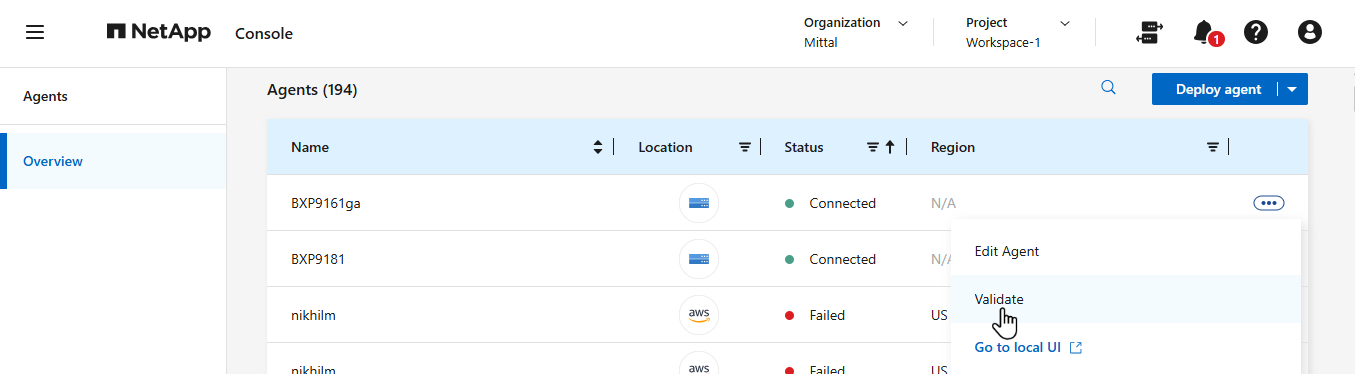
Validation can take up to 15 minutes. Results show when it is done.
Console agent installation issues
If the installation fails, view the report and logs to resolve the issues.
You can also access the validation report in JSON format and the configuration logs directly from the Console agent host in the following directories:
/tmp/netapp-console-agents/logs

/tmp/netapp-console-agents/results.json|
|
|
Disable configuration checks for manual installations
There may be times when you need to disable the configuration checks that verify outbound connectivity during installation. For example, when manually installing an agent in your Government Cloud environment, you need to disable the configuration checks or the installation will fail.
You disable the configuration check by setting the skipConfigCheck flag in the com/opt/application/netapp/service-manager-2/config.json file. By default, this flag is set to false and the configuration check verifies outbound access for the agent. Set this flag to true to disable the check. Be familiar with JSON syntax before completing this step.
To re-enable the configuration check, use these steps and set the skipConfigCheck flag to false.
-
Access the Console agent host as root or with sudo privileges.
-
Create a backup copy of the /opt/application/netapp/service-manager-2/config.json file to ensure you can revert your changes.
-
Stop the service manager 2 service by running the following command:
systemctl stop netapp-service-manager.service -
Edit the /opt/application/netapp/service-manager-2/config.json file and change the value of the skipConfigCheck flag to true.
"skipConfigCheck": true -
Save your file.
-
Restart the service manager 2 service by running the following command:
systemctl restart netapp-service-manager.service
Work with NetApp Support
If you haven't been able to resolve the issues with your Console agent, you may want to contact NetApp Support. NetApp Support may ask for the Console agent ID or for you to send the Console agent logs to them if they don't have them already.
Find the Console agent ID
To help you get started, you may need the system ID of your Console agent. The ID is typically used for licensing and troubleshooting purposes.
-
Select Administration > Support > Agents.
You can find the system ID at the top of the page.
Example

-
Hover and click on the ID to copy it.
Download or send an AutoSupport message
If you're having problems, NetApp might ask you to send an AutoSupport message to NetApp Support for troubleshooting purposes.
|
|
The NetApp Console takes up to five hours to send AutoSupport messages due to load balancing. For urgent communication, download the file and send it manually. |
-
Select Administration > Support > Agents.
-
Depending on how you need to send the information to NetApp support, choose one of the following options:
-
Select the option to download the AutoSupport message to your local machine. You can then send it to NetApp Support using a preferred method.
-
Select Send AutoSupport to directly send the message to NetApp Support.
-
Fix download failures when using a Google Cloud NAT gateway
The Console agent automatically downloads software updates for Cloud Volumes ONTAP. Your configuration can cause the download to fail if it uses a Google Cloud NAT gateway. You can correct this issue by limiting the number of parts that the software image is divided into. This step must be completed by using the API.
-
Submit a PUT request to /occm/config with the following JSON as body:
{
  "maxDownloadSessions": 32
}
The value for maxDownloadSessions can be 1 or any integer greater than 1. If the value is 1, then the downloaded image will not be divided.
Note that 32 is an example value. The value depends on your NAT configuration and the number of simultaneous sessions.