


Review protection status in NetApp Ransomware Resilience

 Suggest changes

 PDFs
PDFs
Use the protection dashboard in NetApp Ransomware Resilience to review workload protection status, identify workloads that need attention, and understand your overall protection coverage.
Once you understand the scope of your current protection, you can create and apply ransomware protection strategies to your workloads.
View protection on a workload
One of the first steps in protecting workloads is viewing your current workloads and their protection status. You can see the following types of workloads:
-
Block workloads
-
File share workloads
-
VM workloads
-
From the Console's left navigation, select Protection > Ransomware Resilience.
-
Do one of the following:
-
From the Data Protection pane on the dashboard, select View all.
-
From the menu, select Protection.
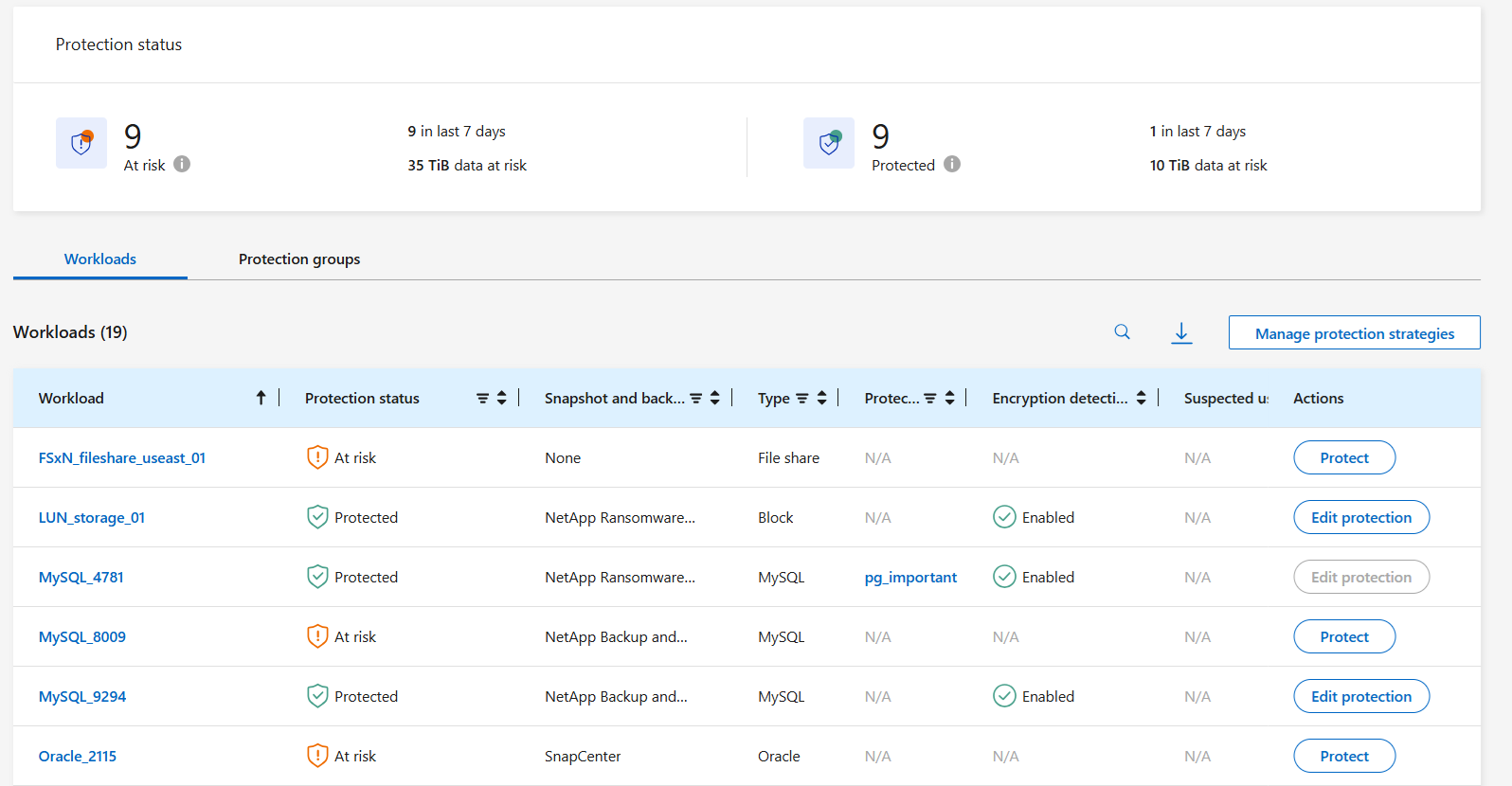
-
-
From this page, you can view and change protection details for the workload.

|
See Add a ransomware protection strategy to learn about using Ransomware Resilience when there's an existing protection policy with Backup and Recovery. |
Understand the protection dashboard
The protection dashboard in Ransomware Resilience displays detailed information about workloads (for example, workload name and type, Console agent, system, and storage VM) in addition to insights about protection status. Use the protection dashboard to review and manage ransomware preparedness for workloads. The following columns are especially helpful in understanding your protection posture:
Protection status: A workload can show one of the following protection statuses to indicate whether a policy is applied or not:
-
Protected: An encryption or user activity detection policy is enabled.
-
At risk: If a workload does not have a protection policy with either encryption detection or user activity detection enabled, it's labeled at risk. Even if the workload has snapshot and backup protection and file extension blocking, it's still considered at risk without encryption detection or user behavior detection enabled.
-
In progress: A policy is being applied, but the operation has not completed.
-
Failed: A policy has been configured but there's an error.
Detection status:
+
Ransomware Resilience provides insights into the scope of ransomware detection policies you've configured on your workloads. Review the detection scope with the following fields.
-
Encryption detection status
-
Suspected user behavior detection status
-
Block suspicious file extensions
Snapshot, replication, and backup policies: This column shows the product or service that is managing the policy. If there's no policy, the field displays N/A.
Importance
Ransomware Resilience assigns an importance or priority to each workload during discovery based on an analysis of each workload. The workload importance is determined by the following snapshot frequencies:
-
Critical: More than one snapshot copy is taken per hour (highly aggressive protection schedule)
-
Important: Snapshots copies are created less frequently than every hour but more frequently than every day
-
Standard: Snapshot copies are taken more than once per day
Privacy exposure: Select this option to scan for personally identifiable information with NetApp Data Classification.
Replication destination: If you've configured snapshot replication, the names of the destination storage VMs and systems are listed. If there's no replication, this field displays "N/A."
Backup destination: If you've configured a ransomware protection strategy with backups, the name of the backup destination system is listed here.