


Replace the NVDIMM battery in an AFF A800 system


 Suggest changes

 PDFs
PDFs
Replace the NVDIMM battery in your AFF A800 system when it begins to lose charge or fails, because it preserves critical system data during power outages. The replacement process involves removing the controller module, replacing the battery, and reinstalling the controller module.
Step 1: Shut down the impaired controller
Shut down or take over the impaired controller.
Take over and halt the impaired controller so that the healthy controller continues to serve data from the impaired controller's storage. To do this, you suppress automatic case creation in AutoSupport, disable automatic giveback, and bring the impaired controller to the LOADER prompt. The LOADER prompt is the safe halted state from which you can replace the FRU.
-
If you have a SAN system, you must have checked event messages (
cluster kernel-service show) for the impaired controller SCSI blade. Thecluster kernel-service showcommand (from priv advanced mode) displays the node name, quorum status of that node, availability status of that node, and operational status of that node.Each SCSI-blade process should be in quorum with the other nodes in the cluster. Any issues must be resolved before you proceed with the replacement.
-
If you have a cluster with more than two nodes, it must be in quorum. If the cluster is not in quorum or a healthy controller shows false for eligibility and health, you must correct the issue before shutting down the impaired controller; see Synchronize a node with the cluster.
-
If AutoSupport is enabled, suppress automatic case creation by invoking an AutoSupport message:
system node autosupport invoke -node * -type all -message MAINT=<number of hours down>hThis prevents automatic support cases from being opened during your planned maintenance window. The maximum suppression duration is 72 hours. If your maintenance completes early, you can re-enable case creation by invoking an AutoSupport message with
MAINT=END. For more information, see How to suppress automatic case creation during scheduled maintenance windows.The following AutoSupport message suppresses automatic case creation for two hours:
cluster1:> system node autosupport invoke -node * -type all -message MAINT=2h -
Disable automatic giveback:
-
Enter the following command from the console of the healthy controller:
storage failover modify -node local -auto-giveback false -
Enter
ywhen you see the prompt Do you want to disable auto-giveback?
-
-
Take the impaired controller to the LOADER prompt:
If the impaired controller is displaying… Then… The LOADER prompt
Go to the next step.
Waiting for giveback…
Press Ctrl-C, and then respond
ywhen prompted.System prompt or password prompt
Take over or halt the impaired controller from the healthy controller:
storage failover takeover -ofnode impaired_node_name -halt trueThe -halt true parameter brings you to the LOADER prompt.
Step 2: Remove the controller module
You must remove the controller module from the chassis when you replace the controller module or replace a component inside the controller module.
-
If you are not already grounded, properly ground yourself.
-
Ensure that all drives in the chassis are firmly seated against the midplane by using your thumbs to push each drive until you feel a positive stop.
Video - Confirm drive seating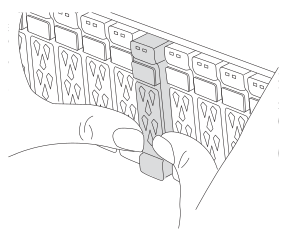
-
Check the controller drives based on the system status:
-
On the healthy controller, check if any active RAID group is in a degraded state, failed state, or both:
storage aggregate show -raidstatus !*normal*-
If the command returns
There are no entries matching your query.continue to go to the next sub-step to check for missing drives. -
If the command returns any other results, collect the AutoSupport data from both controllers and contact NetApp Support for further assistance.
system node autosupport invoke -node * -type all -message '<message_name>'
-
-
Check for missing drive issues for both the file system or spare drives:
event log show -severity * -node * -message-name *disk.missing*-
If the command returns
There are no entries matching your query.continue to go to the next step. -
If the command returns any other results, collect the AutoSupport data from both controllers and contact NetApp Support for further assistance.
system node autosupport invoke -node * -type all -message '<message_name>'
-
-
-
Remove the power cable retainers, then unplug the cables from the power supplies.
-
Loosen the hook and loop strap on the cable management device. Unplug the system cables and SFP/QSFP modules (if needed) from the controller module. Note each cable's location.
Leave the cables in the cable management device so that when you reinstall the cable management device, the cables are organized.
-
Remove the cable management device from the controller module and set it aside.
-
Press down on both of the locking latches, and then rotate both latches downward at the same time.
The controller module moves slightly out of the chassis.
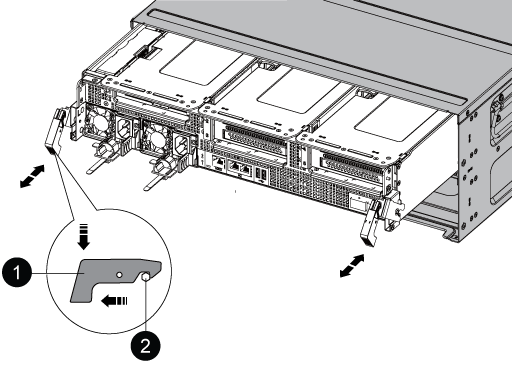

Locking latch

Locking pin
-
Slide the controller module out of the chassis and place it on a stable, flat surface.
Support the bottom of the controller module while sliding it out of the chassis.
Step 3: Replace the NVDIMM battery
Replace the NVDIMM battery by removing the failed battery from the controller module and installing the replacement battery into the controller module.
-
Open the air duct cover and locate the NVDIMM battery in the riser.
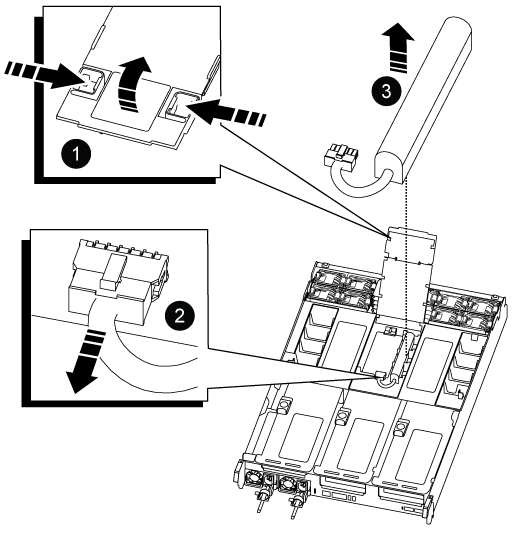
Air duct riser
NVDIMM battery plug

NVDIMM battery pack
Attention: The NVDIMM battery control board LED blinks while destaging contents to the flash memory when you halt the system. After the destage is complete, the LED turns off.
-
Locate the battery plug and squeeze the clip on the face of the battery plug to release the plug from the socket, and then unplug the battery cable from the socket.
-
Grasp the battery and lift the battery out of the air duct and controller module, and then set it aside.
-
Remove the replacement battery from its package.
-
Install the replacement battery pack in the NVDIMM air duct:
-
Insert the battery pack into the slot and press firmly down on the battery pack to make sure that it is locked into place.
-
Plug the battery plug into the riser socket and make sure that the plug locks into place.
-
-
Close the NVDIMM air duct.
Make sure that the plug locks into the socket.
Step 4: Reinstall the controller module
Reinstall the controller module and reboot it.
-
Align the end of the controller module with the opening in the chassis, and then gently push the controller module halfway into the system.

Do not completely insert the controller module in the chassis until instructed to do so. -
Recable the system, as needed.
If you removed the media converters (QSFPs or SFPs), remember to reinstall them if you are using fiber optic cables.
-
Complete the reinstallation of the controller module:
-
Firmly push the controller module into the chassis until it meets the midplane and is fully seated.
The locking latches rise when the controller module is fully seated.
Do not use excessive force when sliding the controller module into the chassis to avoid damaging the connectors. -
Rotate the locking latches upward, tilting them so that they clear the locking pins, and then lower them into the locked position.
-
Plug the power cords into the power supplies, reinstall the power cable locking collar, and then connect the power supplies to the power source.
The controller module begins to boot as soon as power is restored. Be prepared to interrupt the boot process.
-
If you have not already done so, reinstall the cable management device.
-
-
Return the impaired controller to normal operation by giving back its storage:
storage failover giveback -ofnode impaired_node_name. -
If automatic giveback was disabled, reenable it:
storage failover modify -node local -auto-giveback true. -
If AutoSupport is enabled, restore/unsuppress automatic case creation:
system node autosupport invoke -node * -type all -message MAINT=END.
Step 5: Return the failed part to NetApp
Return the failed part to NetApp, as described in the RMA instructions shipped with the kit. See the Part Return and Replacements page for further information.