NetApp Console setup and administration

Enable read-only mode for a NetApp Console organization

Contributors netapp-tonias

As a security precaution, you can enable read-only mode for your NetApp Console organization. In read-only mode, users can view resources and settings but cannot make any changes.

In read-only mode, users with admin roles must manually elevate their permissions to make changes, which ensures that changes are intentional.

Required access roles

Super admin or Org admin.

Enable read-only mode for your Console organization

Enable read-only mode to restrict changes to your Console organization. All users can still view resources. Users with admin roles cannot perform any actions in the Console without manually elevating their permissions.

When read-only mode is enabled, users see a banner that notifies them that the organization is in read-only mode. Users must go to User settings to elevate their role.

Steps
  1. Select Administration > Identity and access.

  2. From the Organizations tab, select Edit organization settings for the organization that you want to set to read-only mode.

  3. In the Read-only mode section, enable read-only mode by moving the toggle to the On position and then select Save.
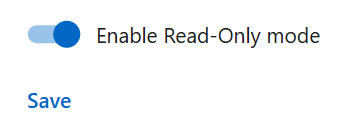
    A screenshot that shows the Read-only mode toggle in the On position.

Sign up for NetApp Console as the initial organization administrator

If your company doesn't have a NetApp Console organization, sign up to create one. The first user is the administrator and manages accounts and permissions. You can update roles and add administrators later.

Steps
  1. Open a web browser and go to the NetApp Console

  2. If you have a NetApp Support Site account, enter the email address associated with your account directly on the Log in page.

    The Console signs you up as part of this initial login with your NetApp Support Site credentials.

  3. If you want to sign up by creating a Console login, select Sign up.

    1. On the Sign up page, enter the required information and select Next.

      Note Only English characters are allowed in the sign up form.
    2. Check your inbox for an email from NetApp that includes instructions to verify your email address.

      Verify your email address to complete sign up.

  4. After you log in, review and accept the End User License Agreement.

  5. On the Welcome page, create an organization.

  6. Select Let's Start.

+ As a first-time administrator, follow the guided process to add storage, create a Console agent, and more. Learn about using the Console Assistant.

Next steps

As an administrator, after you complete the steps included in the Console Assistant, you should plan your identity and access strategy, add users to your organization, and assign roles. Learn about identity and access management for NetApp Console

Sign up or login to NetApp Console when an organization already exists

If your company already has a NetApp Console organization, sign up or log in to access it. Your sign-up or log-in method depends on whether your company uses identity federation or has NetApp Support Site credentials. If not, create a NetApp Console log-in.

Steps
  1. Open a web browser and go to the NetApp Console

  2. If you have a NetApp Support Site account or if your company has set up single sign-on (SSO), enter your associated email address or SSO credentials on the Log in page. Follow the prompts to complete login.

    In both of these cases, you are signed up for the Console as part of this initial login.

  3. If you want to sign up by creating a Console login, select Sign up.

    1. On the Sign up page, enter the required information and select Next.

      Note Only English characters are allowed in the sign up form.
    2. Check your inbox for an email from NetApp that includes instructions to verify your email address.

      Verify your email address to complete sign up.

  4. After you log in, review and accept the End User License Agreement.

  5. If the system prompts you to create an organization, close the dialog box and tell a Console admin so they can add you to your Console organization and give you access. Learn how to contact an organization administrator.

Next steps

After you are given access to your organization, you can start managing storage and using the data services that you are assigned.