


What's New with Data Infrastructure Insights - Archive 2020

 Suggest changes

 PDFs
PDFs
NetApp is continually improving and enhancing its products and services. Here are some of the latest features and functionalities available in Data Infrastructure Insights (formerly Cloud Insights).
December 2020
Simpler Kubernetes Installation
Kubernetes Agent installation has been streamlined to require fewer user interactions. Installing the Kubernetes Agent now includes Kubernetes data collection.
November 2020
Additional Dashboards
The following new ONTAP-focused dashboards have been added to the gallery and are available for import:
-
ONTAP: Aggregate Performance & Capacity
-
ONTAP FAS/AFF - Capacity Utilization
-
ONTAP FAS/AFF - Cluster Capacity
-
ONTAP FAS/AFF - Efficiency
-
ONTAP FAS/AFF - FlexVol Performance
-
ONTAP FAS/AFF - Node Operational/Optimal Points
-
ONTAP FAS/AFF - PrePost Capacity Efficiencies
-
ONTAP: Network Port Activity
-
ONTAP: Node Protocols Performance
-
ONTAP: Node Workload Performance (Frontend)
-
ONTAP: Processor
-
ONTAP: SVM Workload Performance (Frontend)
-
ONTAP: Volume Workload Performance (Frontend)
Column Rename in Table Widgets
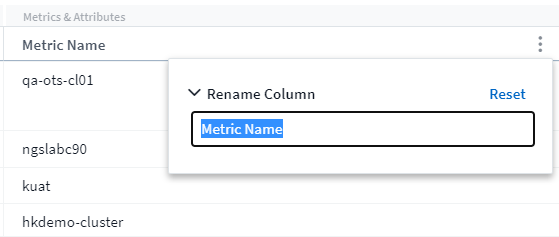
You can rename columns in the Metrics and Attributes section of a table widget by opening the widget in Edit mode and clicking the menu at the top of the column. Enter the new name and click Save, or click Reset to set the column back to the original name.
Note that this only affects the column's display name in the table widget; the metric/attribute name does not change in the underlying data itself.
October 2020
Default Expansion of Integration Data
Table widget grouping now allows for default expansions of Kubernetes, ONTAP Advanced Data, and Agent Node metrics. For example, if you group Kubernetes Nodes by Cluster, you will see a row in the table for each cluster. You could then expand each cluster row to see a list of the Node objects.
Basic Edition Technical Support
Technical Support is now available for subscribers to Cloud Insights Basic Edition in addition to Standard and Premium Editions. Additionally, Cloud Insights has simplified the workflow for creating a NetApp support ticket.
Cloud Secure Public API
Cloud Secure supports REST APIs for accessing Activity and Alert information. This is accomplished through the use of API Access Tokens, created through the Cloud Secure Admin UI, which are then used to access the REST APIs. Swagger documentation for these REST APIs is integrated with Cloud Secure.
September 2020
Query Page with Integration Data
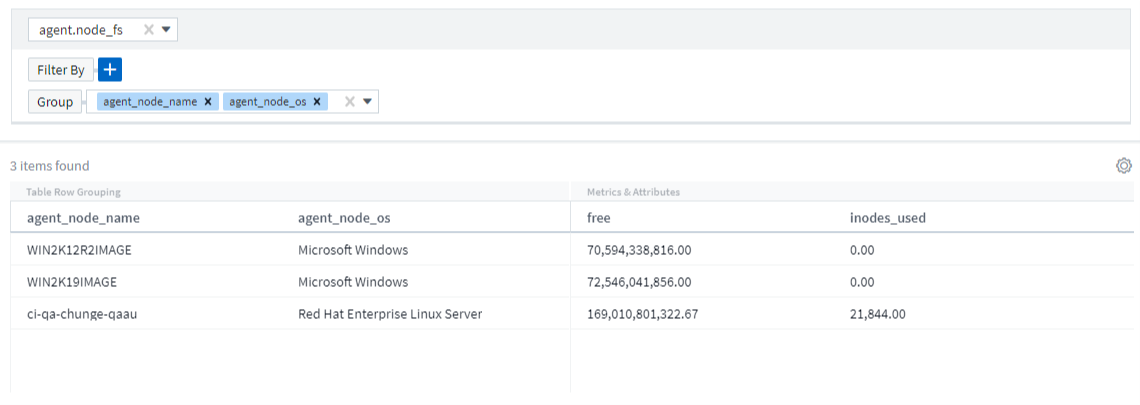
The Cloud Insights Query page supports integration data (i.e. from Kubernetes, ONTAP Advanced Metrics, etc.). When working with integration data, the query results table displays a "Split-Screen" view, with object/grouping on the left side, and object data (attributes/metrics) on the right. You can also choose multiple attributes for grouping integration data.
Unit Display Formatting in Table Widget
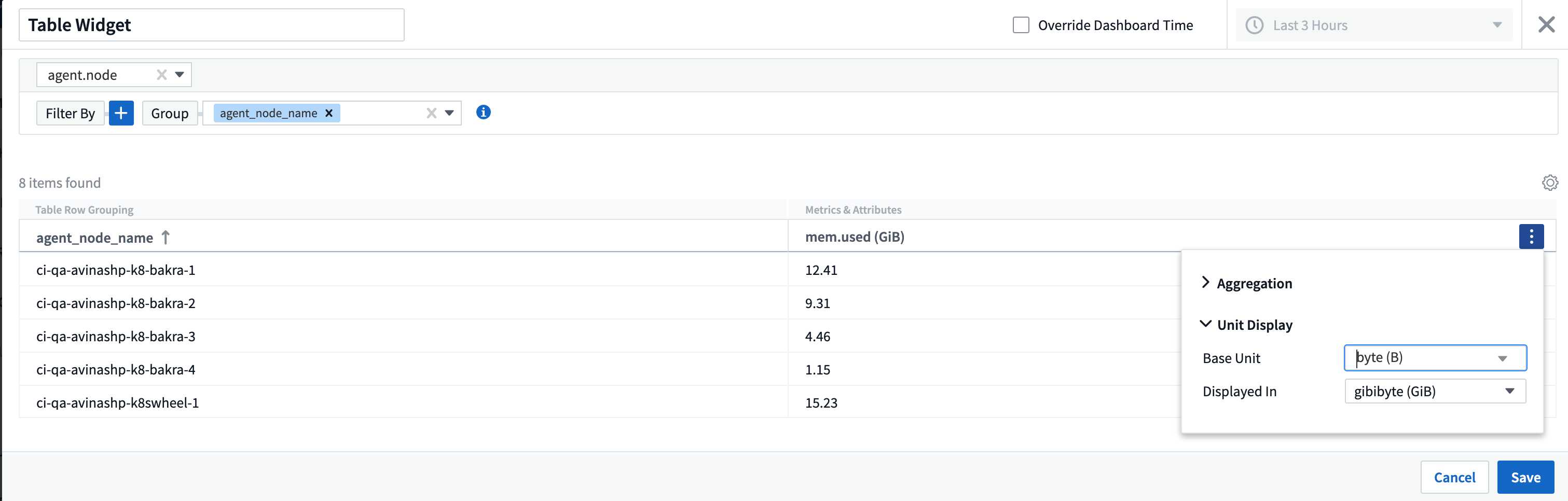
Unit display formatting is now available in Table widgets for columns that display metric/counter data (for example, gigabytes, MB/second, etc.). To change a metric's display unit, click the "three dots" menu in the column header and select "Unit Display". You can choose from any of the available units. Available units will vary according to the type of metric data in the display column.
Acquisition Unit Detail Page
Acquisition Units now have their own landing page, providing useful detail for each AU as well as information to help with troubleshooting. The AU detail page provides links to the AU's data collectors as well as helpful status information.
Cloud Secure Docker Dependency Removed
Cloud Secure's dependency on Docker has been removed. Docker is no longer required for Cloud Secure agent installation.
Reporting User Roles
If you have Cloud Insights Premium Edition with Reporting, every Cloud Insights user in your environment also has a Single Sign-On (SSO) login to the Reporting application (i.e. Cognos); by clicking the Reports link in the menu, they will automatically be logged in to Reporting.
Their user role in Cloud Insights determines their Reporting user role:
Cloud Insights Role |
Reporting Role |
Reporting Permissions |
Guest |
Consumer |
Can view, schedule, and run reports and set personal preferences such as those for languages and time zones. Consumers cannot create reports or perform administrative tasks. |
User |
Author |
Can perform all Consumer functions as well as create and manage reports and dashboards. |
Administrator |
Administrator |
Can perform all Author functions as well as all administrative tasks such configuration of reports and the shutdown and restart of reporting tasks. |

|
Cloud Insights Reporting is available for environments of 500 MUs or more. |

|
If you are a current Premium Edition customer and wish to retain your reports, read this important note for existing customers. |
New API Category for Data Ingestion
Cloud Insights has added a Data Ingestion API category, giving you greater control over custom data and agents. Detailed documentation for this and other API Categories can be found in Cloud Insights by navigating to Admin > API Access and clicking the API Documentation link. You can also attach a comment to the AU in the Note field, which is displayed on the AU detail page as well as the AU list page.
August 2020
Monitoring and Alerting
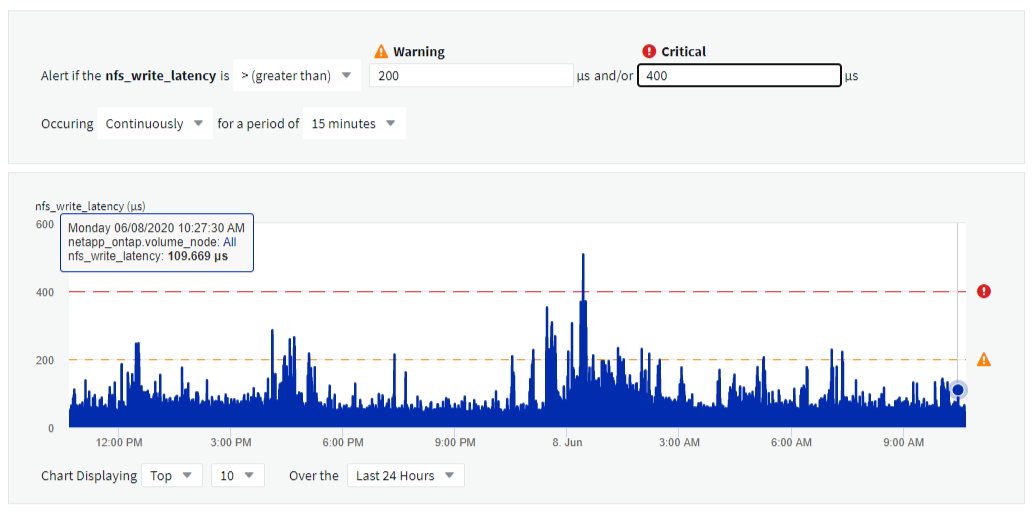
In addition to the current ability to set performance policies for storage objects, VMs, EC2, and ports, Cloud Insights Standard Edition now includes the ability to configure monitors for thresholds on Integration data for Kubernetes, ONTAP advanced metrics, and Telegraf plugins. You simply create a monitor for each object metric you want to trigger alerts, set the conditions for warning-level or critical-level thresholds, and specify the email recipient(s) desired for each level. You can then view and manage alerts to track trends or troubleshoot issues.
July 2020
Cloud Secure Take a Snapshot Action
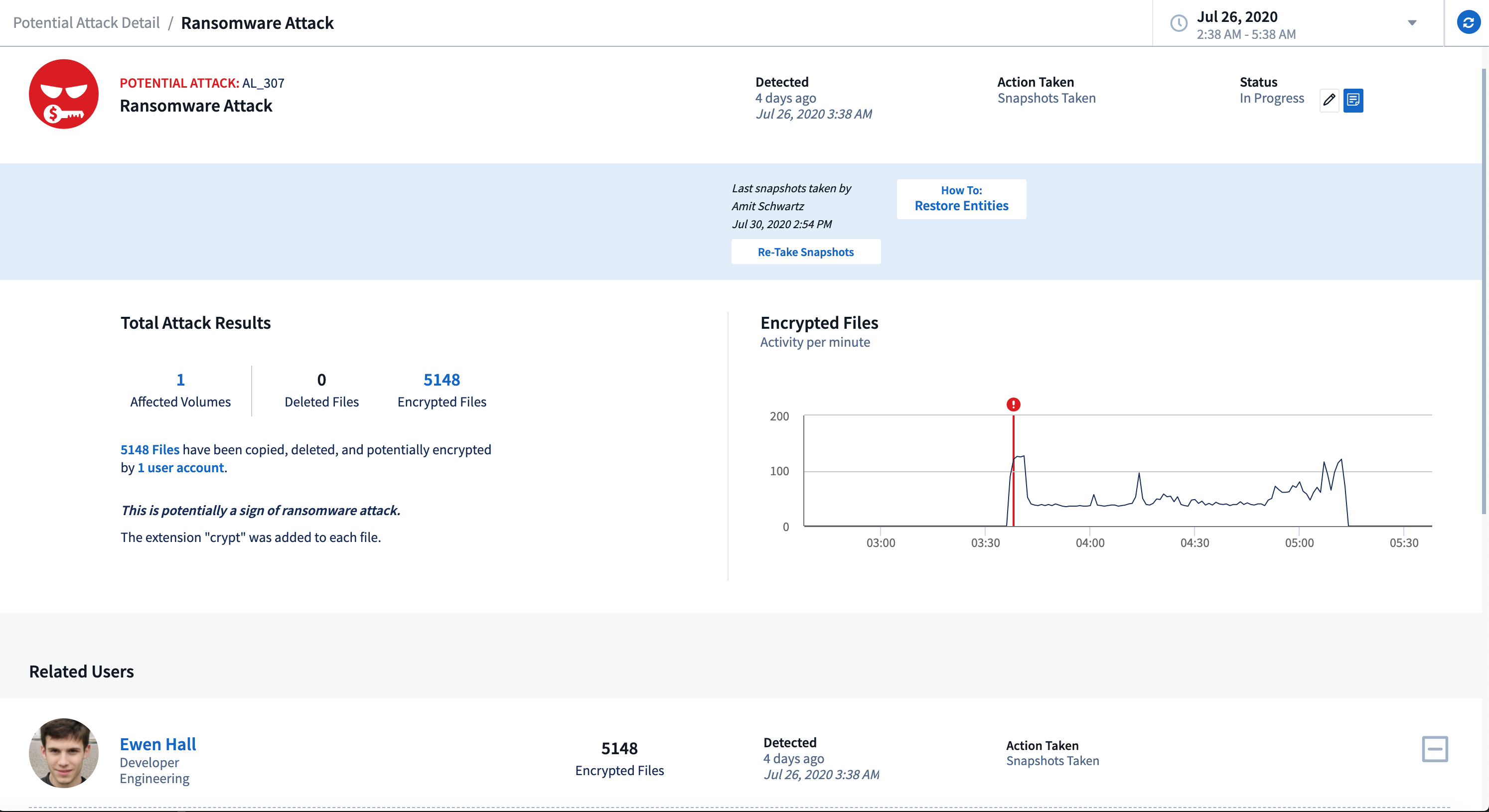
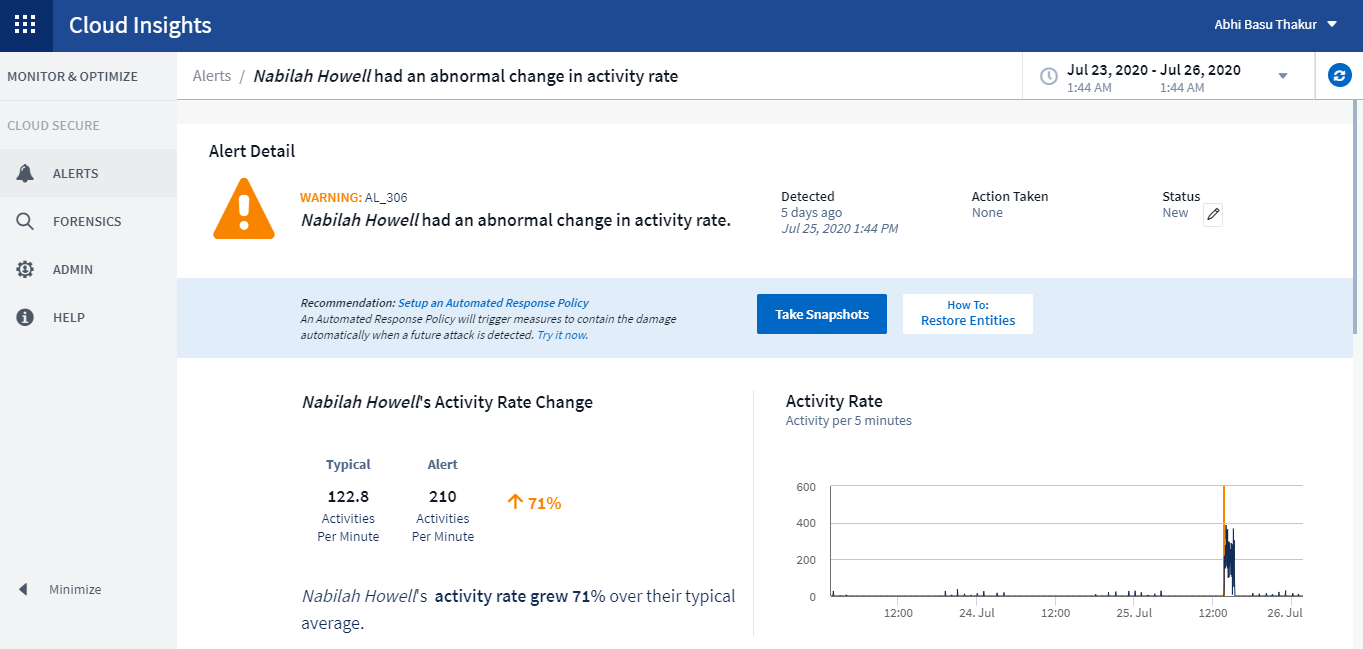
Cloud Secure protects your data by automatically taking a snapshot when malicious activity is detected, ensuring that your data is safely backed up.
You can define automated response policies that take a snapshot when ransomware attack or other abnormal user activity is detected.
You can also take a snapshot manually from the alert page.
Automatic Snapshot taken:
Manual Snapshot:
Metric/Counter updates
The following capacity counters are available for use in Cloud Insights UI and REST API. Previously these counters were only available for the Data Warehouse / Reporting.
| Object Type | Counter |
|---|---|
Storage |
Capacity - Spare Raw |
Storage Pool |
Data Capacity - Used |
Internal Volume |
Data Capacity - Used |
Cloud Secure Potential Attack Detection
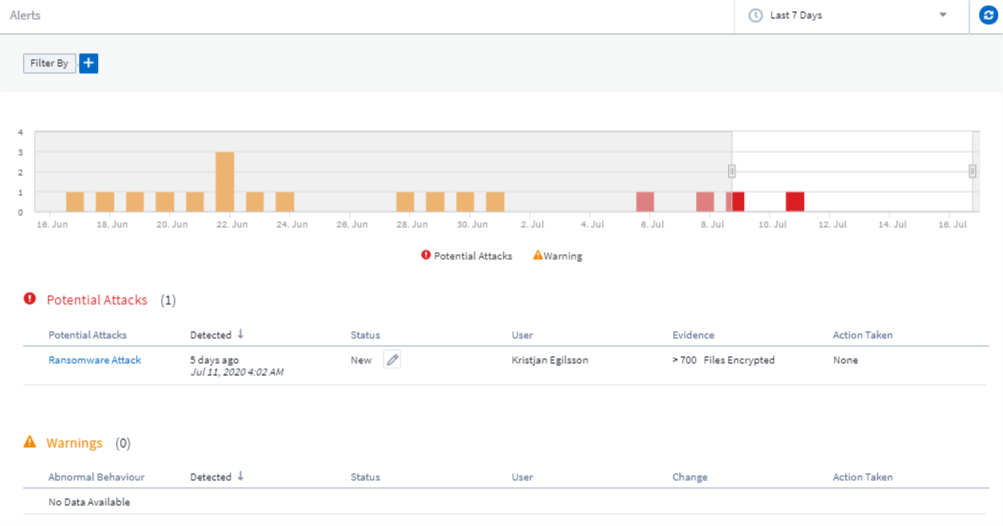
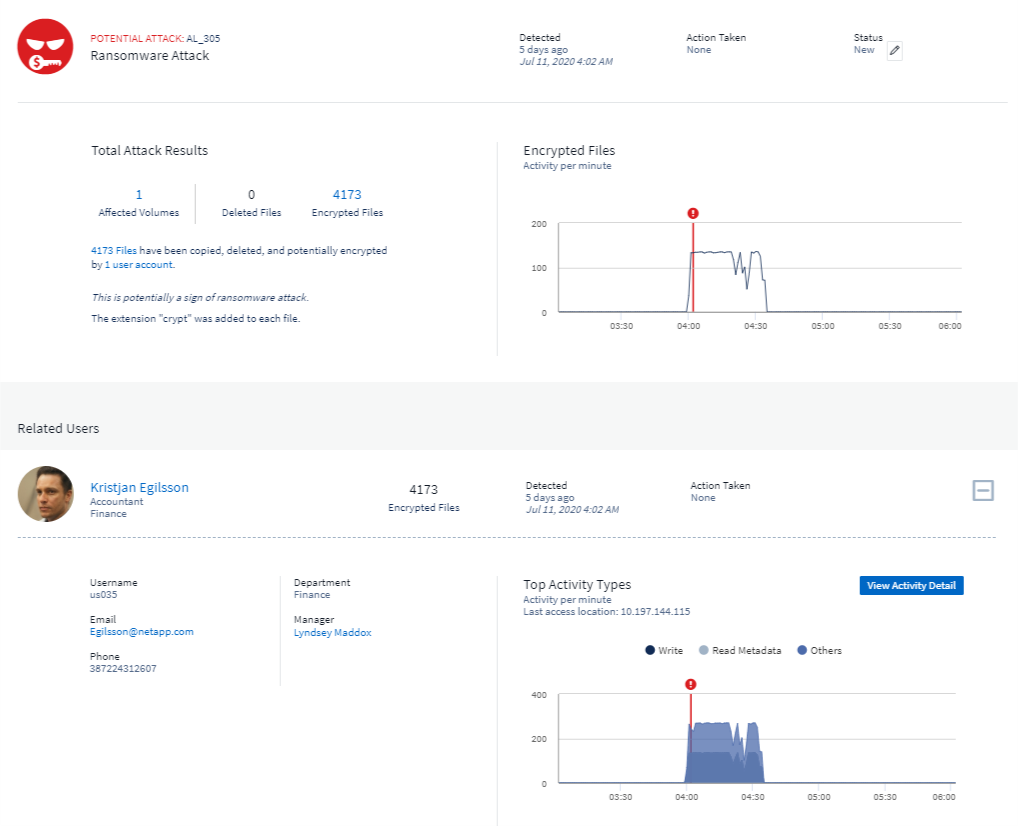
Cloud Secure now detects potential attacks such as ransomware. Click on an alert in the Alerts list page to open a detail page showing the following:
-
Time of attack
-
Associated user and file activity
-
Action taken
-
Additional information to assist with tracking down possible security breaches
Alerts page showing potential ransomware attack:
Detail page for potential ransomware attack:
Subscribe to Premium Edition through AWS
During your trial of Cloud Insights, you can self-subscribe through AWS Marketplace to either Cloud Insights Standard Edition or Premium Edition. Previously, you could only self-subscribe through AWS Marketplace to Standard Edition only.
Enhanced Table Widget
The dashboard/asset page Table widget includes the following enhancements:
-
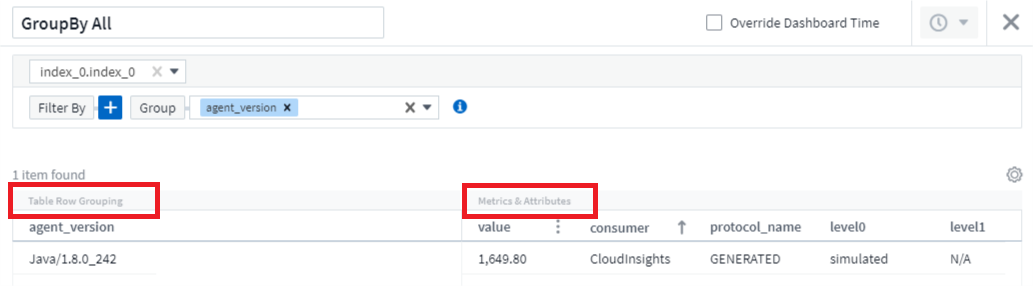
"Split-Screen" view: Table widgets display the object/grouping on the left side, and the object data (attributes/metrics) on the right.
-
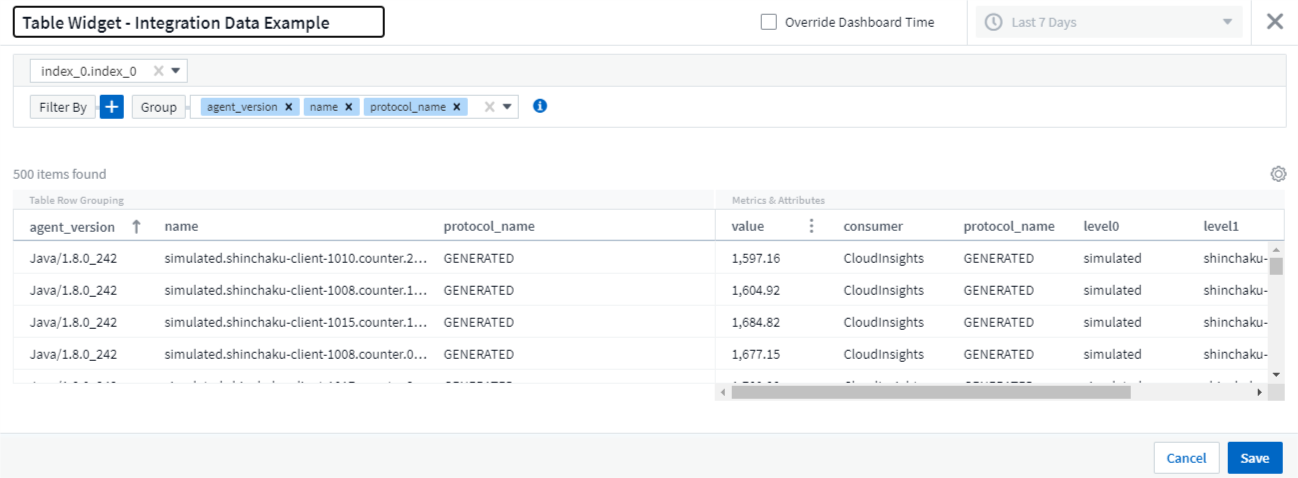
Multiple attribute grouping: For Integration data (Kubernetes, ONTAP Advanced Metrics, Docker, etc.), you can choose multiple attributes for grouping. Data is displayed according to the grouping attributes/you choose.
Grouping with Integration Data (shown in Edit mode):
-
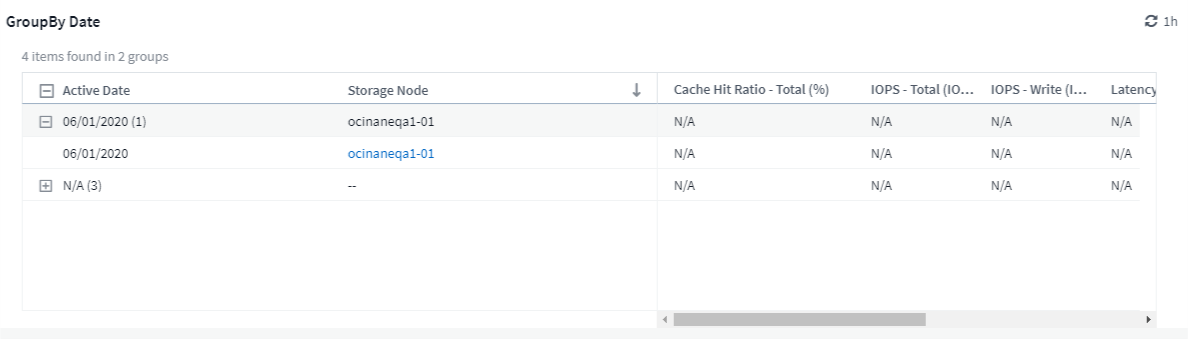
Grouping for Infrastructure data (storage, EC2, VM, ports, etc.) is by a single attribute as before. When grouping by an attribute which is not the object, the table will allow you to expand the group row to see all the objects within the group.
Grouping with Infrastructure data (shown in display mode):
Metrics Filtering
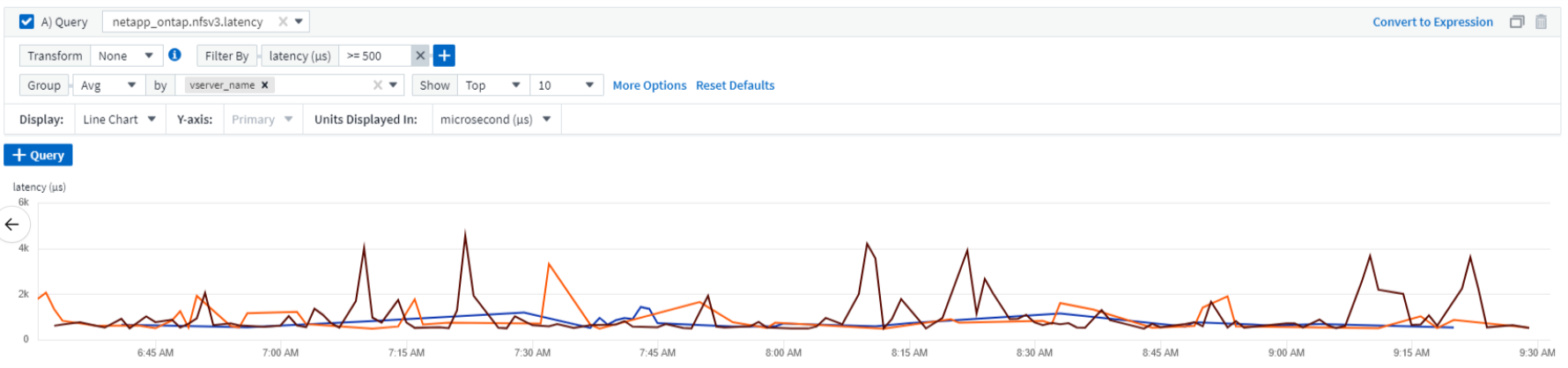
In addition to filtering on an object's attributes in a widget, you can now filter on metrics as well.
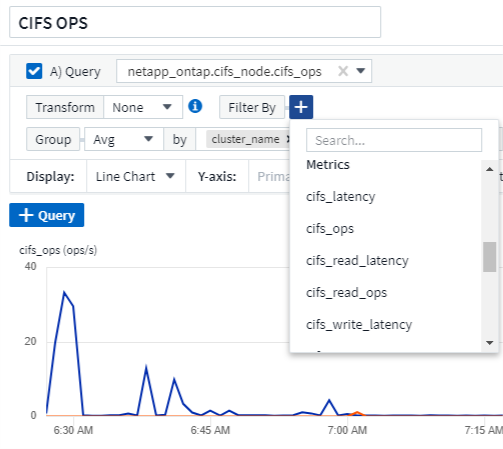
When working with integration data (Kubernetes, ONTAP Advanced Data, etc.), metric filtering removes the individual/unmatched data points from the plotted data series, unlike infrastructure data (storage, VM, ports etc.) where filters work on the aggregated value of the data series and potentially remove the entire object from the chart.
ONTAP Advanced Counter Data
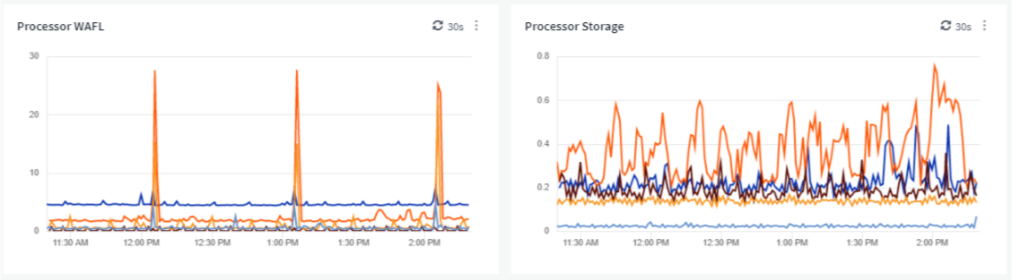
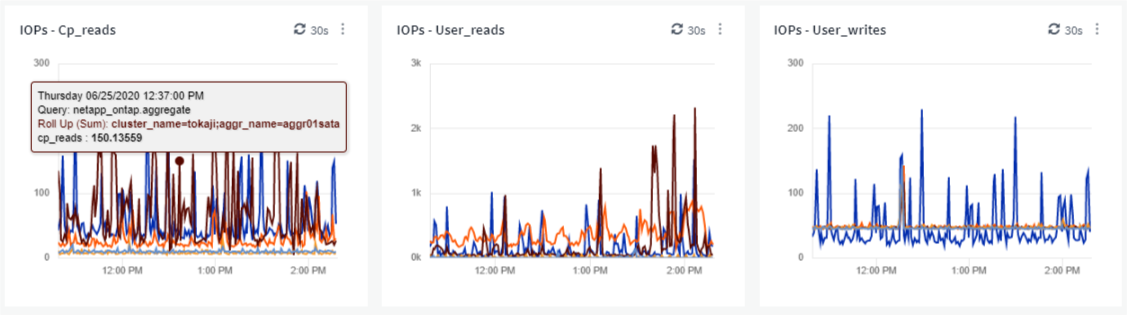
Cloud Insights takes advantage of NetApp's ONTAP-specific Advanced Counter Data, which provides a host of counters and metrics collected from ONTAP devices. ONTAP Advanced Counter Data is available to all NetApp ONTAP customers. These metrics enable customized and wide-ranging visualization in Cloud Insights widgets and dashboards.
ONTAP Advanced Counters can be found by searching for "netapp_ontap" in the widget's query, and selecting from among the counters.
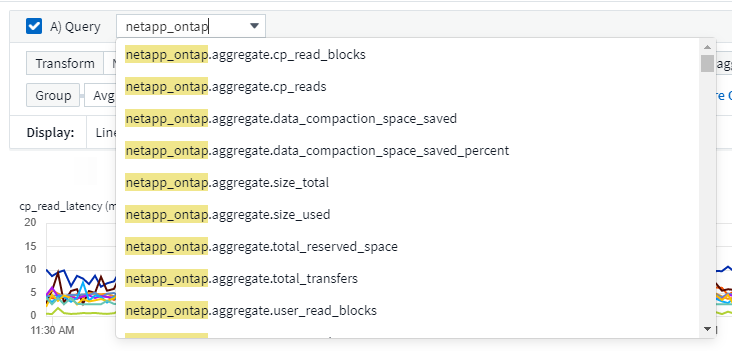
You can refine your search by typing additional parts of the counter name. For example:
-
lif
-
aggregate
-
offbox_vscan_server
-
and more
Please note the following:
-
Advanced Data collection will be enabled by default for new ONTAP data collectors. To enable Advanced Data collection for your existing ONTAP data collectors, edit the data collector and expand the Advanced Configuration section.
-
Advanced Data collection is not available for 7-mode ONTAP.
Advanced Counter Dashboards
Cloud Insights comes with a variety of pre-designed dashboards to help get you started on visualizing ONTAP Advanced Counters for topics such as Aggregate Performance, Volume Workload, Processor Activity, and more. If you have at least one ONTAP data collector configured, these can be imported from the Dashboard Gallery on any dashboard list page.
Learn More
More information on ONTAP Advanced Data can be found at the following links:
-
https://mysupport.netapp.com/site/tools/tool-eula/netapp-harvest (Note: You will need to sign in to NetApp Support)
Policies and Violations Menu
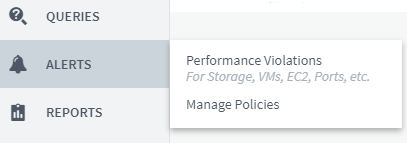
Performance Policies and Violations are now found under the Alerts menu. Policy and Violation functionality are unchanged.
Updated Telegraf Agent
The agent for ingestion of telegraf integration data has been updated to version 1.14, which includes bugs fixes, security fixes, and new plugins.
Note: When configuring a Kubernetes data collector on the Kubernetes platform, you may see an "HTTP status 403 Forbidden" error in the log, due to insufficient permissions in the "clusterrole" attribute.
To work around this issue, add the following highlighted lines to the rules: section of the endpoint-access clusterrole, and then restart the Telegraf pods.
rules:
- apiGroups:
  - ""
  - apps
  - autoscaling
  - batch
  - extensions
  - policy
  - rbac.authorization.k8s.io
  attributeRestrictions: null
  resources:
  - nodes/metrics
  - nodes/proxy     <== Add this line
  - nodes/stats
  - pods            <== Add this line
  verbs:
  - get
  - list            <== Add this line
June 2020
Simplified Data Collector Error Reporting
Reporting a data collector error is easier with the Send Error Report button on the data collector page. Clicking the button sends basic information about the error to NetApp and prompts investigation into the problem. Once pressed, Cloud Insights acknowledges that NetApp has been notified, and the Error Report button is disabled to indicate that an error report for that data collector has been sent. The button remains disabled until the browser page is refreshed.

Widget Improvements
The following improvements have been made in dashboard widgets. These improvements are considered Preview functionality and may not be available for all Cloud Insights environments.
-
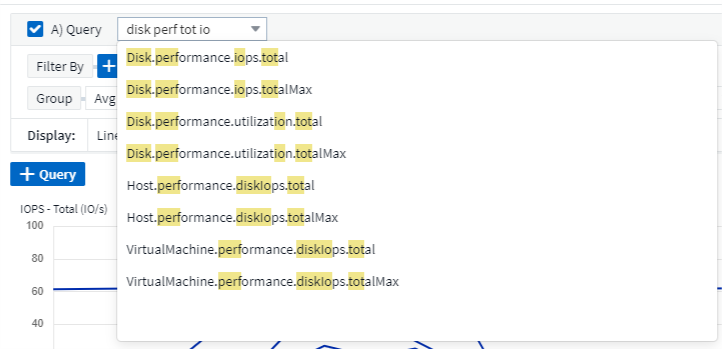
New object/metric chooser: Objects (Storage, Disk, Ports, Nodes, etc.) and their associated metrics (IOPS, Latency, CPU Count, etc.) are now available in widgets in a single inclusive drop-down with powerful search capability. You can enter multiple partial terms in the drop-down, and Cloud Insights will list all object metrics meeting those terms.
-
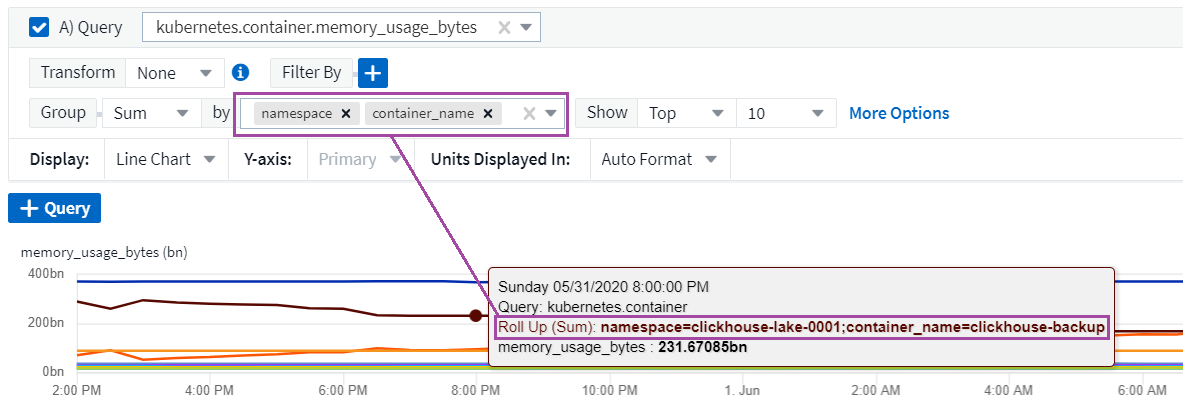
Multiple tags grouping: When working with integration data (Kubernetes, etc.), you may group the data by multiple tags/attributes. For example, Sum memory usage by Kubernetes Namespace and Container name.
May 2020
Reporting User Roles
The following roles have been added for Reporting:
-
Cloud Insights Consumers: can run and view reports
-
Cloud Insights Authors: can perform the Consumer functions as well as create and manage reports and dashboards
-
Cloud Insights Administrators: can perform the Author functions as well as all administrative tasks
Cloud Secure Updates
Cloud Insights includes the following recent Cloud Secure changes.
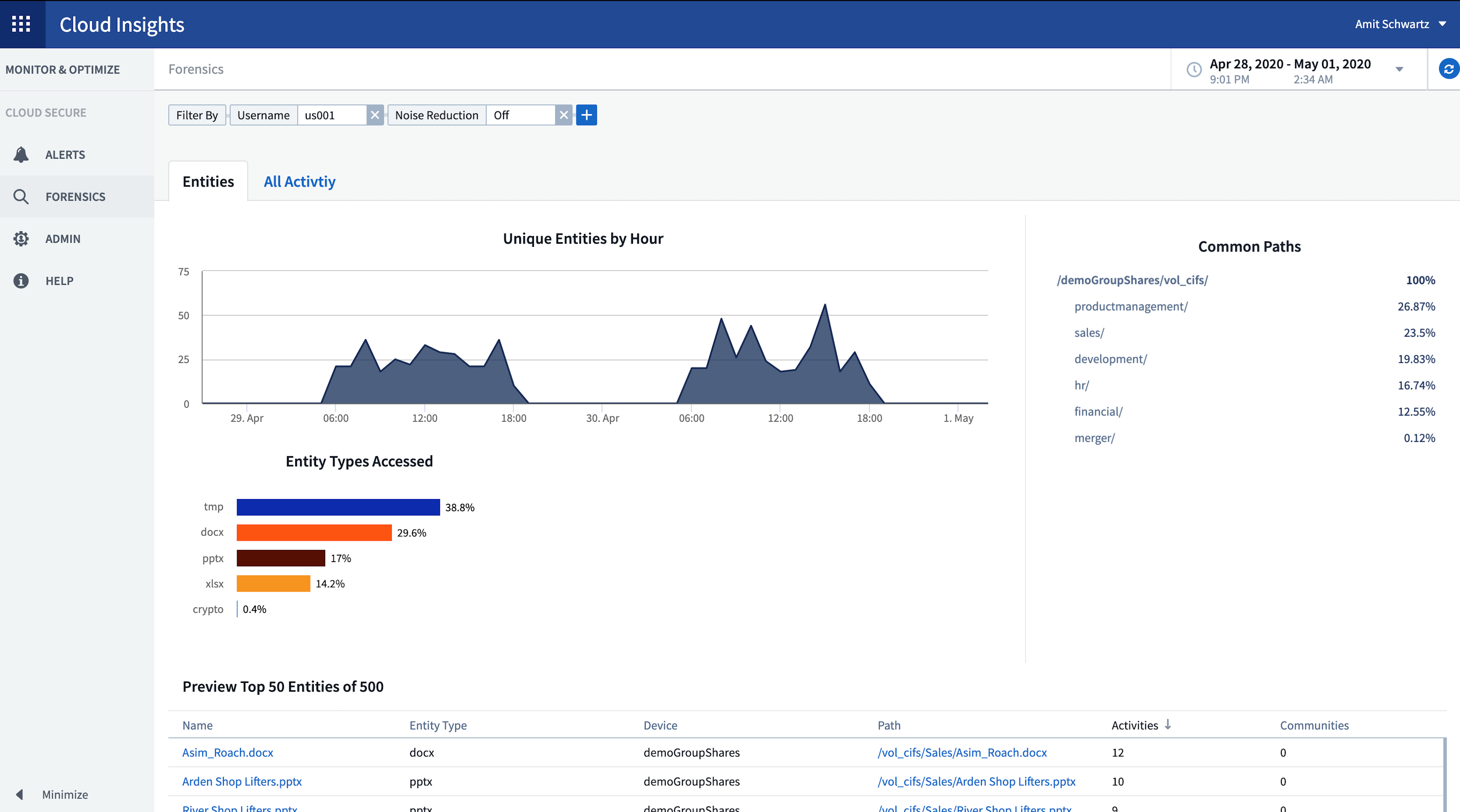
In the Forensics > Activity Forensics page, we provide two views to analyze and investigate user activity:
-
Activity view, focused on user activity (What operation? Where performed?)
-
Entities view, focused on what files the user accessed.
Additionally, the Alert email notification now contains a direct link to the alert page.
Dashboard Grouping
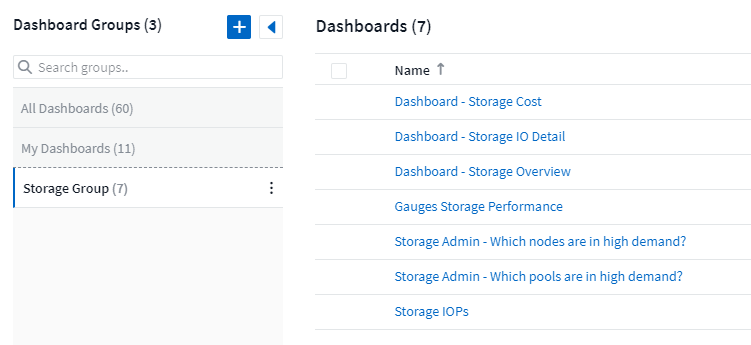
Dashboard grouping allows better management of dashboards that are relevant to you. You can add related dashboards to a group for "one-stop" management of, for example, your storage or virtual machines.
Groups are customized per user, so one person's groups can be different from someone else's. You can have as many groups as you need, with as few or as many dashboards in each group as you like.
Dashboard Pinning
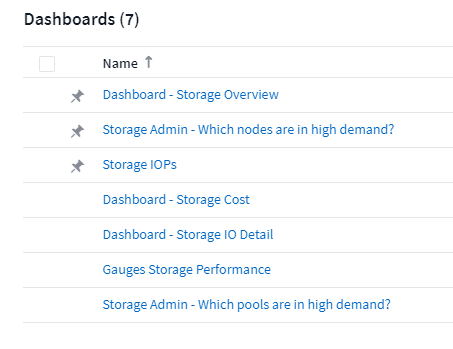
You can pin dashboards so favorites always appear at the top of the list.
TV Mode and Auto-Refresh
TV Mode and Auto-Refresh allow for near-real-time display of data on a dashboard or asset page:
-
TV Mode provides an uncluttered display; the navigation menu is hidden, providing more screen real estate for your data display.
-
Data in widgets on Dashboards and Asset Landing Pages Auto-Refresh according a refresh interval (as little as every 10 seconds) determined by the Dashboard Time Range selected (or widget time range, if set to override the dashboard time).
Combined, TV Mode and Auto-Refresh provide a live view of your Cloud Insights data, perfect for seamless demonstrations or in-house monitoring.
April 2020
New Dashboard Time Range Choices
Time range choices for dashboards and other Cloud insights pages now include Last 1 Hour and Last 15 Minutes.
Cloud Secure Updates
Cloud Insights includes the following recent Cloud Secure changes.
-
Better file and folder metadata change recognition to detect if the user changed Permission, Owner, or Group Ownership.
-
Export user activity report to CSV.
Cloud Secure monitors and audits all user access operations on files and folders. Activity auditing allows you to comply with internal security policies, meet external compliance requirements such as PCI, GDPR, and HIPAA, and conduct data breach and security incident investigations.
Default Dashboard Time
The default time range for dashboards is now 3 Hours instead of 24 hours.
Optimized Aggregation Times
Optimized time aggregation intervals in time-series widgets (Line, Spline, Area, and Stacked Area charts) are more frequent for 3-hour and 24-hour dashboard/widget time ranges, allowing for faster charting of data.
-
3 hour time range optimizes to a 1 minute aggregation interval. Previously this was 5 minutes.
-
24 hour time range optimizes to a 30 minute aggregation interval. Previously this was 1 hour.
You can still override the optimized aggregation by setting a custom interval.
Display Unit Auto-Format
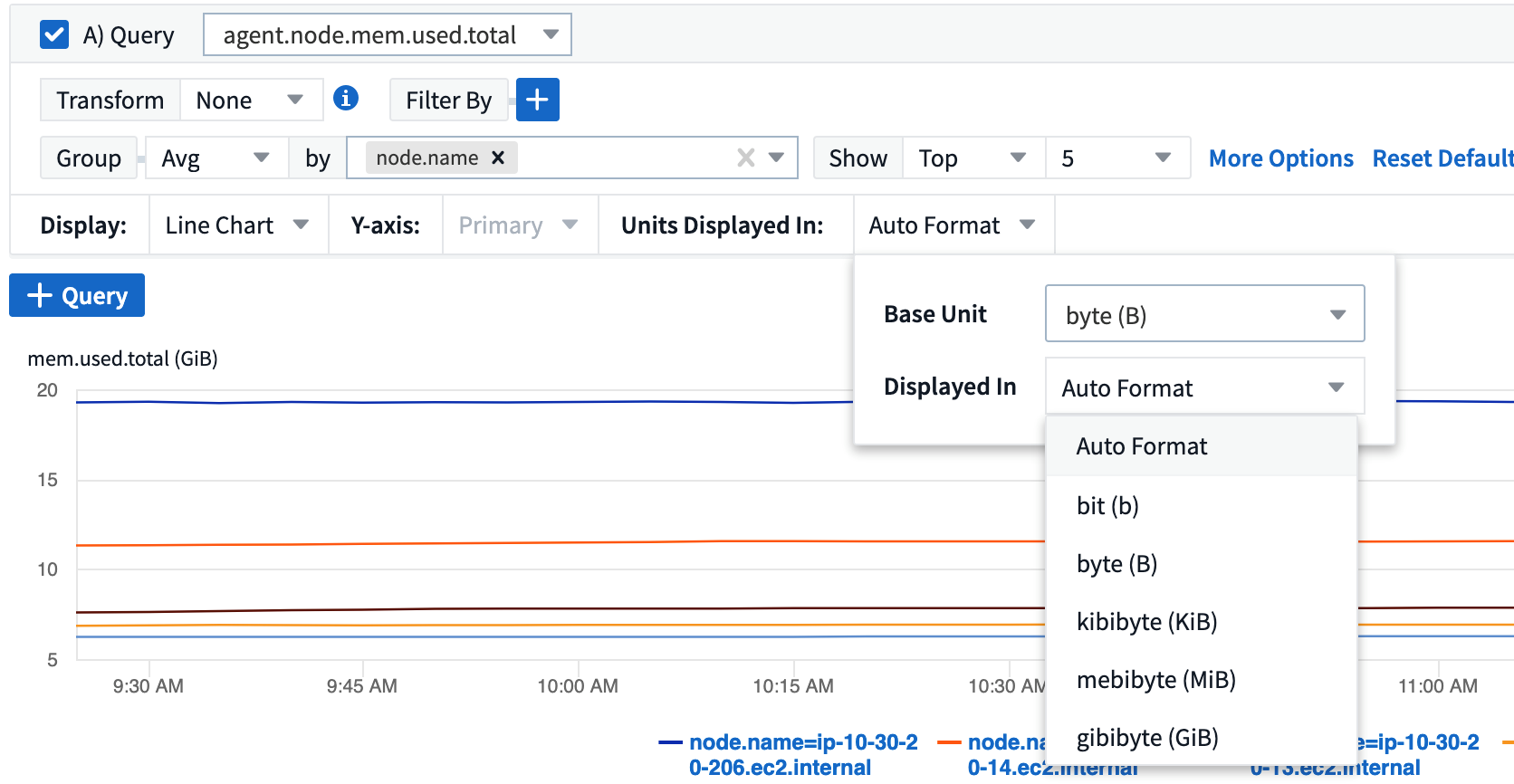
In most widgets, Cloud Insights knows the base unit in which to display values, for example Megabytes, Thousands, Percentage, Milliseconds (ms), etc., and now automatically formats the widget to the most readable unit. For example a data value of 1,234,567,890 bytes would be auto formatted to 1.23 gibibytes. In many cases, Cloud Insights knows the best format for the data being acquired. In cases where the best format is not known, or in widgets where you want to override the automatic formatting, you can choose the format you want.
Import Annotations Using API
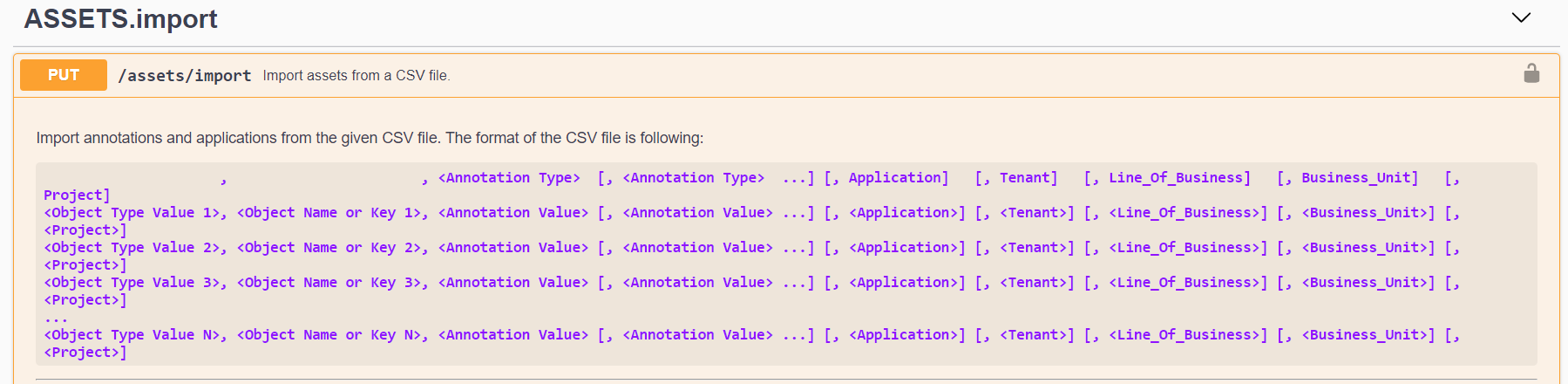
With Cloud Insights Premium Edition's powerful API, you can now import annotations and assign them to objects using a .CSV file. You can also import applications and assign business entities in the same way.
Simpler Widget Selector
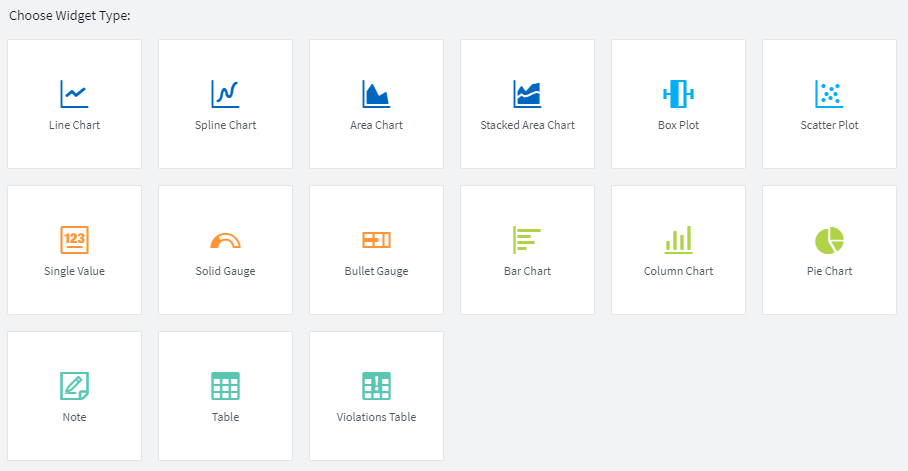
Adding widgets to dashboards and asset landing pages is easier with a new widget selector that shows all widget types in a single all-at-once view, so the user no longer needs to scroll through a list of widget types to find the one they want to add. Related widgets are color-coordinated and grouped by proximity in the new selector.
February 2020
API with Premium Edition
Cloud Insights Premium Edition comes with a powerful API that can be used to integrate Cloud Insights with other applications, such as CMDB’s or other ticketing systems.
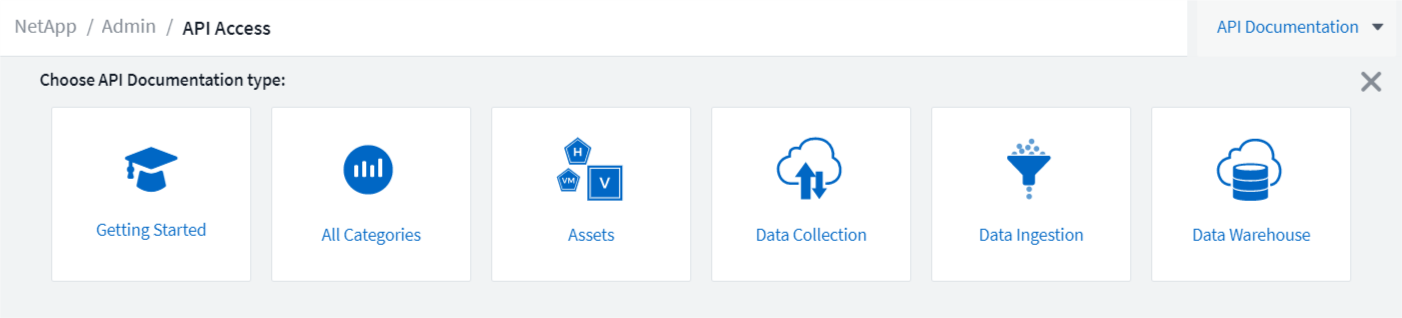
Detailed, Swagger-based information is found in Admin > API Acccess, under the API Documentation link. Swagger provides a brief description and usage information for the API, and allows you to try each API out in your environment.
The Cloud Insights API uses Access Tokens to provide permission-based access to categories of API, such as ASSETS or COLLECTION.
Initial Polling After Adding A Data Collector
Previously, after configuring a new data collector, Cloud Insights would poll the data collector immediately to gather inventory data, but would wait until the configured performance poll interval (typically 15 minutes) to gather initial performance data. It would then wait for another interval before initiating the second performance poll, which meant it would take up to 30 minutes before meaningful data was acquired from a new data collector.
Data collector polling has been greatly improved, such that the initial performance poll occurs immediately after the inventory poll, with the second performance poll occurring within a few seconds after completion of the first performance poll. This allows Cloud Insights to begin showing useful data on dashboards and graphs within a very short time.
This poll behavior also occurs after editing the configuration of an existing data collector.
Easier Widget Duplication
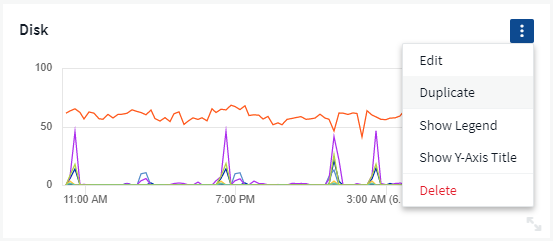
It is easier than ever to create a copy of a widget on a dashboard or landing page. In dashboard Edit mode, click the menu on the widget and select Duplicate. The widget editor is launched, pre-filled with the original widget's configuration and with a “copy” suffix in the widget name. You can easily make any necessary changes and Save the new widget. The widget will be placed at the bottom of your dashboard, and you can position it as needed. Remember to Save your dashboard when all changes are complete.
Single Sign-On (SSO)
With Cloud Insights Premium Edition, administrators can enable Single Sign-On (SSO) access to Cloud Insights for all users in their corporate domain, without having to invite them individually. With SSO enabled, any user with the same domain email address can log into Cloud Insights using their corporate credentials.
|
|
SSO is only available in Cloud Insights Premium Edition, and must be configured before it can be enabled for Cloud Insights. SSO configuration includes Identity Federation through NetApp Cloud Central. Federation allows single sign-on users to access your NetApp Cloud Central accounts using credentials from your corporate directory. |
January 2020
Swagger documentation for REST API
Swagger explains each available REST API in Cloud Insights, as well as its usage and syntax. Information on Cloud Insights APIs is available in documentation.
Feature Tutorials Progress Bar
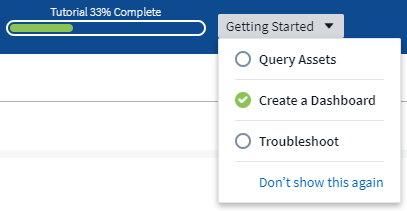
The feature tutorials checklist has been moved to the top banner and now features a progress indicator. Tutorials are available for each user until dismissed, and are always available in Cloud Insights documentation.
Acquisition Unit Changes
When installing an Acquisition Unit (AU) on a host or VM that has the same name as an already-installed AU, Cloud Insights assures a unique name by appending the AU name with "_1", "_2", etc. This is also the case when uninstalling and reinstalling an AU from the same VM without first removing it from Cloud Insights. Want a different AU name altogether? No problem; AU's can be renamed after installation.
Optimized Time Aggregation in Widgets
In widgets, you can choose between an Optimized time aggregation interval or a Custom interval that you set. Optimized aggregation automatically selects the right time interval based on the selected dashboard time range (or widget time range, if overriding the dashboard time). The interval dynamically changes as the dashboard or widget time range is changed.
Simplified "Getting Started with Cloud Insights" process
The process for getting started using Cloud Insights has been simplified to make your first-time setup smoother and easier. Simply select an initial data collector and follow the instructions. Cloud Insights will walk you through configuring the data collector and any agent or acquisition unit required. In most cases it will even import one or more initial dashboards so you can start gaining insight into your environment quickly (but please allow up to 30 minutes for Cloud Insights to collect meaningful data).
Additional improvements:
-
Acquisition Unit installation is simpler and runs faster.
-
Alphabetical Data Collectors choices make it easier to find the one you’re looking for.
-
Improved Data Collector setup instructions are easier to follow.
-
Experienced users can skip the getting started process with the click of a button.
-
A new Progress bar shows you where you are in the process.
