


Replace SGF6212 or SG6200-CN CMOS batteries

 Suggest changes

 PDFs
PDFs
Use this procedure to replace the CMOS coin cell batteries on the system board.
To prevent service interruptions, confirm that all other Storage Nodes are connected to the grid before starting the CMOS battery replacement or replace the batteries during a scheduled maintenance window when periods of service disruption are acceptable. See the information about monitoring node connection states.

|
If you have ever used an ILM rule that creates only one copy of an object, you must replace the batteries during a scheduled maintenance window because you might temporarily lose access to those objects during this procedure. See information about why you should not use single-copy replication. |
-
You have verified the appliance where the CMOS batteries needs to be replaced.
-
You have physically located the SGF6212 appliance or SG6200-CN controller where the CMOS batteries need to be replaced in the data center.
-
You have recorded the current BMC configuration of the appliance, if it remains available.
-
Log in to the appliance to be replaced:
-
Enter the following command:
ssh admin@grid_node_IP -
Enter the password listed in the
Passwords.txtfile. -
Enter the following command to switch to root:
su - -
Enter the password listed in the
Passwords.txtfile.When you are logged in as root, the prompt changes from
$to#.
-
-
Enter:
run-host-command ipmitool lan printto display the current BMC configuration for the appliance.
A controlled shutdown of the appliance is required before removing the appliance from the rack.
-
-
You have disconnected all cables and removed the appliance cover.
-
Wrap the strap end of the ESD wristband around your wrist, and secure the clip end to a metal ground to prevent static discharge.
-
Remove the first CMOS battery.
-
Locate the CMOS battery on the system board.
-
Use your finger or a plastic pry tool to press the retaining clip away from the battery to spring it from the socket.
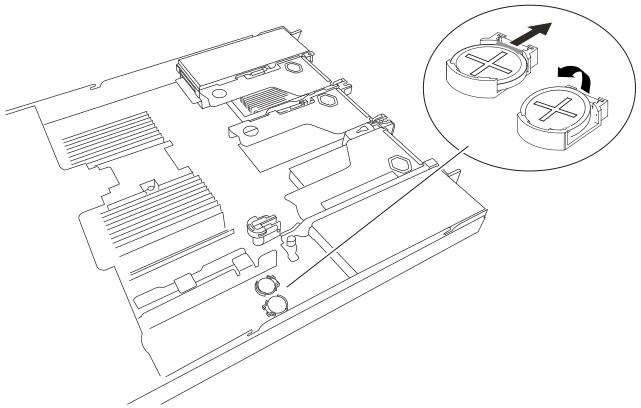
-
Remove the battery and dispose of it properly.
-
-
Install the replacement CMOS battery.
-
Remove the replacement CMOS battery from its packaging.
-
Press the replacement battery into the empty socket on the system board with the positive (+) side up until the battery snaps in place.
-
-
Repeat these steps for the second CMOS battery.
-
If you have no other maintenance procedures to perform in the appliance, reinstall the appliance cover, return the appliance to the rack, attach cables, and apply power.
-
If the appliance you replaced had drive encryption enabled for the SED drives, you must enter the drive encryption passphrase to access the encrypted drives when the replacement appliance starts for the first time.
-
If the appliance you replaced used a key management server (KMS) to manage encryption keys for node encryption, additional configuration might be required before the node can join the grid. If the node does not automatically join the grid, make sure that these configuration settings have transferred to the new appliance and manually configure any settings that don't have the expected configuration:
-
Log in to the appliance:
-
Enter the following command:
ssh admin@grid_node_IP -
Enter the password listed in the
Passwords.txtfile. -
Enter the following command to switch to root:
su - -
Enter the password listed in the
Passwords.txtfile.
-
-
Restore BMC network connectivity for the appliance using one of the following options:
-
Use static IP, netmask, and gateway
-
Use DHCP to obtain an IP, netmask, and gateway
-
To restore the BMC configuration to use a static IP, netmask, and gateway, enter the following commands:
run-host-command ipmitool lan set 1 ipsrc staticrun-host-command ipmitool lan set 1 ipaddr Appliance_IPrun-host-command ipmitool lan set 1 netmask Netmask_IPrun-host-command ipmitool lan set 1 defgw ipaddr Default_gateway -
To restore the BMC configuration to use DHCP to obtain an IP, netmask, and gateway, enter the following command:
run-host-command ipmitool lan set 1 ipsrc dhcp
-
-
-
After restoring BMC network connectivity, connect to the BMC interface to audit and restore any additional custom BMC configuration you might have applied. For example, you should confirm the settings for SNMP trap destinations and email notifications. See Configure BMC interface.
-
Confirm that the appliance node appears in the Grid Manager and that no alerts appear.