


Install NetApp Data Classification on a Linux host in private mode

 Suggest changes

 PDFs
PDFs
Use private mode to install NetApp Data Classification on a Linux host in an on-premises site without internet access (also known as an offline installation or a dark site). This deployment uses an installation script and keeps the Data Classification instance disconnected from the NetApp Console SaaS layer, allowing you to scan local data sources in an isolated environment.

|
For on-premises VMware vSphere deployments, Data Classification supports a simplified deployment with OVA. |
The Data Classification installation script checks whether the system and environment meet the required prerequisites. If they do, installation starts. If you would like to verify the prerequisites independently of running the Data Classification installation, you can download a separate software package that tests only the prerequisites. See how to check if your Linux host is ready to install Data Classification.
Supported data sources
When installed in private mode, Data Classification can only scan data from data sources that are also local to the on-premises site. At this time, Data Classification can scan the following local data sources:
-
On-premises ONTAP systems
-
Database schemas
There is no support currently for scanning Cloud Volumes ONTAP, Azure NetApp Files, or FSx for ONTAP accounts when Data Classification is deployed in private mode.
Limitations
Migrating the Console agent to a different host isn't supported when Data Classification is deployed on a Console agent. If you need Classification on a different Console agent in a dark site, deploy a new Console agent and Data Classification instance on the new host.
Most Data Classification features work when it is deployed in a site with no internet access. However, certain features that require internet access are not supported, for example:
-
Setting Console roles for different users (for example, Account Admin or Compliance Viewer)
-
Copying and synchronizing source files using NetApp Copy and Sync
-
Automated software upgrades from the Console
Both the Console agent and Data Classification require periodic manual upgrades to enable new features. You can see the Data Classification version at the bottom of the Data Classification UI pages. Check the Data Classification Release Notes to see the new features in each release and whether you want those features. Then you can follow the steps to upgrade the Console agent and upgrade your Data Classification software.
Quick start
Get started quickly by following these steps, or scroll down to the remaining sections for full details.
 Install the Console agent
If you don't already have a Console agent installed in private mode, deploy the Console agent on a Linux host now.
 Review Data Classification prerequisites
Ensure that your Linux system meets the host requirements, that it has all required software installed, and that your offline environment meets the required permissions and connectivity.
 Download and deploy Data Classification
Download the Data Classification software from the NetApp Support Site and copy the installer file to the Linux host you plan to use. Then launch the installation wizard and follow the prompts to deploy the Data Classification instance.
Install the Console agent
If you don't already have a Console agent installed in private mode, deploy the Console agent on a Linux host in your offline site.
Prepare the Linux host system
Data Classification software must run on a host that meets specific operating system requirements, RAM requirements, software requirements, and so on.
-
Data Classification must be on a dedicated host. The host cannot be shared with other applications or third-party software such as antivirus.
-
Choose the size that aligns with the data set you plan to scan with Data Classification.
System size CPU RAM (swap memory must be disabled) Disk Extra Large
32 CPUs
128 GB RAM
-
1 TiB SSD on /, or 100 GiB available on /opt
-
895 GiB available on /var/lib/docker
-
5 GiB on /tmp
-
For Podman, 30 GB on /var/tmp
Large
16 CPUs
64 GB RAM
-
500 GiB SSD on /, or 100 GiB available on /opt
-
400 GiB available on /var/lib/docker or for Podman /var/lib/containers
-
5 GiB on /tmp
-
For Podman, 30 GB on /var/tmp
-
-
When deploying a compute instance in the cloud for your Data Classification installation, it's recommended you use a system that meets the "Large" system requirements above:
-
Amazon Elastic Compute Cloud (Amazon EC2) instance type: "m6i.4xlarge". See additional AWS instance types.
-
Azure VM size: "Standard_D16_v5". See additional Azure instance types.
-
GCP machine type: "n2-standard-16". See additional GCP instance types.
-
-
UNIX folder permissions: The following minimum UNIX permissions are required:
Folder Minimum permissions /tmp
rwxrwxrwt/opt
rwxr-xr-x/var/lib/docker
rwx------/usr/lib/systemd/system
rwxr-xr-x -
Operating system:
-
The following operating systems require using the Docker container engine:
-
Red Hat Enterprise Linux version 7.8 and 7.9
-
Ubuntu 22.04 (requires Data Classification version 1.23 or greater)
-
Ubuntu 24.04 (requires Data Classification version 1.23 or greater)
-
-
The following operating systems require using the Podman container engine, and they require Data Classification version 1.30 or greater:
-
Red Hat Enterprise Linux version 8.8, 8.10, 9.0, 9.1, 9.2, 9.3, 9.4, 9.5, 9.6, and 9.7.
-
-
Advanced Vector Extensions (AVX2) must be enabled on the host system.
-
-
Red Hat Subscription Management: The host must be registered with Red Hat Subscription Management. If it is not registered, the system cannot access repositories to update required third-party software during installation.
-
Additional software: You must install the following software on the host before you install Data Classification:
-
Depending on the OS you are using, you need to install one of the container engines:
-
Docker Engine version 19.3.1 or greater. View installation instructions.
-
Podman version 4 or greater. To install Podman, enter (
sudo yum install podman netavark -y).
-
-
-
Python version 3.6 or greater. View installation instructions.
-
NTP considerations: NetApp recommends configuring the Data Classification system to use a Network Time Protocol (NTP) service. The time must be synchronized between the Data Classification system and the Console agent system.
-
-
Firewalld considerations: If you are planning to use
firewalld, we recommend that you enable it before installing Data Classification. Run the following commands to configurefirewalldso that it is compatible with Data Classification:firewall-cmd --permanent --add-service=http firewall-cmd --permanent --add-service=https firewall-cmd --permanent --add-port=80/tcp firewall-cmd --permanent --add-port=8080/tcp firewall-cmd --permanent --add-port=443/tcp firewall-cmd --reload
Note that you must restart Docker or Podman whenever you enable or update
firewalldsettings.
|
|
The IP address of the Data Classification host system can't be changed after installation. |

|
The Data Classification installer reserves UID 4321 and GID 4321. Before you start the installation, ensure that UID 4321 and GID 4321 aren't in use on the host machine. If they are in use, the installation will fail with an "invalid user" error message. |
Verify Console and Data Classification prerequisites
Review the following prerequisites to make sure that you have a supported configuration before you deploy Data Classification.
-
Ensure that the Console agent has permissions to deploy resources and create security groups for the Data Classification instance. You can find the latest Console permissions in the policies provided by NetApp.
-
Ensure that you can keep Data Classification running. The Data Classification instance needs to stay on to continuously scan your data.
-
Ensure web browser connectivity to Data Classification. After Data Classification is enabled, ensure that users access the Console interface from a host that has a connection to the Data Classification instance.
The Data Classification instance uses a private IP address to ensure that the indexed data isn't accessible to others. As a result, the web browser that you use to access the Console must have a connection to that private IP address. That connection can come from a host that's inside the same network as the Data Classification instance.
Verify that all required ports are enabled
You must ensure that all required ports are open for communication between the Console agent, Data Classification, Active Directory, and your data sources.
| Connection Type | Ports | Description |
|---|---|---|
Console agent <> Data Classification |
8080 (TCP), 6000 (TCP), 443 (TCP), and 80. 9000 |
The security group for the Console agent must allow inbound and outbound traffic over ports 6000 and 443 to and from the Data Classification instance.
|
Console agent <> ONTAP cluster (NAS) |
443 (TCP) |
The Console discovers ONTAP clusters using HTTPS. If you use custom firewall policies, they must meet the following requirements:
|
Data Classification <> ONTAP cluster |
|
Data Classification needs a network connection to each Cloud Volumes ONTAP subnet or on-prem ONTAP system. Security groups for Cloud Volumes ONTAP must allow inbound connections from the Data Classification instance. Make sure these ports are open to the Data Classification instance:
NFS volume export policies must allow access from the Data Classification instance. |
Data Classification <> Active Directory |
389 (TCP & UDP), 636 (TCP), 3268 (TCP), and 3269 (TCP) |
You must have an Active Directory already set up for the users in your company. Additionally, Data Classification needs Active Directory credentials to scan CIFS volumes. You must have the information for the Active Directory:
|
If a firewall used on Linux host |
9000 |
Needed for internal processes within an Ubuntu server. |
Install Data Classification on the on-premises Linux host
In most situations, you install Data Classification on a single-host system. This is not the same VM host as the Console agent.

Follow these steps when installing Data Classification software on a single on-premises host in an offline environment.
Note that all installation activities are logged when installing Data Classification. If you run into any issues during installation, you can view the contents of the installation audit log. It is written to /opt/netapp/install_logs/.
-
Verify that your Linux system meets the host requirements.
-
Verify that you have installed the two prerequisite software packages (Docker Engine or Podman, and Python 3).
-
Make sure you have root privileges on the Linux system.
-
Verify that your offline environment meets the required permissions and connectivity.
-
On an internet-configured system, download the Data Classification software from the NetApp Support Site. The file you should select is named DataSense-offline-bundle-<version>.tar.gz.
-
Copy the installer bundle to the Linux host you plan to use in private mode.
-
Unzip the installer bundle on the host machine, for example:
tar -xzf DataSense-offline-bundle-v1.25.0.tar.gzThis extracts required software and the actual installation file cc_onprem_installer.tar.gz.
-
Unzip the installation file on the host machine, for example:
tar -xzf cc_onprem_installer.tar.gz -
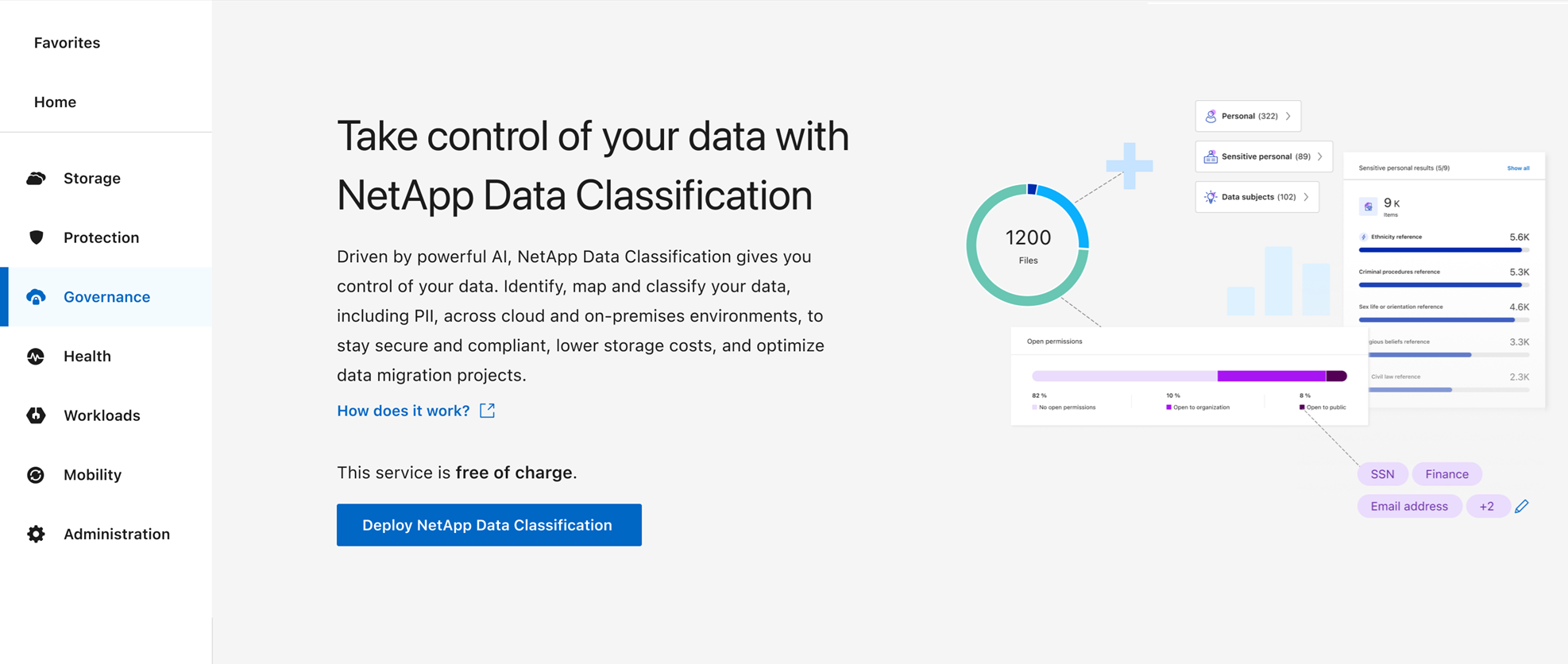
From Data Classification, select Deploy Classification On-Premises or Cloud.
-
Select Deploy to start the on-prem installation.
-
The Deploy Data Classification On Premises dialog is displayed. Copy the provided command (for example:
sudo ./install.sh -a 12345 -c 27AG75 -t 2198qq --darksite) and paste it in a text file so you can use it later. Then select Close to dismiss the dialog. -
On the host machine, enter the command you copied and then follow a series of prompts, or you can provide the full command including all required parameters as command line arguments.
Note that the installer performs a pre-check to make sure your system and networking requirements are in place for a successful installation.
Enter parameters as prompted: Enter the full command: -
Paste the information you copied from step 8:
sudo ./install.sh -a <account_id> -c <client_id> -t <user_token> --darksite -
Enter the IP address or host name of the Data Classification host machine so it can be accessed by the Console agent system.
-
Enter the IP address or host name of the Console agent host machine so it can be accessed by the Data Classification system.
Alternatively, you can create the whole command in advance, providing the necessary host parameters:
sudo ./install.sh -a <account_id> -c <client_id> -t <user_token> --host <ds_host> --manager-host <cm_host> --no-proxy --darksiteVariable values:
-
account_id = NetApp Account ID
-
client_id = Console agent Client ID (add the suffix "clients" to the client ID if it not already there)
-
user_token = JWT user access token
-
ds_host = IP address or host name of the Data Classification system.
-
cm_host = IP address or host name of the Console agent system.
-
The Data Classification installer installs packages, registers the installation, and installs Data Classification. Installation can take 10 to 20 minutes.
If there is connectivity over port 8080 between the host machine and the Console agent instance, you'll see the installation progress in the Data Classification tab.
From the Configuration page you can select the local on-prem ONTAP clusters and databases that you want to scan.
Upgrade Data Classification software
Since Data Classification software is updated with new features on a regular basis, you should get into a routine to check for new versions periodically to make sure you're using the newest software and features. You'll need to upgrade Data Classification software manually because there's no internet connectivity to perform the upgrade automatically.
-
We recommend that your Console agent software is upgraded to the newest available version. See the Console agent upgrade steps.
-
Starting with Data Classification version 1.24 you can perform upgrades to any future version of software.
If your Data Classification software is running a version prior to 1.24, you can upgrade only one major version at a time. For example, if you have version 1.21.x installed, you can upgrade only to 1.22.x. If you are a few major versions behind, you'll need to upgrade the software multiple times.
-
On an internet-configured system, download the Data Classification software from the NetApp Support Site. The file you should select is named DataSense-offline-bundle-<version>.tar.gz.
-
Copy the software bundle to the Linux host where Data Classification is installed in the dark site.
-
Unzip the software bundle on the host machine, for example:
tar -xvf DataSense-offline-bundle-v1.25.0.tar.gzThis extracts the installation file cc_onprem_installer.tar.gz.
-
Unzip the installation file on the host machine, for example:
tar -xzf cc_onprem_installer.tar.gzThis extracts the upgrade script start_darksite_upgrade.sh and any required third-party software.
-
Run the upgrade script on the host machine, for example:
start_darksite_upgrade.sh
The Data Classification software is upgraded on your host. The update can take 5 to 10 minutes.
You can verify that the software has been updated by checking the version at the bottom of the Data Classification UI pages.