


Conduct a ransomware attack readiness drill in NetApp Ransomware Resilience


 Suggest changes

 PDFs
PDFs
Run a ransomware attack readiness drill in NetApp Ransomware Resilience to test your readiness for a real ransomware attack. With the readiness drill, Ransomware Resilience simulates an attack on a new sample workload, allowing you to investigate the simulated attack and perform a recovery without impacting your real production data. The readiness drill helps familiarize you with alert notifications and prepare you for response and recovery. You can run the drill as frequently as you need.
You can run readiness drills on NFS and CIFS (SMB) workloads.
How readiness drills work
Ransomware Resilience supports three types of drills: clean restore, custom recovery, and data breach recovery. Clean restore and custom recovery drills simulate encryption (entropy)-based attacks and differ in the recovery method that they offer. Data breach recovery drills simulate exfiltration with unusual read patterns on your data.
When you configure a readiness drill, Ransomware Resilience creates a test volume, applies ransomware protection with a snapshot policy to the volume, validates connectivity, mounts the volume, copies baseline data, unmounts the volume, and creates a baseline snapshot.
When you initiate the drill, Ransomware Resilience mounts the volume then simulates a ransomware attack. If the readiness drill is for custom recovery or clean restore, the baseline data of the test volume is replaced with file extensions known to be ransomware and encrypted/entropy-modified files. For a data breach recovery drill, files are not replaced; instead, Ransomware Resilience mimics an attacker systematically reading and exfiltrating data. Regardless of the drill type, Ransomware Resilience then triggers an alert and verifies that the alert was generated successfully.
When you run the drill, you can test your response to alerts and optionally walk through the recovery process without impacting real data.
Configure a ransomware attack readiness drill
Before running a simulation, you must configure the readiness drill. You must create the readiness drill for a specific type of ransomware attack. Ransomware Resilience recognizes five types of attacks:
| Attack type | Description |
|---|---|
Encryption (entropy) |
Ransomware Resilience recognizes abnormal IOPS patterns, data entropy, and non-standard file suffixes. |
Encryption (user behavior) |
Ransomware Resilience identifies anomalous file read, write, and renaming activity performed by a specific user. |
Data breach |
Ransomware Resilience detects anomalous file read access patterns performed by a specific user. |
Data destruction |
Ransomware Resilience discovers mass deletion of files by a specific user. |
Suspicious user behavior |
Ransomware Resilience identifies anomalous behavior beyond the scope of data breach, data destruction, or encryption. |

|
You must configure user activity detection to detect encryption (user behavior), data breach, data destruction, and suspicious user behavior attacks. |
Required Console role
To perform this task, you need the Super admin or Ransomware Resilience admin role. Learn about Ransomware Resilience roles for NetApp Console.
-
To configure a readiness drill for any ransomware attack type other than encryption (entropy), you must have configured user activity detection.
-
When you create a readiness drill for a CIFS workload, you must enter user credentials. You should create a dedicated, non-production test user for readiness drills, especially when testing user activity attack types (that is, data breach). If you use a real production user and that user has suspicious behavior on other production volumes, those alerts could appear under the readiness drill instead of generating a real alert.
-
In Ransomware Resilience, select Settings.
-
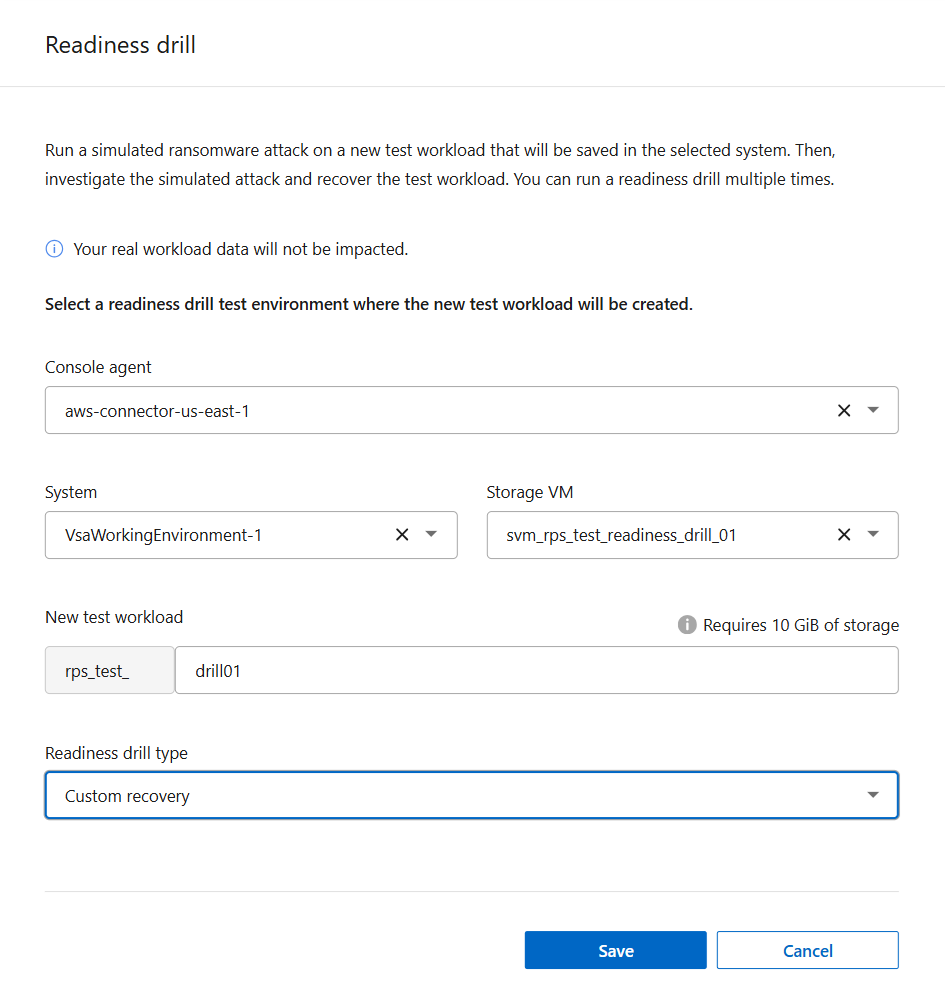
In the Readiness drill card on the Settings page, select Configure.
-
Select the Ransomware attack type.
-
Choose the environment where the readiness drill test will be created.
-
Choose the Console agent and Primary system.
-
After choosing the primary system, choose the Storage VM from the prepopulated list.
-
If the storage VM uses the CIFS protocol, enter the Active Directory credentials. You can optionally enter the Active Directory domain; you must enter the User name and Password. It's recommended you enter credentials for a dedicated test user.
-
Provide a name for the New test workload. The test workload will be prepended with
rps_test_. -
If the readiness drill is for a user activity attack type, select the User activity agent for the drill environment.
-
-
Select Save.

|
You can edit the readiness drill configuration later from the Settings page. |
Start a readiness drill
After you configure the readiness drill, you can start the drill.
Required Console role
To perform this task, you need the Super admin or Ransomware Resilience admin role. Learn about Ransomware Resilience roles for NetApp Console.
-
In Ransomware Resilience, select Settings.
-
In the Settings page, select Start.
|
|
You can't edit the readiness drill configuration while the drill is running. To modify the readiness drill, select Reset, then edit the drill. |
Respond to a readiness drill alert
Test your readiness by responding to a readiness drill alert.
Required Console role
To perform this task, you need the Super admin or Ransomware Resilience admin role. Learn about Ransomware Resilience roles for NetApp Console.
-
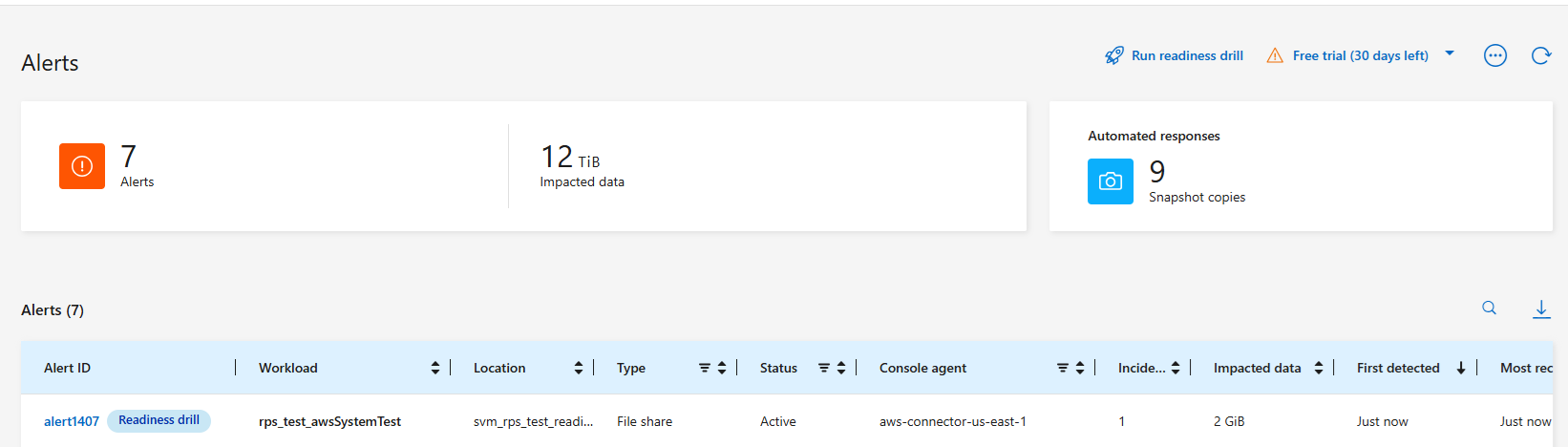
From the Ransomware Resilience menu, select Alerts.
-
Select the alert with the "Readiness drill" indication. A list of incident alerts appears on the Alerts details page.
-
Review the alert incidents.
-
Select an alert incident.
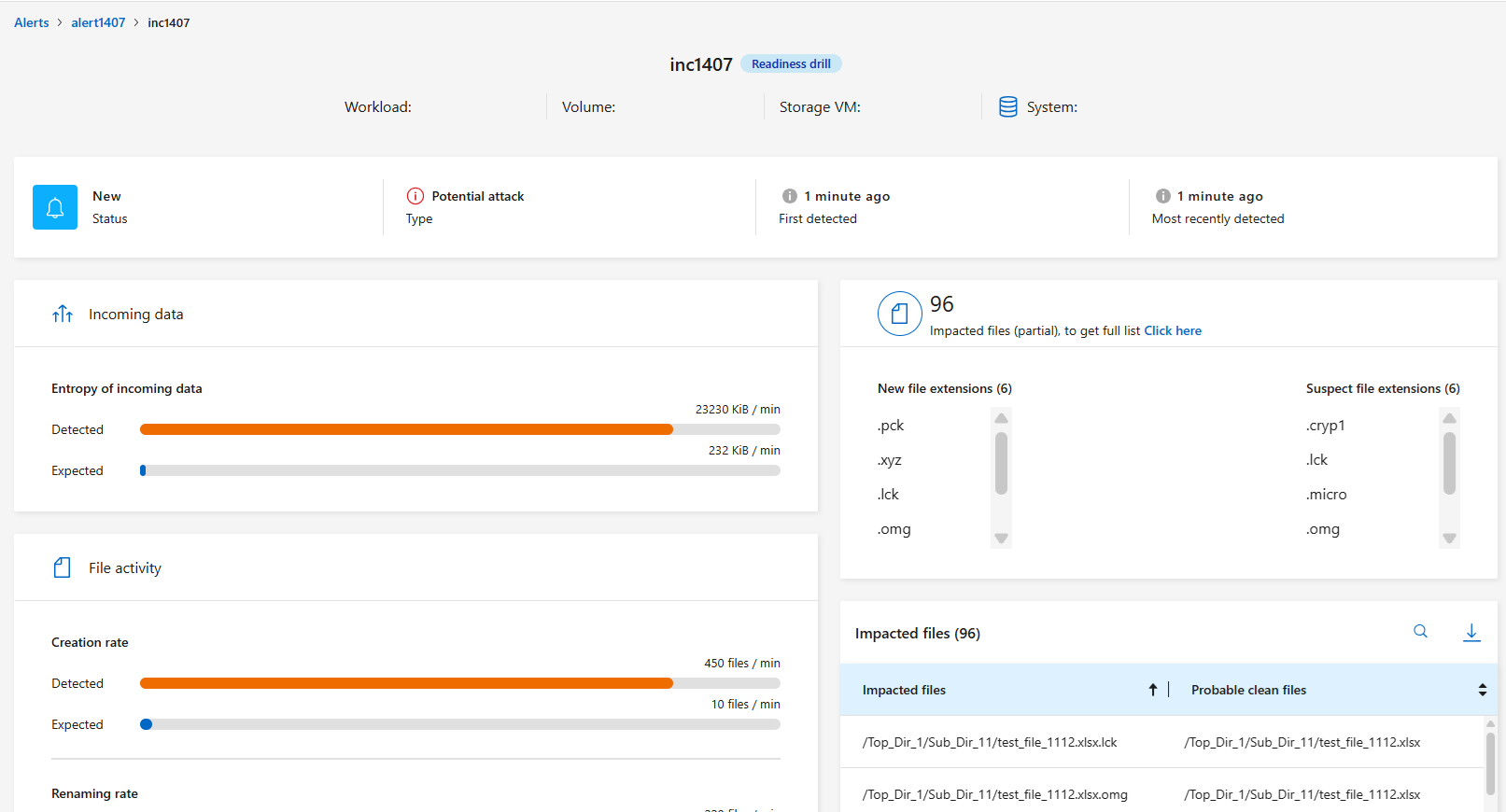
When reviewing the incident, consider:
-
The potential attack severity.
If the severity indicates that a user is suspected of malicious activity, review the user name. You can also block the user.
-
Review the file activity and suspected processes:
-
Look at the incoming detected data compared to the expected data.
-
Look at the creation rate of files that is detected compared to the expected rate.
-
Look at the file renaming rate that is detected compared to the expected rate.
-
Look at the deletion rate compared to the expected rate.
-
-
Look at the list of impacted files. Look at the extensions that might be causing the attack.
-
Determine the impact and breadth of the attack by reviewing the number of impacted files and directories.
Restore the test workload
After reviewing the readiness drill alert, restore the test workload if needed.
Required Console role
To perform this task, you need the Super admin or Ransomware Resilience admin role. Learn about Ransomware Resilience roles for NetApp Console.
-
Return to the Alert details page.
-
If the test workload should be restored, select Mark restore needed then select that button again in the confirmation dialog.
-
From the Ransomware Resilience menu, select Recovery.
-
Select the test workload marked with the "Readiness drill" tag that you want to restore.
-
Select Restore.
-
Follow the instructions for the recovery style you've configured:
Change the alert status after the readiness drill
After reviewing the readiness drill alert and restoring the workload, change the alert status if needed.
Required Console role
Organization admin, Folder or project admin, or Ransomware Resilience admin. Learn about Console access roles for all services.
-
Return to the Alert details page.
-
Select the alert again.
-
Indicate the status by selecting Edit next to the status. Change the status to one of the following:
-
Dismissed: If you suspect that the activity is not a ransomware attack, change the status to Dismissed.

After you dismiss an attack, you cannot change it back. If you dismiss a workload, all snapshot copies taken automatically in response to the potential ransomware attack will be permanently deleted. If you dismiss the alert, the readiness drill is considered complete. -
Resolved: The incident has been mitigated.
-
Review reports on the readiness drill
After the readiness drill is complete, you can generate and save a report on the drill. The drill report is a JSON file that captures information such as the detection policy, the alert type and timestamp, details of the attack, and recovery status.
Required Console role
To perform this task, you need the Super admin, Ransomware Resilience admin, or Ransomware Resilience viewer role. Learn about Ransomware Resilience roles for NetApp Console.
-
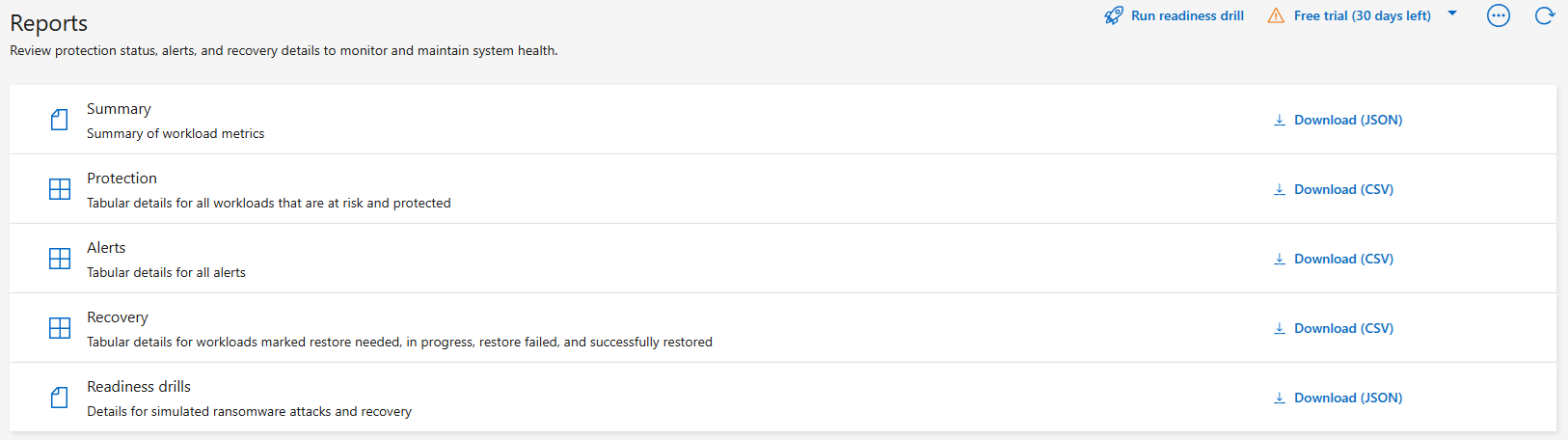
From the Ransomware Resilience menu, select Reports.
-
Select Readiness drills and Download to download the readiness drill report.